# 2. Getting started

# First steps

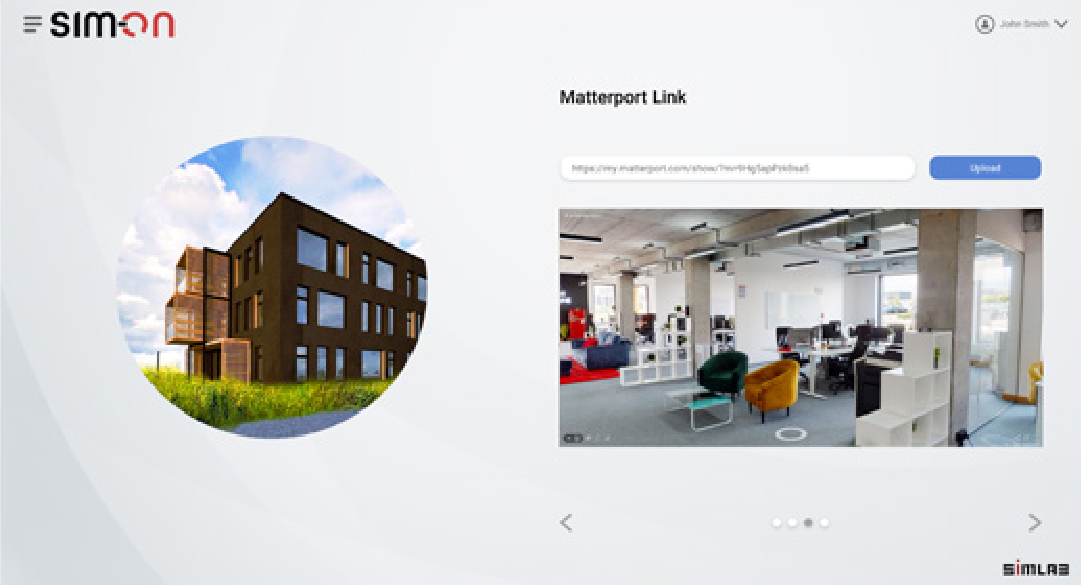
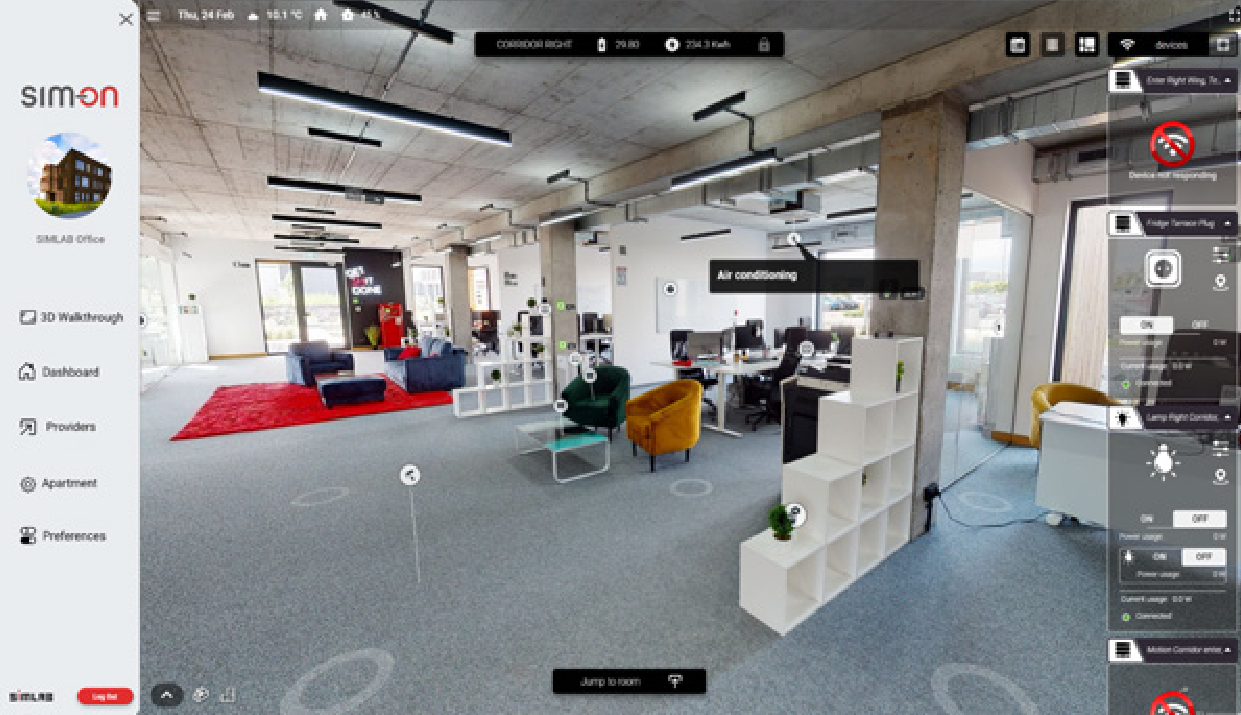
Using SIM-ON is simple. It all starts with capturing a space for your project with a phone or a dedicated scanner. After creating an account and linking your project you can add the IoT devices and start using the full functionality of SIM-ON.

  
![gettingstarted_1.png](https://docs.sim-on.com/uploads/images/gallery/2024-07/scaled-1680-/gettingstarted-1.png)

Don't have a scan? Contact **Matterport Service Provider** or scan the space yourself with your phone and a dedicated app:   
<span style="color: rgb(53, 152, 219);">**[for Android](https://play.google.com/store/apps/details?id=com.matterport.android.capture)**</span> or <span style="color: rgb(53, 152, 219);">**[iOS devices](https://apps.apple.com/us/app/matterport/id701086043)**</span>.

Having trouble with your first scan?   
Watch these quick tutorials on how to capture a space with and **Android** or **iOS** devices and **Matterport app** you downloaded.

<table border="1" id="bkmrk-watch-a-quick-tutori" style="border-collapse: collapse; width: 100%; height: 237.4px; border-width: 0px;"><colgroup><col style="width: 50%;"></col><col style="width: 50%;"></col></colgroup><tbody><tr style="height: 237.4px;"><td style="height: 237.4px; border-width: 0px;"><iframe allowfullscreen="allowfullscreen" height="219" src="https://www.youtube.com/embed/Mt2K-2lpvwU" style="width: 393px; height: 219px;" width="393"></iframe>

</td><td style="height: 237.4px; border-width: 0px;"><iframe allowfullscreen="allowfullscreen" height="218" src="https://www.youtube.com/embed/PCm77XBDapk" style="width: 397px; height: 218px;" width="397"></iframe>

</td></tr></tbody></table>

When you're ready to create your first project in SIM-ON, be sure to check out:

- <span style="color: rgb(53, 152, 219);">[**App overview**](https://docs.sim-on.com/books/3-app-overview "App overview")</span> where you'll find detailed descriptions of the user interface, options, and functions to help you understand what SIM-ON is and where you can find the options you need.
- <span style="color: rgb(53, 152, 219);">[**Project setup**](https://docs.sim-on.com/books/2-getting-started/chapter/project-setup "Project Setup")</span> where we'll guide you through the process of creating a new project with examples and detailed explanations.

---

If you want to know how things work in SIM-ON, you can browse through our official playlist of tutorials we prepared.

<iframe allow="accelerometer; autoplay; clipboard-write; encrypted-media; gyroscope; picture-in-picture; web-share" allowfullscreen="allowfullscreen" frameborder="0" height="448" src="https://www.youtube.com/embed/aGVt1TTIv1k?list=PLIu8PkihC2ASHubbLyy4_RubIxRKON2U1" style="width: 799px; height: 448px;" title="SIM-ON -  Property operating system / Matterport digital twin / IoT / Assets / Facility management" width="799"></iframe>

Click on the image to see the whole playlist with useful tips and tricks on how to use SIM-ON.

# Project Setup

Go through each step of SIM-ON space creation

# Setup types

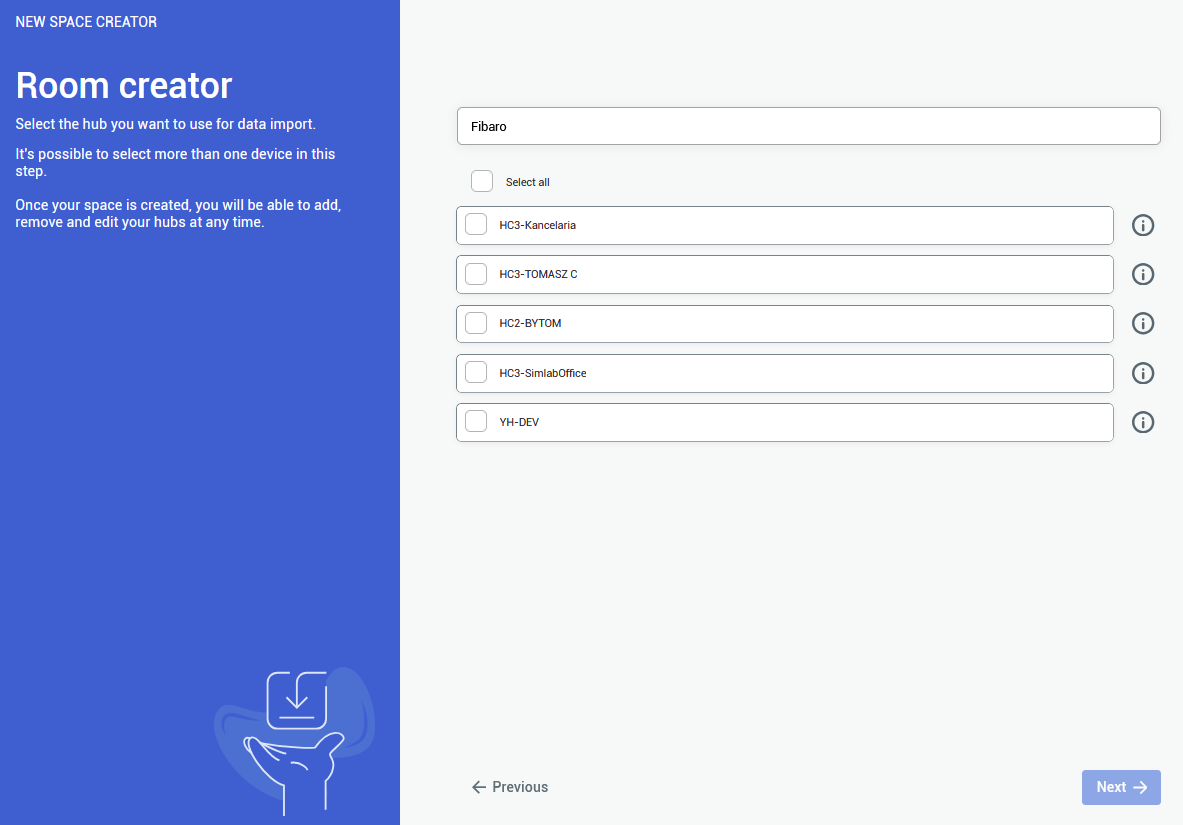
After creating new project, the next step is to select the setup method.

   
There are two methods of setting up the new space. You can create a visualization of your space based on a Matterport link or import one of your Stages from the Stages application.

#### **Matterport**

<table border="1" id="bkmrk-%C2%A0-by-selecting-the-m" style="border-collapse: collapse; width: 100%; border-width: 0px;"><colgroup><col style="width: 76.6667%;"></col><col style="width: 23.3333%;"></col></colgroup><tbody><tr><td style="border-width: 0px;">![image.png](https://docs.sim-on.com/uploads/images/gallery/2025-03/scaled-1680-/g1Simage.png)

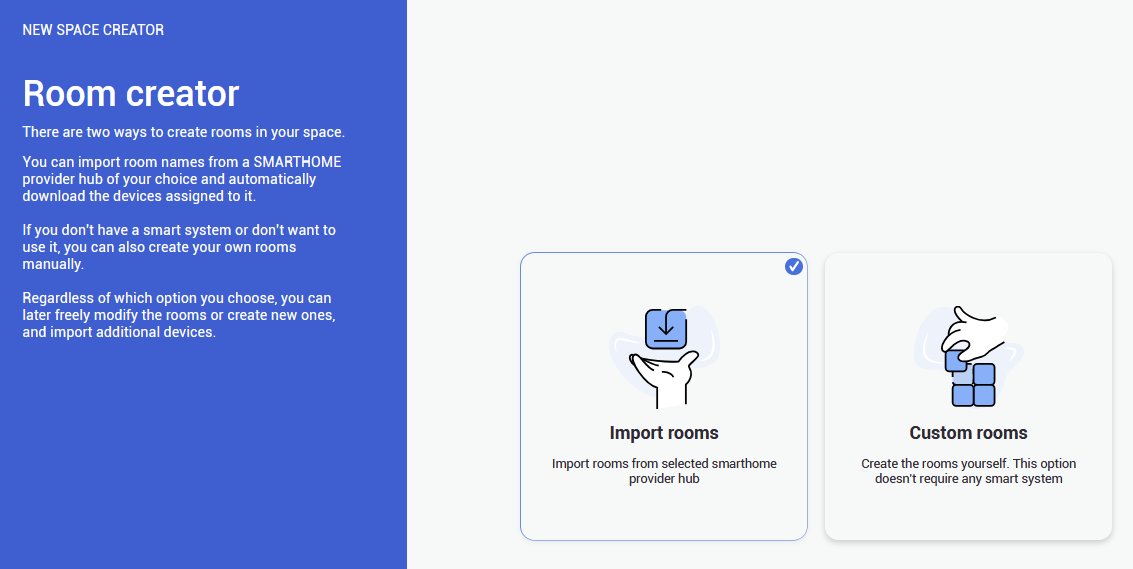
By selecting **Matterport**, you’ll be asked if you want to import rooms for your space from a selected smart home provider or create rooms yourself, then follow up with Matterport scan Linking.

</td><td style="border-width: 0px;">  
  
</td></tr></tbody></table>

####  **NavVis**

<table border="1" id="bkmrk-%C2%A0-by-selecting-the-n" style="border-collapse: collapse; width: 100%; border-width: 0px;"><colgroup><col style="width: 76.6667%;"></col><col style="width: 23.3333%;"></col></colgroup><tbody><tr><td style="border-width: 0px;">![image.png](https://docs.sim-on.com/uploads/images/gallery/2025-03/scaled-1680-/pPPimage.png)

By selecting the **NavVis**, you’ll be asked if you want to import rooms for your space from a selected smart home provider or create rooms yourself, then follow up with NavVis scan Linking.

</td><td style="border-width: 0px;">  
  
</td></tr></tbody></table>

####  **Stages** 


<table border="1" id="bkmrk-%C2%A0-by-selecting-the-s" style="border-collapse: collapse; width: 100%; border-width: 0px;"><colgroup><col style="width: 76.6391%;"></col><col style="width: 23.3609%;"></col></colgroup><tbody><tr><td style="border-width: 0px;">
![image.png](https://docs.sim-on.com/uploads/images/gallery/2025-03/scaled-1680-/LpDimage.png)

  
By selecting the Stages, you’ll be asked if you want to import rooms for your space from a selected smart home provider or create rooms yourself.

</td><td style="border-width: 0px;">  
</td></tr></tbody></table>


<p class="callout info">Space import process is the same for each of the setting up methods -   
you can import rooms automatically or create custom rooms yourself</p>


####  **Space import**

<table border="1" id="bkmrk-matterport-by-select" style="border-collapse: collapse; width: 100%; height: 915.099px; border-width: 0px;"><colgroup><col style="width: 50.0516%;"></col><col style="width: 50.0516%;"></col></colgroup><tbody><tr style="height: 484.833px;"><td style="height: 484.833px; border-width: 0px;">**![setup matterport import rooms 2.png](https://docs.sim-on.com/uploads/images/gallery/2024-07/6j9setup-matterport-import-rooms-2.png)**

- Automatic room import - you need to choose the provider, log in to your account and your rooms will be imported according to the provider you choose. All devices will be imported automatically too.




![setup matterport provider 7.png](https://docs.sim-on.com/uploads/images/gallery/2024-07/scaled-1680-/setup-matterport-provider-7.png)![setup matterport provider 6.png](https://docs.sim-on.com/uploads/images/gallery/2024-07/scaled-1680-/setup-matterport-provider-6.png)![setup matterport provider 4.png](https://docs.sim-on.com/uploads/images/gallery/2024-07/scaled-1680-/setup-matterport-provider-4.png)![setup matterport provider 5a.png](https://docs.sim-on.com/uploads/images/gallery/2024-07/scaled-1680-/setup-matterport-provider-5a.png)

</td><td style="height: 484.833px; border-width: 0px;">![setup matterport custom rooms 3.png](https://docs.sim-on.com/uploads/images/gallery/2024-07/scaled-1680-/xgVsetup-matterport-custom-rooms-3.png)

- Manual room setup - you need to enter names of the rooms you want to add. It will create a list of rooms that you’ll be able to assign in the 3D walk.
- After naming all rooms (*or part of them, you can always add/modify/remove rooms later*), you can click on the ![NEXT.png](https://docs.sim-on.com/uploads/images/gallery/2024-07/scaled-1680-/next.png) button and paste Matterport link or log in to your Matterport account to select the space you want to use. After clicking ![NEXT.png](https://docs.sim-on.com/uploads/images/gallery/2024-07/scaled-1680-/next.png) and checking if the summary looks okay, you can click confirm.


<p class="callout info">Learn more about creating rooms **<span style="color: rgb(53, 152, 219);">[here](https://docs.sim-on.com/books/3-app-overview/page/rooms "Room Setup")</span>**</p>

</td></tr></tbody></table>

Follow the upcoming pages to learn about each of the setup methods in detail.

# Matterport method

![image.png](https://docs.sim-on.com/uploads/images/gallery/2025-03/scaled-1680-/Wk2image.png)

By selecting **Matterport** you will begin space creation based on the **Matterport** **scan.**

<p class="callout success">If you already have a **Stages project** set up, it is recommended to use the <span style="color: rgb(53, 152, 219);">[<span style="text-decoration: underline;">**STAGES METHOD**</span>](https://docs.sim-on.com/books/2-getting-started/page/stages-method)</span></p>

<p class="callout info">The process is the same for all Providers **SIM-ON** works with. For the presentation purposes, we will be using [<span style="text-decoration: underline; color: rgb(53, 152, 219);">**Fibaro (NICE)**</span>](https://docs.sim-on.com/books/2-getting-started/page/fibaro) and present the whole process of adding a new space with importing devices, setting sweeps to rooms and adding and renaming the devices for the space</p>

---

#### **Importing rooms**

<p class="callout info">If you do not have a smart home system that we support, or any smart system at this time, use the <span style="color: rgb(53, 152, 219);">**[Custom room creation](https://docs.sim-on.com/link/128#bkmrk-custom-rooms-1)**</span></p>

![obraz.png](https://docs.sim-on.com/uploads/images/gallery/2024-08/scaled-1680-/qdiobraz.png)

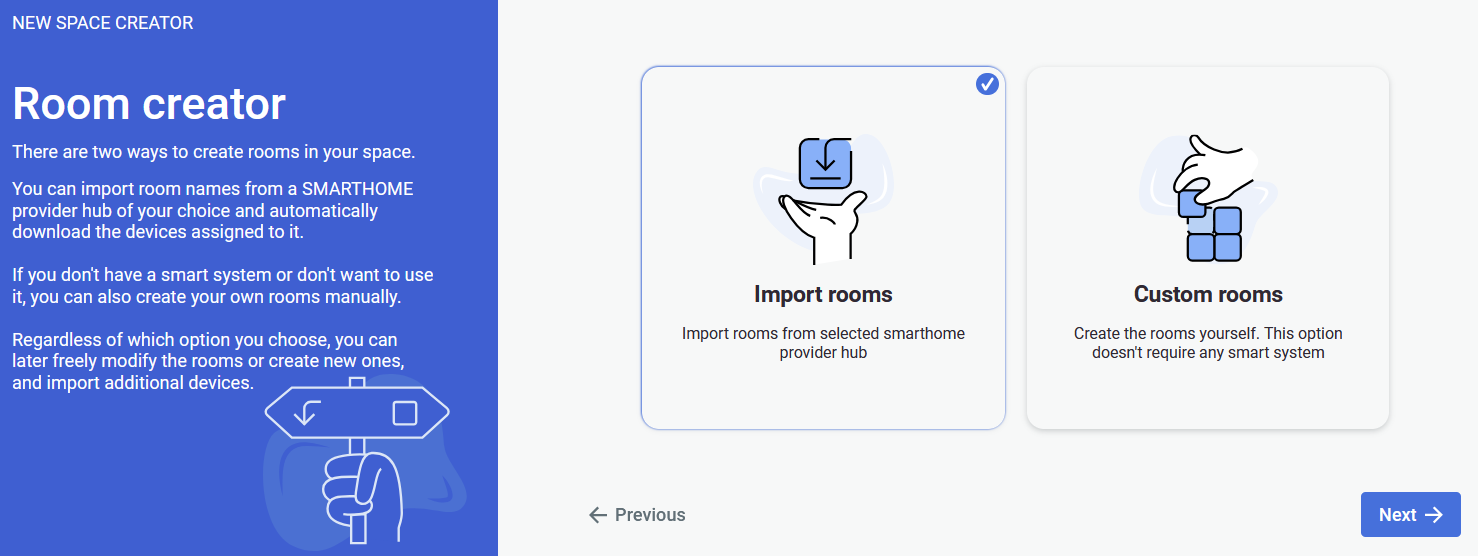
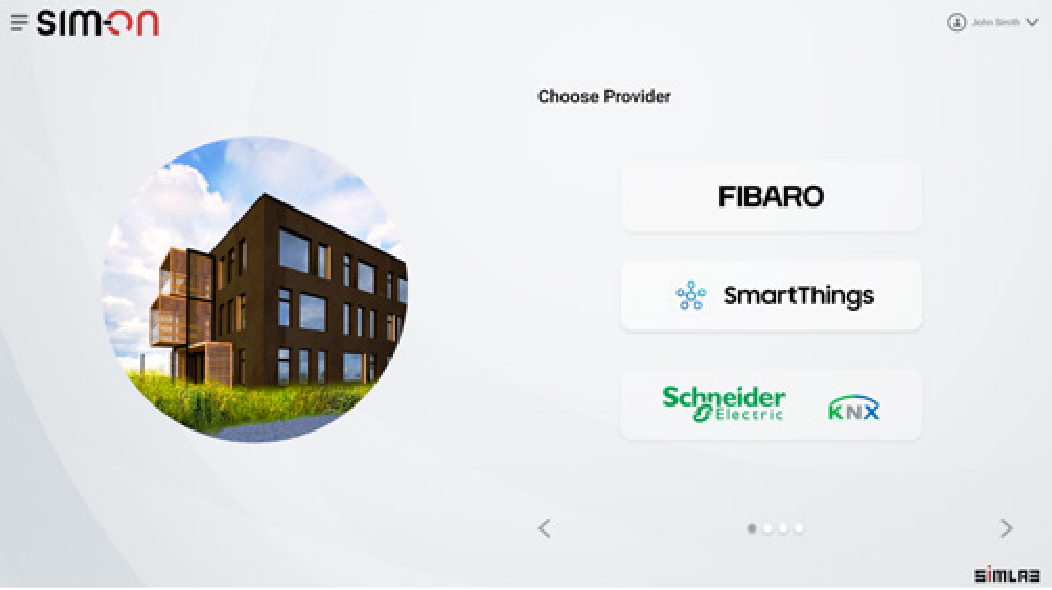
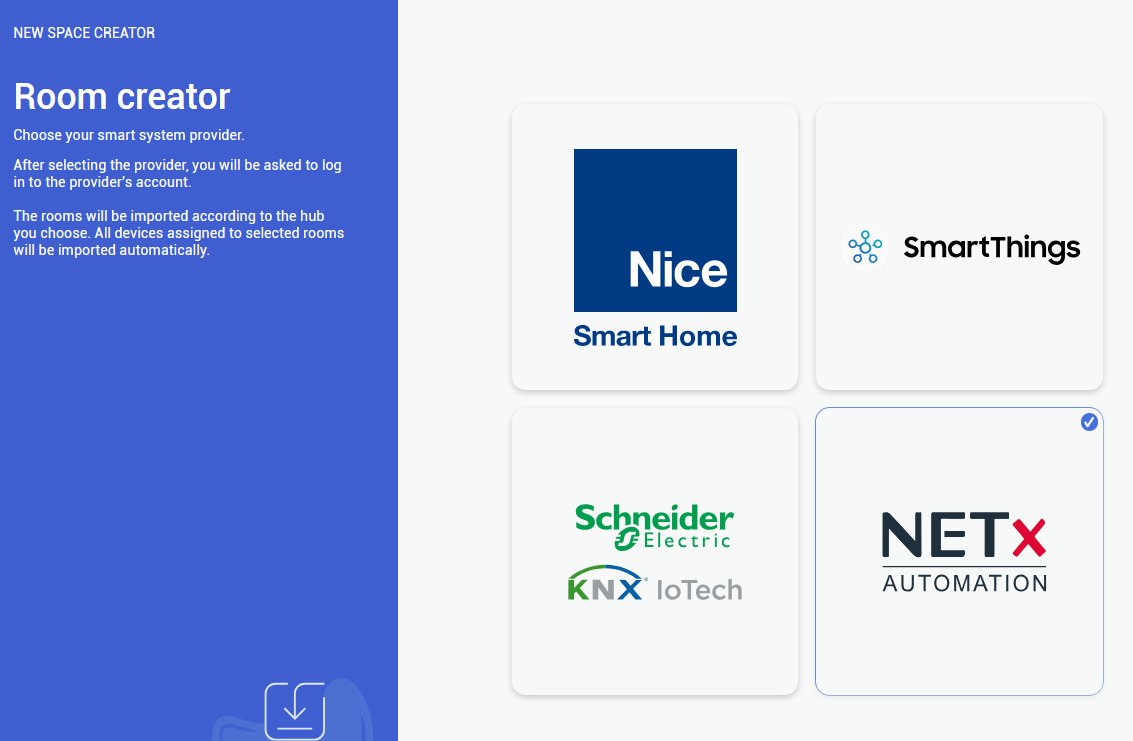
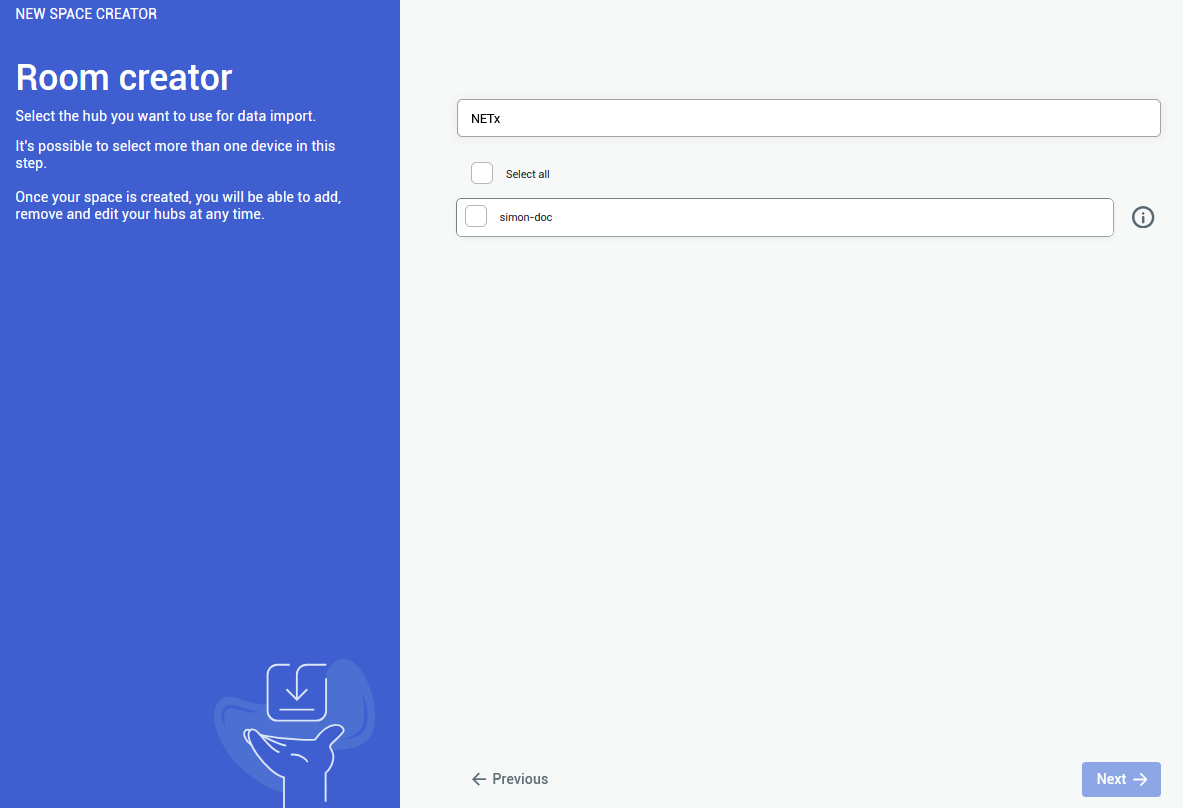
Selecting the **Import rooms** option will open a SMARTHOME provider selection window, where you will be asked to choose a provider. We will be using Fibaro as our provider.

Currently supported providers are:  
<span style="color: rgb(53, 152, 219);">**[KNX - project setup](https://docs.sim-on.com/books/2-getting-started/page/knx-image-change)**</span><span style="color: rgb(53, 152, 219);"> **[SmartThings - project setup](https://docs.sim-on.com/books/2-getting-started/page/smartthings "Project Setup - SmartThings example")** </span><span style="color: rgb(53, 152, 219);">**[NICE (Fibaro) - project setup](https://docs.sim-on.com/books/2-getting-started/page/fibaro-text-changes "Project setup - Fibaro")**</span><span style="color: rgb(53, 152, 219);"> **[NETX - project setup](https://docs.sim-on.com/books/2-getting-started/page/netx "Project setup - NETX example")**</span>

![obraz.png](https://docs.sim-on.com/uploads/images/gallery/2024-08/scaled-1680-/5D2obraz.png)

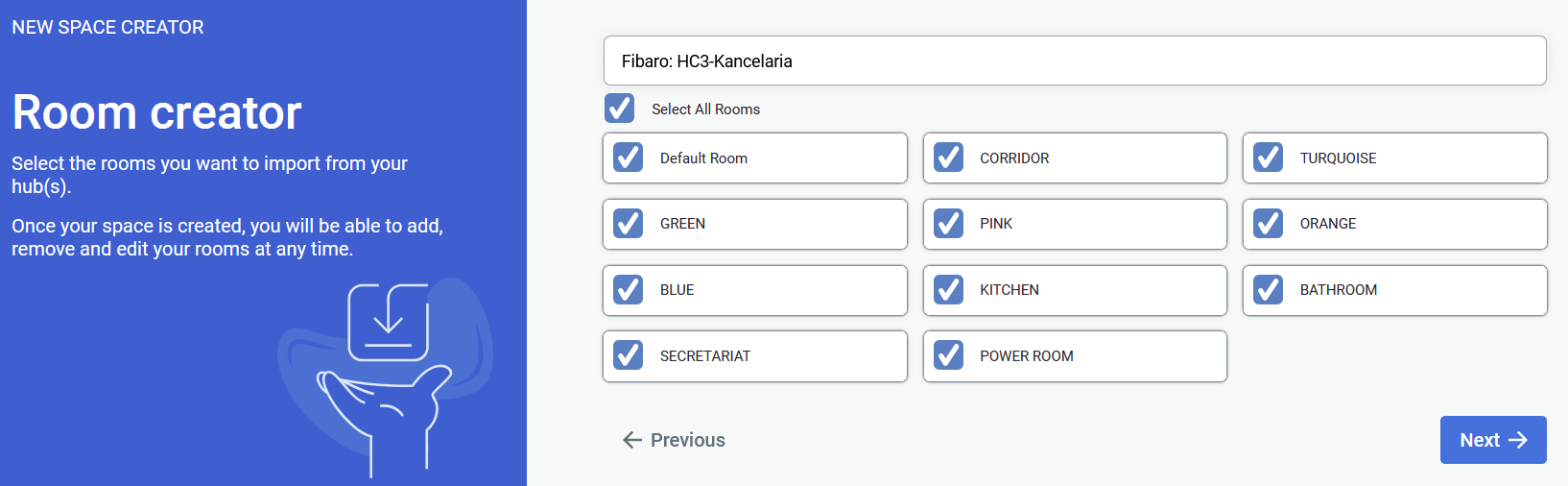
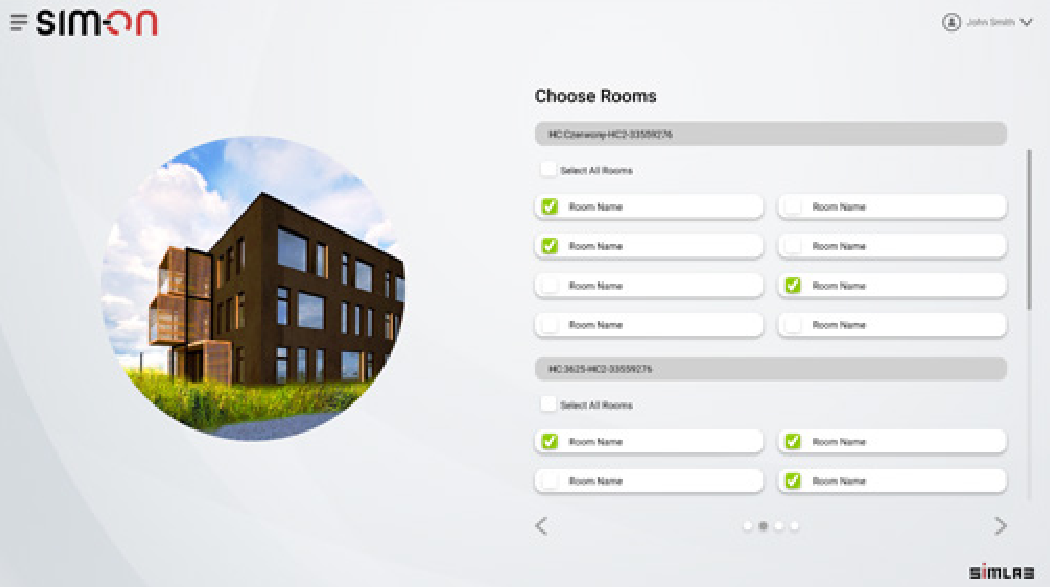
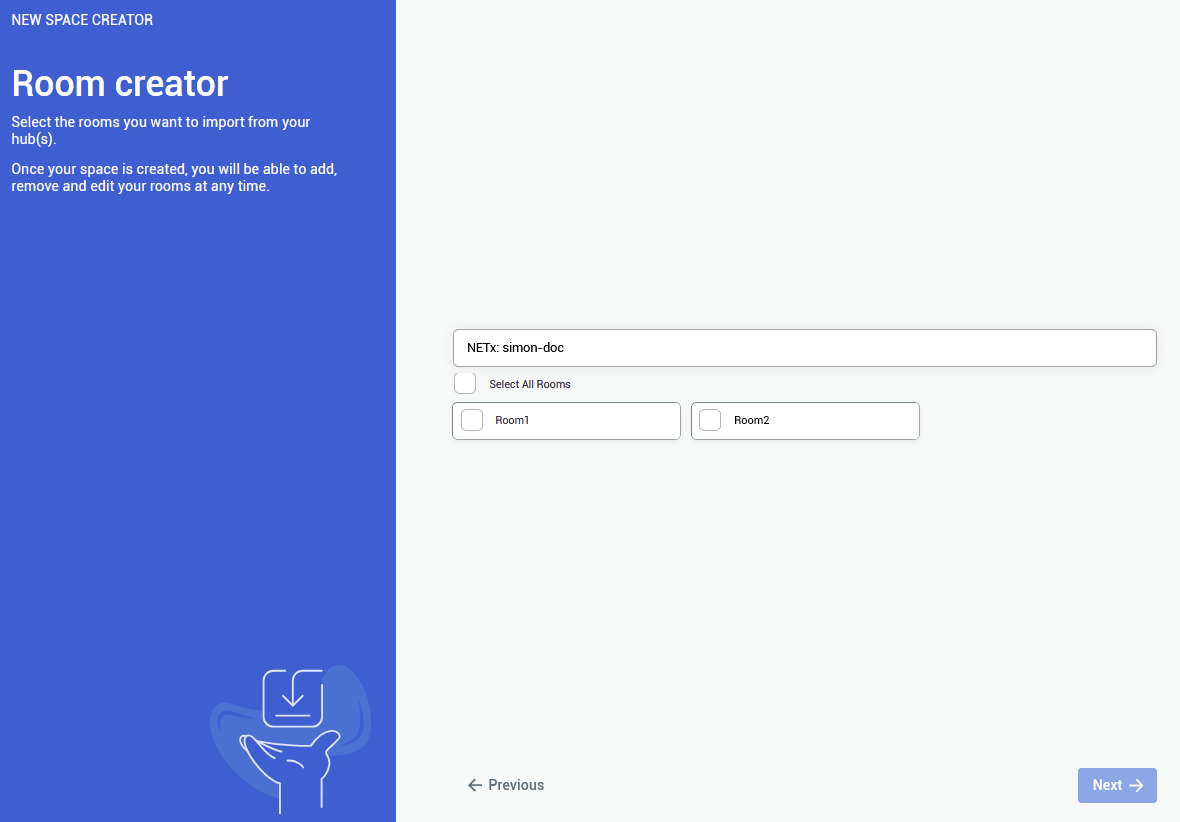
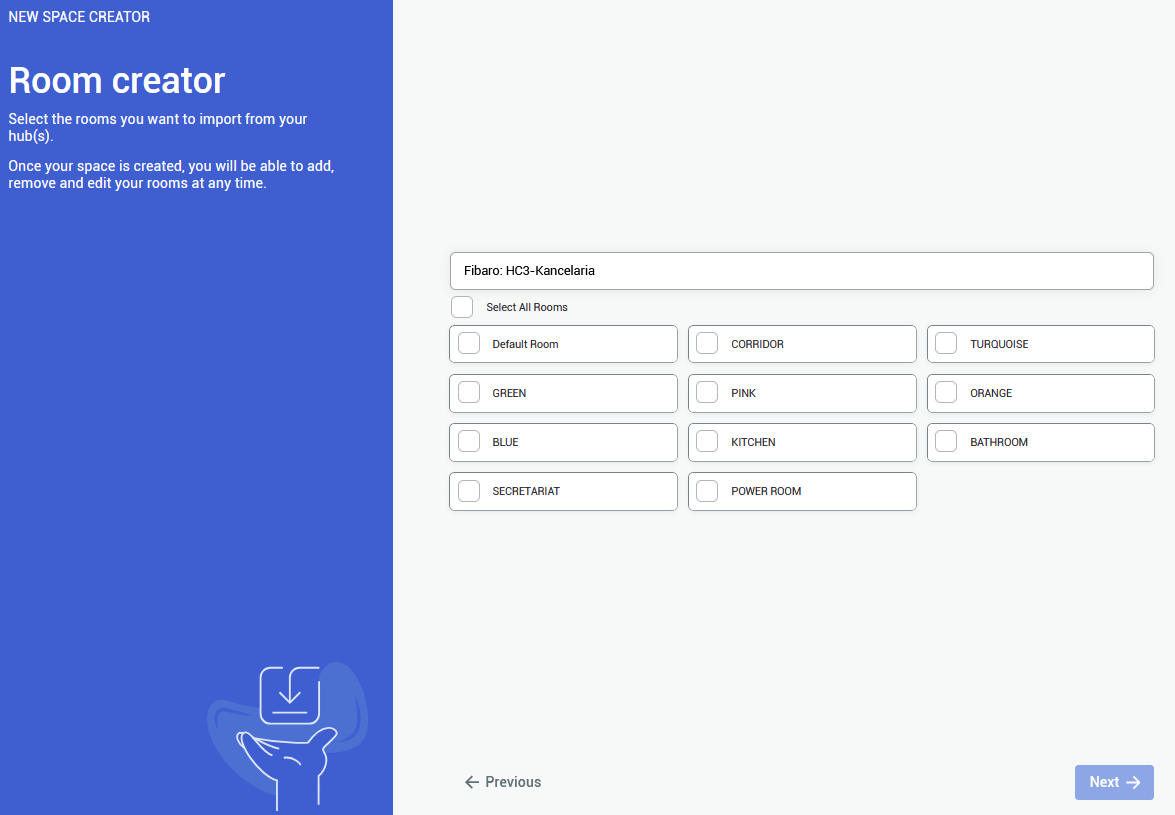
After selecting your smarthome provider and logging into your account you will see a list of available rooms to choose from for an automatic import.

<p class="callout warning">At least a single room has to be selected to proceed</p>

<span style="color: rgb(241, 196, 15);">**![obraz.png](https://docs.sim-on.com/uploads/images/gallery/2024-08/scaled-1680-/GBcobraz.png)**</span>

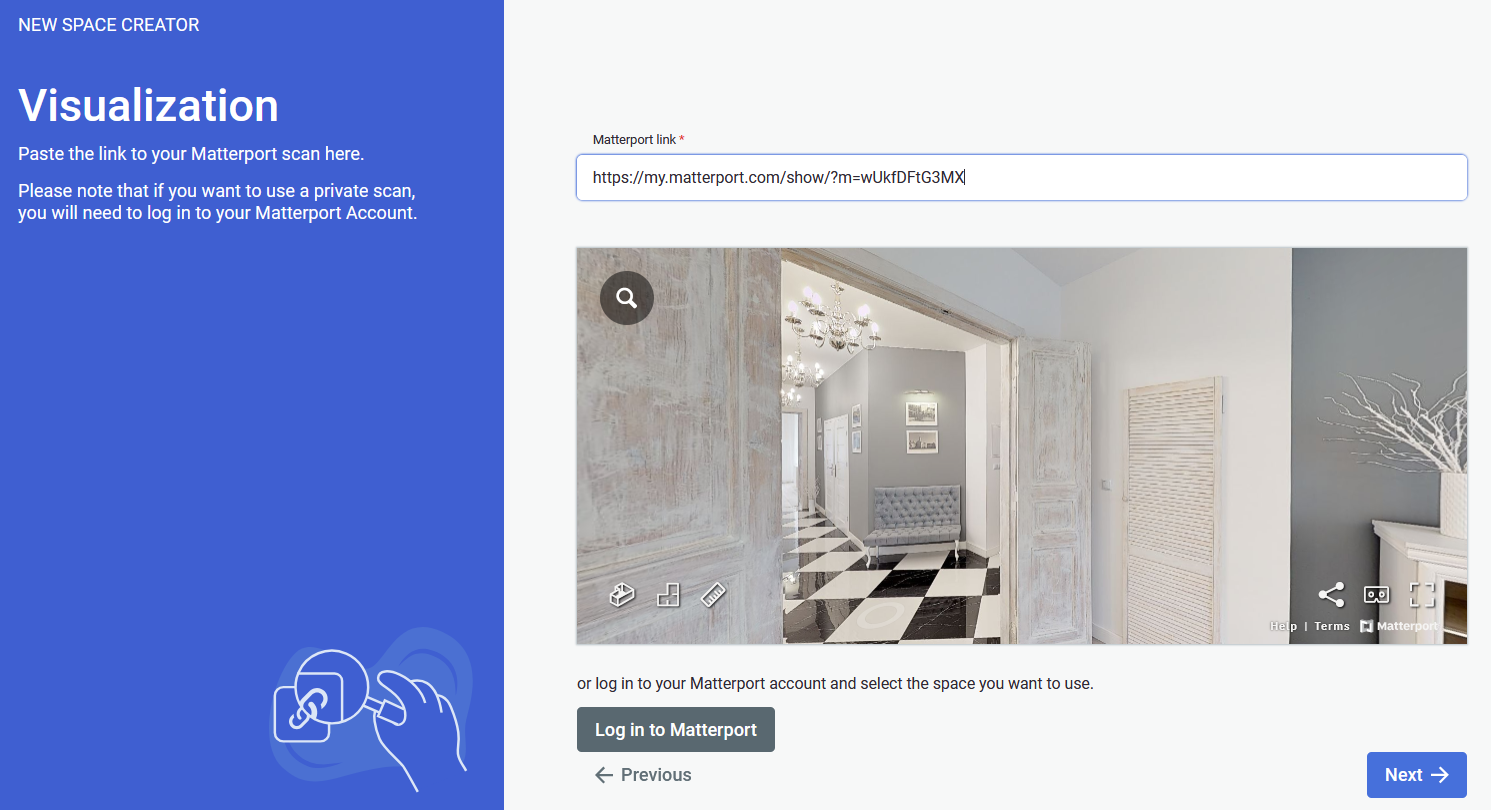
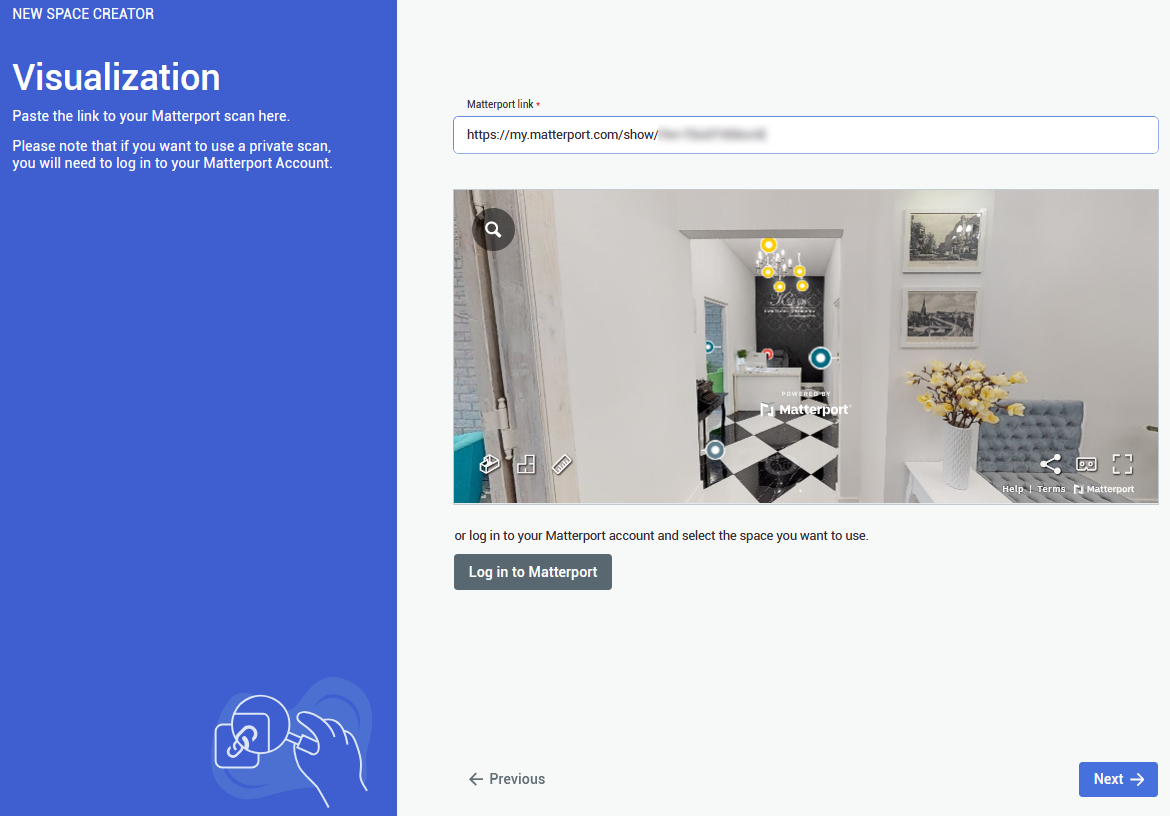
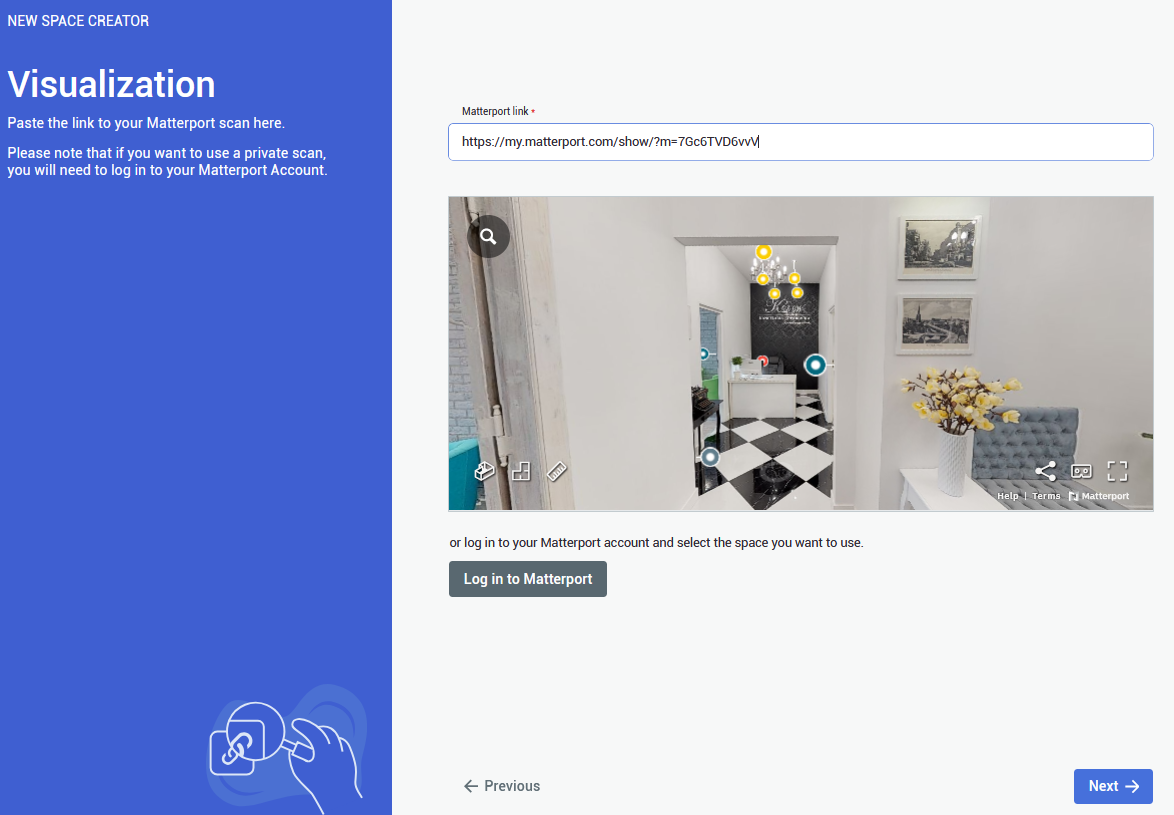
After completing your choice of rooms you will be prompted to provide a link to the **Matterport** virtual tour scan.

<p class="callout warning">If the link to your scan is private, you will need to log in into your Matterport account</p>

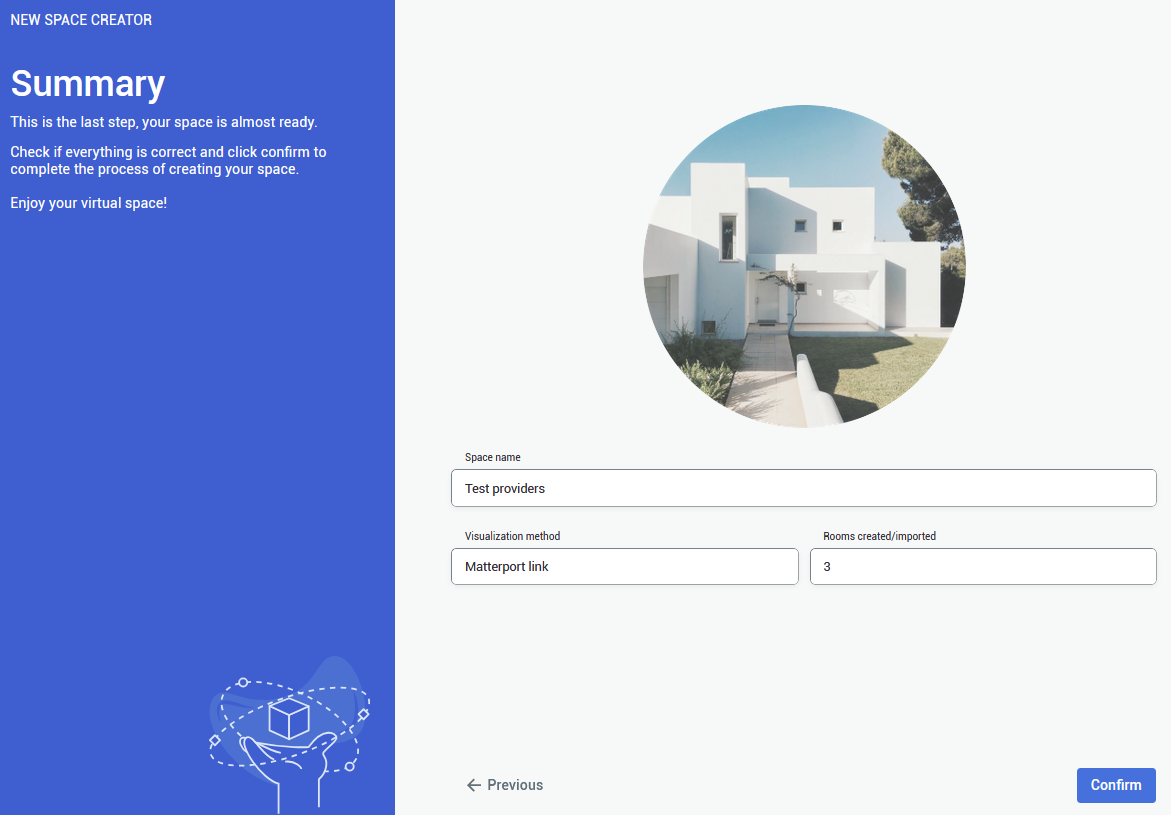
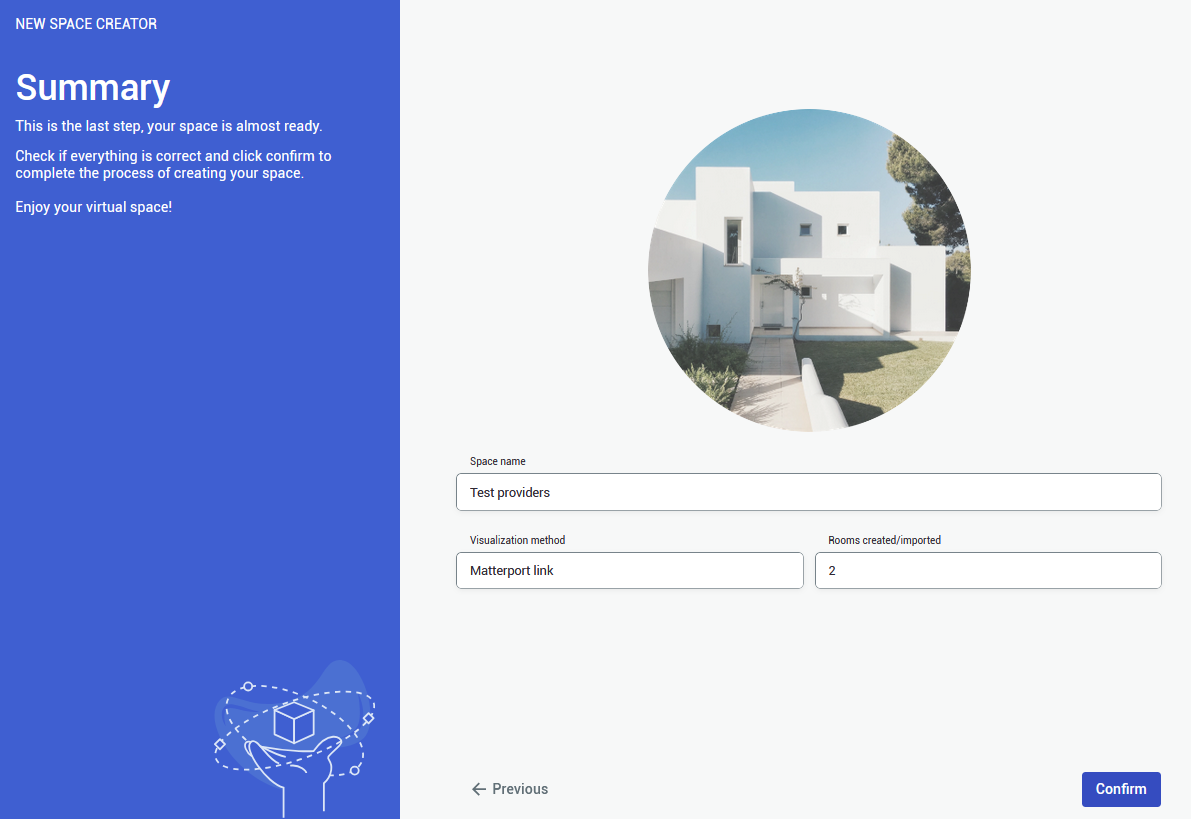
Lastly you will be asked to check if everything is correct and you can start working on your project.

---

#### **Custom rooms**

<p class="callout info">Custom rooms do not require any smart system, so if you plan to add one in the future, this option will work best for you</p>

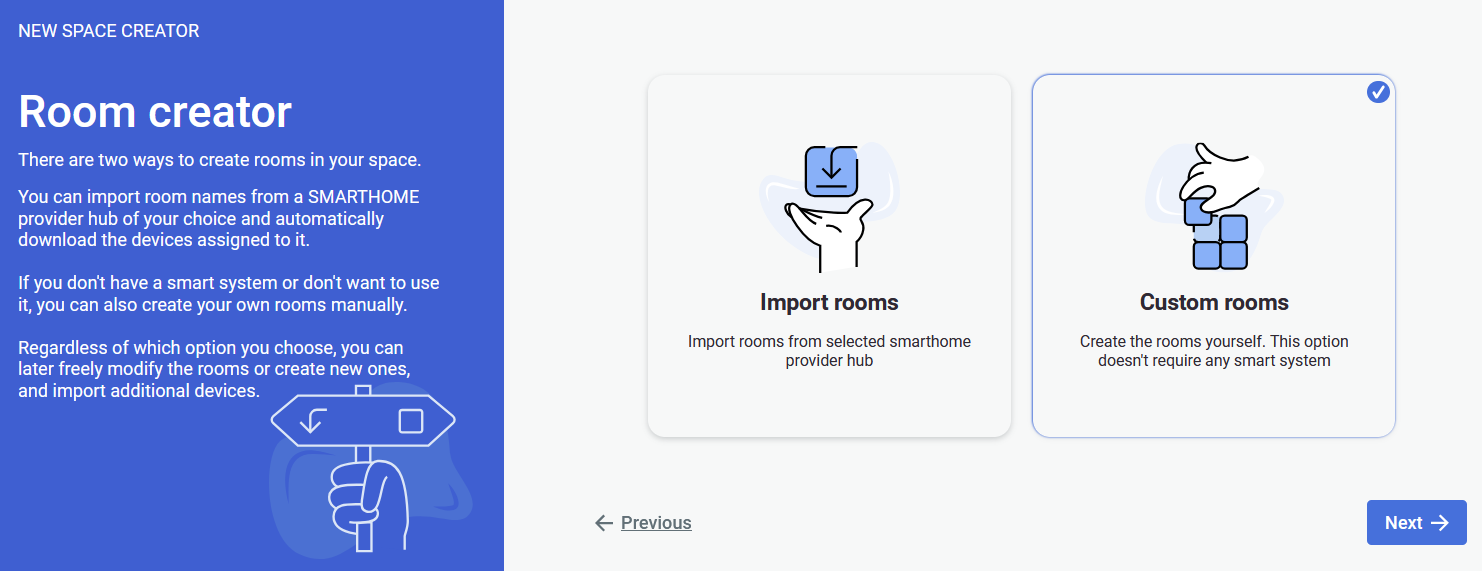
![obraz.png](https://docs.sim-on.com/uploads/images/gallery/2024-08/scaled-1680-/3x1obraz.png)

The option of custom room creation is the most suitable for clean slate space creation.
![obraz.png](https://docs.sim-on.com/uploads/images/gallery/2024-08/scaled-1680-/hgXobraz.png)

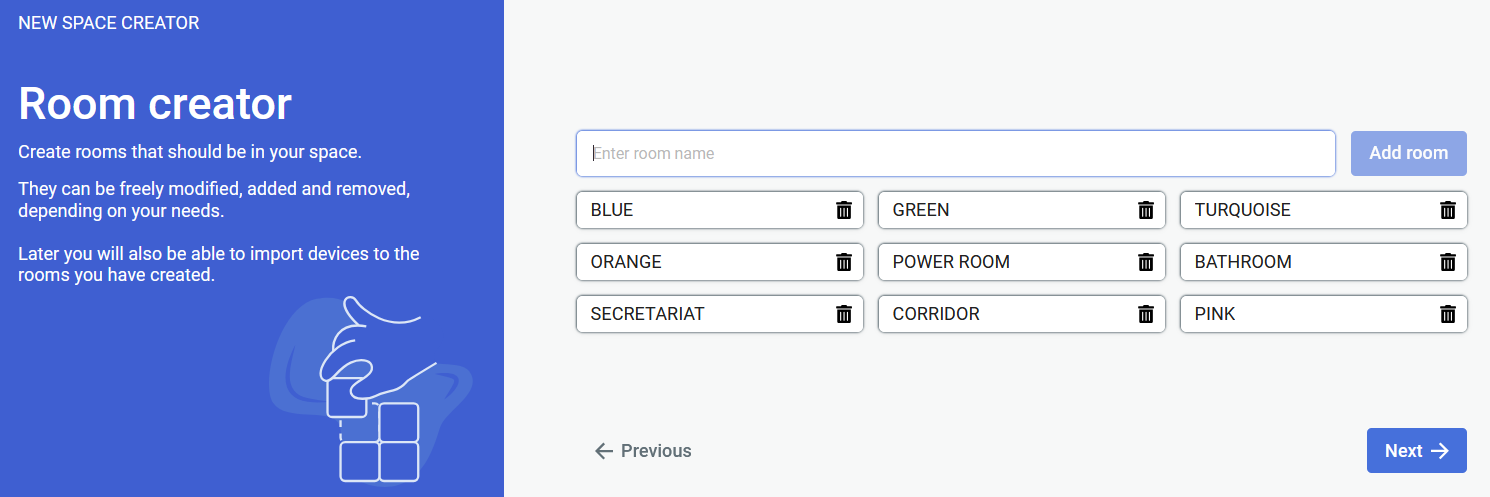
Now you will have to create rooms for the scene.

<p class="callout warning">At least a single room has to be created to proceed</p>

![obraz.png](https://docs.sim-on.com/uploads/images/gallery/2024-08/scaled-1680-/GBcobraz.png)

After creating your choice of rooms, you will be prompted to provide a link to the **Matterport** virtual tour scan.

<p class="callout warning">If the link to your scan is private, you will need to log in into your **Matterport** account.</p>

After clicking next, the last step is to check if everything is correct. If so, click confirm and you can start working on your scene: adding sweeps to rooms, assets, tickets and events or devices in the future.

# NavVis method
![image.png](https://docs.sim-on.com/uploads/images/gallery/2025-03/scaled-1680-/f7ximage.png)

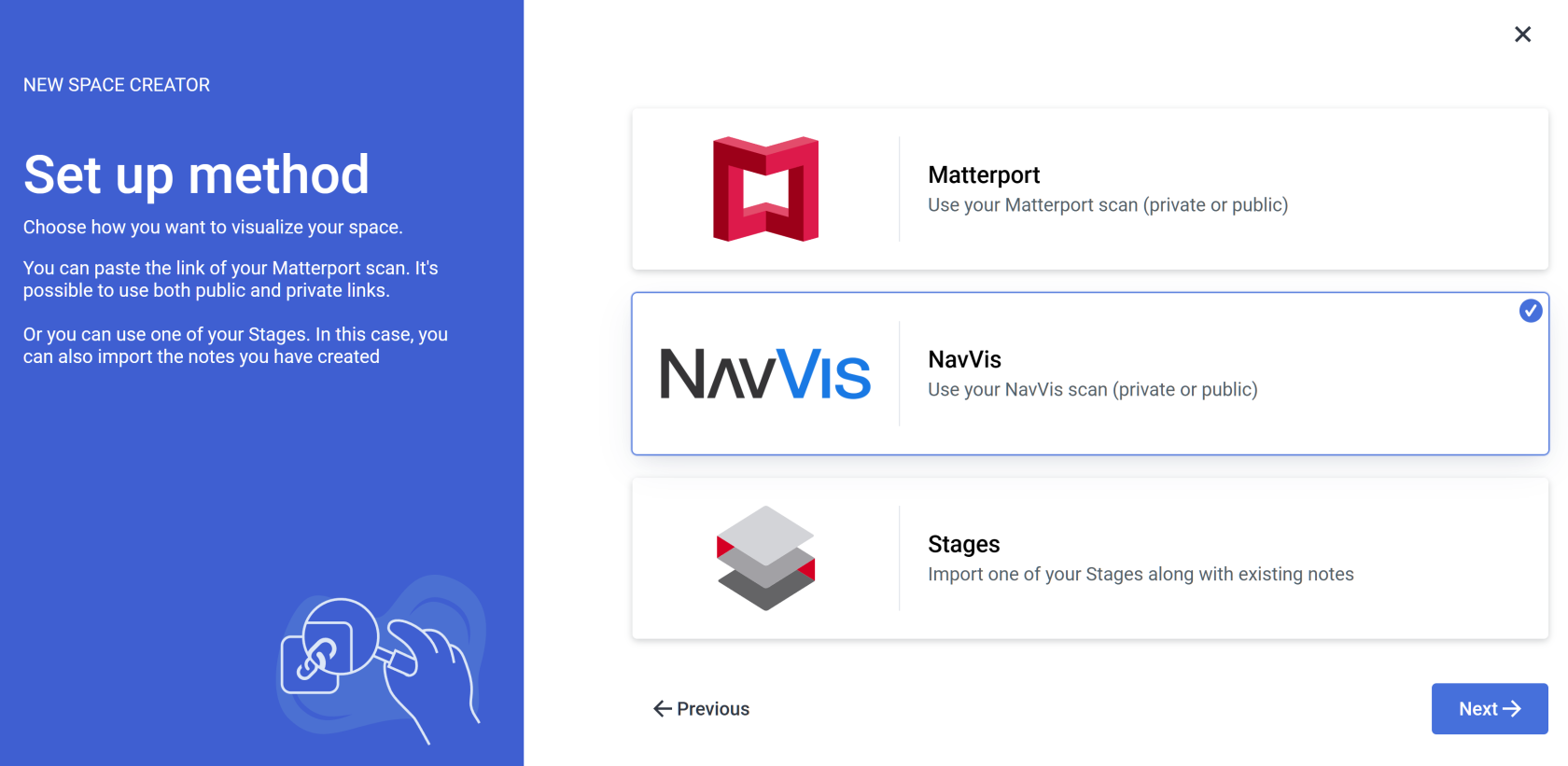
By selecting **NavVis** you will begin space creation based on the **NavVis** **scan.**

<p class="callout success">If you already have a **Stages project** set up, it is recommended to use the <span style="color: rgb(53, 152, 219);">[<span style="text-decoration: underline;">**STAGES METHOD**</span>](https://docs.sim-on.com/books/2-getting-started/page/stages-method)</span></p>

<p class="callout info">The process is the same for all Providers **SIM-ON** works with. For the presentation purposes, we will be using [<span style="text-decoration: underline; color: rgb(53, 152, 219);">**Fibaro (NICE)**</span>](https://docs.sim-on.com/books/2-getting-started/page/fibaro) and present the whole process of adding a new space with importing devices, setting sweeps to rooms and adding and renaming the devices for the space</p>

---

#### **Importing rooms**

<p class="callout info">If you do not have a smart home system that we support, or any smart system at this time, use the <span style="color: rgb(53, 152, 219);">**[Custom room creation](https://docs.sim-on.com/link/128#bkmrk-custom-rooms-1)**</span></p>

![obraz.png](https://docs.sim-on.com/uploads/images/gallery/2024-08/scaled-1680-/qdiobraz.png)

Selecting the **Import rooms** option will open a SMARTHOME provider selection window, where you will be asked to choose a provider. We will be using Fibaro as our provider.

Currently supported providers are:  
<span style="color: rgb(53, 152, 219);">**[KNX - project setup](https://docs.sim-on.com/books/2-getting-started/page/knx-image-change)**</span><span style="color: rgb(53, 152, 219);"> **[SmartThings - project setup](https://docs.sim-on.com/books/2-getting-started/page/smartthings "Project Setup - SmartThings example")** </span><span style="color: rgb(53, 152, 219);">**[NICE (Fibaro) - project setup](https://docs.sim-on.com/books/2-getting-started/page/fibaro-text-changes "Project setup - Fibaro")**</span><span style="color: rgb(53, 152, 219);"> **[NETX - project setup](https://docs.sim-on.com/books/2-getting-started/page/netx "Project setup - NETX example")**</span>

![obraz.png](https://docs.sim-on.com/uploads/images/gallery/2024-08/scaled-1680-/5D2obraz.png)

After selecting your smarthome provider and logging into your account you will see a list of available rooms to choose from for an automatic import.

<p class="callout warning">At least a single room has to be selected to proceed</p>

![image.png](https://docs.sim-on.com/uploads/images/gallery/2025-03/scaled-1680-/M7Ximage.png)

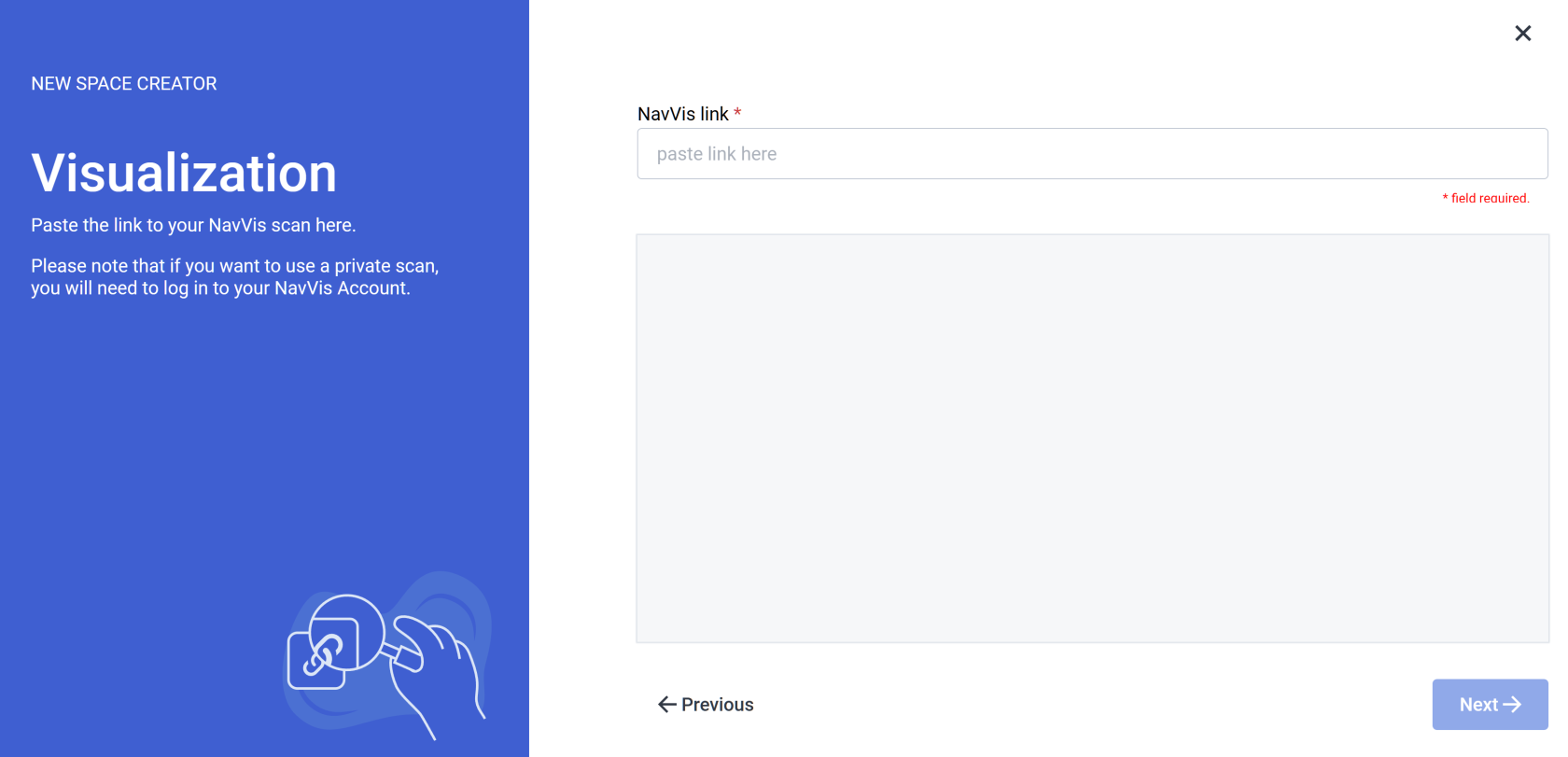
After completing your choice of rooms you will be prompted to provide a link to the **NavVis** virtual tour scan.

<p class="callout warning">If the link to your scan is private, you will need to log in into your NavVis account</p>

Lastly you will be asked to check if everything is correct and you can start working on your project.

---

#### **Custom rooms**

<p class="callout info">Custom rooms do not require any smart system, so if you plan to add one in the future, this option will work best for you</p>

![obraz.png](https://docs.sim-on.com/uploads/images/gallery/2024-08/scaled-1680-/3x1obraz.png)

The option of custom room creation is the most suitable for clean slate space creation.

![obraz.png](https://docs.sim-on.com/uploads/images/gallery/2024-08/scaled-1680-/hgXobraz.png)

Now you will have to create rooms for the scene.

<p class="callout warning">At least a single room has to be created to proceed</p>

[![image.png](https://docs.sim-on.com/uploads/images/gallery/2025-03/scaled-1680-/1Mnimage.png)](https://docs.sim-on.com/uploads/images/gallery/2025-03/1Mnimage.png)

After creating your choice of rooms, you will be prompted to provide a link to the **NavVis** virtual tour scan.

<p class="callout warning">If the link to your scan is private, you will need to log in into your NavVis account</p>

After clicking next, the last step is to check if everything is correct. If so, click confirm and you can start working on your scene: adding sweeps to rooms, assets, tickets and events or devices in the future.

# Stages method

[![image.png](https://docs.sim-on.com/uploads/images/gallery/2025-03/scaled-1680-/Ezqimage.png)](https://docs.sim-on.com/uploads/images/gallery/2025-03/Ezqimage.png)
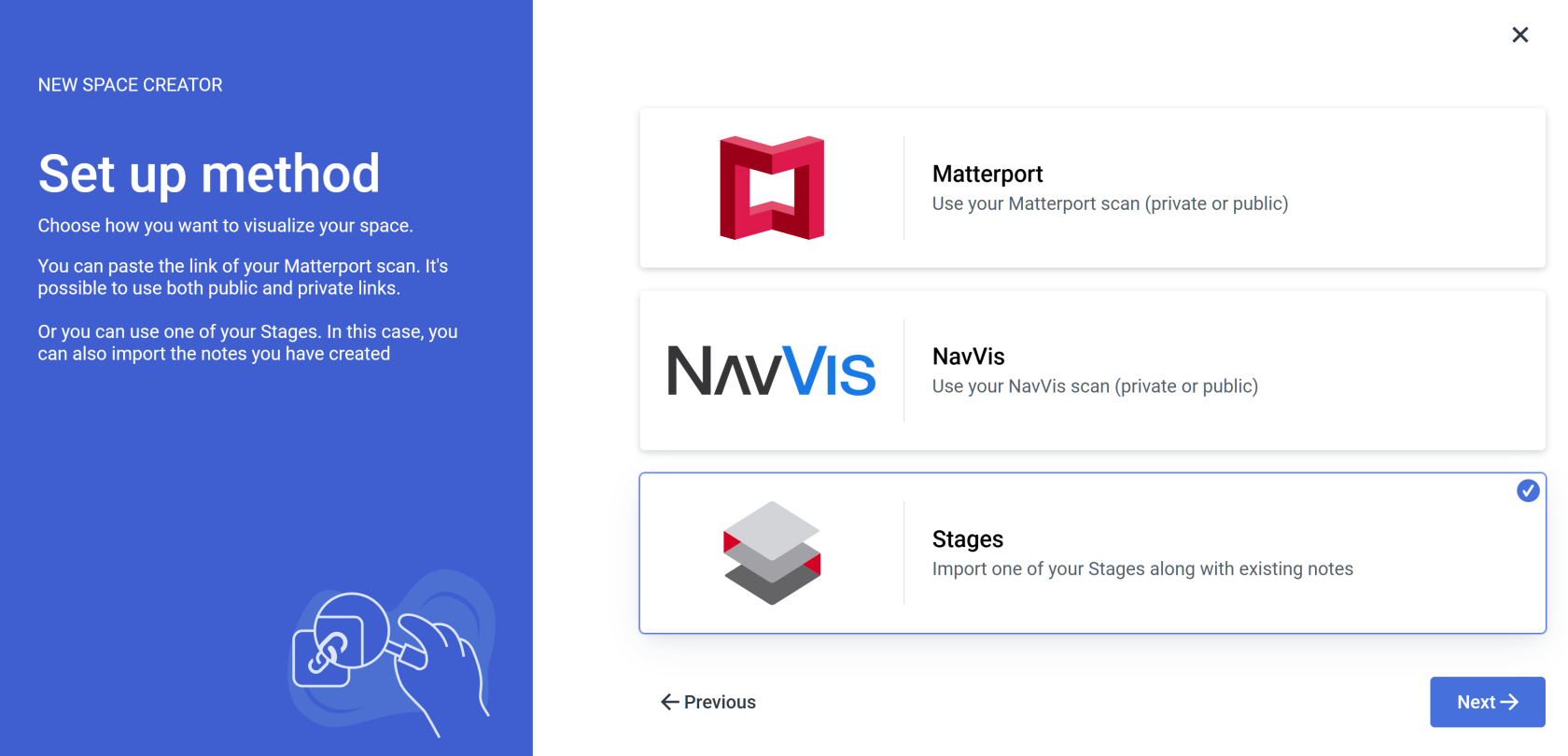
If you already have a project in **Stages** and Import room option, similarly to the Matterport option, you will be asked to choose the provider.

<p class="callout success">If you don't have a **Stages project** set up, you can use either the <span style="color: rgb(53, 152, 219);">[**MATTERPORT**](https://docs.sim-on.com/books/2-getting-started/page/matterport-method)</span> or [<span style="text-decoration: underline; color: rgb(53, 152, 219);">**NAVVIS**</span>](https://docs.sim-on.com/books/2-getting-started/page/navvis-method) Method instead</p>

<p class="callout info">The process is the same for all Providers **SIM-ON** works with. For the presentation purposes, we will be using [<span style="text-decoration: underline; color: rgb(53, 152, 219);">**Fibaro (NICE)**</span>](https://docs.sim-on.com/books/2-getting-started/page/fibaro) and present the whole process of adding a new space with importing devices, setting sweeps to rooms and adding and renaming the devices for the space</p>

---

#### **Importing rooms**

<p class="callout info">If you do not have a smart home system that we support, or any smart system at this time, use the <span style="color: rgb(53, 152, 219);">[**Custom room creation**](https://docs.sim-on.com/link/129#bkmrk-stages-method---crea-1)</span></p>

![obraz.png](https://docs.sim-on.com/uploads/images/gallery/2024-08/scaled-1680-/qdiobraz.png)

Selecting the **Import rooms** option will open a SMARTHOME provider selection window, where you will be asked to choose a provider. We will be using Fibaro as our provider.

Currently supported providers are:  
<span style="color: rgb(53, 152, 219);">**[KNX - project setup](https://docs.sim-on.com/books/2-getting-started/page/knx-image-change)**</span><span style="color: rgb(53, 152, 219);"> **[SmartThings - project setup](https://docs.sim-on.com/books/2-getting-started/page/smartthings "Project Setup - SmartThings example")** </span><span style="color: rgb(53, 152, 219);">**[NICE (Fibaro) - project setup](https://docs.sim-on.com/books/2-getting-started/page/fibaro-text-changes "Project setup - Fibaro")**</span><span style="color: rgb(53, 152, 219);"> **[NETX - project setup](https://docs.sim-on.com/books/2-getting-started/page/netx "Project setup - NETX example")**</span>

![obraz.png](https://docs.sim-on.com/uploads/images/gallery/2024-08/scaled-1680-/5D2obraz.png)

After selecting your smarthome provider and logging into your account you will see a list of available rooms to choose from for an automatic import.

<p class="callout warning">At least a single room has to be selected</p>

  
![project setup stages select.png](https://docs.sim-on.com/uploads/images/gallery/2024-08/scaled-1680-/project-setup-stages-select.png)

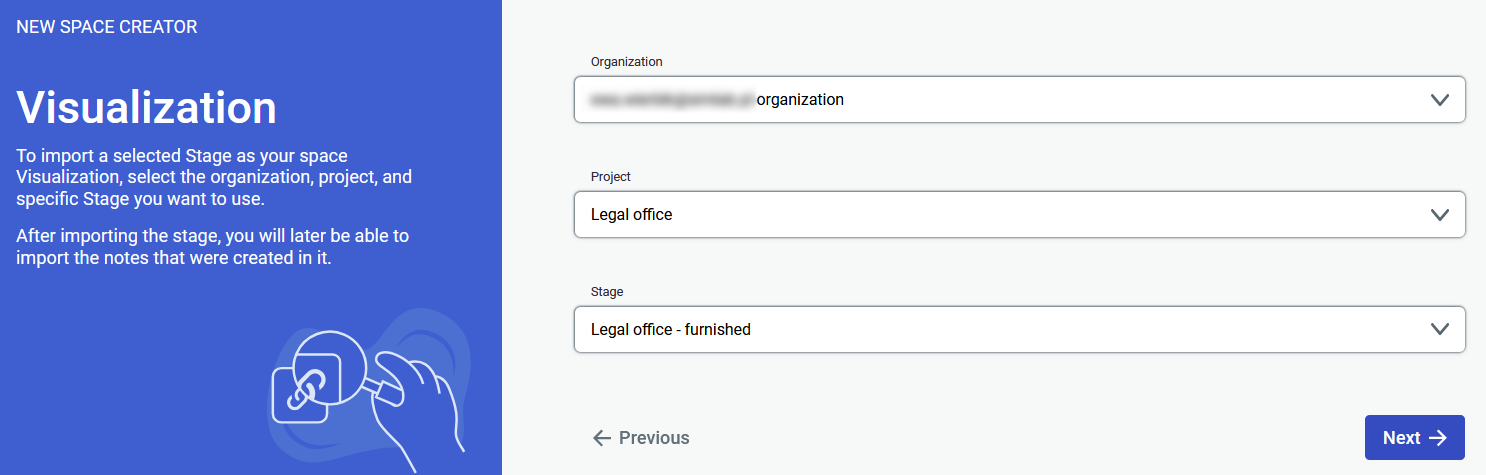
After selecting your choice of rooms, you will now have to select the Organization, project and stage, your scene will be built on.

After clicking next, the last step is to check if everything is correct. If so, click confirm and you can start working on your scene: adding sweeps to rooms, assets, tickets and events or devices in the future.

---

#### **Creating custom rooms** 

<p class="callout info">The second option, “Custom rooms,” does not require any smart system, so if you plan to add one in the future, this option will work best for you</p>

![obraz.png](https://docs.sim-on.com/uploads/images/gallery/2024-08/scaled-1680-/3x1obraz.png)

Select **Custom rooms** then proceed.

![obraz.png](https://docs.sim-on.com/uploads/images/gallery/2024-08/scaled-1680-/hgXobraz.png)

Now you will have to create rooms for the scene.

<p class="callout warning">At least a single room has to be created to proceed</p>

![project setup stages select.png](https://docs.sim-on.com/uploads/images/gallery/2024-08/scaled-1680-/project-setup-stages-select.png)

After creating your choice of rooms, you will now have to select the **Organization, project and stage,** your scene will be built on.

After clicking next, the last step is to check if everything is correct. If so, click confirm and you can start working on your scene: adding sweeps to rooms, assets, tickets and events or devices in the future.

# Devices

#### **Choosing the Providers and adding Devices**

There are two ways to import the devices. The first is a part of the process of creating a space - mainly, the import rooms option. After selecting the option of importing rooms the process of connecting to providers is shown here:

<span style="color: rgb(53, 152, 219);">**[KNX - project setup](https://docs.sim-on.com/books/2-getting-started/page/knx-image-change)**</span><span style="color: rgb(53, 152, 219);"> **[SmartThings - project setup](https://docs.sim-on.com/books/2-getting-started/page/smartthings "Project Setup - SmartThings example")** </span><span style="color: rgb(53, 152, 219);">**[NICE (Fibaro) - project setup](https://docs.sim-on.com/books/2-getting-started/page/fibaro-text-changes "Project setup - Fibaro")**</span><span style="color: rgb(53, 152, 219);"> **[NETX - project setup](https://docs.sim-on.com/books/2-getting-started/page/netx "Project setup - NETX example")**</span>

<p class="callout success">If you have more than one provider but you want to import devices from one of them only, click on the Provider dropdown and choose the desired one. If the devices were already connected to the project, they will appear in the Device list immediately  
</p>

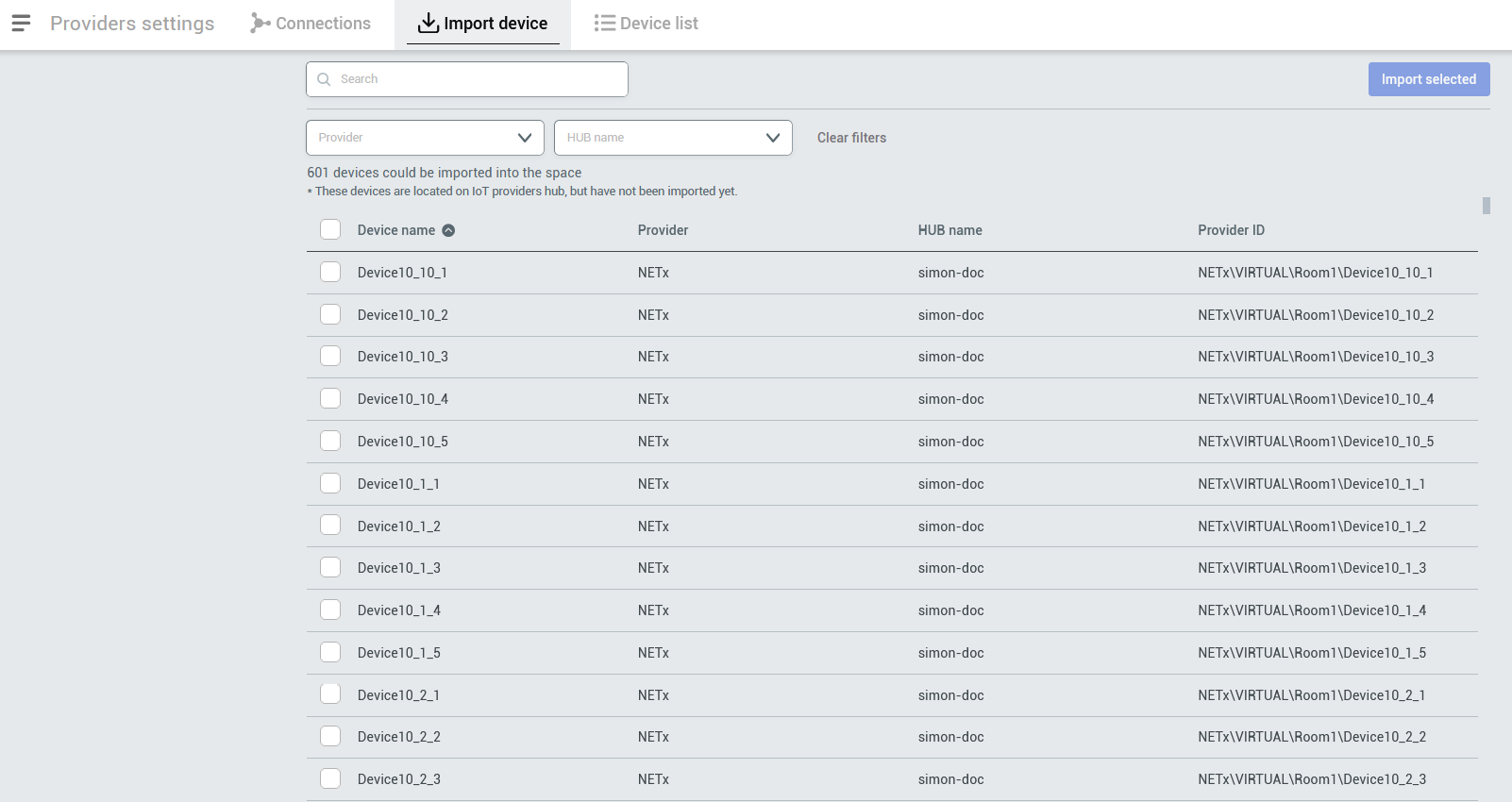
<table border="1" id="bkmrk-be-aware-that-you-ca" style="border-collapse: collapse; width: 100%; border-width: 0px;"><colgroup><col style="width: 50%;"></col><col style="width: 50%;"></col></colgroup><tbody><tr><td style="border-width: 0px;"><p class="callout warning">Be aware that you can import many devices but not all of them will be connected to your space. If the devices are connected to the space already, you will find them in the Device list. In the example on the right there are multiple devices that are not connected to the space</p>

</td><td style="border-width: 0px;">![obraz.png](https://docs.sim-on.com/uploads/images/gallery/2024-08/scaled-1680-/N8robraz.png)</td></tr></tbody></table>

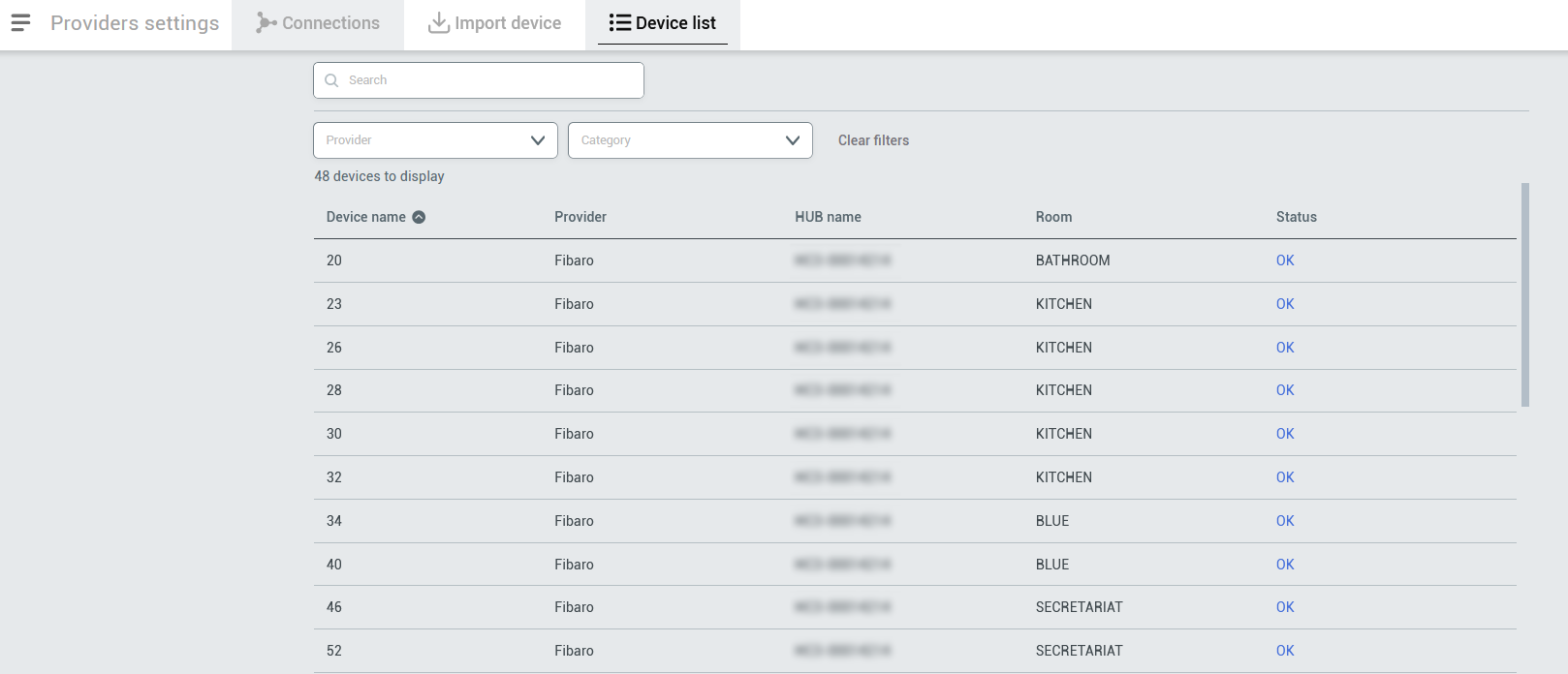
<table border="1" id="bkmrk-then%2C-in-the-device-" style="border-collapse: collapse; width: 100%; border-width: 0px; height: 188.175px;"><colgroup><col style="width: 50%;"></col><col style="width: 50%;"></col></colgroup><tbody><tr style="height: 188.175px;"><td style="border-width: 0px; height: 188.175px;">Then, In the Device list, you will see all the new Devices you just imported (*or imported automatically*) with information about device name, provider, HUB name, room and its status.

</td><td style="border-width: 0px; height: 188.175px;">![2. DEVICE LIST _ FIBARO.png](https://docs.sim-on.com/uploads/images/gallery/2024-08/scaled-1680-/2-device-list-fibaro.png)

</td></tr></tbody></table>

---

#### **Adding devices to an existing project** 

In the previous step we went through adding devices while creating the project. If you already created a project and you want to import devices, follow the steps below.   
In case you already created a project before and you want to add devices from another provider, you need to click on the **burger menu** ![hamburger_icon.png](https://docs.sim-on.com/uploads/images/gallery/2024-08/scaled-1680-/hamburger-icon.png) icon, go to Providers, and then, in the Connections tab, click ![Add connections.png](https://docs.sim-on.com/uploads/images/gallery/2024-08/scaled-1680-/add-connections.png) button.

![obraz.png](https://docs.sim-on.com/uploads/images/gallery/2024-08/scaled-1680-/DJuobraz.png)

  
The window will appear and you'll be able to choose the provider, log into the system and depending on the selected provider, go through necessary steps (*like giving the provider permission to access the devices, hubs etc.*) In this example, we added SmartThings provider and in the next step we need to choose the centrals we want to import and Accept Selected.

![obraz.png](https://docs.sim-on.com/uploads/images/gallery/2024-08/scaled-1680-/qZ7obraz.png)

Next, if everything worked, we should see another HUB in the Connections tab.

![importig devices to an existing project.png](https://docs.sim-on.com/uploads/images/gallery/2024-08/scaled-1680-/importig-devices-to-an-existing-project.png)

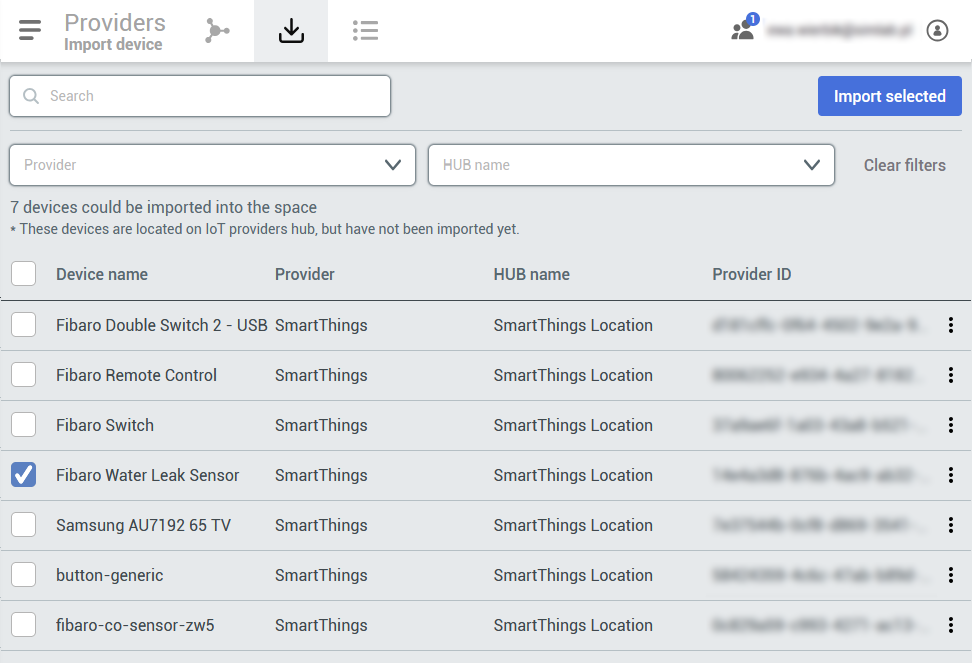
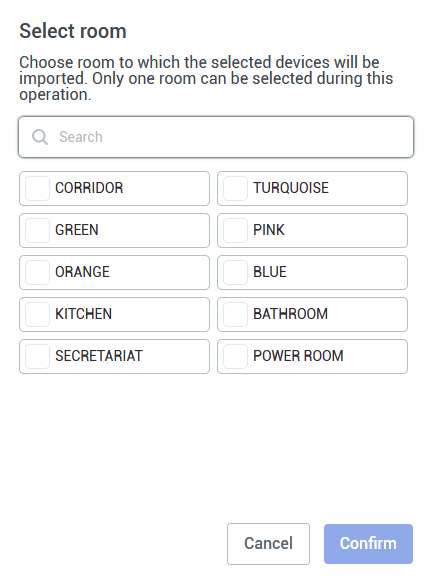
To import the devices, we need to go to the Import device tab and select the devices we want to be imported to our space. After pressing **Import** **selected** button, you will be asked to choose the room the selected devices will be imported to (*you can select only one at a time.*)

<table border="1" id="bkmrk--43" style="border-collapse: collapse; width: 104.405%; height: 389.427px; border-width: 0px;"><colgroup><col style="width: 64.0476%;"></col><col style="width: 35.9524%;"></col></colgroup><tbody><tr style="height: 389.427px;"><td style="height: 389.427px; border-width: 0px;">![importing devices smartthings.png](https://docs.sim-on.com/uploads/images/gallery/2024-08/vPrimporting-devices-smartthings.png)</td><td style="height: 389.427px; border-width: 0px;">![obraz.png](https://docs.sim-on.com/uploads/images/gallery/2024-08/scaled-1680-/JNAobraz.png)

</td></tr></tbody></table>

---

#### **Renaming, editing and placing devices** 

<table border="1" id="bkmrk-the-devices-come-wit" style="border-collapse: collapse; width: 100%; border-width: 0px; height: 1408.37px;"><colgroup><col style="width: 58.4988%;"></col><col style="width: 7.62586%;"></col><col style="width: 33.8356%;"></col></colgroup><tbody><tr style="height: 241.448px;"><td style="border-width: 0px; height: 241.448px;"><span class="HwtZe" lang="en">The devices come with icons that shows what specific device do. Let's change the name of the power outlet.  
</span>

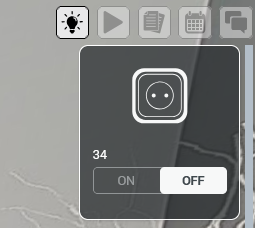
To rename a device (*if it's named automatically but not* <span class="HwtZe" lang="en"><span class="jCAhz ChMk0b"><span class="ryNqvb">*intuitive,*) you can select the device from the right panel, click on it and a window will appear.</span></span></span>

<p class="callout info"><span class="HwtZe" lang="en">Remember that at this point, if you're editing any property and click on the on-off option, you might accidentally turn on or off some devices</span></p>

</td><td style="border-width: 0px; height: 241.448px;"><span class="HwtZe" lang="en">  
</span>

</td><td style="border-width: 0px; height: 241.448px;">![obraz.png](https://docs.sim-on.com/uploads/images/gallery/2024-08/scaled-1680-/dCfobraz.png)</td></tr><tr style="height: 83.4375px;"><td style="border-width: 0px; height: 83.4375px;"><span class="HwtZe" lang="en">  
</span>

</td><td style="border-width: 0px; height: 83.4375px;"><span class="HwtZe" lang="en">  
</span>

</td><td style="border-width: 0px; height: 83.4375px;">  
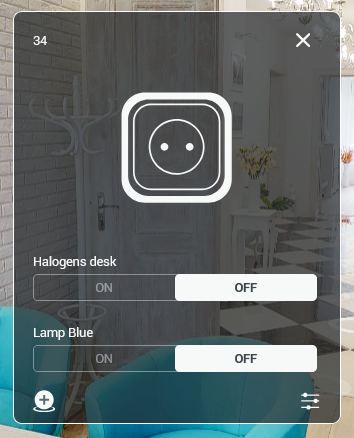
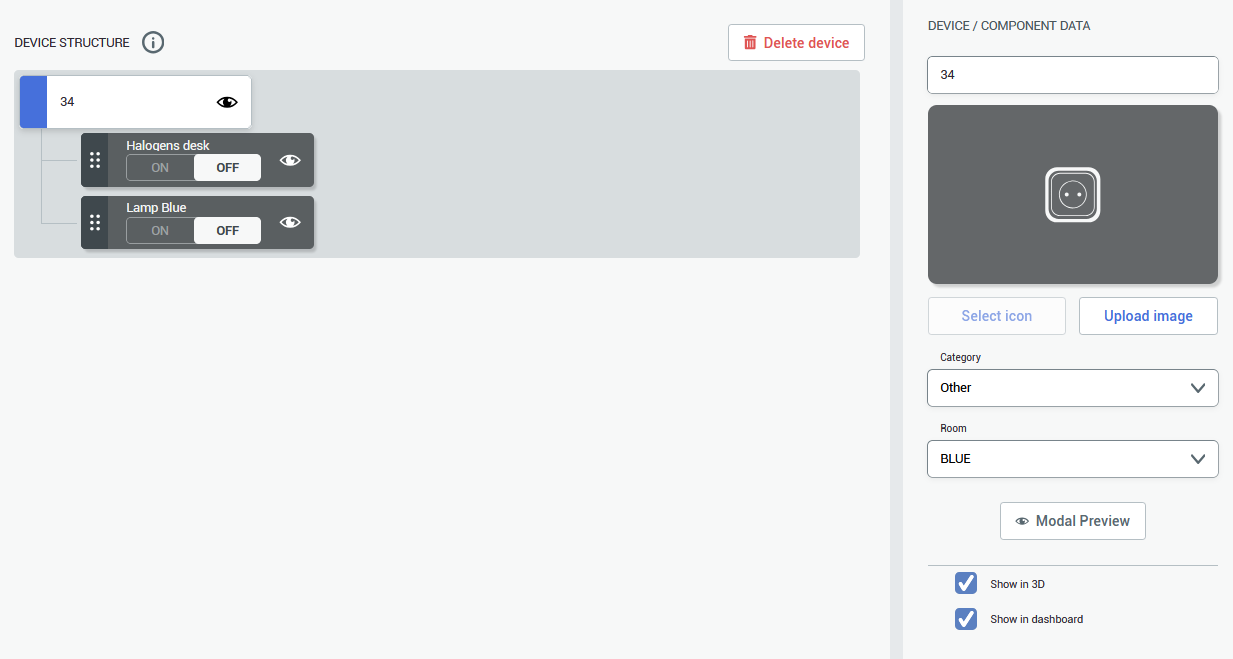
</td></tr><tr style="height: 348.115px;"><td style="border-width: 0px; height: 348.115px;">After clicking on a device, you will see a window with the device details. You can click the ![settings_black.png](https://docs.sim-on.com/uploads/images/gallery/2024-08/scaled-1680-/settings-black.png)icon to see the device structure and what it is controlling.  

  
![obraz.png](https://docs.sim-on.com/uploads/images/gallery/2024-08/scaled-1680-/qtxobraz.png)

</td><td style="border-width: 0px; height: 348.115px;"></td><td style="border-width: 0px; height: 348.115px;">![obraz.png](https://docs.sim-on.com/uploads/images/gallery/2024-08/scaled-1680-/Jhmobraz.png)

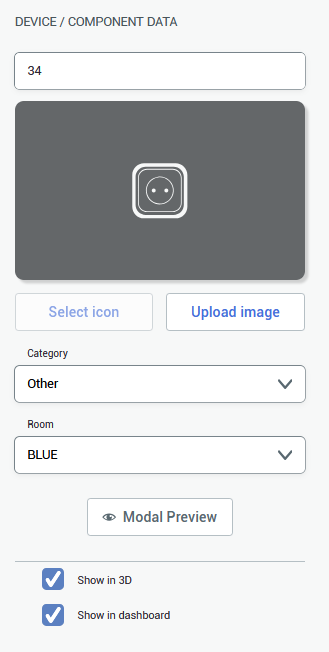
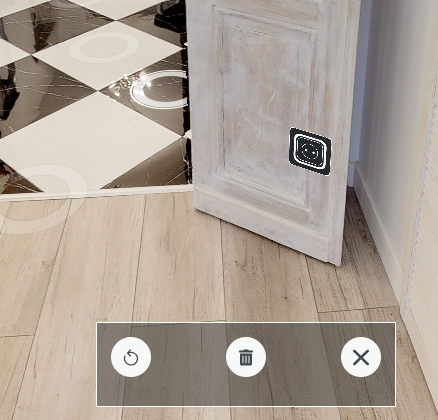
</td></tr><tr style="height: 79.4375px;"><td style="border-width: 0px; height: 79.4375px;"></td><td style="border-width: 0px; height: 79.4375px;"></td><td style="border-width: 0px; height: 79.4375px;"></td></tr><tr style="height: 655.927px;"><td style="border-width: 0px; height: 655.927px;">On the right you can change the name of the device and add the custom icon, change the category and room its assigned to. After renaming and saving the settings, you can click on the device again and see the little icon. This way you can click place the icon of the device in your space. Power outlet that is used for this walkthrough is located behind the door, so the marker is placed near the socket location.
![obraz.png](https://docs.sim-on.com/uploads/images/gallery/2024-08/scaled-1680-/FiCobraz.png)

</td><td style="border-width: 0px; height: 655.927px;"></td><td style="border-width: 0px; height: 655.927px;">![obraz.png](https://docs.sim-on.com/uploads/images/gallery/2024-08/scaled-1680-/kdzobraz.png)  
To accept the device's icon placement, click on the ![x-button.png](https://docs.sim-on.com/uploads/images/gallery/2024-08/scaled-1680-/4Pix-button.png)icon to close the pop-up window. If you want to delete the icon, click ![trash.png](https://docs.sim-on.com/uploads/images/gallery/2024-08/scaled-1680-/trash.png). If you want to place the icon again, click on ![arrow circle.png](https://docs.sim-on.com/uploads/images/gallery/2024-08/scaled-1680-/arrow-circle.png)icon.



</td></tr></tbody></table>

# Assets

#### **Adding assets** 

Defined as an "**asset**" is any object or an item you wish to keep track of in your SIM-ON space. The main difference between an "**asset**" and a "**device**" is the lack of smart connectivity of the former one.

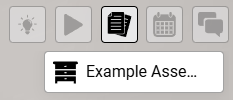
![image.png](https://docs.sim-on.com/uploads/images/gallery/2024-11/scaled-1680-/P7simage.png)To add an asset, navigate to **<span style="color: rgb(53, 152, 219);">[Quick Access Menu](https://docs.sim-on.com/link/148#bkmrk-assets "Top Menu")</span>** located on the right side of the viewport, select **Assets** ![image.png](https://docs.sim-on.com/uploads/images/gallery/2024-11/scaled-1680-/Kb5image.png) icon and hover over ![image.png](https://docs.sim-on.com/uploads/images/gallery/2024-11/scaled-1680-/RpLimage.png) icon, to reveal "**Add Asset**" button and then press it.

The following window will appear on the right side of your screen:

To create an asset, you need to fill out the necessary fields, marked with " <span style="color: rgb(224, 62, 45);">**\*** <span style="color: rgb(0, 0, 0);">", then the </span></span>![image.png](https://docs.sim-on.com/uploads/images/gallery/2024-11/scaled-1680-/cJuimage.png) button will become available to finalize the asset creation.

<p class="callout info">At this stage you might as well add other asset info such as: description or photos, although it is not necessary, since you can come back at any time and edit them later.</p>

After creating an asset, it will now appear on the right side of the viewport, under the **<span style="color: rgb(53, 152, 219);">[Quick Access Menu](https://docs.sim-on.com/link/148#bkmrk-assets "Top Menu")</span>**, as well as in the <span style="color: rgb(53, 152, 219);">[**assets list**](https://docs.sim-on.com/books/3-app-overview/page/assets)</span> in the <span style="color: rgb(53, 152, 219);">[<span style="text-decoration: underline;">**Dashboard**</span>](https://docs.sim-on.com/books/3-app-overview/chapter/dashboard)</span>.

**![image.png](https://docs.sim-on.com/uploads/images/gallery/2024-11/scaled-1680-/Ul5image.png)**

![image.png](https://docs.sim-on.com/uploads/images/gallery/2024-11/scaled-1680-/ZQXimage.png)

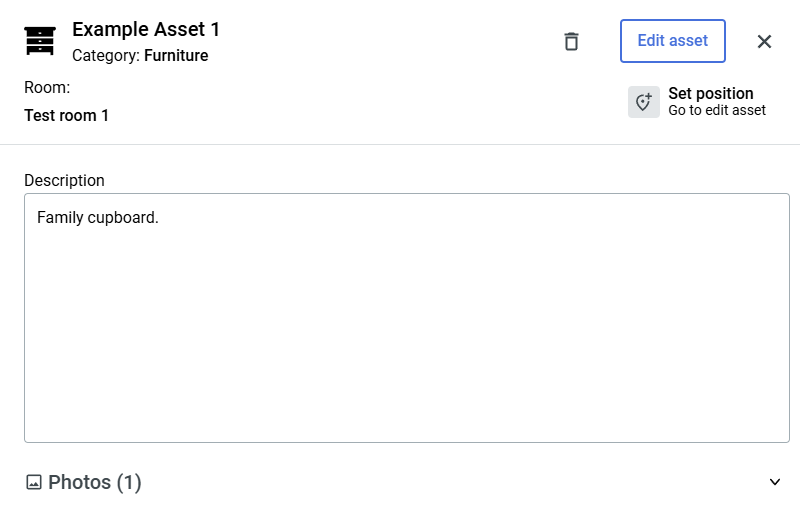
Clicking the asset tile will reveal similar window as before, displaying the details of the asset. From here you can either go back to **edit** your asset, **set it's position** within 3D space or **delete** it altogether.

# Sweeps

#### **Assigning sweeps to a room**  


<table border="1" id="bkmrk-to-place-the-devices-1" style="border-collapse: collapse; width: 100%; border-width: 0px;"><colgroup><col style="width: 81.7857%;"></col><col style="width: 18.2143%;"></col></colgroup><tbody><tr><td style="border-width: 0px; text-align: justify;">To place **devices** within the 3D space of **Virtual Tour**, first we need to **define** **the rooms** within the 3D space by assigning them to "**sweeps**".

<p class="callout info">‘**Sweep**’ as in a full Matterport camera rotation - **A spot** in the **Matterport Space** where a user can **stand** and **look around** (*This includes 3D scan locations and 360º Views*)</p>

</td><td style="border-width: 0px;">![sweep.png](https://docs.sim-on.com/uploads/images/gallery/2024-08/scaled-1680-/sweep.png)</td></tr></tbody></table>

To assign sweeps, we need to be in the **3D Walk** view. Click on the burger ![hamburger_icon.png](https://docs.sim-on.com/uploads/images/gallery/2024-08/scaled-1680-/hamburger-icon.png)men

On the top section of the viewport, we will see "**Not assigned room**" and a **closed lock** ![padlock_closed.png](https://docs.sim-on.com/uploads/images/gallery/2024-08/scaled-1680-/padlock-closed.png) icon. To assign the sweep to the room, click on the lock icon to **unlock** ![padlock-unlock.png](https://docs.sim-on.com/uploads/images/gallery/2024-08/scaled-1680-/padlock-unlock.png) it, allowing you to edit the space.

![1. sweeps.png](https://docs.sim-on.com/uploads/images/gallery/2024-08/scaled-1680-/1-sweeps.png)

Make sure you know in which room you're in and select it from the list. Before assigning the sweep to the room, the colors are faded (*this is an indicator that a given sweep does not belong to any room*). Once you assign the sweep to the room you should see the view in the full color. Repeat the process until all the sweeps in the area are assigned to the corresponding room.

![2. sweeps assigned.png](https://docs.sim-on.com/uploads/images/gallery/2024-08/scaled-1680-/2-sweeps-assigned.png)

<p class="callout info">After assigning al the sweeps to the room some devices (*if set up before*) might appear on the right panel. Now, the last step is to rename them (*if necessary*) and add their locations</p>

You can assign all the sweeps in the project the same way. To finish you need to lock editing by clicking the **lock** ![padlock-unlock.png](https://docs.sim-on.com/uploads/images/gallery/2024-08/scaled-1680-/padlock-unlock.png) icon again.

<p class="callout success">After assigning the sweeps to more rooms you'll be able to use the "**Jump to room**" feature located at the bottom of the viewport. Available rooms (*the ones that you assigned the sweeps to*) won't be greyed out and if you click on any of the rooms, you'll be transported to the nearest assigned sweep within the selected room</p>

# Users

#### **Adding Users, changing Permissions and Privileges** 

If you want to add someone to your project, no matter what kind of collaborator it would be, you need to set some privileges. You can do it by clicking the **burger** ![hamburger_icon.png](https://docs.sim-on.com/uploads/images/gallery/2024-08/scaled-1680-/hamburger-icon.png) icon and then selecting Space settings in the Side bar. First, you can add roles. By default you, as the space creator, have the **OWNER** role. To create new roles, go to the Role templates tab and click ![Add new role button.png](https://docs.sim-on.com/uploads/images/gallery/2024-08/scaled-1680-/add-new-role-button.png) button. In the pop-up window enter new role name and click the confirm button.


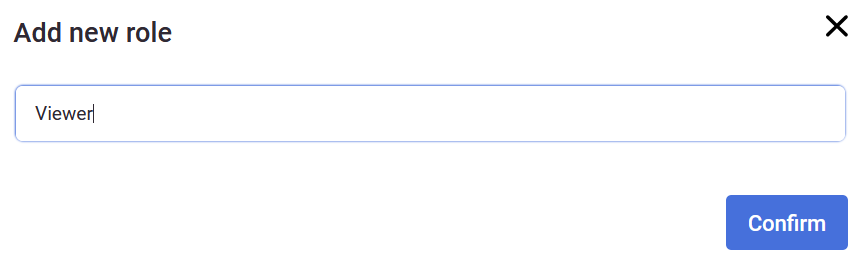
![obraz.png](https://docs.sim-on.com/uploads/images/gallery/2024-08/scaled-1680-/QpNobraz.png)

After accepting the new role, another window will appear, allowing you to change different privileges for the role you've just created.  
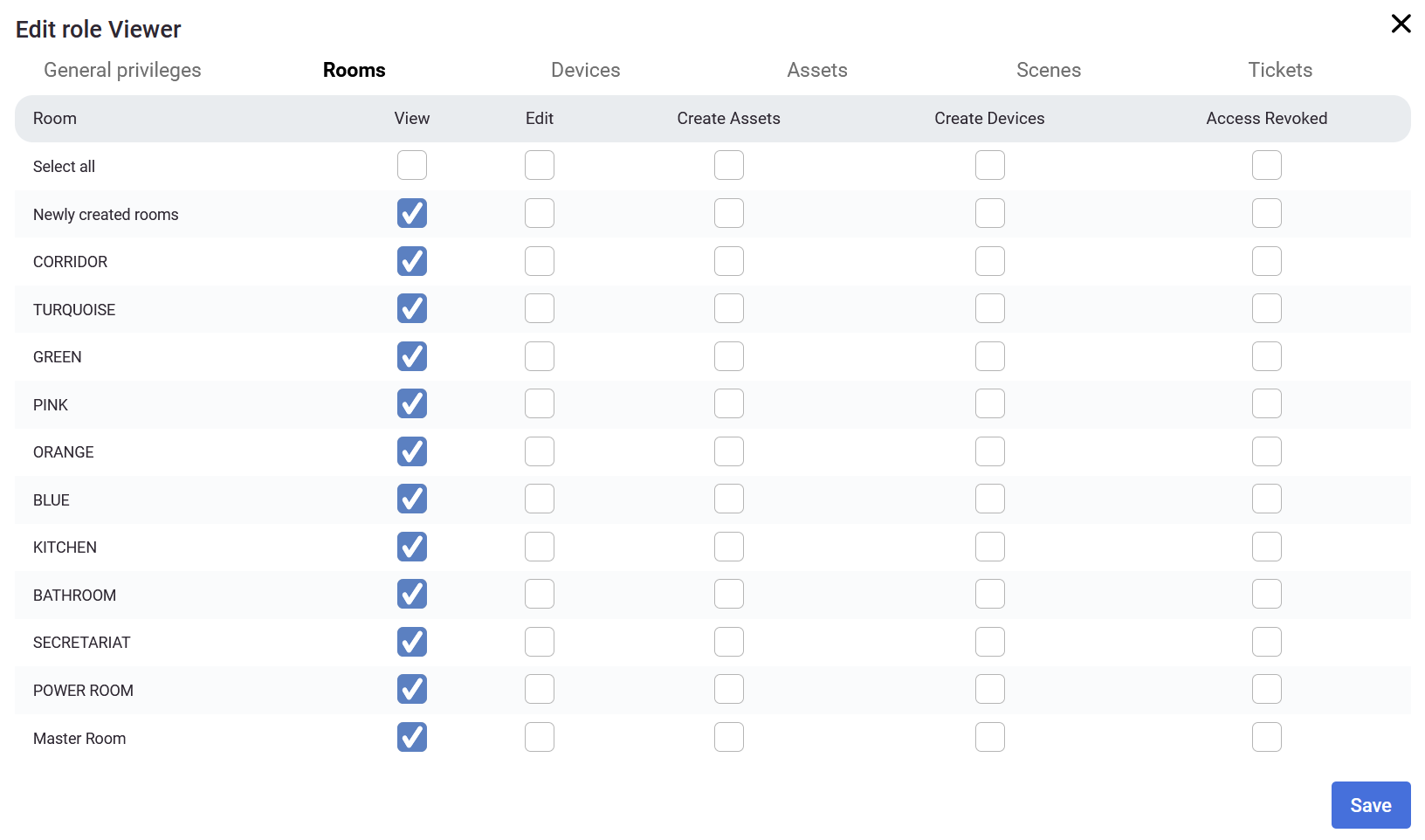
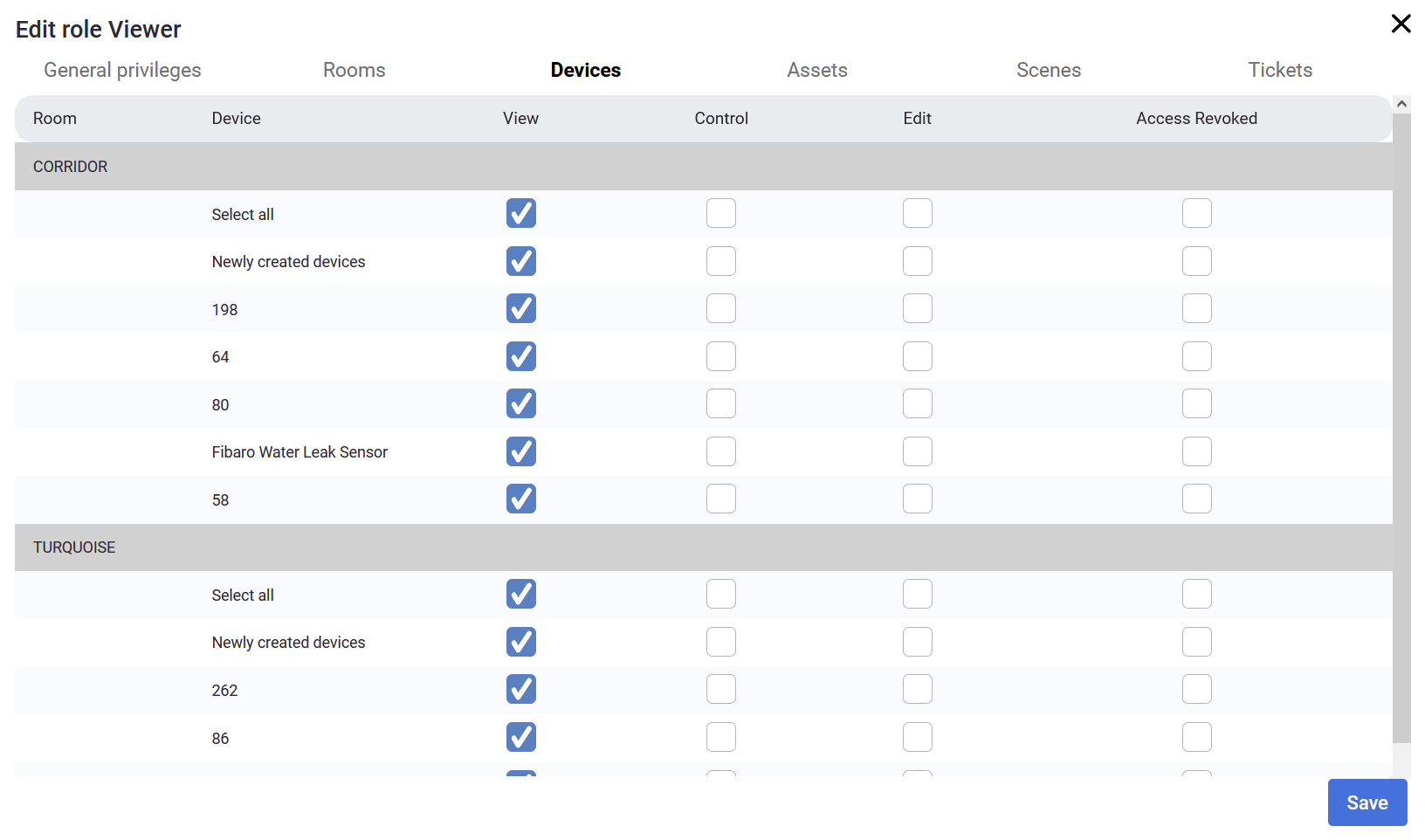
You can set appropriate permissions in several categories: General privileges, Rooms, Devices, Assets, Scenes and Tickets. For the role created for this walkthrough, we will set all the privileges to View only.

<table border="1" id="bkmrk--60" style="border-collapse: collapse; width: 100%; border-width: 0px;"><colgroup><col style="width: 50.0516%;"></col><col style="width: 50.0516%;"></col></colgroup><tbody><tr><td style="border-width: 0px;">![Privileges_viewer_1.png](https://docs.sim-on.com/uploads/images/gallery/2024-08/scaled-1680-/privileges-viewer-1.png)</td><td style="border-width: 0px;">![Privileges_viewer_2.png](https://docs.sim-on.com/uploads/images/gallery/2024-08/scaled-1680-/privileges-viewer-2.png)</td></tr></tbody></table>

You can create multiple roles with different privileges depending on who you share the project with. If you want to share it with subcontractors, you may want to give them roles to edit assets or devices. If you want, you may want to give separate roles to plumbers, electricians, people controlling the project, your closest associates, etc.

If you set some general privileges (*eg. to create rooms*), the privileges on the other categories will change too.

![Privileges_viewer_4.png](https://docs.sim-on.com/uploads/images/gallery/2024-08/scaled-1680-/privileges-viewer-4.png)In the example above, the Designer has some privileges to manage Interior Designer, Create tickets and view providers. Automatically some of the privileges were created (*as you can see in the image below*), but you can revoke the access to specific rooms, devices or other options (*in this example the Designer role allows to manage the **Interior editor**, create tickets and view providers excluding TURQUOISE, GREEN and PINK rooms*).

![Privileges_viewer_5.png](https://docs.sim-on.com/uploads/images/gallery/2024-08/scaled-1680-/privileges-viewer-5.png)

To add a user, go to the Users tab and click ![Add new user.png](https://docs.sim-on.com/uploads/images/gallery/2024-08/scaled-1680-/add-new-user.png) button. You need to provide an email address and assign one of the created roles for the new user.

![User_add_1.png](https://docs.sim-on.com/uploads/images/gallery/2024-08/scaled-1680-/user-add-1.png)

After adding another user, you will see them on the list with the assigned role. You can edit the role later by clicking the **edit** ![edit.png](https://docs.sim-on.com/uploads/images/gallery/2024-08/scaled-1680-/edit.png) icon or delete the user by clicking the **bin** ![trash.png](https://docs.sim-on.com/uploads/images/gallery/2024-08/scaled-1680-/trash.png) icon.

# Providers

Learn how to connect to specific smarthome providers. (It is not necessary to link with providers during project space creation. You can always add or remove a provider at a later time in Providers page.)

# KNX

<table border="1" id="bkmrk-as-a-first-step%2C-the" style="border-collapse: collapse; width: 100%; height: 1609.39px; border-width: 0px;"><colgroup><col style="width: 50%;"></col><col style="width: 50%;"></col></colgroup><tbody><tr style="height: 266.425px;"><td style="height: 266.425px; text-align: justify; border-width: 0px;">**1.**

In the provider selection window, choose **Schneider KNX** to proceed the project setup based on this home automation service provider.

<p class="callout info">See the <span style="color: rgb(53, 152, 219);">[**list of smarthome providers**](https://docs.sim-on.com/books/2-getting-started/chapter/providers)</span> in **detailed project setup**, to check which ones are supported.</p>

</td><td style="height: 266.425px; border-width: 0px;">![1 configure the layout.png](https://docs.sim-on.com/uploads/images/gallery/2024-07/scaled-1680-/1-configure-the-layout.png)</td></tr><tr style="height: 265.875px;"><td style="height: 265.875px; border-width: 0px;">**2.**

Once KNX has been selected, you need to connect to the KNX IoT 3 Party API server (*the Wiser for KNX in this case*). The security protocol gets started, ensuring a safe environment for the involved solutions to work together.

</td><td style="height: 265.875px; text-align: justify; border-width: 0px;">![2 connect to the wiser for knx.png](https://docs.sim-on.com/uploads/images/gallery/2024-07/scaled-1680-/2-connect-to-the-wiser-for-knx.png)

</td></tr><tr style="height: 273.725px;"><td style="height: 273.725px; text-align: justify; border-width: 0px;">**3.**

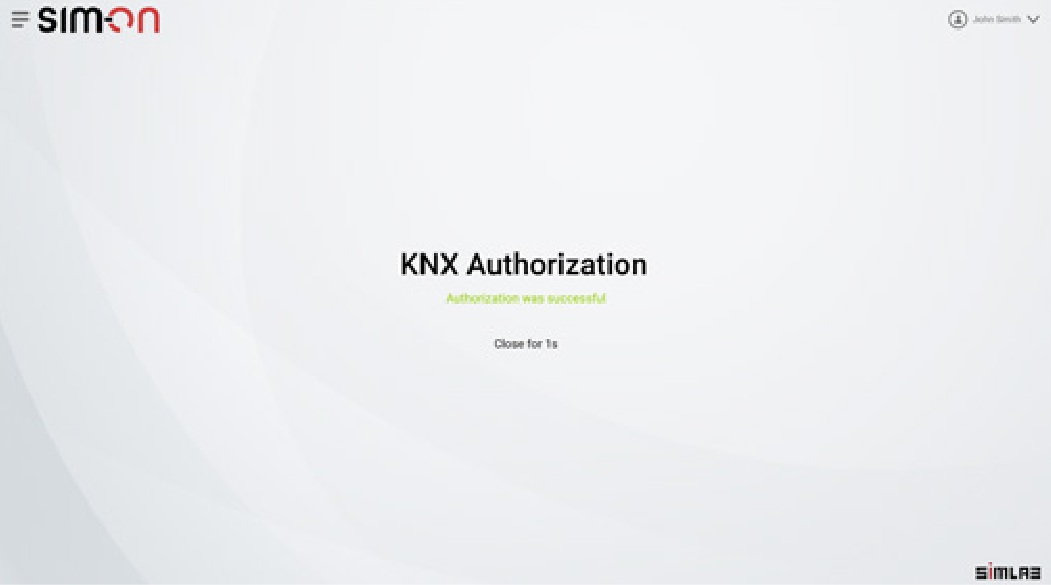
Once you get access to the KNX IoT 3 Party API server, the software client initiates the authorization process, based on the OAuth2.0 (*the industry-standard protocol for authorization*). OAuth2.0 has the advantage of allowing third parties to access subsets of data without knowing the customer credentials, among other benefits.

</td><td style="height: 273.725px; border-width: 0px;">![3 request authorization.png](https://docs.sim-on.com/uploads/images/gallery/2024-07/scaled-1680-/3-request-authorization.png)</td></tr><tr style="height: 273.7px;"><td style="height: 273.7px; border-width: 0px;">**4.**

Now you can select the rooms to be added to the Digital Twin. This information is provided by the KNX IoT 3 Party API server.

Every room contains functions and a selection of datapoints. Note that at this point, the developer does not need to deal with group addresses or KNX- specific knowledge: simply retrieve human-readable information.

</td><td style="height: 273.7px; text-align: justify; border-width: 0px;">![5 configure the layout.png](https://docs.sim-on.com/uploads/images/gallery/2024-07/scaled-1680-/5-configure-the-layout.png)

</td></tr><tr style="height: 262.5px;"><td style="height: 262.5px; text-align: justify; border-width: 0px;">**5.**

At this point, the Digital Twin has information about the rooms and functions found in the real installation. It is time to offer this information over a 3D model, by using a 3D scanning carried out using Matterport: the outcome is a space representation with coordinates, similar to what is represented in Street View from Google Maps (but indoors).

The scanning can be done by professionals, or by yourself with an app on your smartphone.

</td><td style="height: 262.5px; border-width: 0px;">![5 linkt to 3d model.png](https://docs.sim-on.com/uploads/images/gallery/2024-07/scaled-1680-/5-linkt-to-3d-model.png)</td></tr><tr style="height: 267.163px;"><td style="height: 267.163px; border-width: 0px;">**6.**

Digital Twin is ready to be used: you can navigate in the 3D environment. The control is bidirectional, the feedback from KNX achieved by means of WebSockets (*instead of the more resource-intensive polling*).

</td><td style="height: 267.163px; text-align: justify; border-width: 0px;">![6 ready.png](https://docs.sim-on.com/uploads/images/gallery/2024-07/scaled-1680-/6-ready.png)

</td></tr></tbody></table>

<span style="color: rgb(53, 152, 219);">[**Continue to project setup**](https://docs.sim-on.com/link/130#bkmrk-step-4%3A-assigning-sw)</span>

---

<p class="callout info">You can add a provider by selecting Providers in the side bar, and then clicking on ![Add connections.png](https://docs.sim-on.com/uploads/images/gallery/2024-08/scaled-1680-/add-connections.png)button. The process will look exactly the same. </p>

<p class="callout warning">You can also delete a connection by clicking on ![remove connections.png](https://docs.sim-on.com/uploads/images/gallery/2024-08/scaled-1680-/remove-connections.png)button. Note that the devices imported from the selected hub will be also deleted.</p>

# SmartThings

<table border="1" id="bkmrk--1" style="border-collapse: collapse; width: 100%; border-width: 0px; height: 2259.81px;"><colgroup><col style="width: 50%;"></col><col style="width: 50%;"></col></colgroup><tbody><tr style="height: 248.288px;"><td style="border-width: 0px; height: 248.288px;">**1.**

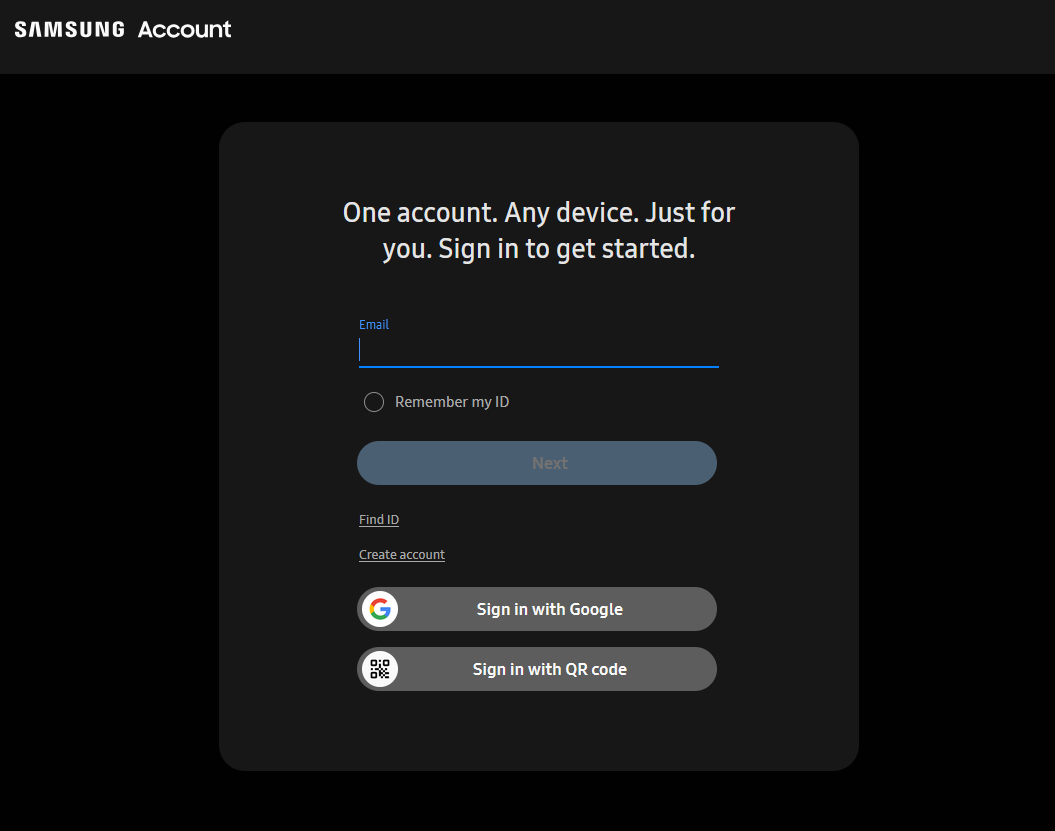
To connect with **Samsung's SmartThings**, choose the option to Import rooms and select **SmartThings**. You will be redirected to the **Samsung Account** page.

<p class="callout info">See the <span style="color: rgb(53, 152, 219);">[**list of smarthome providers**](https://docs.sim-on.com/books/2-getting-started/chapter/providers)</span> in **detailed project setup**, to check which ones are supported</p>

</td><td style="border-width: 0px; height: 248.288px;">![obraz.png](https://docs.sim-on.com/uploads/images/gallery/2024-08/scaled-1680-/Vdwobraz.png)

</td></tr><tr style="height: 359.8px;"><td style="border-width: 0px; height: 359.8px;">**2.**

On the **Samsung's Account page** you will be asked to log into your **Samsung Account**, to proceed.

</td><td style="border-width: 0px; height: 359.8px;">![obraz.png](https://docs.sim-on.com/uploads/images/gallery/2024-08/scaled-1680-/2RVobraz.png)  
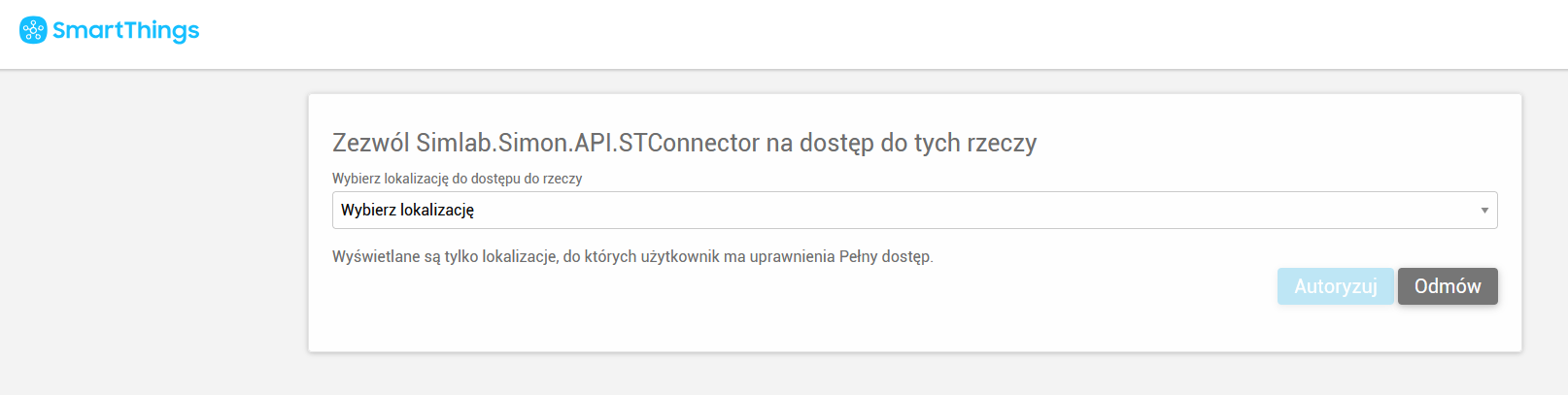
</td></tr><tr style="height: 147.275px;"><td style="border-width: 0px; height: 147.275px;">**3.**

After you log in, you need to allow access for **SIM-ON** to connect to the system. In the dropdown window you will see all of the available, connected hubs.

</td><td style="border-width: 0px; height: 147.275px;">![obraz.png](https://docs.sim-on.com/uploads/images/gallery/2024-08/scaled-1680-/nXQobraz.png)

</td></tr><tr style="height: 265.05px;"><td style="border-width: 0px; height: 265.05px;">**4.**

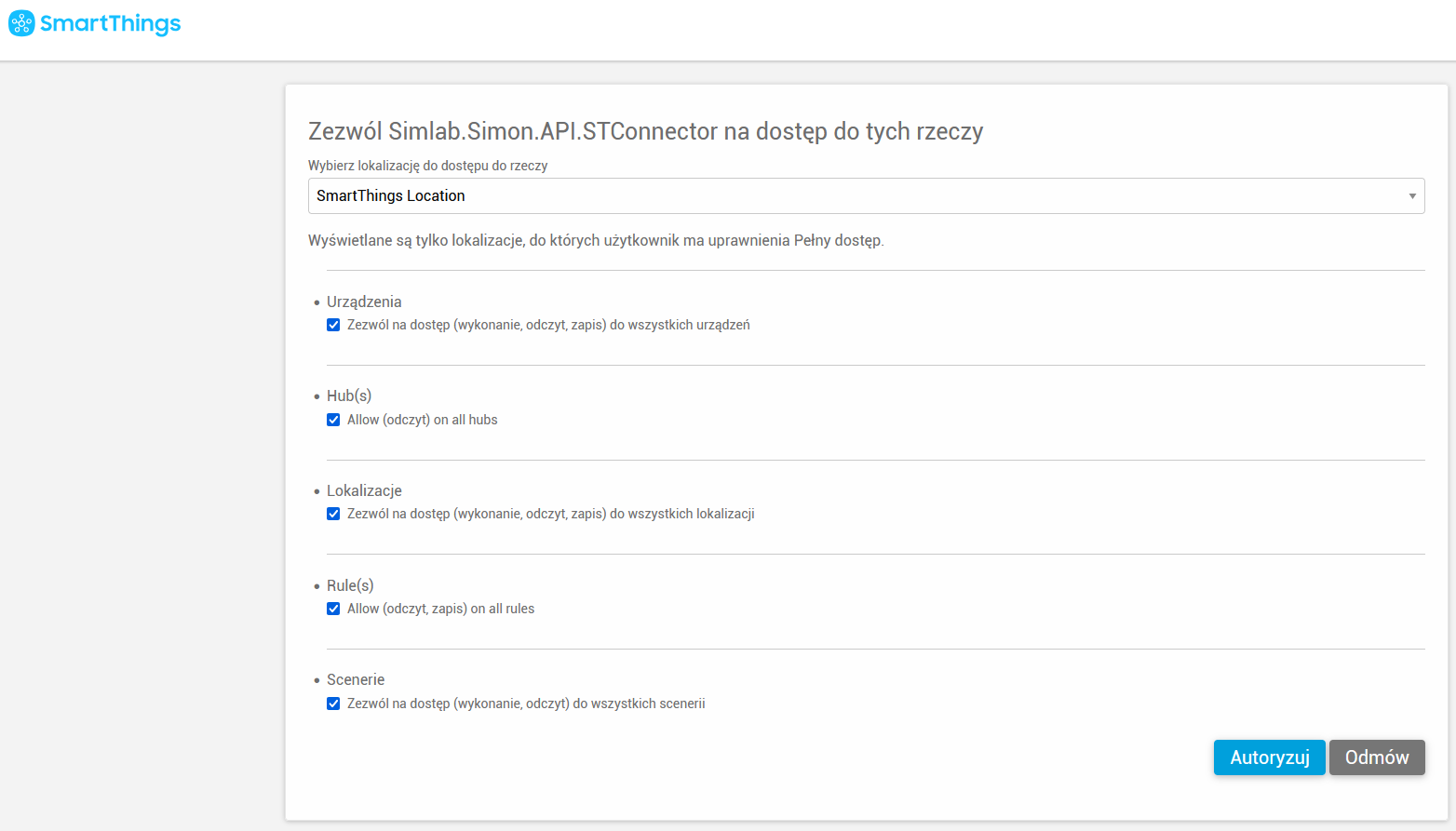
After choosing the hub, you need to set all the privileges to authorize the connection.  
  
Repeat these two steps (3,4) to add multiple hubs.

</td><td style="border-width: 0px; height: 265.05px;">![obraz.png](https://docs.sim-on.com/uploads/images/gallery/2024-08/scaled-1680-/xV9obraz.png)</td></tr><tr style="height: 309.475px;"><td style="border-width: 0px; height: 309.475px;">**5.**

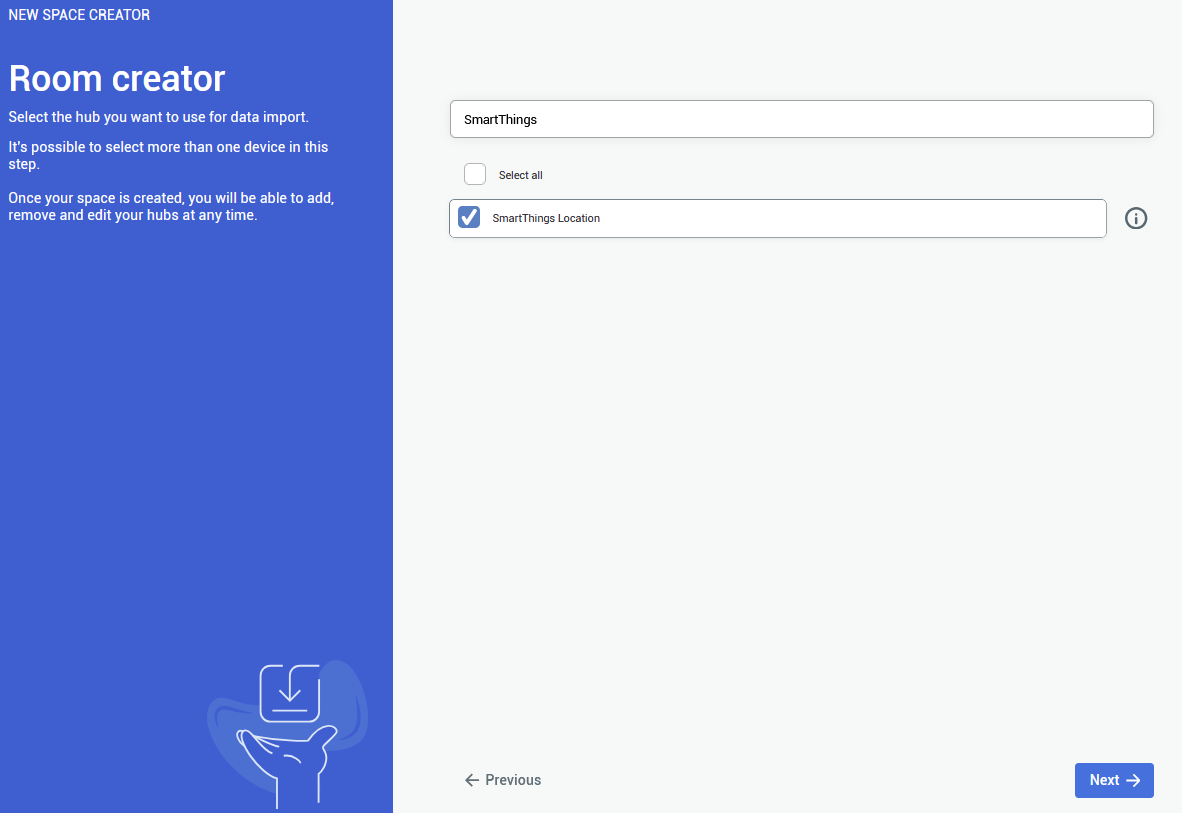
After completing **Authorization**, you need to go back to the **SIM-ON** tab and the hub(s) you added will be now available.

Now you can add room(s) from the hub for the project.

</td><td style="border-width: 0px; height: 309.475px;">![obraz.png](https://docs.sim-on.com/uploads/images/gallery/2024-08/scaled-1680-/FkRobraz.png)</td></tr><tr style="height: 312.8px;"><td style="border-width: 0px; height: 312.8px;">**6.**

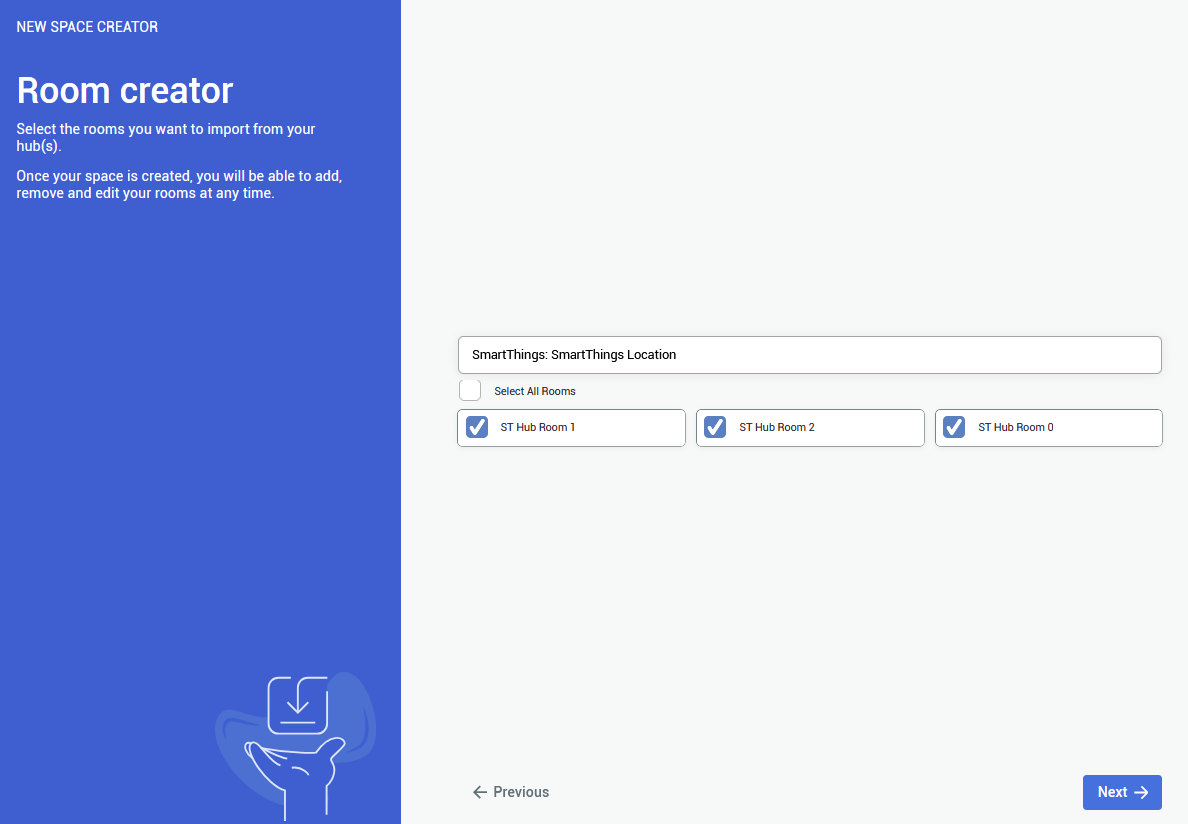
Here you will be presented with the list of already existing rooms in your **SmartThings** hub. Choose any number of the rooms to be imported to **SIM-ON** then proceed.

<p class="callout info">You are not required to import any of the rooms, although it is recommended - to keep the consistency between smarthome environments  
</p>

<p class="callout info">Rooms can be added and edited afterwards as well</p>

</td><td style="border-width: 0px; height: 312.8px;">![obraz.png](https://docs.sim-on.com/uploads/images/gallery/2024-08/scaled-1680-/Fwxobraz.png)</td></tr><tr style="height: 318.35px;"><td style="border-width: 0px; height: 318.35px;">**7.**

The last step is to choose the **Matterport virtual tour** for the project to be used, through the provided **Matterport link**.

<p class="callout warning">To use a **private link** you will be asked to **log in** to appropriate **Matterport Account**</p>

</td><td style="border-width: 0px; height: 318.35px;">![matterport link paste.png](https://docs.sim-on.com/uploads/images/gallery/2024-08/scaled-1680-/matterport-link-paste.png)</td></tr><tr style="height: 298.775px;"><td style="border-width: 0px; height: 298.775px;">**8.**

**Congratulations!**

You've successfully imported the devices from **Samsung SmartThings**. By clicking confirm, you will see your space with an access to all of the devices.

</td><td style="border-width: 0px; height: 298.775px;">![obraz.png](https://docs.sim-on.com/uploads/images/gallery/2024-08/scaled-1680-/3yMobraz.png)  
</td></tr></tbody></table>

<span style="color: rgb(53, 152, 219);">[**Continue to project setup**](https://docs.sim-on.com/link/130#bkmrk-step-4%3A-assigning-sw)</span>

---

<p class="callout info">You can add a provider by selecting Providers in the side bar, and then clicking on ![Add connections.png](https://docs.sim-on.com/uploads/images/gallery/2024-08/scaled-1680-/add-connections.png)button. The process will look exactly the same</p>

<p class="callout warning">You can also delete a connection by clicking on ![remove connections.png](https://docs.sim-on.com/uploads/images/gallery/2024-08/scaled-1680-/remove-connections.png)button. Devices imported from the selected hub will be also deleted</p>

# NETx

<p class="callout success">To learn how to setup **NETx** for SIM-ON integration, see **Official NETx** [<span style="text-decoration: underline; color: rgb(53, 152, 219);">**Integration with SIM-ON digital twin platform**</span>](https://docs.sim-on.com/Integration%20with%20SIM-ON%20digital%20twin%20platform)</p>

---

<table border="1" id="bkmrk-first%2C-you-need-to-s" style="border-collapse: collapse; width: 100%; border-width: 0px; height: 2086.25px;"><colgroup><col style="width: 50%;"></col><col style="width: 50%;"></col></colgroup><tbody><tr style="height: 314.6px;"><td style="border-width: 0px; height: 314.6px;">**1.**

In the provider selection window, choose **NETx** to proceed the project setup based on this home automation service provider.

<p class="callout info">See the <span style="color: rgb(53, 152, 219);">[**list of smarthome providers**](https://docs.sim-on.com/books/2-getting-started/chapter/providers)</span> in **detailed project setup**, to check which ones are supported</p>

</td><td style="border-width: 0px; height: 314.6px;">![obraz.png](https://docs.sim-on.com/uploads/images/gallery/2024-08/scaled-1680-/Zqrobraz.png)</td></tr><tr style="height: 489.725px;"><td style="border-width: 0px; height: 489.725px;">**2.**

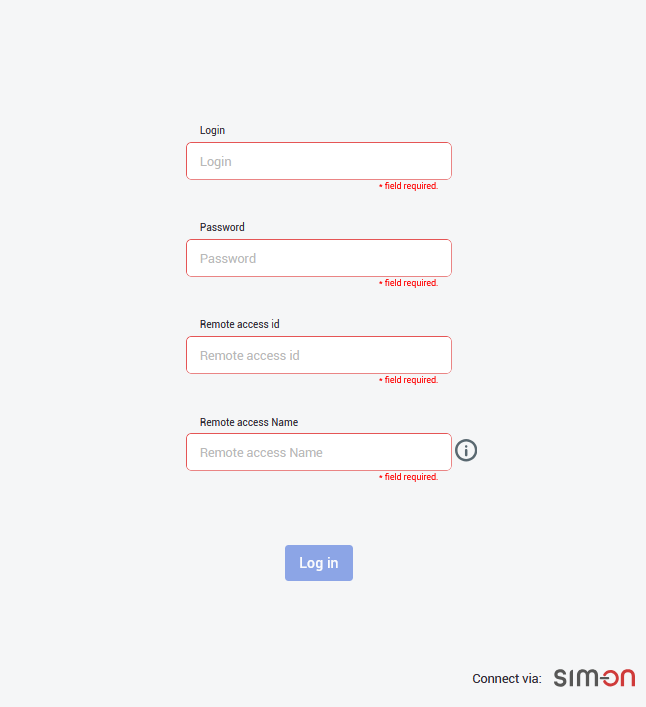
In the next step, you need to provide all essential information, so Login, Password, Remote access ID and Remote access name (can be custom)

</td><td style="border-width: 0px; height: 489.725px;">![obraz.png](https://docs.sim-on.com/uploads/images/gallery/2024-08/scaled-1680-/nU3obraz.png)</td></tr><tr style="height: 321.325px;"><td style="border-width: 0px; height: 321.325px;">**3.**

After logging in, you need to choose the central smarthome hub, from which the available rooms will be displayed.

</td><td style="border-width: 0px; height: 321.325px;">![obraz.png](https://docs.sim-on.com/uploads/images/gallery/2024-08/scaled-1680-/qllobraz.png)</td></tr><tr style="height: 336.025px;"><td style="border-width: 0px; height: 336.025px;">**4.**

After selecting the central hub, you will be shown a list of all the available rooms, that were created in your NETx application.

Choose at least one room, to proceed further.

<p class="callout success">You are not required to import all of the rooms, although it is recommended - to keep the consistency between smarthome environments  
</p>

<p class="callout info">Rooms can be added and edited afterwards as well</p>

</td><td style="border-width: 0px; height: 336.025px;">![providers-netx_rooms.png](https://docs.sim-on.com/uploads/images/gallery/2024-08/scaled-1680-/providers-netx-rooms.png)</td></tr><tr style="height: 329.163px;"><td style="border-width: 0px; height: 329.163px;">**5.**

The last step is to provide a **Matterport Virtual Tour** link. Either public o private link is accepted.

<p class="callout warning">To use **private link**, you are required to **log in** to an appropriate **Matterport Account**</p>

</td><td style="border-width: 0px; height: 329.163px;">![matterport link paste.png](https://docs.sim-on.com/uploads/images/gallery/2024-08/scaled-1680-/matterport-link-paste.png)</td></tr><tr style="height: 295.413px;"><td style="border-width: 0px; height: 295.413px;">**6.**

At the end you will be shown a summary of your project setup. After making sure that everything is as it should be, **confirm** to finalize the project creation.

</td><td style="border-width: 0px; height: 295.413px;">![obraz.png](https://docs.sim-on.com/uploads/images/gallery/2024-08/scaled-1680-/GFjobraz.png)

</td></tr></tbody></table>

<span style="color: rgb(53, 152, 219);">[**Continue to project setup**](https://docs.sim-on.com/link/130#bkmrk-step-4%3A-assigning-sw)</span>

---

<p class="callout info">You can add a provider by selecting Providers in the side bar, and then clicking on [![Add connections.png](https://docs.sim-on.com/uploads/images/gallery/2024-08/scaled-1680-/add-connections.png)](https://docs.sim-on.com/uploads/images/gallery/2024-08/add-connections.png)button. The process will look exactly the same.</p>

<p class="callout warning">You can also delete a connection by clicking on [![remove connections.png](https://docs.sim-on.com/uploads/images/gallery/2024-08/scaled-1680-/remove-connections.png)](https://docs.sim-on.com/uploads/images/gallery/2024-08/remove-connections.png)button. Devices imported from the selected hub will be also deleted</p>

# Fibaro

<table border="1" id="bkmrk-first%2C-you-need-to-s" style="border-collapse: collapse; width: 100%; border-width: 0px; height: 1193.74px;"><colgroup><col style="width: 50%;"></col><col style="width: 50%;"></col></colgroup><tbody><tr style="height: 247.55px;"><td style="border-width: 0px; height: 247.55px;">**1.**

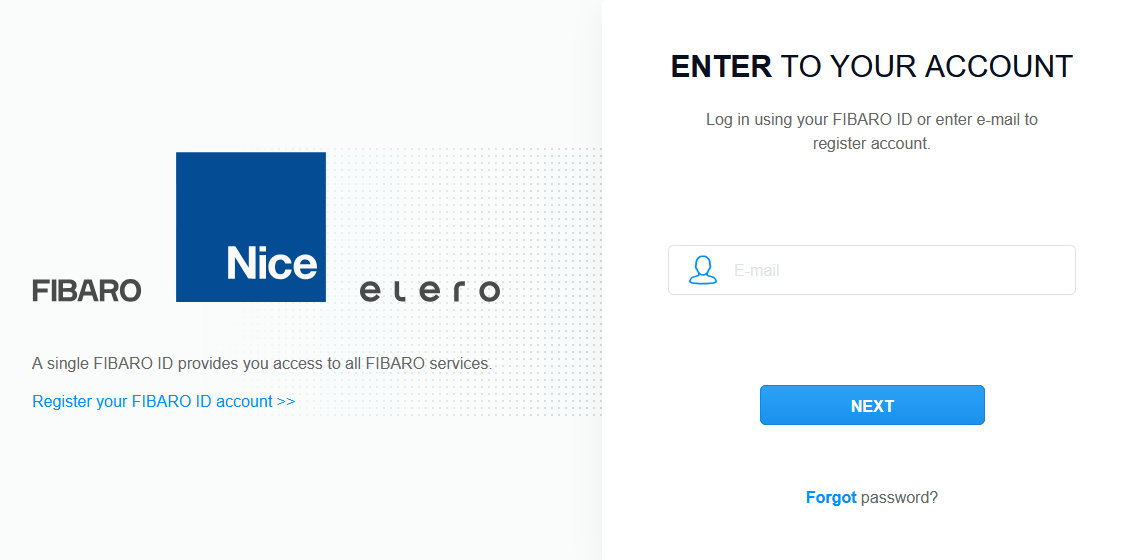
In the provider selection window, choose **Fibaro** to proceed the project setup based on this home automation service provider.

<p class="callout info">See the <span style="color: rgb(53, 152, 219);">[**list of smarthome providers**](https://docs.sim-on.com/books/2-getting-started/chapter/providers)</span> in **detailed project setup**, to check which ones are supported</p>

You will be redirected to **Fibaro login page**.

</td><td style="border-width: 0px; height: 247.55px;">![obraz.png](https://docs.sim-on.com/uploads/images/gallery/2024-08/scaled-1680-/sFjobraz.png)</td></tr><tr style="height: 326.538px;"><td style="border-width: 0px; height: 326.538px;">**2.**

After logging into your **Fibaro Account**, you will see the list of available **smarthome hubs**.  
  
Select the appropriate one(s) and proceed.

</td><td style="border-width: 0px; height: 326.538px;">![obraz.png](https://docs.sim-on.com/uploads/images/gallery/2024-08/scaled-1680-/41lobraz.png)

</td></tr><tr style="height: 327.2px;"><td style="border-width: 0px; height: 327.2px;">**3.**

Here you can import the rooms. Pick at least a single room to be imported.

<p class="callout info">You are not required to import all of the rooms, although it is recommended - to keep the consistency between smarthome environments  
</p>

<p class="callout info">Rooms can be added and edited afterwards as well</p>

</td><td style="border-width: 0px; height: 327.2px;">![obraz.png](https://docs.sim-on.com/uploads/images/gallery/2024-08/scaled-1680-/eM8obraz.png)</td></tr><tr style="height: 292.45px;"><td style="border-width: 0px; height: 292.45px;">**4.**

The last step is to provide a **Matterport Virtual Tour** link. Either public o private link is accepted.

<p class="callout warning">To use **private link**, you are required to **log in** to an appropriate **Matterport Account**</p>

</td><td style="border-width: 0px; height: 292.45px;">![obraz.png](https://docs.sim-on.com/uploads/images/gallery/2024-08/scaled-1680-/nnoobraz.png)</td></tr></tbody></table>

<span style="color: rgb(53, 152, 219);">[**Continue to project setup**](https://docs.sim-on.com/link/130#bkmrk-step-4%3A-assigning-sw)</span>

---

<p class="callout info">You can add a provider by selecting Providers in the side bar, and then clicking on ![Add connections.png](https://docs.sim-on.com/uploads/images/gallery/2024-08/scaled-1680-/add-connections.png)button. The process will look exactly the same</p>

<p class="callout warning">You can also delete a connection by clicking on ![remove connections.png](https://docs.sim-on.com/uploads/images/gallery/2024-08/scaled-1680-/remove-connections.png)button. Devices imported from the selected hub will be also deleted</p>

# IBM Maximo

1\. To connect an IBM Maximo provider, after [<span style="text-decoration: underline; color: rgb(53, 152, 219);">**creating a Project Space**</span>](https://docs.sim-on.com/books/2-getting-started/chapter/project-setup) - navigate to the **[<span style="text-decoration: underline; color: rgb(53, 152, 219);">Providers</span>](https://docs.sim-on.com/books/3-app-overview/chapter/providers)** view -&gt; [<span style="text-decoration: underline; color: rgb(53, 152, 219);">**Connections**</span>](https://docs.sim-on.com/books/3-app-overview/page/connections) page from the [**<span style="text-decoration: underline; color: rgb(53, 152, 219);">Left Side Panel</span>**](https://docs.sim-on.com/link/147#bkmrk-)<span style="color: rgb(0, 0, 0);">. </span>Click "Add connections" button and select **IBM Maximo** from available providers.   
You'll be then redirected to the following page:
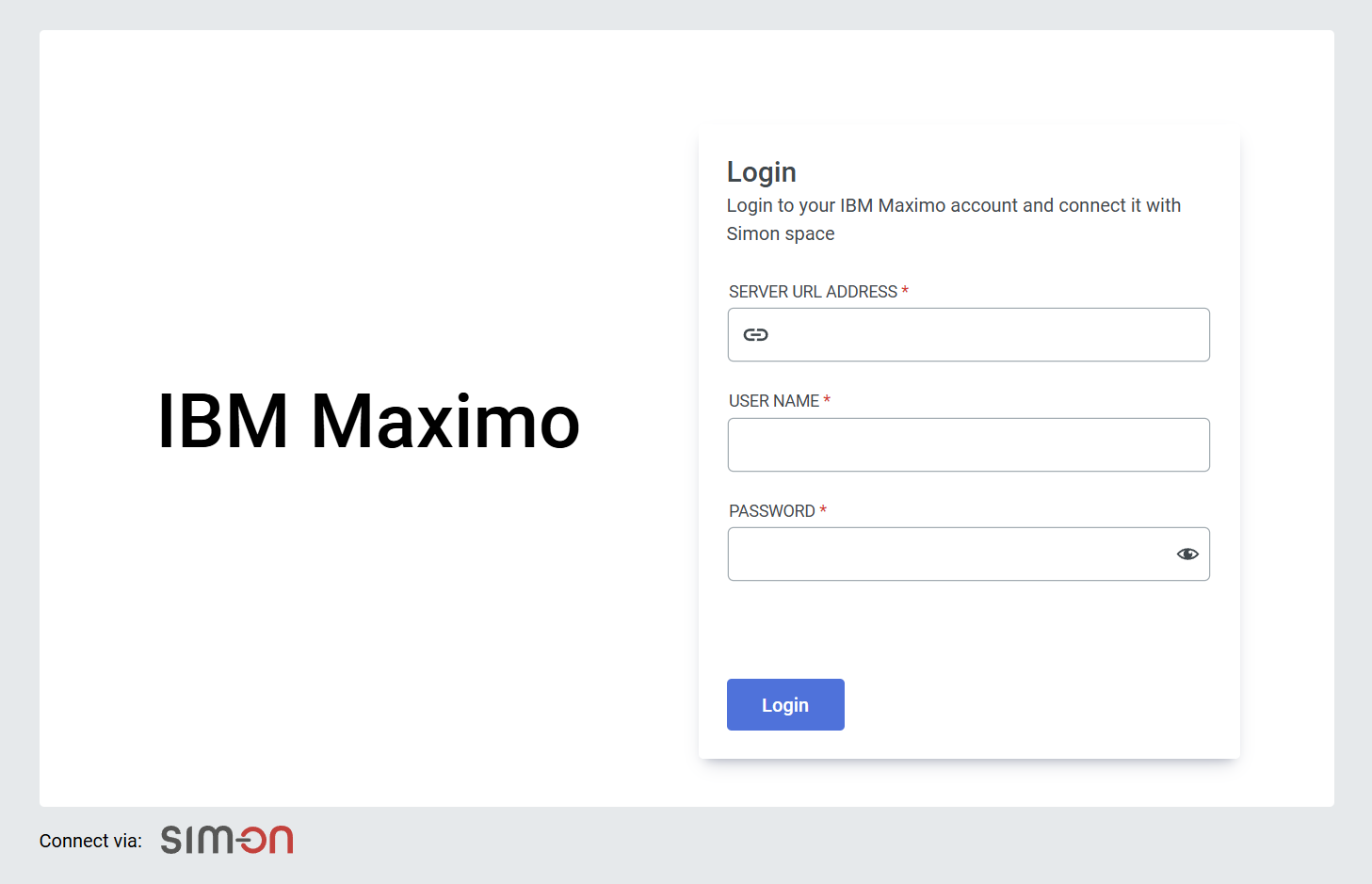
![image.png](https://docs.sim-on.com/uploads/images/gallery/2025-01/scaled-1680-/ctFimage.png)

2\. Login with your IBM Maximo account

3\. Select the Organization and Site, then finalize with "connect"
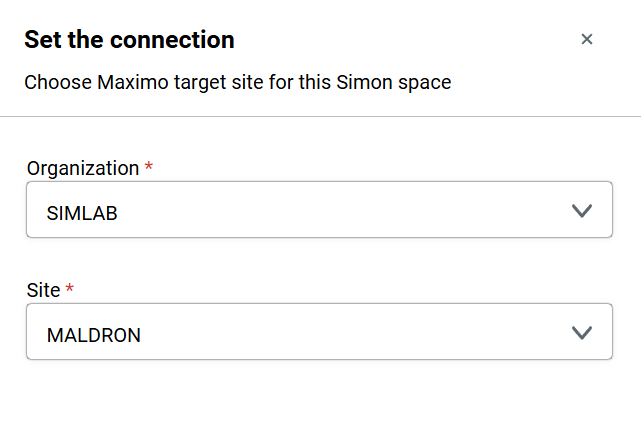
![image.png](https://docs.sim-on.com/uploads/images/gallery/2025-01/scaled-1680-/r2Dimage.png)

Connecting with Maximo lets you seamlessly link assets to the Sim-On environment. Browse these assets in the IBM Maximo specific [<span style="text-decoration: underline; color: rgb(53, 152, 219);">**Dashboard**</span>](https://docs.sim-on.com/books/3-app-overview/chapter/dashboard) page: [<span style="text-decoration: underline; color: rgb(53, 152, 219);">**Resources**</span>](https://docs.sim-on.com/books/3-app-overview/page/resources).

![image.png](https://docs.sim-on.com/uploads/images/gallery/2025-01/scaled-1680-/2Pnimage.png)

Additionally, with IBM Maximo comes a special feature for **Assets** in Sim-on: **linking** with IBM Maximo devices.

<p class="callout info">See [<span style="text-decoration: underline; color: rgb(53, 152, 219);">**IBM Maximo Asset Link**</span>](https://docs.sim-on.com/link/136#bkmrk--1) feature and [<span style="text-decoration: underline; color: rgb(53, 152, 219);">**Resources**</span>](https://docs.sim-on.com/books/3-app-overview/page/resources) pages to learn more</p>

# Homey

1\. To connect Homey provider, after [<span style="text-decoration: underline; color: rgb(53, 152, 219);">**creating a Project Space**</span>](https://docs.sim-on.com/books/2-getting-started/chapter/project-setup) - navigate to the **[<span style="text-decoration: underline; color: rgb(53, 152, 219);">Providers</span>](https://docs.sim-on.com/books/3-app-overview/chapter/providers)** view -&gt; [<span style="text-decoration: underline; color: rgb(53, 152, 219);">**Connections**</span>](https://docs.sim-on.com/books/3-app-overview/page/connections) page from the [**<span style="text-decoration: underline; color: rgb(53, 152, 219);">Left Side Panel</span>**](https://docs.sim-on.com/link/147#bkmrk-)<span style="color: rgb(0, 0, 0);">. </span>Click ![image.png](https://docs.sim-on.com/uploads/images/gallery/2025-07/scaled-1680-/Vu8image.png) button and select **Homey** from available providers (*you'll be redirected to the provider web page.*)

2\. Login with your Homey account:
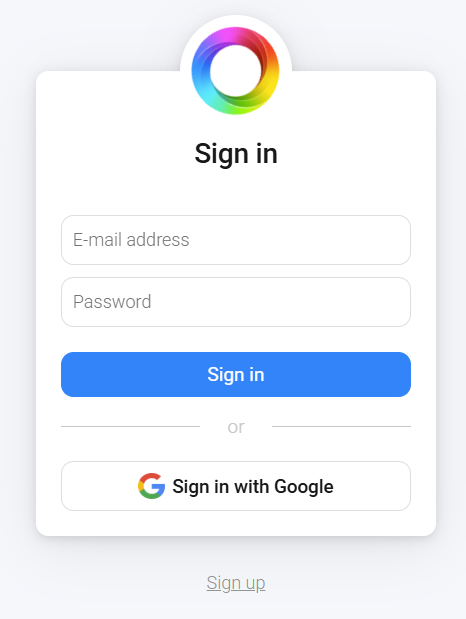
![image.png](https://docs.sim-on.com/uploads/images/gallery/2025-07/scaled-1680-/image.png)

  
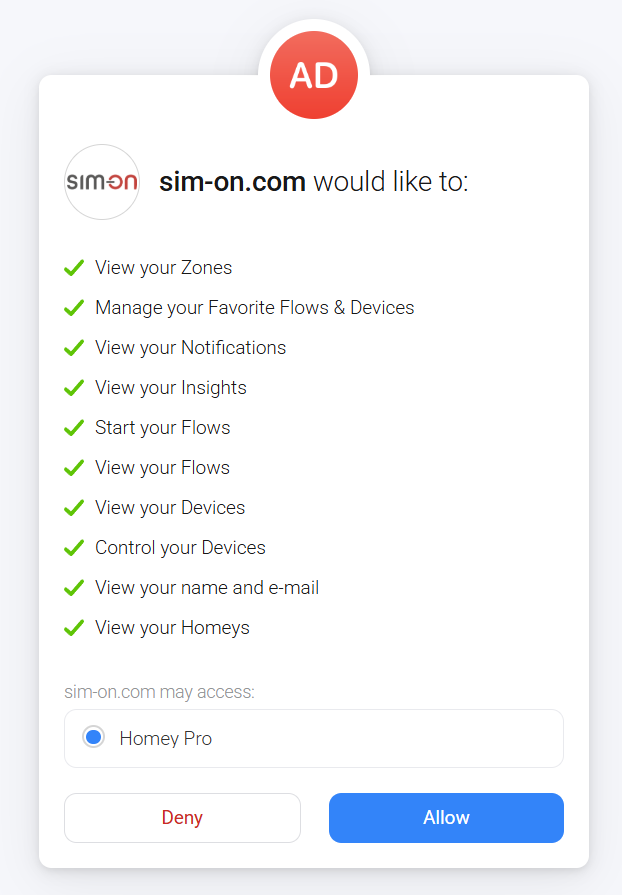
3\. Allow the following permissions for both apps:
![image.png](https://docs.sim-on.com/uploads/images/gallery/2025-07/scaled-1680-/uX0image.png)

  
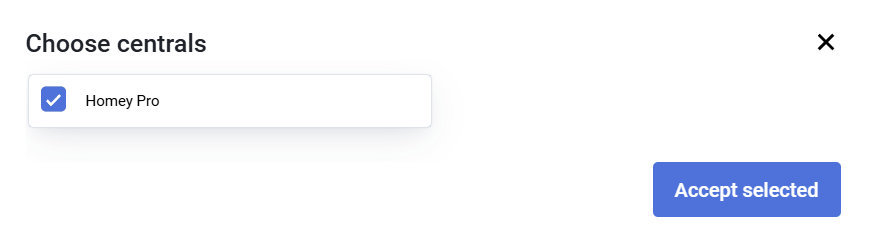
4\. Select your central unit for pairing:
![image.png](https://docs.sim-on.com/uploads/images/gallery/2025-07/scaled-1680-/JReimage.png)

Now you can add and manage your Homey devices within the Sim-on