# Assets
#### **Adding assets**
Defined as an "**asset**" is any object or an item you wish to keep track of in your SIM-ON space. The main difference between an "**asset**" and a "**device**" is the lack of smart connectivity of the former one.
To add an asset, navigate to **[Quick Access Menu](https://docs.sim-on.com/link/148#bkmrk-assets "Top Menu")** located on the right side of the viewport, select **Assets**  icon and hover over  icon, to reveal "**Add Asset**" button and then press it.
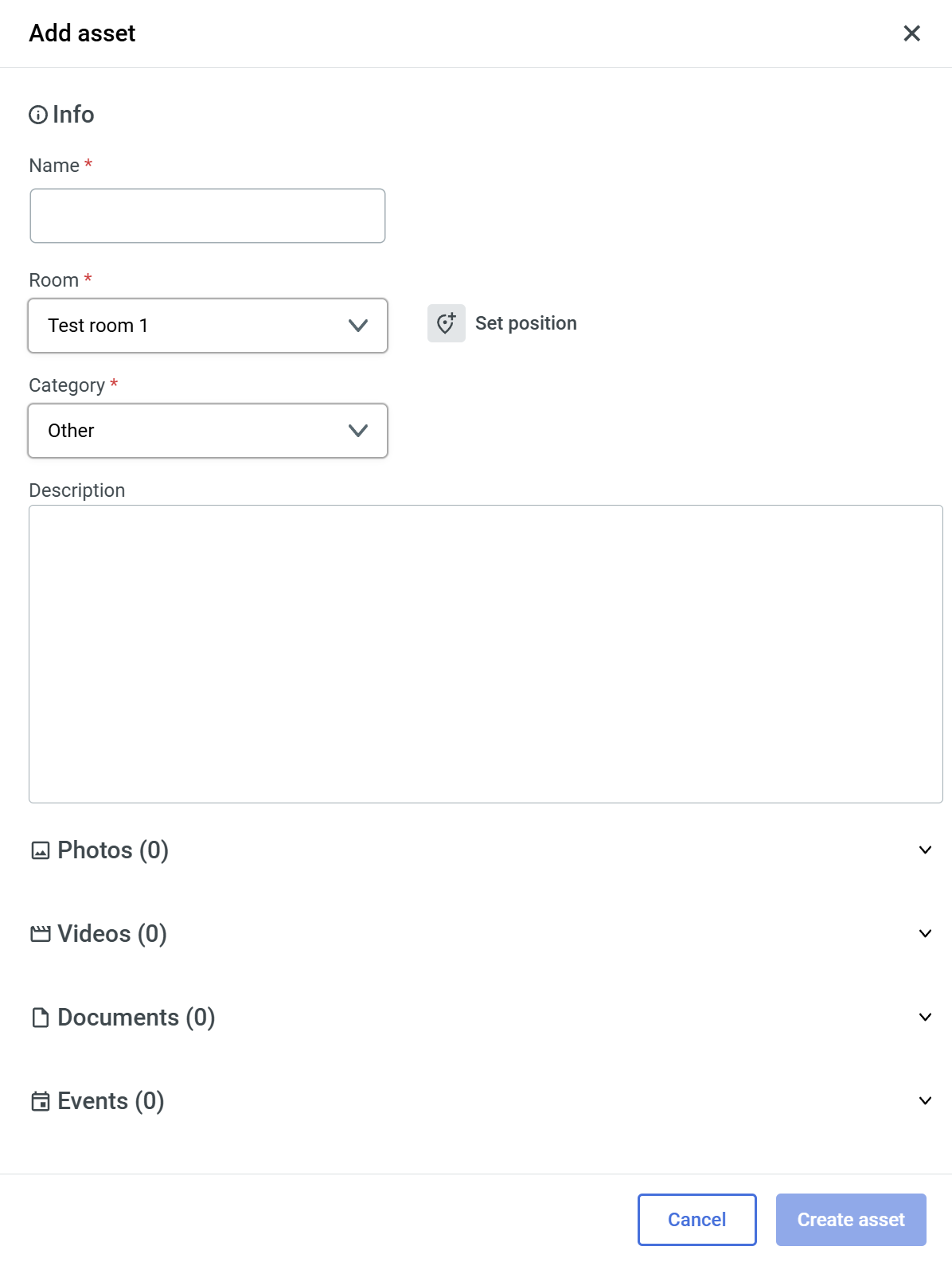
The following window will appear on the right side of your screen:
To create an asset, you need to fill out the necessary fields, marked with " **\*** ", then the  button will become available to finalize the asset creation.
At this stage you might as well add other asset info such as: description or photos, although it is not necessary, since you can come back at any time and edit them later.
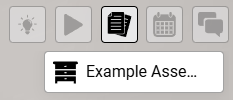
After creating an asset, it will now appear on the right side of the viewport, under the **[Quick Access Menu](https://docs.sim-on.com/link/148#bkmrk-assets "Top Menu")**, as well as in the [**assets list**](https://docs.sim-on.com/books/3-app-overview/page/assets) in the [**Dashboard**](https://docs.sim-on.com/books/3-app-overview/chapter/dashboard).
****
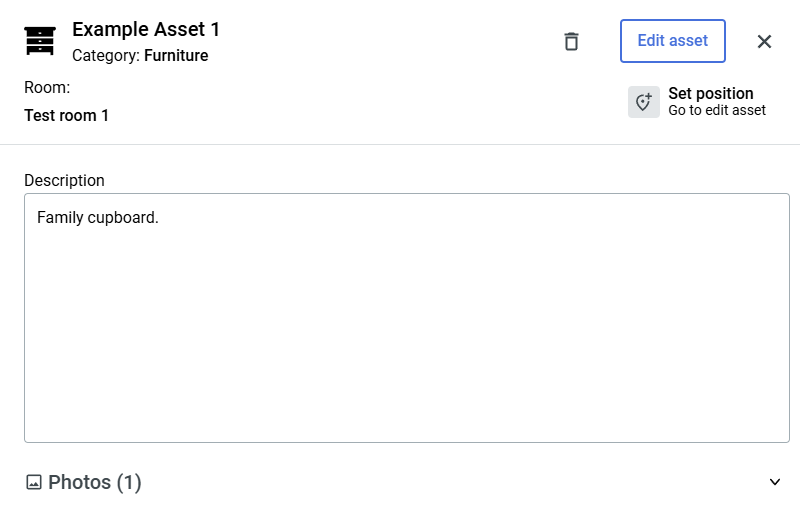
Clicking the asset tile will reveal similar window as before, displaying the details of the asset. From here you can either go back to **edit** your asset, **set it's position** within 3D space or **delete** it altogether.