# Fibaro

<table border="1" id="bkmrk-first%2C-you-need-to-s" style="border-collapse: collapse; width: 100%; border-width: 0px; height: 1193.74px;"><colgroup><col style="width: 50%;"></col><col style="width: 50%;"></col></colgroup><tbody><tr style="height: 247.55px;"><td style="border-width: 0px; height: 247.55px;">**1.**

In the provider selection window, choose **Fibaro** to proceed the project setup based on this home automation service provider.

<p class="callout info">See the <span style="color: rgb(53, 152, 219);">[**list of smarthome providers**](https://docs.sim-on.com/books/2-getting-started/chapter/providers)</span> in **detailed project setup**, to check which ones are supported</p>

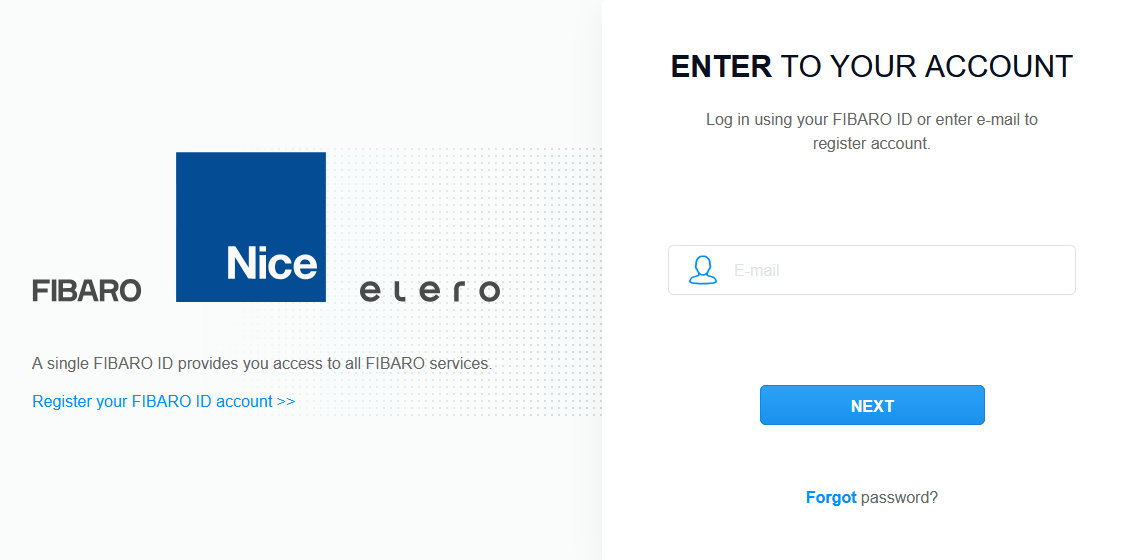
You will be redirected to **Fibaro login page**.

</td><td style="border-width: 0px; height: 247.55px;">![obraz.png](https://docs.sim-on.com/uploads/images/gallery/2024-08/scaled-1680-/sFjobraz.png)</td></tr><tr style="height: 326.538px;"><td style="border-width: 0px; height: 326.538px;">**2.**

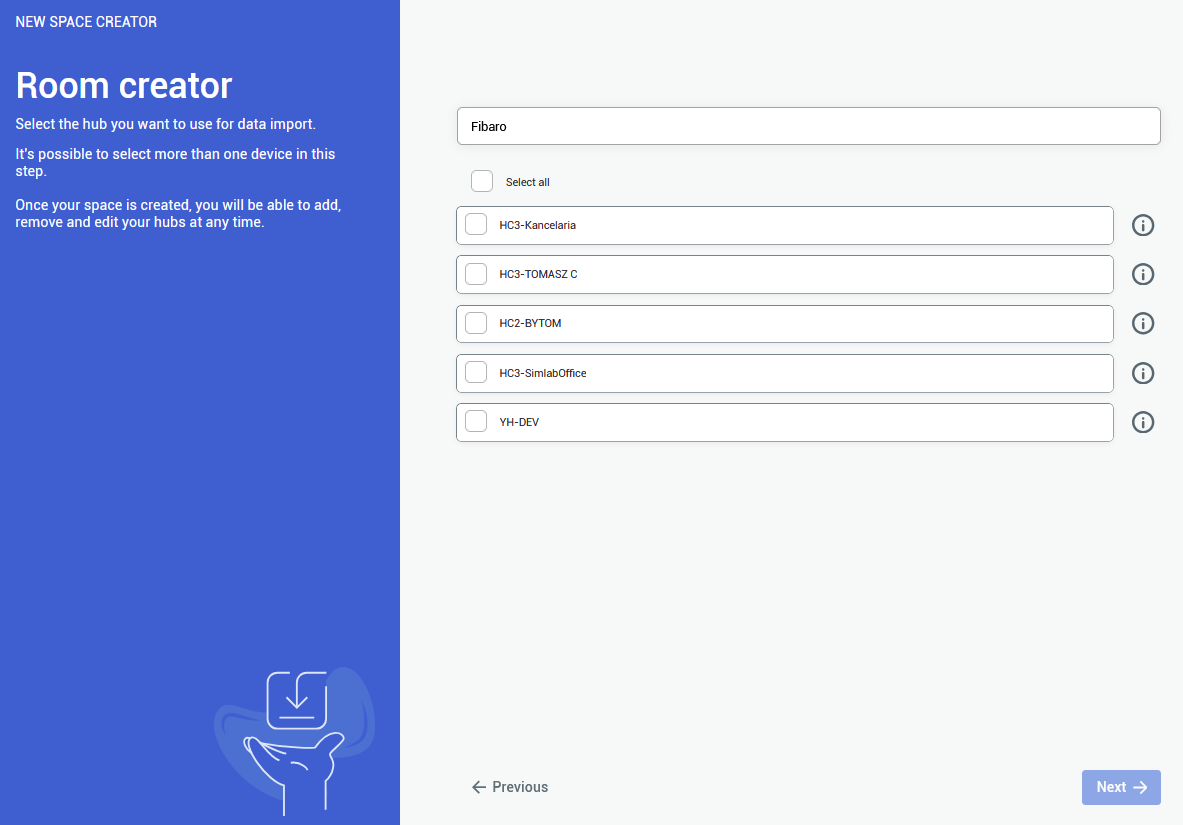
After logging into your **Fibaro Account**, you will see the list of available **smarthome hubs**.  
  
Select the appropriate one(s) and proceed.

</td><td style="border-width: 0px; height: 326.538px;">![obraz.png](https://docs.sim-on.com/uploads/images/gallery/2024-08/scaled-1680-/41lobraz.png)

</td></tr><tr style="height: 327.2px;"><td style="border-width: 0px; height: 327.2px;">**3.**

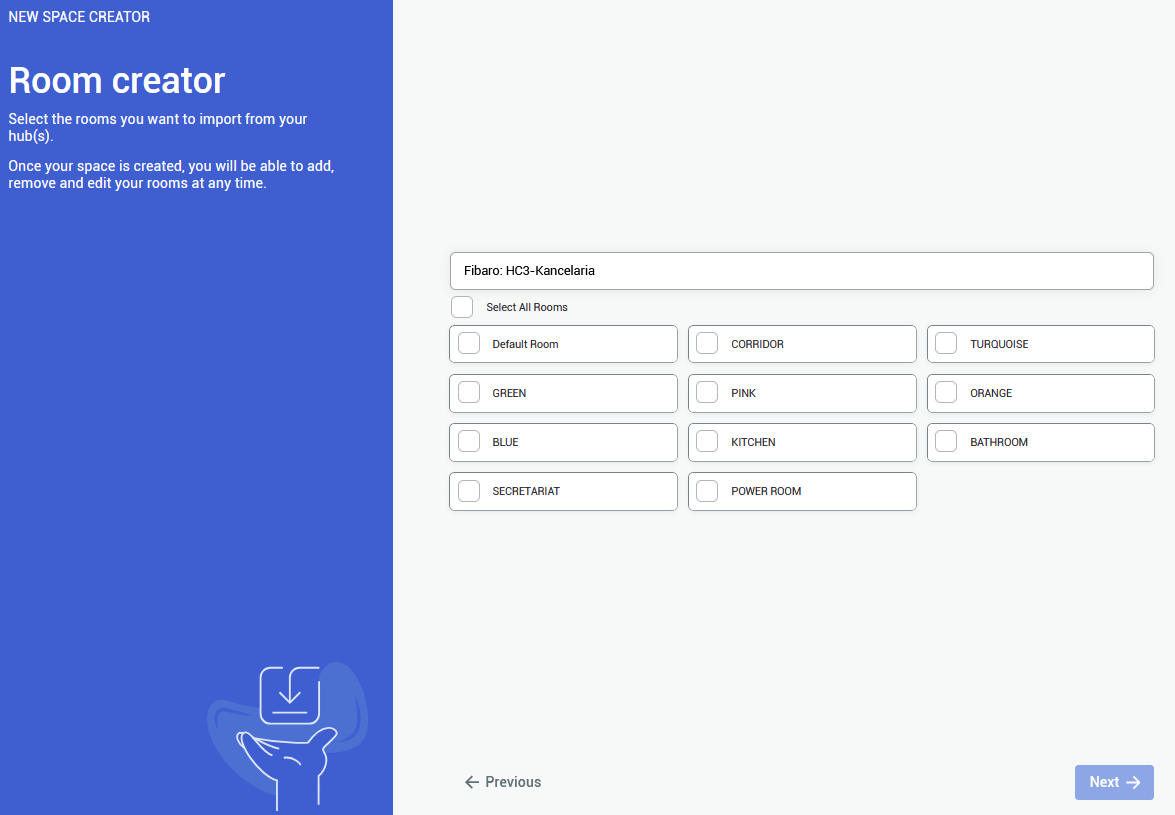
Here you can import the rooms. Pick at least a single room to be imported.

<p class="callout info">You are not required to import all of the rooms, although it is recommended - to keep the consistency between smarthome environments  
</p>

<p class="callout info">Rooms can be added and edited afterwards as well</p>

</td><td style="border-width: 0px; height: 327.2px;">![obraz.png](https://docs.sim-on.com/uploads/images/gallery/2024-08/scaled-1680-/eM8obraz.png)</td></tr><tr style="height: 292.45px;"><td style="border-width: 0px; height: 292.45px;">**4.**

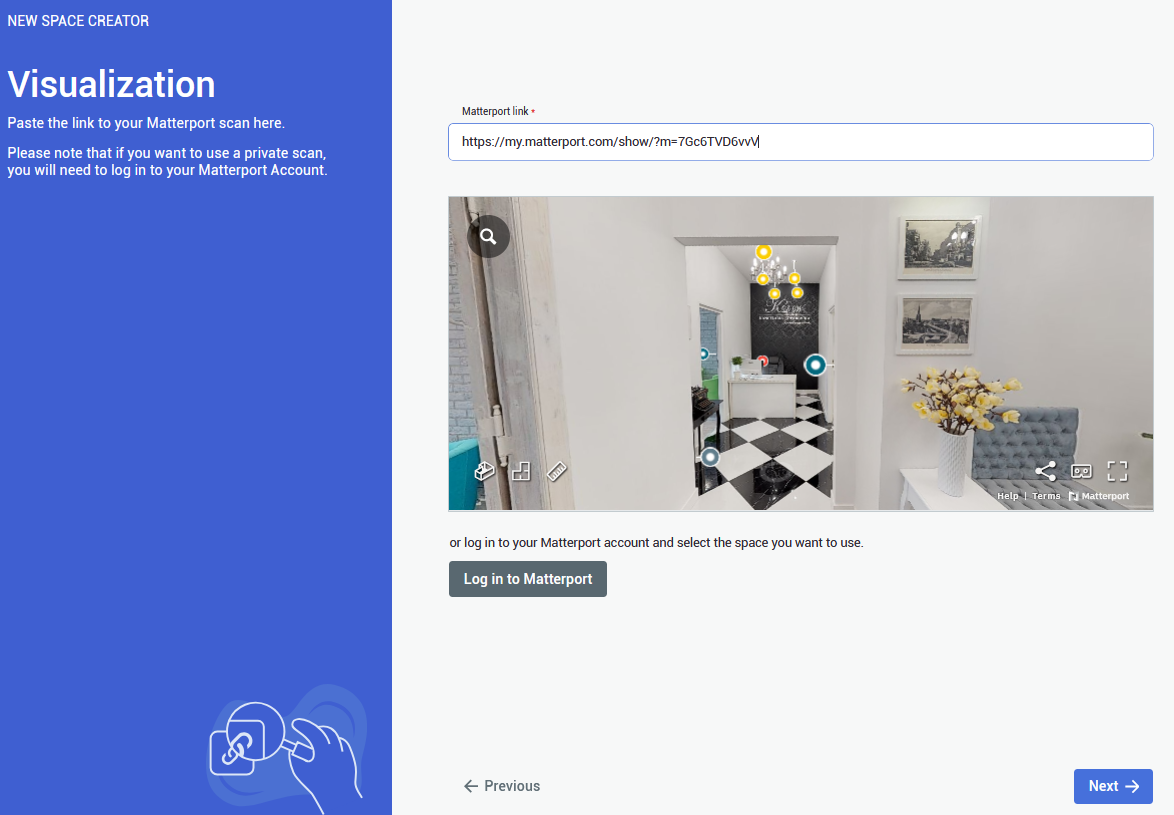
The last step is to provide a **Matterport Virtual Tour** link. Either public o private link is accepted.

<p class="callout warning">To use **private link**, you are required to **log in** to an appropriate **Matterport Account**</p>

</td><td style="border-width: 0px; height: 292.45px;">![obraz.png](https://docs.sim-on.com/uploads/images/gallery/2024-08/scaled-1680-/nnoobraz.png)</td></tr></tbody></table>

<span style="color: rgb(53, 152, 219);">[**Continue to project setup**](https://docs.sim-on.com/link/130#bkmrk-step-4%3A-assigning-sw)</span>

---

<p class="callout info">You can add a provider by selecting Providers in the side bar, and then clicking on ![Add connections.png](https://docs.sim-on.com/uploads/images/gallery/2024-08/scaled-1680-/add-connections.png)button. The process will look exactly the same</p>

<p class="callout warning">You can also delete a connection by clicking on ![remove connections.png](https://docs.sim-on.com/uploads/images/gallery/2024-08/scaled-1680-/remove-connections.png)button. Devices imported from the selected hub will be also deleted</p>