# Homey

1\. To connect Homey provider, after [<span style="text-decoration: underline; color: rgb(53, 152, 219);">**creating a Project Space**</span>](https://docs.sim-on.com/books/2-getting-started/chapter/project-setup) - navigate to the **[<span style="text-decoration: underline; color: rgb(53, 152, 219);">Providers</span>](https://docs.sim-on.com/books/3-app-overview/chapter/providers)** view -&gt; [<span style="text-decoration: underline; color: rgb(53, 152, 219);">**Connections**</span>](https://docs.sim-on.com/books/3-app-overview/page/connections) page from the [**<span style="text-decoration: underline; color: rgb(53, 152, 219);">Left Side Panel</span>**](https://docs.sim-on.com/link/147#bkmrk-)<span style="color: rgb(0, 0, 0);">. </span>Click ![image.png](https://docs.sim-on.com/uploads/images/gallery/2025-07/scaled-1680-/Vu8image.png) button and select **Homey** from available providers (*you'll be redirected to the provider web page.*)

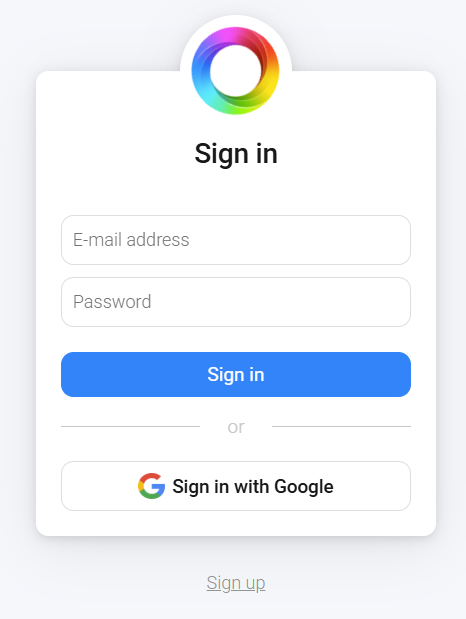
2\. Login with your Homey account:
![image.png](https://docs.sim-on.com/uploads/images/gallery/2025-07/scaled-1680-/image.png)

  
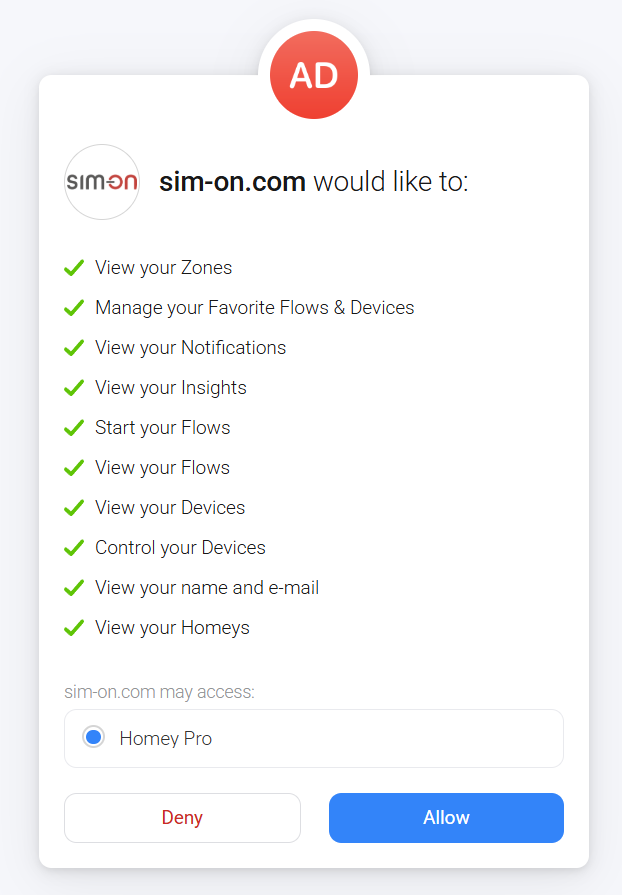
3\. Allow the following permissions for both apps:
![image.png](https://docs.sim-on.com/uploads/images/gallery/2025-07/scaled-1680-/uX0image.png)

  
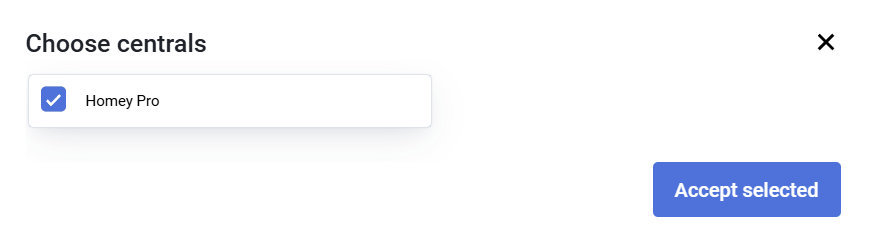
4\. Select your central unit for pairing:
![image.png](https://docs.sim-on.com/uploads/images/gallery/2025-07/scaled-1680-/JReimage.png)

Now you can add and manage your Homey devices within the Sim-on