If you already have a **Stages project** set up, it is recommended to use the [**STAGES METHOD**](https://docs.sim-on.com/books/2-getting-started/page/stages-method)
The process is the same for all Providers **SIM-ON** works with. For the presentation purposes, we will be using [**Fibaro (NICE)**](https://docs.sim-on.com/books/2-getting-started/page/fibaro) and present the whole process of adding a new space with importing devices, setting sweeps to rooms and adding and renaming the devices for the space
--- #### **Importing rooms**If you do not have a smart home system that we support, or any smart system at this time, use the **[Custom room creation](https://docs.sim-on.com/link/128#bkmrk-custom-rooms-1)**
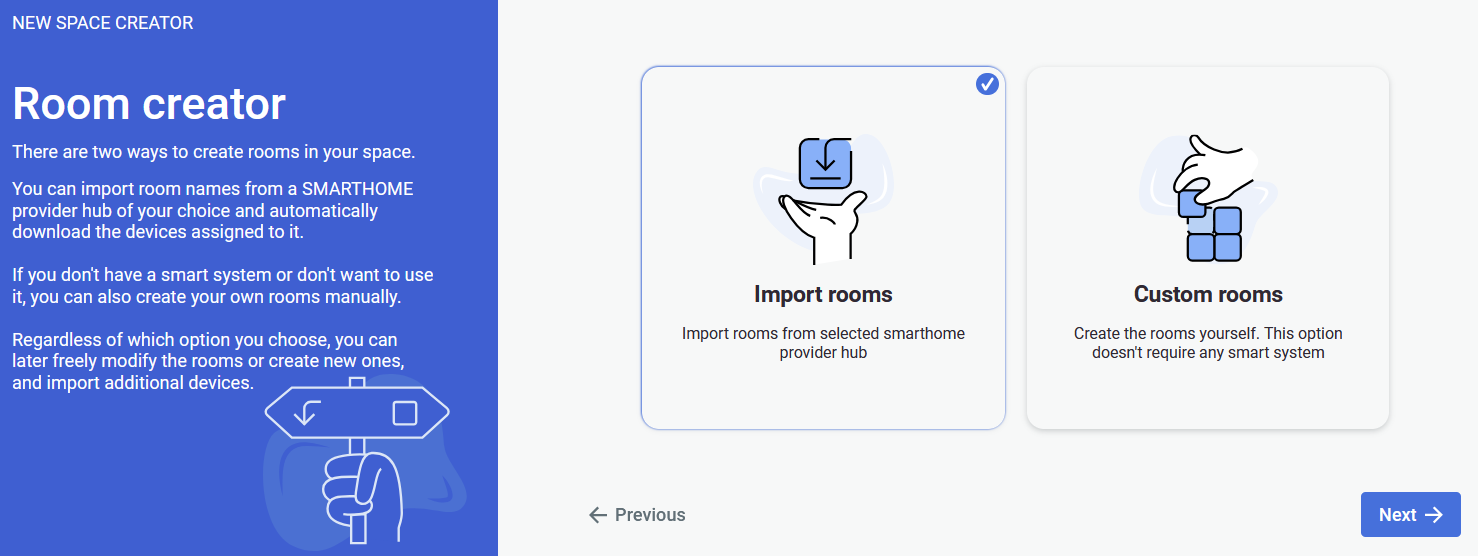 Selecting the **Import rooms** option will open a SMARTHOME provider selection window, where you will be asked to choose a provider. We will be using Fibaro as our provider. Currently supported providers are: **[KNX - project setup](https://docs.sim-on.com/books/2-getting-started/page/knx-image-change)** **[SmartThings - project setup](https://docs.sim-on.com/books/2-getting-started/page/smartthings "Project Setup - SmartThings example")** **[NICE (Fibaro) - project setup](https://docs.sim-on.com/books/2-getting-started/page/fibaro-text-changes "Project setup - Fibaro")** **[NETX - project setup](https://docs.sim-on.com/books/2-getting-started/page/netx "Project setup - NETX example")** 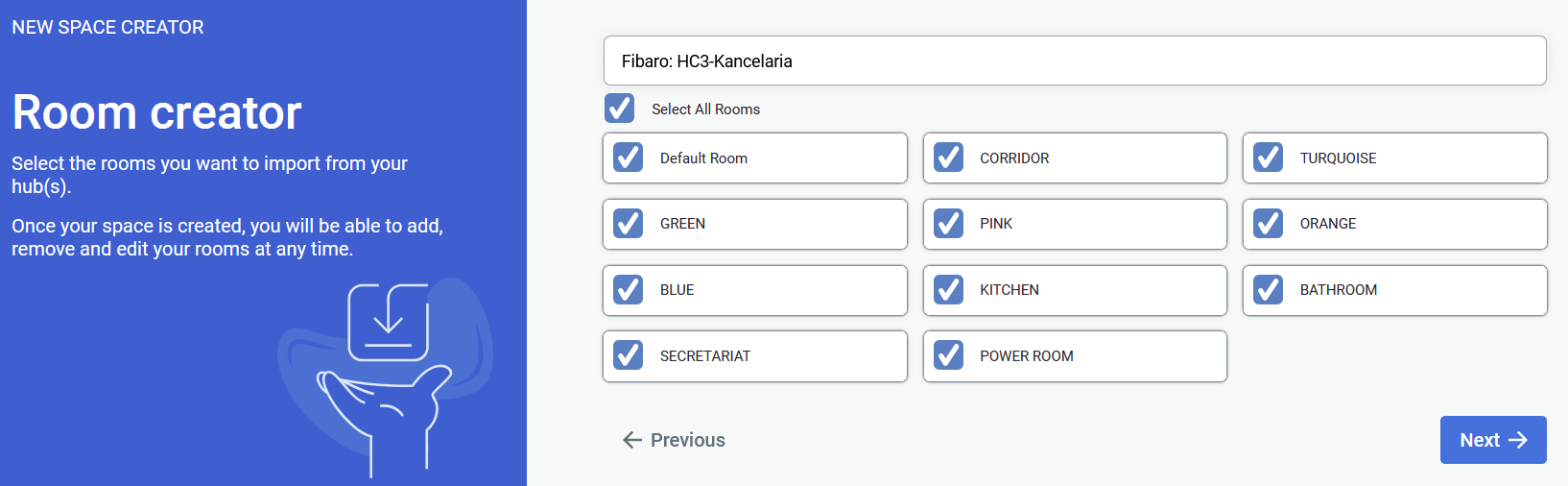 After selecting your smarthome provider and logging into your account you will see a list of available rooms to choose from for an automatic import.At least a single room has to be selected to proceed
**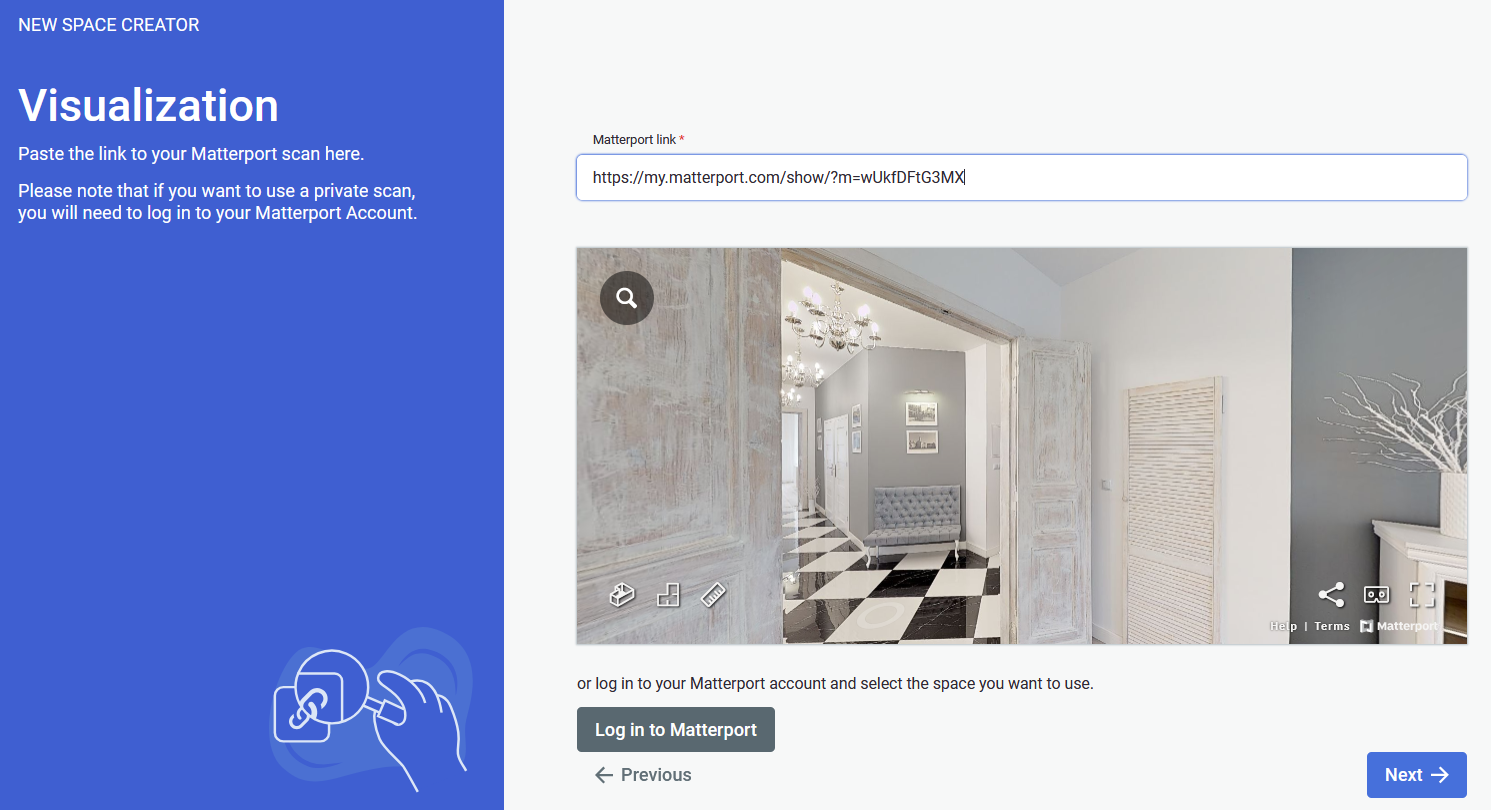** After completing your choice of rooms you will be prompted to provide a link to the **Matterport** virtual tour scan.If the link to your scan is private, you will need to log in into your Matterport account
Lastly you will be asked to check if everything is correct and you can start working on your project. --- #### **Custom rooms**Custom rooms do not require any smart system, so if you plan to add one in the future, this option will work best for you
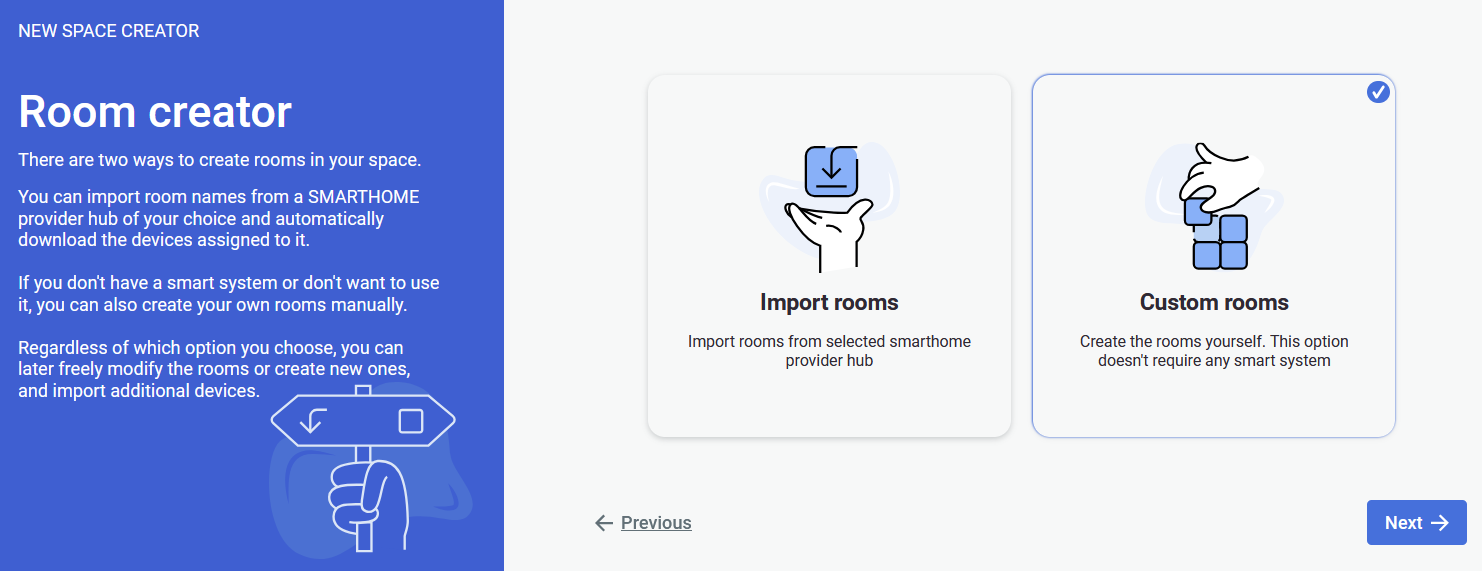 The option of custom room creation is the most suitable for clean slate space creation. 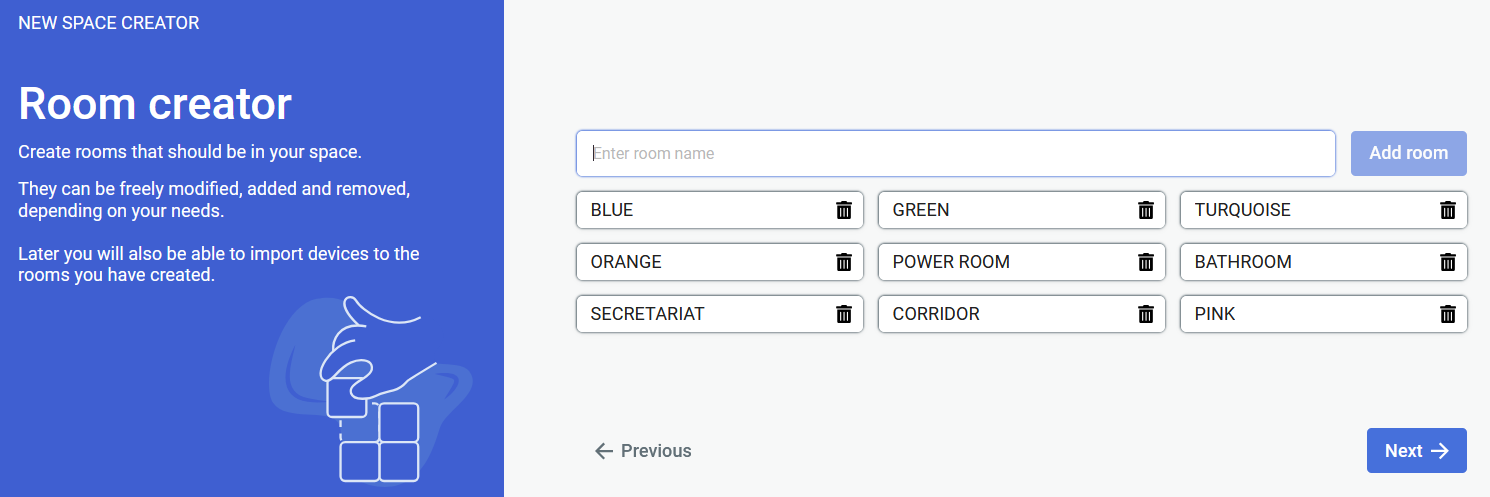 Now you will have to create rooms for the scene.At least a single room has to be created to proceed
 After creating your choice of rooms, you will be prompted to provide a link to the **Matterport** virtual tour scan.If the link to your scan is private, you will need to log in into your **Matterport** account.
After clicking next, the last step is to check if everything is correct. If so, click confirm and you can start working on your scene: adding sweeps to rooms, assets, tickets and events or devices in the future.