# Virtual Walk

After creating new project, the next step is to select the 3D Space Provider.

   
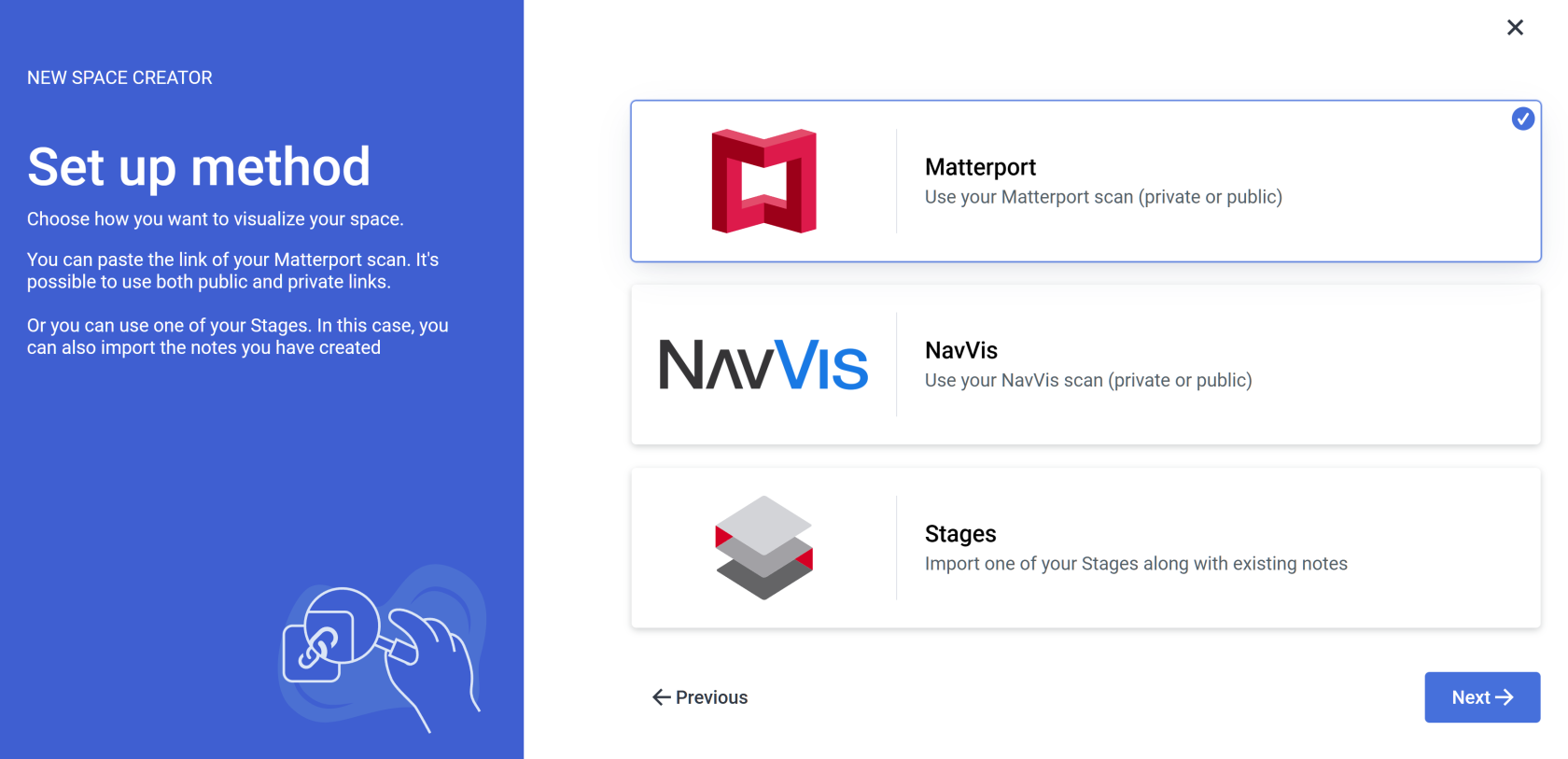
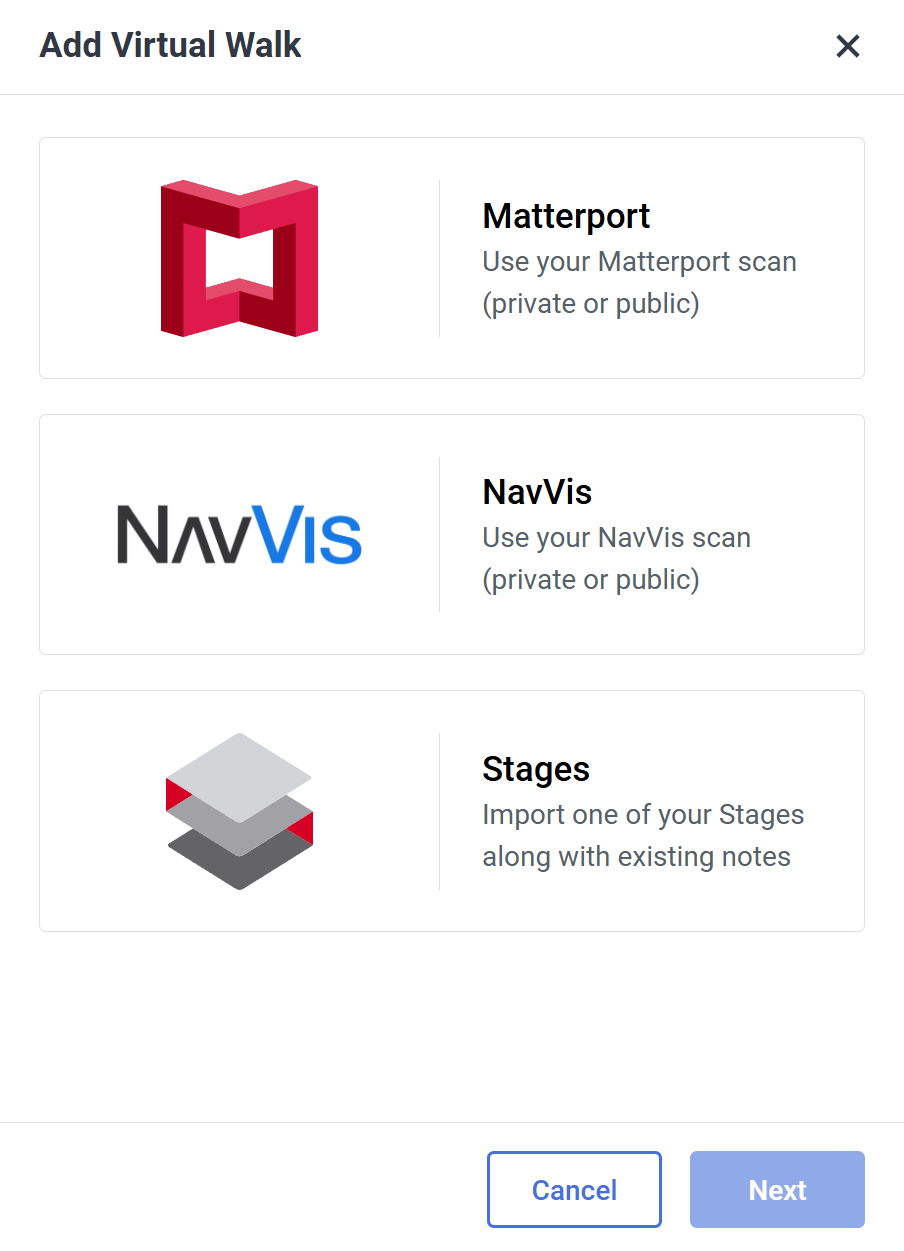
There are three methods of setting up the new 3D space. You can create a visualization of your space based on a Matterport link, NavVis scan, or import one of your Stages from the Stages application.

#### **Matterport**

<table border="1" id="bkmrk-%C2%A0-by-selecting-the-m" style="border-collapse: collapse; width: 100%; border-width: 0px;"><colgroup><col style="width: 76.6667%;"></col><col style="width: 23.3333%;"></col></colgroup><tbody><tr><td style="border-width: 0px;">![image.png](https://docs.sim-on.com/uploads/images/gallery/2025-03/scaled-1680-/g1Simage.png)

By selecting **Matterport**, you’ll be asked if you want to import rooms for your space from a selected smart home provider or create rooms yourself, then follow up with Matterport scan Linking.

</td><td style="border-width: 0px;">  
  
</td></tr></tbody></table>

####  **NavVis**

<table border="1" id="bkmrk-%C2%A0-by-selecting-the-n" style="border-collapse: collapse; width: 100%; border-width: 0px;"><colgroup><col style="width: 76.6667%;"></col><col style="width: 23.3333%;"></col></colgroup><tbody><tr><td style="border-width: 0px;">![image.png](https://docs.sim-on.com/uploads/images/gallery/2025-03/scaled-1680-/pPPimage.png)

By selecting the **NavVis**, you’ll be asked if you want to import rooms for your space from a selected smart home provider or create rooms yourself, then follow up with NavVis scan Linking.

</td><td style="border-width: 0px;">  
  
</td></tr></tbody></table>

####  **Stages** 


<table border="1" id="bkmrk-%C2%A0-by-selecting-the-s" style="border-collapse: collapse; width: 100%; border-width: 0px;"><colgroup><col style="width: 76.6391%;"></col><col style="width: 23.3609%;"></col></colgroup><tbody><tr><td style="border-width: 0px;">
![image.png](https://docs.sim-on.com/uploads/images/gallery/2025-03/scaled-1680-/LpDimage.png)

  
By selecting the Stages, you’ll be asked if you want to import rooms for your space from a selected smart home provider or create rooms yourself.

</td><td style="border-width: 0px;">  
</td></tr></tbody></table>


##### **Adding Virtual Walk**

![image.png](https://docs.sim-on.com/uploads/images/gallery/2025-03/scaled-1680-/Wk2image.png)

![image.png](https://docs.sim-on.com/uploads/images/gallery/2026-11/scaled-1680-/NPWimage.png)

By selecting **Matterport** you will begin space creation based on the **Matterport** **scan.**

<p class="callout success">If you already have a **Stages project** set up, it is recommended to use the <span style="color: rgb(53, 152, 219);">[<span style="text-decoration: underline;">**STAGES METHOD**</span>](https://docs.sim-on.com/books/2-getting-started/page/stages-method)</span></p>

<p class="callout info">The process is the same for all Providers **SIM-ON** works with. For the presentation purposes, we will be using [<span style="text-decoration: underline; color: rgb(53, 152, 219);">**Fibaro (NICE)**</span>](https://docs.sim-on.com/books/2-getting-started/page/nice-smart-home) and present the whole process of adding a new space with importing devices, setting sweeps to rooms and adding and renaming the devices for the space</p>