# Space Settings

Space Settings allow you to manage your spaces.

# General info

In the General info tab you can see the most basic information about your space, such as address, cloud space limit usage, space components and space owner.

[![image.png](https://docs.sim-on.com/uploads/images/gallery/2025-03/scaled-1680-/9KRimage.png)](https://docs.sim-on.com/uploads/images/gallery/2025-03/9KRimage.png)

- **<span style="font-size: 11pt; font-family: Arial, sans-serif; background-color: transparent; font-style: normal; font-variant: normal; text-decoration: none; vertical-align: baseline; white-space: pre-wrap;">General Information</span>**<span style="font-size: 11pt; font-family: Arial, sans-serif; background-color: transparent; font-weight: 400; font-style: normal; font-variant: normal; text-decoration: none; vertical-align: baseline; white-space: pre-wrap;">  
    </span><span style="font-size: 11pt; font-family: Arial, sans-serif; background-color: transparent; font-weight: 400; font-style: normal; font-variant: normal; text-decoration: none; vertical-align: baseline; white-space: pre-wrap;">Check your space basic information: name, street, house number, apartment number, town, region, zip code and country, space owner. You can also **Leave the space** from here.  
    </span>

<p class="callout info"><span style="font-size: 11pt; font-family: Arial, sans-serif; background-color: transparent; font-weight: 400; font-style: normal; font-variant: normal; text-decoration: none; vertical-align: baseline; white-space: pre-wrap;"><span style="font-size: 11pt; font-family: Arial, sans-serif; background-color: transparent; font-weight: 400; font-style: normal; font-variant: normal; text-decoration: none; vertical-align: baseline; white-space: pre-wrap;">With appropriate permissions you can **Edit General info** from here as well as delete the space itself</span></span></p>

- **<span style="font-size: 11pt; font-family: Arial, sans-serif; background-color: transparent; font-style: normal; font-variant: normal; text-decoration: none; vertical-align: baseline; white-space: pre-wrap;">Plan Limits</span>**<span style="font-size: 11pt; font-family: Arial, sans-serif; background-color: transparent; font-weight: 400; font-style: normal; font-variant: normal; text-decoration: none; vertical-align: baseline; white-space: pre-wrap;">  
    </span><span style="font-size: 11pt; font-family: Arial, sans-serif; background-color: transparent; font-weight: 400; font-style: normal; font-variant: normal; text-decoration: none; vertical-align: baseline; white-space: pre-wrap;">Check your scene limits usage: you can see how many devices and scenes you used in your project as well as how much cloud space is being used.  
    </span>

<p class="callout warning"><span style="font-size: 11pt; font-family: Arial, sans-serif; background-color: transparent; font-weight: 400; font-style: normal; font-variant: normal; text-decoration: none; vertical-align: baseline; white-space: pre-wrap;"><span style="font-size: 11pt; font-family: Arial, sans-serif; background-color: transparent; font-weight: 400; font-style: normal; font-variant: normal; text-decoration: none; vertical-align: baseline; white-space: pre-wrap;">Remember that the cloud space limit usage depends on the subscription plan and might vary from the information above</span></span></p>

- **<span style="font-size: 11pt; font-family: Arial, sans-serif; background-color: transparent; font-style: normal; font-variant: normal; text-decoration: none; vertical-align: baseline; white-space: pre-wrap;">Virtual Walk Source</span>**<span style="font-size: 11pt; font-family: Arial, sans-serif; background-color: transparent; font-weight: 400; font-style: normal; font-variant: normal; text-decoration: none; vertical-align: baseline; white-space: pre-wrap;">  
    </span><span style="font-size: 11pt; font-family: Arial, sans-serif; background-color: transparent; font-weight: 400; font-style: normal; font-variant: normal; text-decoration: none; vertical-align: baseline; white-space: pre-wrap;">In here you can change the link to your **Matterport Virtual Tour Scan**. </span>

# Rooms

By clicking on one of the existing rooms on the list on the left you can isolate it to see details about this one selected room only
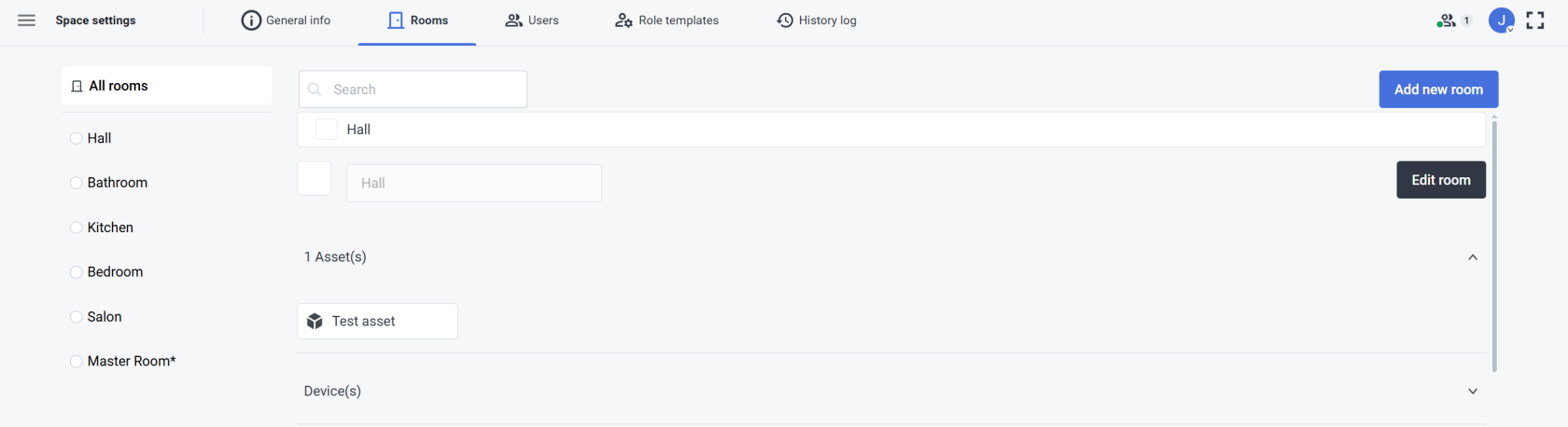
<table border="1" id="bkmrk-searchhere-you-can-s" style="border-collapse: collapse; width: 100%; border-width: 0px; height: 423.7px; background-color: rgb(236, 240, 241);"><colgroup><col style="width: 37.4203%;"></col><col style="width: 62.5658%;"></col></colgroup><tbody><tr style="height: 270.65px;"><td style="border-width: 0px; height: 270.65px;">- **Search**  
    Here you can search for the room by its name
- **Add Room**  
    Here you can add a new room. After clicking “Add new room” you need to enter the room name. After creating it you can assign the sweeps in the 3D walk view to your new room.
- **Room list**  
    The room list shows you all the rooms that’ve been created.

</td><td style="border-width: 0px; height: 270.65px;"><span style="font-size: 11pt; font-family: Arial, sans-serif; background-color: transparent; font-weight: 400; font-style: normal; font-variant: normal; text-decoration: none; vertical-align: baseline; white-space: pre-wrap;">[![Space settings 2.PNG](https://docs.sim-on.com/uploads/images/gallery/2024-07/scaled-1680-/space-settings-2.PNG)](https://docs.sim-on.com/uploads/images/gallery/2024-07/space-settings-2.PNG)</span></td></tr><tr style="height: 153.05px;"><td colspan="2" style="border-width: 0px; height: 153.05px;">- **Edit Room**  
    After selecting the room from the list on the left or choosing one of them while All Rooms are selected and clicking Edit room, you’re able to change the name of the room and set the color. Both the name and room color will be visible in the 3D walk view. To save the changes, click Save changes.
- **Asset list**  
    Below the room name you can see a list of assets that were added to the room. You can click on the asset to see its details.

</td></tr></tbody></table>

# Users

####   


In the User tab you can manage the users in your space, edit their roles, remove them from the project or add new users.

<table border="1" id="bkmrk-user-listunder-the-u" style="border-collapse: collapse; width: 100%; border-width: 0px; background-color: rgb(236, 240, 241);"><colgroup><col style="width: 33.2143%;"></col><col style="width: 66.7857%;"></col></colgroup><tbody><tr><td style="border-width: 0px;">- <span style="font-size: 11pt; font-family: Arial, sans-serif; background-color: transparent; font-weight: 400; font-style: normal; font-variant: normal; text-decoration: none; vertical-align: baseline; white-space: pre-wrap;">**User list**  
    Under the User name you can see the list of all users.  
      
      
    </span>
- <span style="font-size: 11pt; font-family: Arial, sans-serif; background-color: transparent; font-weight: 400; font-style: normal; font-variant: normal; text-decoration: none; vertical-align: baseline; white-space: pre-wrap;">**Add users**  
    If you’re the project owner you can click on Add new user to create a new user. You need to provide a username, email address and role(s).</span>

</td><td style="border-width: 0px;"><span style="font-size: 11pt; font-family: Arial, sans-serif; background-color: transparent; font-weight: 400; font-style: normal; font-variant: normal; text-decoration: none; vertical-align: baseline; white-space: pre-wrap;">![Settings - users.png](https://docs.sim-on.com/uploads/images/gallery/2024-07/scaled-1680-/settings-users.png)</span></td></tr></tbody></table>

<p class="callout warning"><span style="font-size: 11pt; font-family: Arial, sans-serif; background-color: transparent; font-weight: 400; font-style: normal; font-variant: normal; text-decoration: none; vertical-align: baseline; white-space: pre-wrap;"><span style="font-size: 11pt; font-family: Arial, sans-serif; background-color: transparent; font-weight: 400; font-style: normal; font-variant: normal; text-decoration: none; vertical-align: baseline; white-space: pre-wrap;">Keep in mind, that the access to the **Users tab** requires appropriate permissions</span></span></p>

# Role Templates

####   


In the Role templates tab you can add or change role permissions.

<table border="1" id="bkmrk-role-list---list-wit" style="border-collapse: collapse; width: 100%; border-width: 0px; height: 193.833px;"><colgroup><col style="width: 41.3095%;"></col><col style="width: 58.6905%;"></col></colgroup><tbody><tr style="height: 106.2px;"><td colspan="2" style="border-width: 0px; height: 106.2px;">- <span style="font-size: 11pt; font-family: Arial, sans-serif; background-color: transparent; font-weight: 400; font-style: normal; font-variant: normal; text-decoration: none; vertical-align: baseline; white-space: pre-wrap;">**Role list** - </span>List with all of the roles that were created for the project.

<span style="font-size: 11pt; font-family: Arial, sans-serif; background-color: transparent; font-weight: 400; font-style: normal; font-variant: normal; text-decoration: none; vertical-align: baseline; white-space: pre-wrap;">  
![Settings - role templates.png](https://docs.sim-on.com/uploads/images/gallery/2024-08/scaled-1680-/settings-role-templates.png)</span>

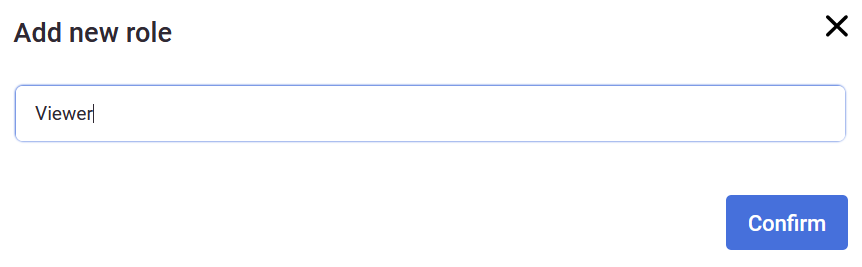
</td></tr><tr style="height: 87.633px;"><td colspan="2" style="border-width: 0px; height: 87.633px;">- <span style="font-size: 11pt; font-family: Arial, sans-serif; background-color: transparent; font-weight: 400; font-style: normal; font-variant: normal; text-decoration: none; vertical-align: baseline; white-space: pre-wrap;">**Add new role** - </span>By clicking ![Add new role button.png](https://docs.sim-on.com/uploads/images/gallery/2024-08/scaled-1680-/add-new-role-button.png) button you can create a new set of privileges. First you need to enter a role name and after clicking Confirm you can use checkboxes to make some privileges allowed.
<span style="font-size: 11pt; font-family: Arial, sans-serif; background-color: transparent; font-weight: 400; font-style: normal; font-variant: normal; text-decoration: none; vertical-align: baseline; white-space: pre-wrap;">![QpNobraz.png](https://docs.sim-on.com/uploads/images/gallery/2024-08/scaled-1680-/qpnobraz.png)</span>

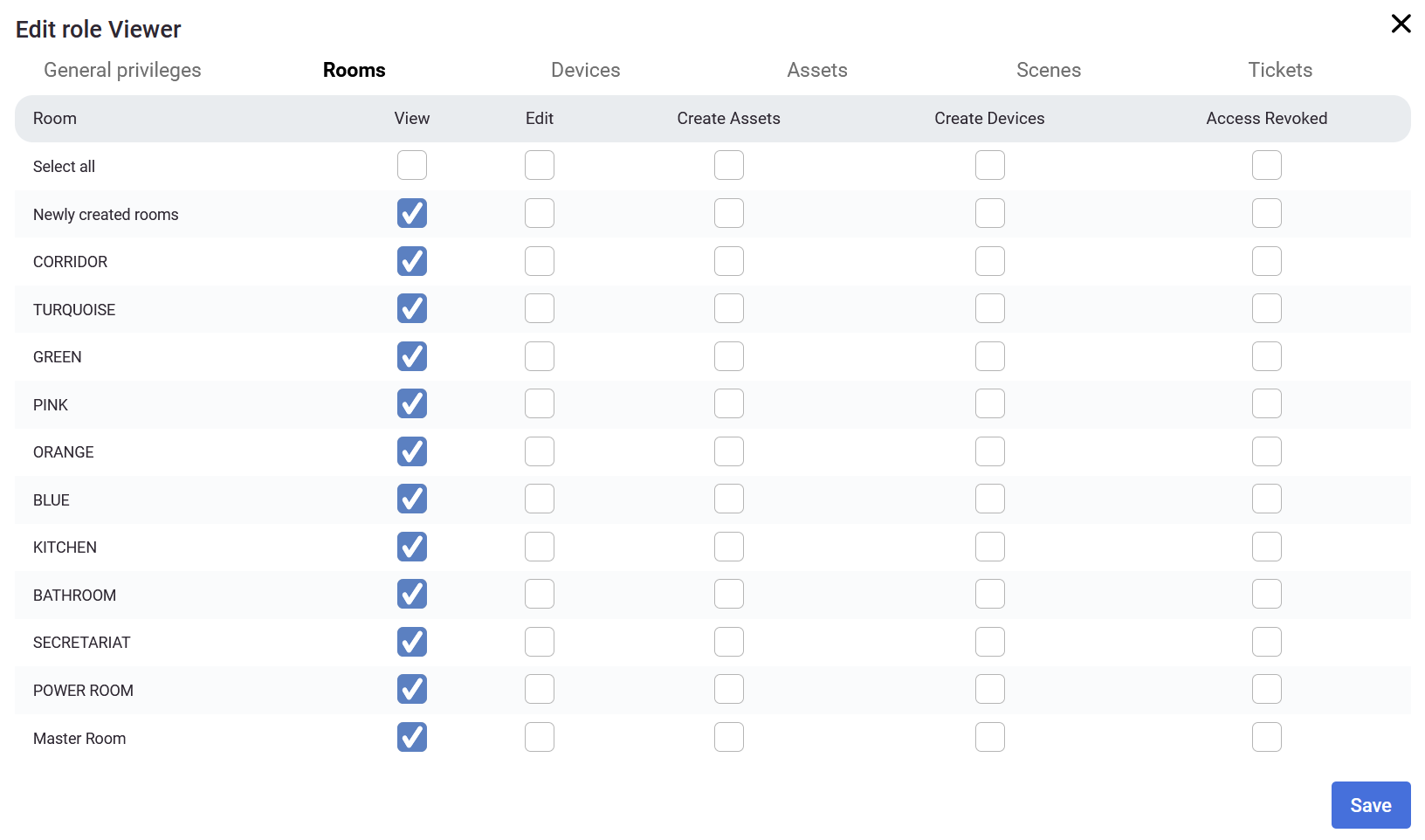
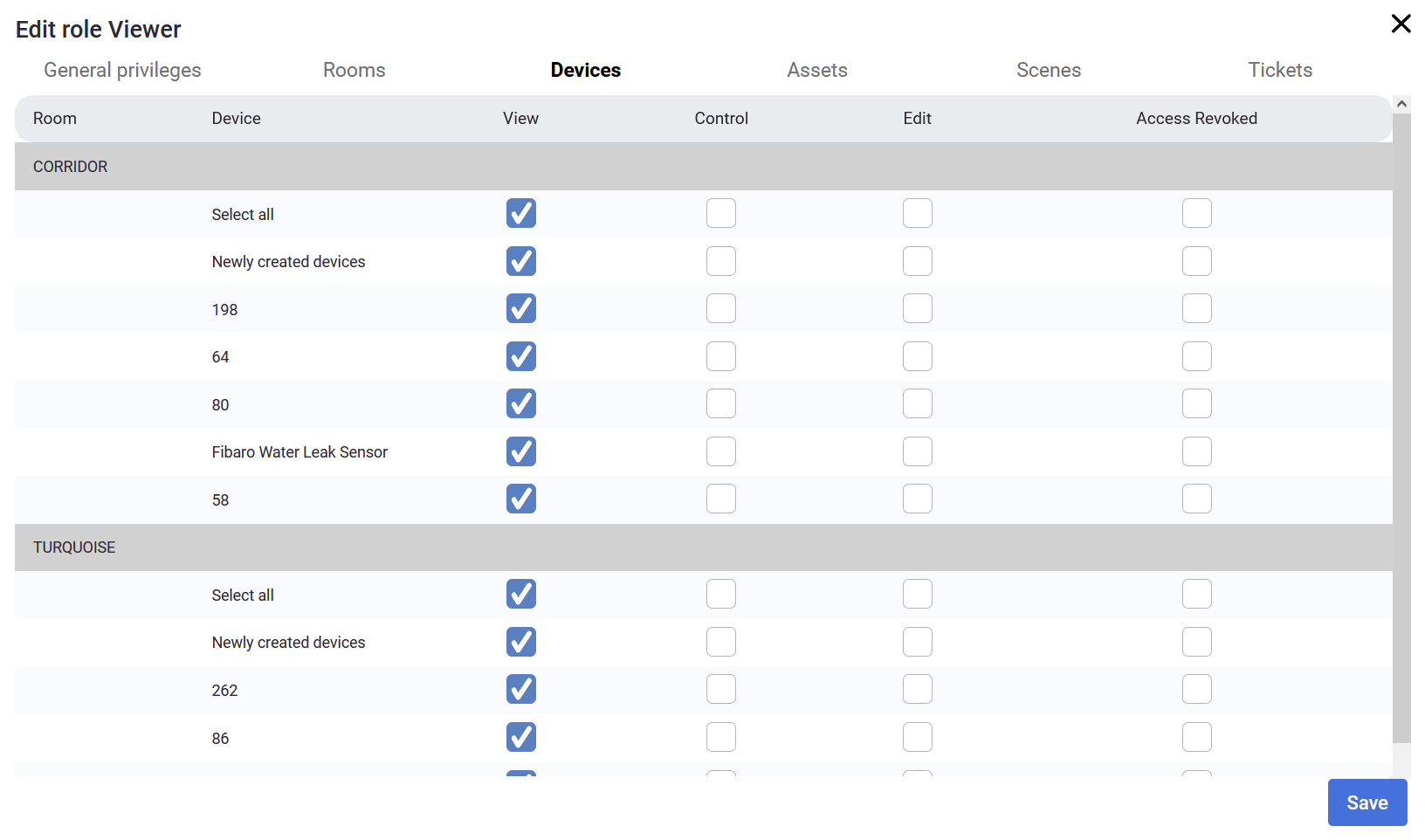
There are a few tabs that you can change privileges in: General privileges, Rooms, Devices, Assets, Scenes, Tickets.

</td></tr></tbody></table>

<table border="1" id="bkmrk--33" style="border-collapse: collapse; width: 100%; border-width: 0px;"><tbody><tr><td style="border-width: 0px;">![Privileges_viewer_1.png](https://docs.sim-on.com/uploads/images/gallery/2024-08/scaled-1680-/privileges-viewer-1.png)</td><td style="border-width: 0px;">![Privileges_viewer_2.png](https://docs.sim-on.com/uploads/images/gallery/2024-08/scaled-1680-/privileges-viewer-2.png)</td></tr></tbody></table>

You can create multiple roles with different privileges depending on who you share the project with. If you want to share it with subcontractors, you may want to give them roles to edit assets or devices. If you want, you may want to give separate roles to plumbers, electricians, people controlling the project, your closest associates, etc.

If you set some general privileges (*eg. to create rooms*), the privileges on the other categories will change too.

![Privileges_viewer_4.png](https://docs.sim-on.com/uploads/images/gallery/2024-08/scaled-1680-/privileges-viewer-4.png)

In the example above, the Designer has some privileges to manage Interior Designer, Create tickets and view providers. Automatically some of the privileges was created as you can see in the image below, but you can revoke the access to specific rooms, devices or other options (*in this example the Designer role allows to manage the Interior editor, create tickets and view providers excluding TURQUOISE, GREEN and PINK rooms*).

![Privileges_viewer_5.png](https://docs.sim-on.com/uploads/images/gallery/2024-08/scaled-1680-/privileges-viewer-5.png)

<p class="callout warning">Keep in mind, that the access to the **Role templates** tab requires appropriate **permissions**</p>

# Activity log

####   


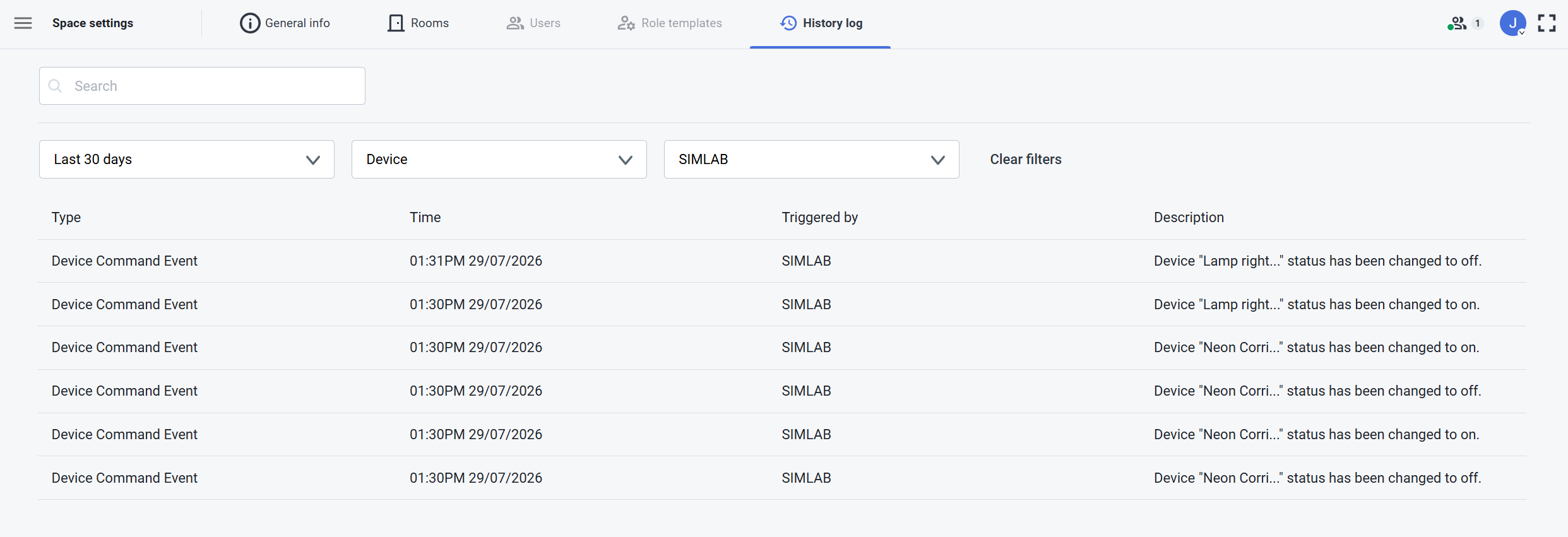
In the Activity log tab you will find the latest activity in the project and its type, time and the user it was triggered by.<span style="font-size: 11pt; font-family: Arial, sans-serif; background-color: transparent; font-weight: 400; font-style: normal; font-variant: normal; text-decoration: none; vertical-align: baseline; white-space: pre-wrap;"><span style="font-size: 11pt; font-family: Arial, sans-serif; background-color: transparent; font-weight: 400; font-style: normal; font-variant: normal; text-decoration: none; vertical-align: baseline; white-space: pre-wrap;"><span style="font-size: 11pt; font-family: Arial, sans-serif; background-color: transparent; font-weight: 400; font-style: normal; font-variant: normal; text-decoration: none; vertical-align: baseline; white-space: pre-wrap;">  
</span></span></span>

<table border="1" id="bkmrk-search---you-can-loo" style="border-collapse: collapse; width: 100%; border-width: 0px; background-color: rgb(236, 240, 241);"><colgroup><col style="width: 34.2857%;"></col><col style="width: 65.7143%;"></col></colgroup><tbody><tr><td style="border-width: 0px;">- <span style="font-size: 11pt; font-family: Arial, sans-serif; background-color: transparent; font-weight: 400; font-style: normal; font-variant: normal; text-decoration: none; vertical-align: baseline; white-space: pre-wrap;"><span style="font-size: 11pt; font-family: Arial, sans-serif; background-color: transparent; font-weight: 400; font-style: normal; font-variant: normal; text-decoration: none; vertical-align: baseline; white-space: pre-wrap;"><span style="font-size: 11pt; font-family: Arial, sans-serif; background-color: transparent; font-weight: 400; font-style: normal; font-variant: normal; text-decoration: none; vertical-align: baseline; white-space: pre-wrap;">**Search** - You can look for activities in the project by providing the event type.  
      
    </span></span></span>
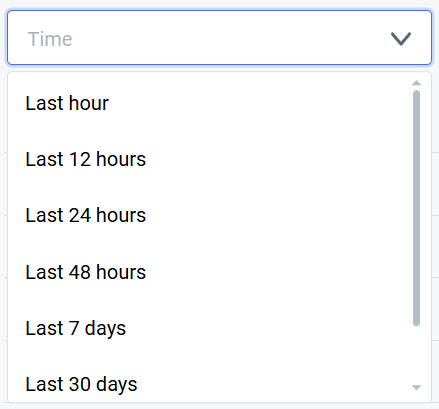
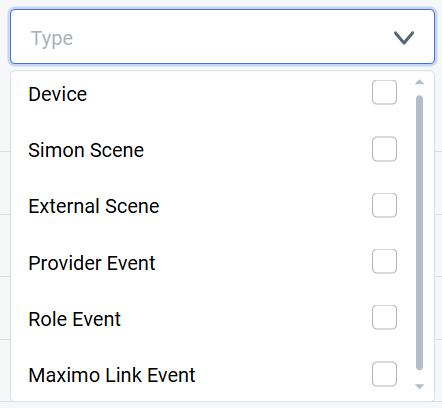
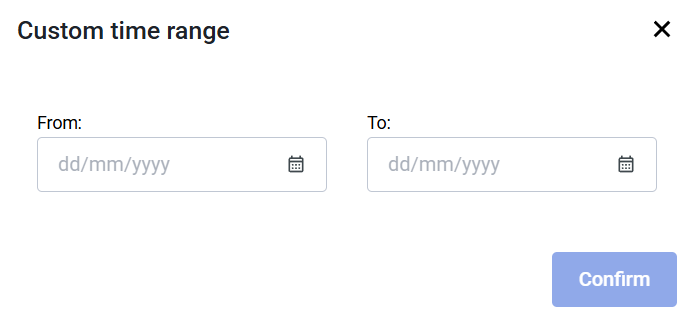
- <span style="font-size: 11pt; font-family: Arial, sans-serif; background-color: transparent; font-weight: 400; font-style: normal; font-variant: normal; text-decoration: none; vertical-align: baseline; white-space: pre-wrap;"><span style="font-size: 11pt; font-family: Arial, sans-serif; background-color: transparent; font-weight: 400; font-style: normal; font-variant: normal; text-decoration: none; vertical-align: baseline; white-space: pre-wrap;"><span style="font-size: 11pt; font-family: Arial, sans-serif; background-color: transparent; font-weight: 400; font-style: normal; font-variant: normal; text-decoration: none; vertical-align: baseline; white-space: pre-wrap;">**Filter** - You can filter out activity by the type of the activity, timeframe or the user.  
      
    </span></span></span>
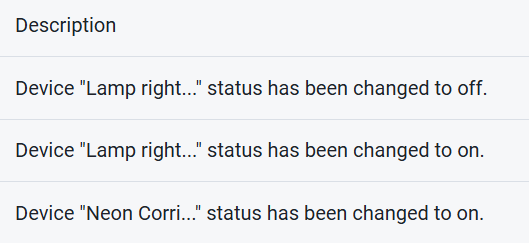
- <span style="font-size: 11pt; font-family: Arial, sans-serif; background-color: transparent; font-weight: 400; font-style: normal; font-variant: normal; text-decoration: none; vertical-align: baseline; white-space: pre-wrap;"><span style="font-size: 11pt; font-family: Arial, sans-serif; background-color: transparent; font-weight: 400; font-style: normal; font-variant: normal; text-decoration: none; vertical-align: baseline; white-space: pre-wrap;"><span style="font-size: 11pt; font-family: Arial, sans-serif; background-color: transparent; font-weight: 400; font-style: normal; font-variant: normal; text-decoration: none; vertical-align: baseline; white-space: pre-wrap;">**Display** - The list of activities is displayed here, sorted by the time, from earliest to oldest. It is further filtered by the filter and search options. Each activity has a type, time, user and short description.</span></span></span>

</td><td style="border-width: 0px;"><span style="font-size: 11pt; font-family: Arial, sans-serif; background-color: transparent; font-weight: 400; font-style: normal; font-variant: normal; text-decoration: none; vertical-align: baseline; white-space: pre-wrap;"><span style="font-size: 11pt; font-family: Arial, sans-serif; background-color: transparent; font-weight: 400; font-style: normal; font-variant: normal; text-decoration: none; vertical-align: baseline; white-space: pre-wrap;"><span style="font-size: 11pt; font-family: Arial, sans-serif; background-color: transparent; font-weight: 400; font-style: normal; font-variant: normal; text-decoration: none; vertical-align: baseline; white-space: pre-wrap;">![Settings - activity log.png](https://docs.sim-on.com/uploads/images/gallery/2024-07/scaled-1680-/settings-activity-log.png)</span></span></span></td></tr></tbody></table>