# 3. App overview

# Home Screen

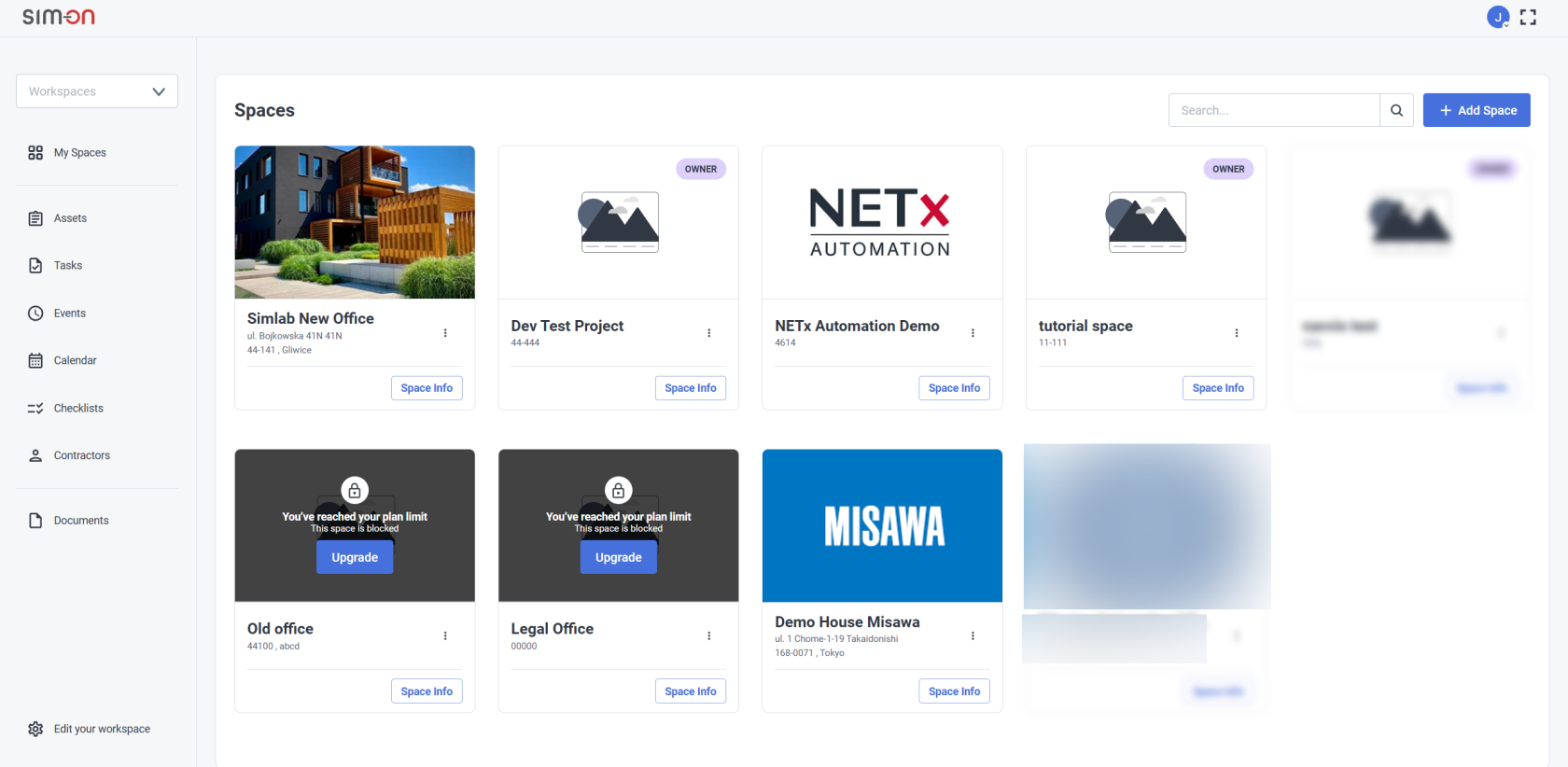
<span id="bkmrk-when-you-launch-sim--1" style="font-size: 11pt; font-family: Arial, sans-serif; background-color: transparent; font-weight: 400; font-style: normal; font-variant: normal; text-decoration: none; vertical-align: baseline; white-space: pre-wrap;">When you launch SIM-ON, you start in the **Space Browser** view, which is your **Home Screen**, it includes the following:</span>

- <span style="font-size: 11pt; font-family: Arial, sans-serif; background-color: transparent; font-weight: 400; font-style: normal; font-variant: normal; text-decoration: none; vertical-align: baseline; white-space: pre-wrap;">**My Spaces** </span><span style="font-size: 11pt; font-family: Arial, sans-serif; background-color: transparent; font-weight: 400; font-style: normal; font-variant: normal; text-decoration: none; vertical-align: baseline; white-space: pre-wrap;">Explore all the spaces you have access to, from this organized section</span>

- <span style="font-size: 11pt; font-family: Arial, sans-serif; background-color: transparent; font-weight: 400; font-style: normal; font-variant: normal; text-decoration: none; vertical-align: baseline; white-space: pre-wrap;">**News**  
    </span><span style="font-size: 11pt; font-family: Arial, sans-serif; background-color: transparent; font-weight: 400; font-style: normal; font-variant: normal; text-decoration: none; vertical-align: baseline; white-space: pre-wrap;">Catch up on the latest from SIM-ON, SIMLAB, and the ever-evolving world of IoT  
    </span>

<span style="font-size: 11pt; font-family: Arial, sans-serif; background-color: transparent; font-weight: 400; font-style: normal; font-variant: normal; text-decoration: none; vertical-align: baseline; white-space: pre-wrap;">  
</span>

![image.png](https://docs.sim-on.com/uploads/images/gallery/2024-10/scaled-1680-/wNOimage.png)

<p class="callout info"><span id="bkmrk-to-access-the-home-s-1" style="font-size: 11pt; font-family: Arial, sans-serif; font-weight: 400; font-style: normal; font-variant: normal; text-decoration: none; vertical-align: baseline; white-space: pre-wrap;">To access the **Home screen** at any point while working on a SIM-ON space, select the </span><span style="color: rgb(53, 152, 219);">[**<span style="font-size: 11pt; font-family: Arial, sans-serif; font-style: normal; font-variant: normal; text-decoration: underline; text-decoration-skip-ink: none; vertical-align: baseline; white-space: pre-wrap;">Browse Spaces</span>**](https://docs.sim-on.com/link/147#bkmrk-browse-spaces)</span><span style="font-size: 11pt; font-family: Arial, sans-serif; font-weight: 400; font-style: normal; font-variant: normal; text-decoration: none; vertical-align: baseline; white-space: pre-wrap;"> located in the </span><span style="font-size: 11pt; font-family: Arial, sans-serif; font-weight: bold; font-style: normal; font-variant: normal; text-decoration: underline; text-decoration-skip-ink: none; vertical-align: baseline; white-space: pre-wrap; color: rgb(53, 152, 219);">[Side Panel](https://docs.sim-on.com/link/147#bkmrk-side-panel "Side Bar")</span><span style="font-size: 11pt; font-family: Arial, sans-serif; font-weight: 400; font-style: normal; font-variant: normal; text-decoration: none; vertical-align: baseline; white-space: pre-wrap;"> menu</span></p>

---

<span style="font-size: 11pt; font-family: Arial, sans-serif; background-color: transparent; font-weight: 400; font-style: normal; font-variant: normal; text-decoration: none; vertical-align: baseline; white-space: pre-wrap;">In the Home Screen you will find the following buttons:</span>

- <span style="font-size: 11pt; font-family: Arial, sans-serif; background-color: transparent; font-weight: bold; font-style: normal; font-variant: normal; text-decoration: none; vertical-align: baseline; white-space: pre-wrap;"><span style="font-size: 11pt; font-family: Arial, sans-serif; background-color: transparent; font-weight: bold; font-style: normal; font-variant: normal; text-decoration: none; vertical-align: baseline; white-space: pre-wrap;"><span style="font-size: 11pt; font-family: Arial, sans-serif; background-color: transparent; font-weight: 400; font-style: normal; font-variant: normal; text-decoration: none; vertical-align: baseline; white-space: pre-wrap;"><span style="font-size: 11pt; font-family: Arial, sans-serif; background-color: transparent; font-weight: 400; font-style: normal; font-variant: normal; text-decoration: none; vertical-align: baseline; white-space: pre-wrap;">![Add new space.png](https://docs.sim-on.com/uploads/images/gallery/2024-07/scaled-1680-/add-new-space.png)</span></span></span></span><span style="font-size: 11pt; font-family: Arial, sans-serif; background-color: transparent; font-weight: 400; font-style: normal; font-variant: normal; text-decoration: none; vertical-align: baseline; white-space: pre-wrap;">  
    </span><span style="font-size: 11pt; font-family: Arial, sans-serif; background-color: transparent; font-weight: 400; font-style: normal; font-variant: normal; text-decoration: none; vertical-align: baseline; white-space: pre-wrap;">Select this button to </span><span style="color: rgb(53, 152, 219);">**[<span style="font-size: 11pt; font-family: Arial, sans-serif; background-color: transparent; font-style: normal; font-variant: normal; text-decoration: underline; text-decoration-skip-ink: none; vertical-align: baseline; white-space: pre-wrap;">create new project space</span>](https://docs.sim-on.com/books/2-getting-started/chapter/project-setup "Adding New Space")**</span><span style="font-size: 11pt; font-family: Arial, sans-serif; background-color: transparent; font-weight: 400; font-style: normal; font-variant: normal; text-decoration: none; vertical-align: baseline; white-space: pre-wrap;">  
      
    </span>
- <span style="font-size: 11pt; font-family: Arial, sans-serif; background-color: transparent; font-weight: bold; font-style: normal; font-variant: normal; text-decoration: none; vertical-align: baseline; white-space: pre-wrap;"><span style="font-size: 11pt; font-family: Arial, sans-serif; background-color: transparent; font-weight: bold; font-style: normal; font-variant: normal; text-decoration: none; vertical-align: baseline; white-space: pre-wrap;"><span style="font-size: 11pt; font-family: Arial, sans-serif; background-color: transparent; font-weight: 400; font-style: normal; font-variant: normal; text-decoration: none; vertical-align: baseline; white-space: pre-wrap;"><span style="font-size: 11pt; font-family: Arial, sans-serif; background-color: transparent; font-weight: 400; font-style: normal; font-variant: normal; text-decoration: none; vertical-align: baseline; white-space: pre-wrap;">![account_Head.png](https://docs.sim-on.com/uploads/images/gallery/2024-07/scaled-1680-/account-head.png) </span></span></span>Account</span><span style="font-size: 11pt; font-family: Arial, sans-serif; background-color: transparent; font-weight: 400; font-style: normal; font-variant: normal; text-decoration: none; vertical-align: baseline; white-space: pre-wrap;">:  
    </span><span style="font-size: 11pt; font-family: Arial, sans-serif; background-color: transparent; font-weight: 400; font-style: normal; font-variant: normal; text-decoration: none; vertical-align: baseline; white-space: pre-wrap;"> O</span><span style="font-size: 11pt; font-family: Arial, sans-serif; background-color: transparent; font-weight: 400; font-style: normal; font-variant: normal; text-decoration: none; vertical-align: baseline; white-space: pre-wrap;">pens a roll-out quick access menu of your </span><span style="color: rgb(53, 152, 219);">**<span style="font-size: 11pt; font-family: Arial, sans-serif; background-color: transparent; font-style: normal; font-variant: normal; text-decoration-skip-ink: none; vertical-align: baseline; white-space: pre-wrap;">[Account](https://docs.sim-on.com/books/3-app-overview/chapter/account "Account")</span>**</span><span style="font-size: 11pt; font-family: Arial, sans-serif; background-color: transparent; font-weight: 400; font-style: normal; font-variant: normal; text-decoration: none; vertical-align: baseline; white-space: pre-wrap;">  
      
    </span>
- <span style="font-size: 11pt; font-family: Arial, sans-serif; background-color: transparent; font-weight: bold; font-style: normal; font-variant: normal; text-decoration: none; vertical-align: baseline; white-space: pre-wrap;"><span style="font-size: 11pt; font-family: Arial, sans-serif; background-color: transparent; font-weight: bold; font-style: normal; font-variant: normal; text-decoration: none; vertical-align: baseline; white-space: pre-wrap;"><span style="font-size: 11pt; font-family: Arial, sans-serif; background-color: transparent; font-weight: 400; font-style: normal; font-variant: normal; text-decoration: none; vertical-align: baseline; white-space: pre-wrap;"><span style="font-size: 11pt; font-family: Arial, sans-serif; background-color: transparent; font-weight: 400; font-style: normal; font-variant: normal; text-decoration: none; vertical-align: baseline; white-space: pre-wrap;">![maximize_window.png](https://docs.sim-on.com/uploads/images/gallery/2024-07/scaled-1680-/maximize-window.png) </span></span></span>Full screen</span><span style="font-size: 11pt; font-family: Arial, sans-serif; background-color: transparent; font-weight: 400; font-style: normal; font-variant: normal; text-decoration: none; vertical-align: baseline; white-space: pre-wrap;">:</span><span style="font-size: 11pt; font-family: Arial, sans-serif; background-color: transparent; font-weight: 400; font-style: normal; font-variant: normal; text-decoration: none; vertical-align: baseline; white-space: pre-wrap;">   
    <span style="font-size: 11pt; font-family: Arial, sans-serif; background-color: transparent; font-weight: 400; font-style: normal; font-variant: normal; text-decoration: none; vertical-align: baseline; white-space: pre-wrap;">Toggles </span>between **full screen** and **windowed view**</span>

# Space Overview

Quick overview of the **Project Viewport**.

[![SIMON_GENERALVIEW_UPDATE.jpg](https://docs.sim-on.com/uploads/images/gallery/2025-03/scaled-1680-/simon-generalview-update.jpg)](https://docs.sim-on.com/uploads/images/gallery/2025-03/simon-generalview-update.jpg)
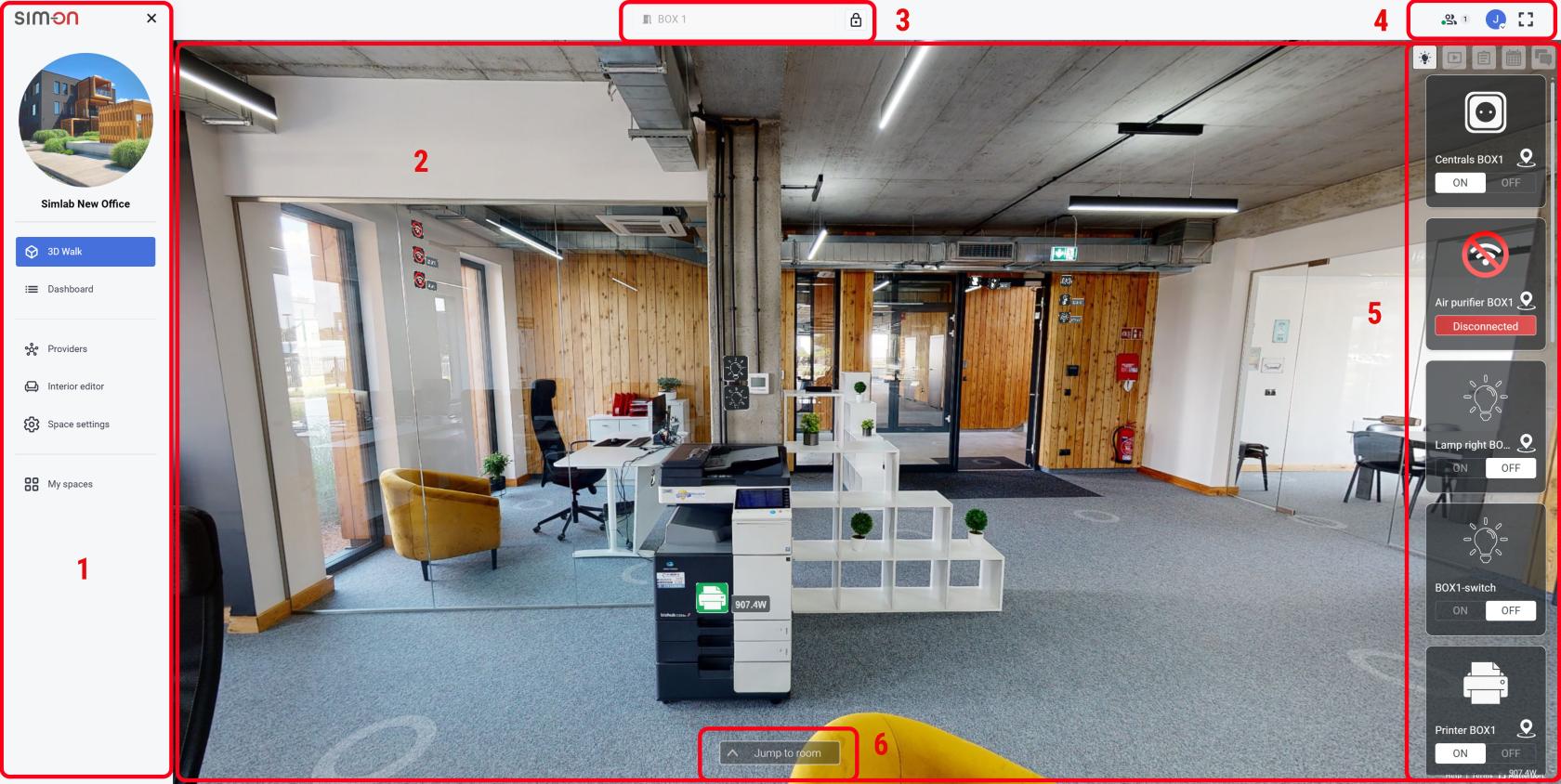
1. Left Side Menu panel
2. Viewport
3. Active Space (Current Room)
4. Currently Active users / User Account / fullscreen toggle
5. Right side Quick panel
6. Room quick access

- At the top left corner there is the burger menu ![hamburger_icon.png](https://docs.sim-on.com/uploads/images/gallery/2024-08/scaled-1680-/hamburger-icon.png)that rolls out the **Side Panel**.

- Just under it, is located the [<span style="text-decoration: underline; color: rgb(53, 152, 219);">**interior editor**</span>](https://docs.sim-on.com/books/3-app-overview/page/interior-editor) ![scene editor off.png](https://docs.sim-on.com/uploads/images/gallery/2024-07/scaled-1680-/scene-editor-off.png) toggle.   
    If you've added any 3D assets to your scene, you will be able toggle their visibility. This will change ![scene editor on.png](https://docs.sim-on.com/uploads/images/gallery/2024-07/scaled-1680-/scene-editor-on.png) the icon.
- In the top central part you can see the the **current active space**, next to it is the ![padlock_closed.png](https://docs.sim-on.com/uploads/images/gallery/2024-08/scaled-1680-/padlock-closed.png) lock icon. To edit the space you need to first unlock the space editing. You can do it by "unlocking" the ![padlock-unlock.png](https://docs.sim-on.com/uploads/images/gallery/2024-08/scaled-1680-/padlock-unlock.png) **lock icon** by clicking it.


- Since the 3D View of the app uses the **Matterport Virtual Tour**, all the regular **Matterport 3D space** features are available from the bottom left corner of the viewport.


---

#### **Side panel**

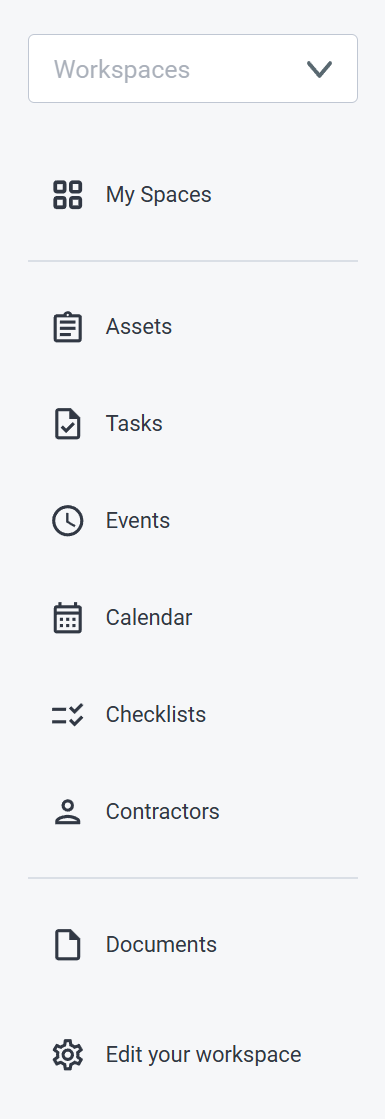
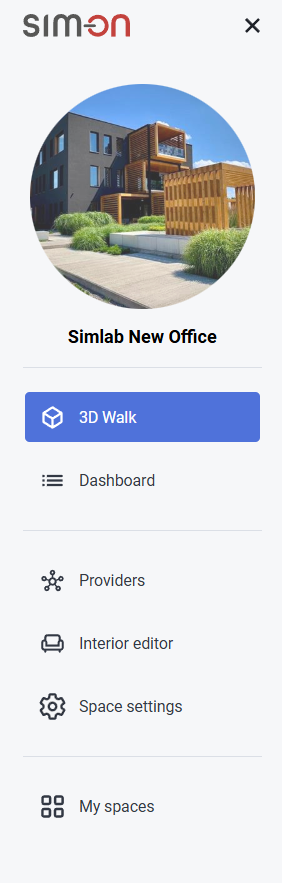
The left side panel is the **main menu** of the app, from which all other views and features are accessible from. These are as follows:


##### 3D Walk
##### ![image.png](https://docs.sim-on.com/uploads/images/gallery/2025-09/scaled-1680-/image.png)

![3dwalk_2.gif](https://docs.sim-on.com/uploads/images/gallery/2025-09/3dwalk-2.gif)

  
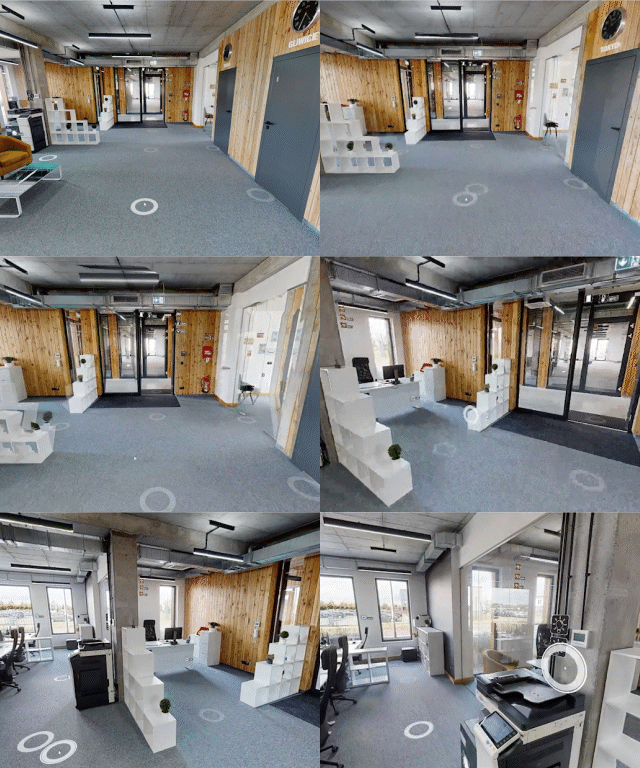
The Matterport-supported virtual tour view of the app. It is the central, main view of   
the app, used to manage and showcase the space. From here you can:

- Move around in the virtual space
- Setup rooms for swipes
- Use <span style="color: rgb(53, 152, 219);">[<span style="text-decoration: underline;">**Quick Access Panel**</span>](https://docs.sim-on.com/books/3-app-overview/page/quick-access-panel)</span> for various in-app operations
- Place devices within the 3D space

And many more.

<p class="callout info">To learn about all the features of the app, go through the following pages</p>


#####   
Dashboard

![image.png](https://docs.sim-on.com/uploads/images/gallery/2025-09/scaled-1680-/Qnvimage.png)

Setup, edit and manage all of the <span style="color: rgb(53, 152, 219);">[<span style="text-decoration: underline;">**Devices**</span>](https://docs.sim-on.com/books/3-app-overview/page/devices)</span>, <span style="color: rgb(53, 152, 219);">[<span style="text-decoration: underline;">**Assets**</span>](https://docs.sim-on.com/books/3-app-overview/page/assets)</span> and <span style="color: rgb(53, 152, 219);">[<span style="text-decoration: underline;">**Scenes**</span>](https://docs.sim-on.com/books/3-app-overview/page/scenes)</span> within the project.

<p class="callout info">See <span style="color: rgb(53, 152, 219);">[<span style="text-decoration: underline;">**Dashboard**</span>](https://docs.sim-on.com/books/3-app-overview/chapter/dashboard)</span> chapter for detailed feature and functionality description</p>


#####   
Providers

![image.png](https://docs.sim-on.com/uploads/images/gallery/2025-09/scaled-1680-/pb9image.png)

Manage your **Smarthome providers**. Add/remove the Hubs to the project, manage connected devices and their status.

<p class="callout info">See <span style="color: rgb(53, 152, 219);">[<span style="text-decoration: underline;">**Providers**</span>](https://docs.sim-on.com/books/3-app-overview/chapter/providers)</span> chapter for detailed feature and functionality description</p>


#####   
Interior Editor  


![Interior Editor.jpg](https://docs.sim-on.com/uploads/images/gallery/2024-11/scaled-1680-/interior-editor.jpg)

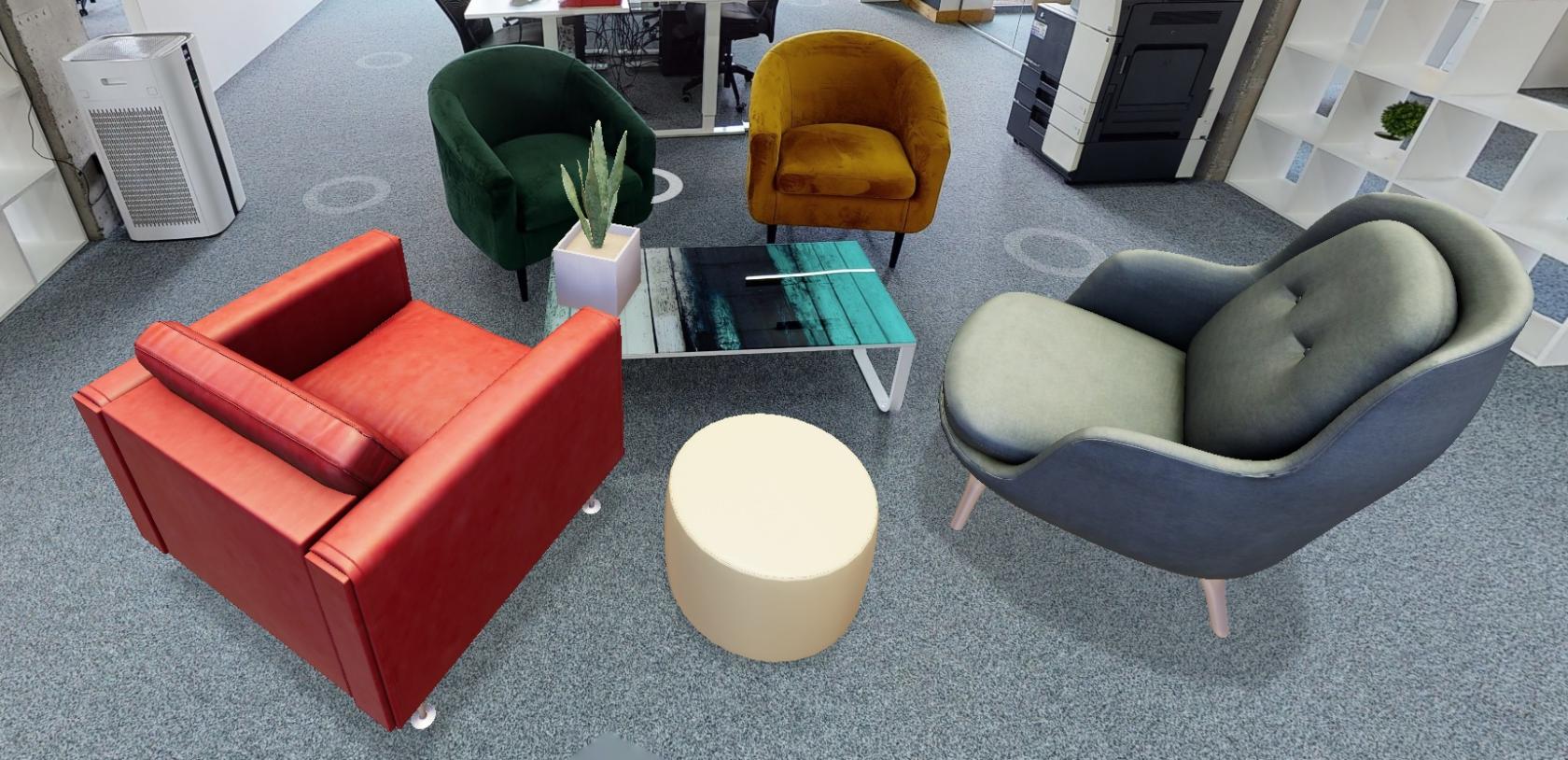
Place **3D models** within the virtual space of the project to explore the possible arrangements for your space, using our **model** **library.**

<p class="callout info">See <span style="color: rgb(53, 152, 219);">[**<u>Interior Editor</u>**](https://docs.sim-on.com/books/3-app-overview/page/interior-editor)</span> page for detailed feature and functionality description</p>

##### Space Settings  


![image.png](https://docs.sim-on.com/uploads/images/gallery/2024-11/scaled-1680-/WtRimage.png)

General project management view, mainly used by project managers to handle: users, user roles and the activities within the project.

Additionally: basic **project information** and **Room manager** can be accessed from here.

<p class="callout info">See <span style="color: rgb(53, 152, 219);">[<span style="text-decoration: underline;">**Space Settings**</span>](https://docs.sim-on.com/books/3-app-overview/chapter/space-settings)</span> chapter for detailed feature and functionality description</p>

#####   
My spaces

Return to the <span style="color: rgb(53, 152, 219);">[<span style="text-decoration: underline;">**Home screen**</span>](https://docs.sim-on.com/books/3-app-overview/page/home-screen)</span> of the app. See the available **Spaces** and **News**.

---

#### **Quick Access Panel**

![image.png](https://docs.sim-on.com/uploads/images/gallery/2024-10/scaled-1680-/WHYimage.png)

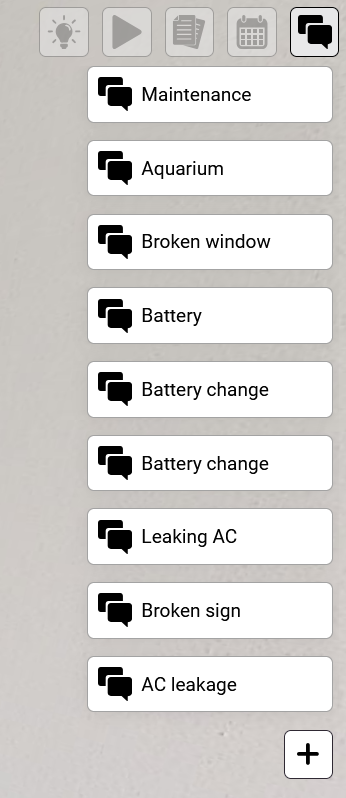
Used in tandem while in **3D Walk** to access the features of the app for smooth user experience in managing:

- Devices
- Scenes
- Assets
- Events
- Tickets


<p class="callout info">See <span style="color: rgb(53, 152, 219);">[<span style="text-decoration: underline;">**Quick Access Panel**</span>](https://docs.sim-on.com/books/3-app-overview/page/quick-access-panel)</span> page for detailed feature and functionality description</p>

# Quick Access Panel

<table border="1" class="align-center" id="bkmrk-if-there-are-any-dev" style="border-collapse: collapse; width: 95.3571%; border-width: 0px; height: 444px;"><colgroup><col style="width: 44.8143%;"></col><col style="width: 22.1511%;"></col><col style="width: 33.0346%;"></col></colgroup><tbody><tr style="height: 402.812px;"><td scope="rowgroup" style="border-width: 0px; height: 402.812px; text-align: justify;">#### Devices

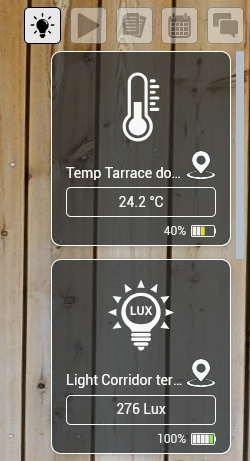
<span id="bkmrk-if-there-are-any-dev-1" style="font-size: 11pt; font-family: Arial, sans-serif; background-color: transparent; font-weight: 400; font-style: normal; font-variant: normal; text-decoration: none; vertical-align: baseline; white-space: pre-wrap;">If there are <span id="bkmrk-connected" style="font-size: 11pt; font-family: Arial, sans-serif; background-color: transparent; font-weight: 400; font-style: normal; font-variant: normal; text-decoration: none; vertical-align: baseline; white-space: pre-wrap;">connected </span>devices, you will see a list containing all of them. You can interact with them by clicking their thumbnails.</span><p class="callout info"><span style="font-family: Arial, sans-serif;"><span style="font-size: 14.6667px; white-space-collapse: preserve;">Depending on the **Device type** there will be **different** information, status and icon for the device, as well as various options</span></span></p>

<span style="font-size: 11pt; font-family: Arial, sans-serif; background-color: transparent; font-weight: 400; font-style: normal; font-variant: normal; text-decoration: none; vertical-align: baseline; white-space: pre-wrap;">**<span id="bkmrk-to-find-the-device%27s" style="font-size: 11pt; font-family: Arial, sans-serif; background-color: transparent; font-weight: 400; font-style: normal; font-variant: normal; text-decoration: none; vertical-align: baseline; white-space: pre-wrap;"><span style="font-size: 11pt; font-family: Arial, sans-serif; background-color: transparent; font-weight: 400; font-style: normal; font-variant: normal; text-decoration: none; vertical-align: baseline; white-space: pre-wrap;">To find the device's location, click on the **pin** <span id="bkmrk-" style="font-size: 11pt; font-family: Arial, sans-serif; background-color: transparent; font-weight: 400; font-style: normal; font-variant: normal; text-decoration: none; vertical-align: baseline; white-space: pre-wrap;"><span style="font-size: 11pt; font-family: Arial, sans-serif; background-color: transparent; font-weight: 400; font-style: normal; font-variant: normal; text-decoration: none; vertical-align: baseline; white-space: pre-wrap;">![pin-location-2.png](https://docs.sim-on.com/uploads/images/gallery/2024-08/scaled-1680-/pin-location-2.png)</span></span> icon. You'll see the marker of the device and be transported to its place.</span></span>**</span>

</td><td style="border-width: 0px;"> </td><td style="border-width: 0px; height: 402.812px;">![devices.PNG](https://docs.sim-on.com/uploads/images/gallery/2024-07/scaled-1680-/devices.PNG)

</td></tr></tbody></table>

---

#### Scenes

  
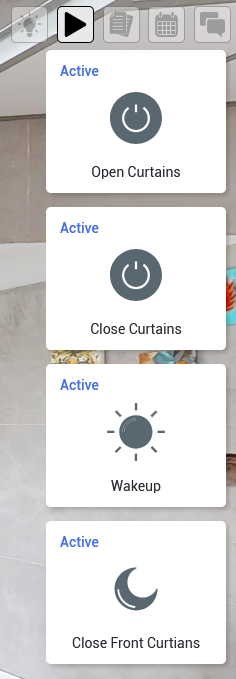
Quick access to all of the scenes in the <span style="color: rgb(53, 152, 219);">**[Dashboard](https://docs.sim-on.com/books/3-app-overview/page/dashboard "Dashboard")**</span>.

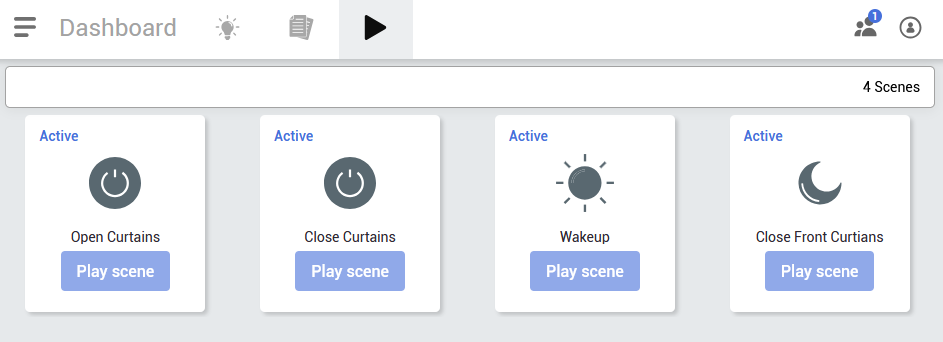
<table border="1" id="bkmrk-%C2%A0-in-the-scenes-tab-" style="border-collapse: collapse; width: 100%; border-width: 0px;"><colgroup><col style="width: 66.3095%;"></col><col style="width: 33.6905%;"></col></colgroup><tbody><tr><td style="border-width: 0px;"><span id="bkmrk-in-the-scenes-tab-yo-1" style="font-size: 11pt; font-family: Arial, sans-serif; background-color: transparent; font-style: normal; font-variant: normal; text-decoration: none; vertical-align: baseline; white-space: pre-wrap;">In the Scenes tab you can manage the devices scenario for the whole room/area. After adding a scenario, you’ll have access to play the scene or change its options (*name, icon, trigger, scene construction*). </span>
<span style="font-size: 11pt; font-family: Arial, sans-serif; background-color: transparent; font-weight: 400; font-style: normal; font-variant: normal; text-decoration: none; vertical-align: baseline; white-space: pre-wrap;">![Dashboard scenes examples.PNG](https://docs.sim-on.com/uploads/images/gallery/2024-08/scaled-1680-/dashboard-scenes-examples.PNG)</span>

<span id="bkmrk-to-play-the-scene%2C-c" style="font-size: 11pt; font-family: Arial, sans-serif; background-color: transparent; font-style: normal; font-variant: normal; text-decoration: none; vertical-align: baseline; white-space: pre-wrap;">To play the scene, click on the button/icon and the status will change</span>.

</td><td style="border-width: 0px;">![obraz.png](https://docs.sim-on.com/uploads/images/gallery/2024-08/scaled-1680-/Syjobraz.png)</td></tr></tbody></table>

---

#### Assets

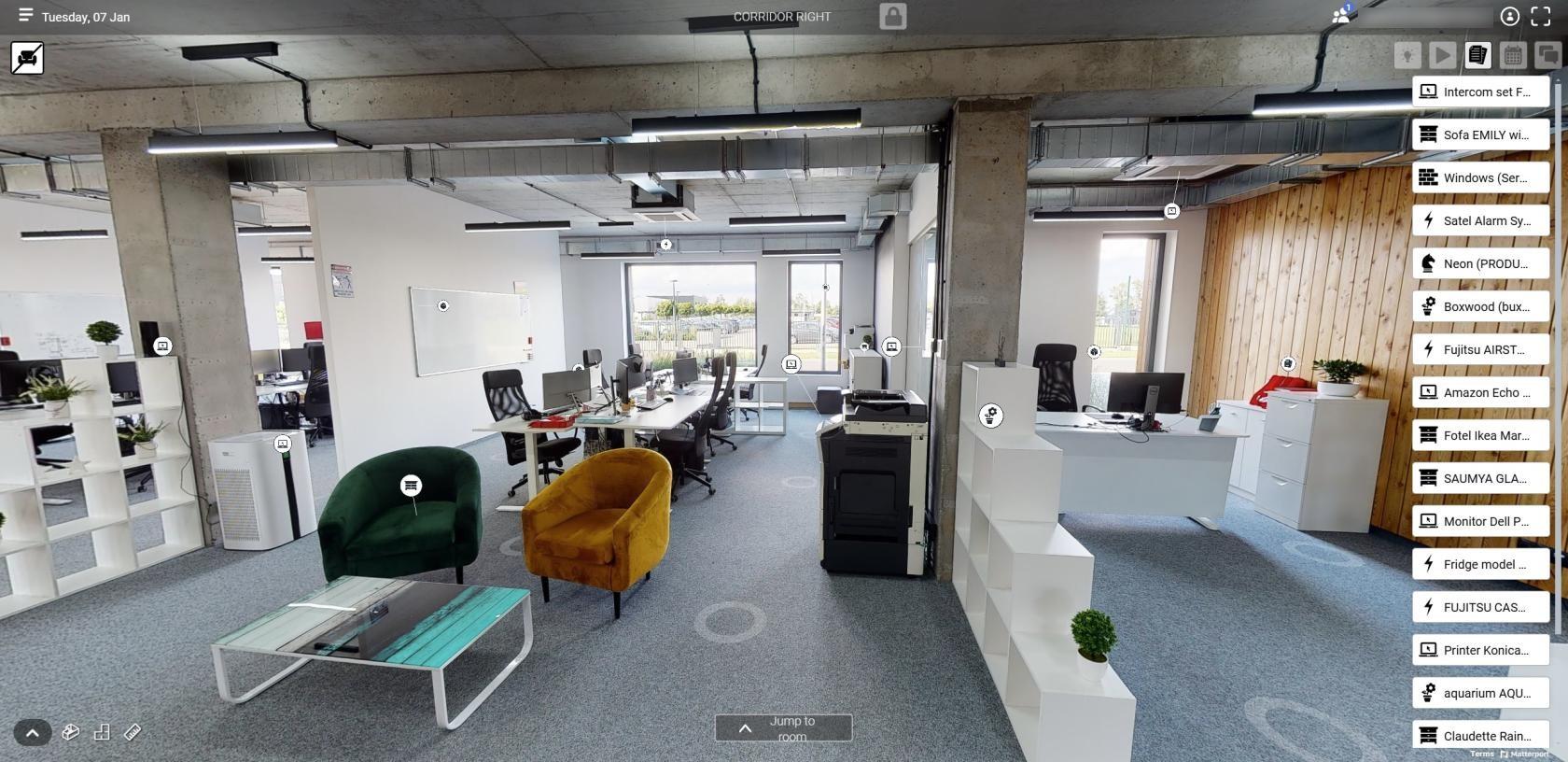
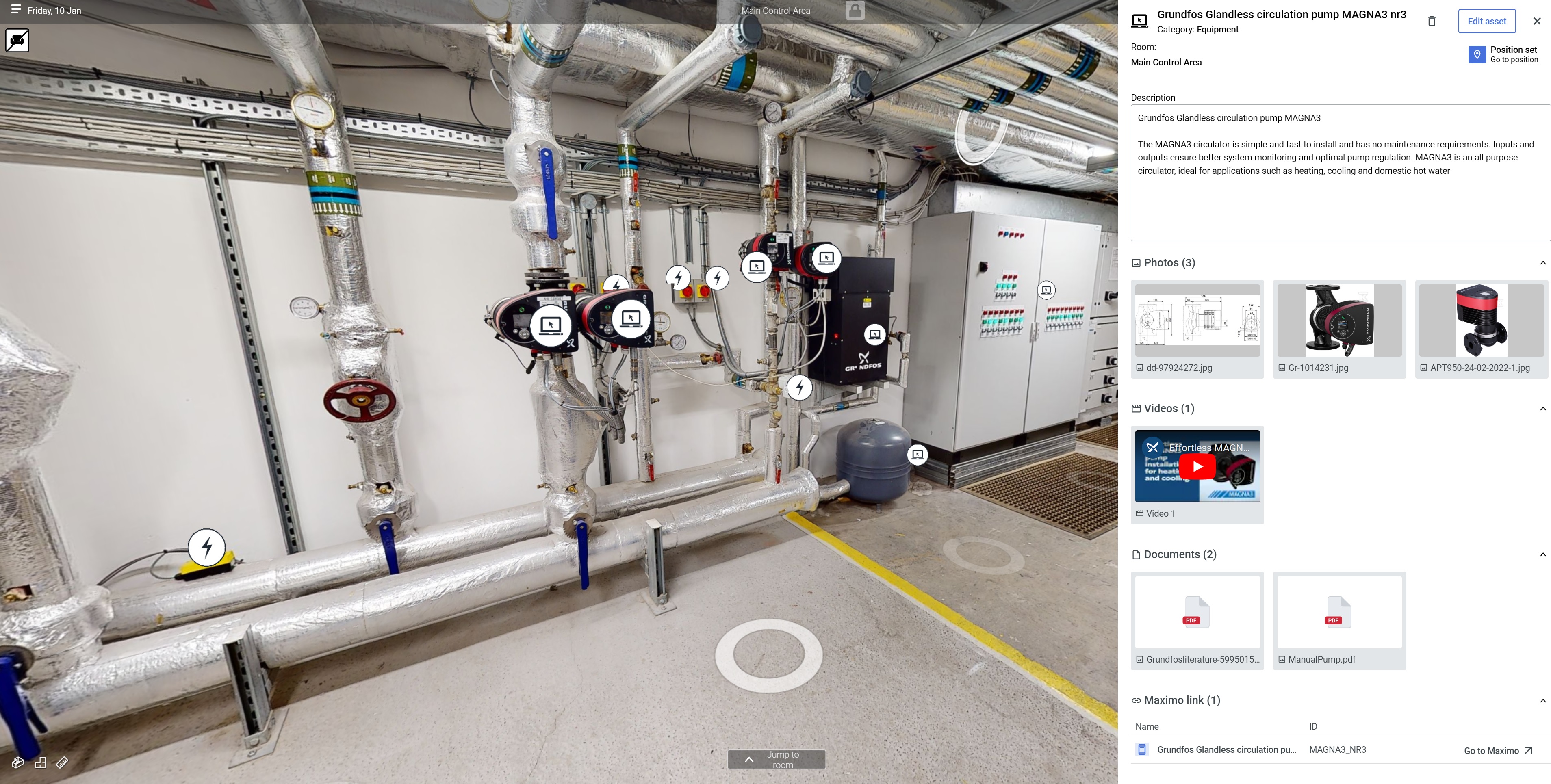
<span id="bkmrk-asset-tool-provides--2" style="font-size: 11pt; font-family: Arial, sans-serif; background-color: transparent; font-weight: 400; font-style: normal; font-variant: normal; text-decoration: none; vertical-align: baseline; white-space: pre-wrap;"><span id="bkmrk-asset-tool-provides--3" style="font-size: 11pt; font-family: Arial, sans-serif; background-color: transparent; font-weight: 400; font-style: normal; font-variant: normal; text-decoration: none; vertical-align: baseline; white-space: pre-wrap;">Asset tool provides a comprehensive repository for all data related to the components and equipment of a property. Users can place Asset icons within a 3D space tour, each linking to a detailed database that includes text descriptions, active links, images, documents, and YouTube videos. It also allows users to link events directly to the property maintenance schedule.</span></span>

![sdfgdsfgdfsg.jpg](https://docs.sim-on.com/uploads/images/gallery/2025-01/scaled-1680-/sdfgdsfgdfsg.jpg)

  
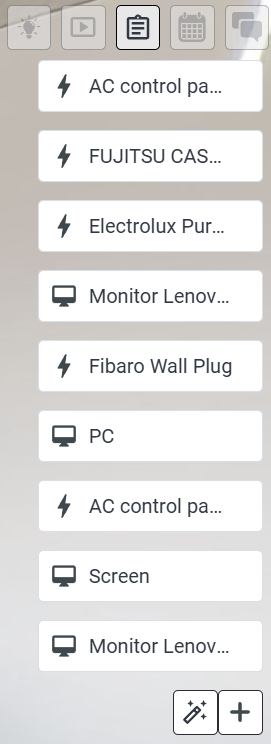
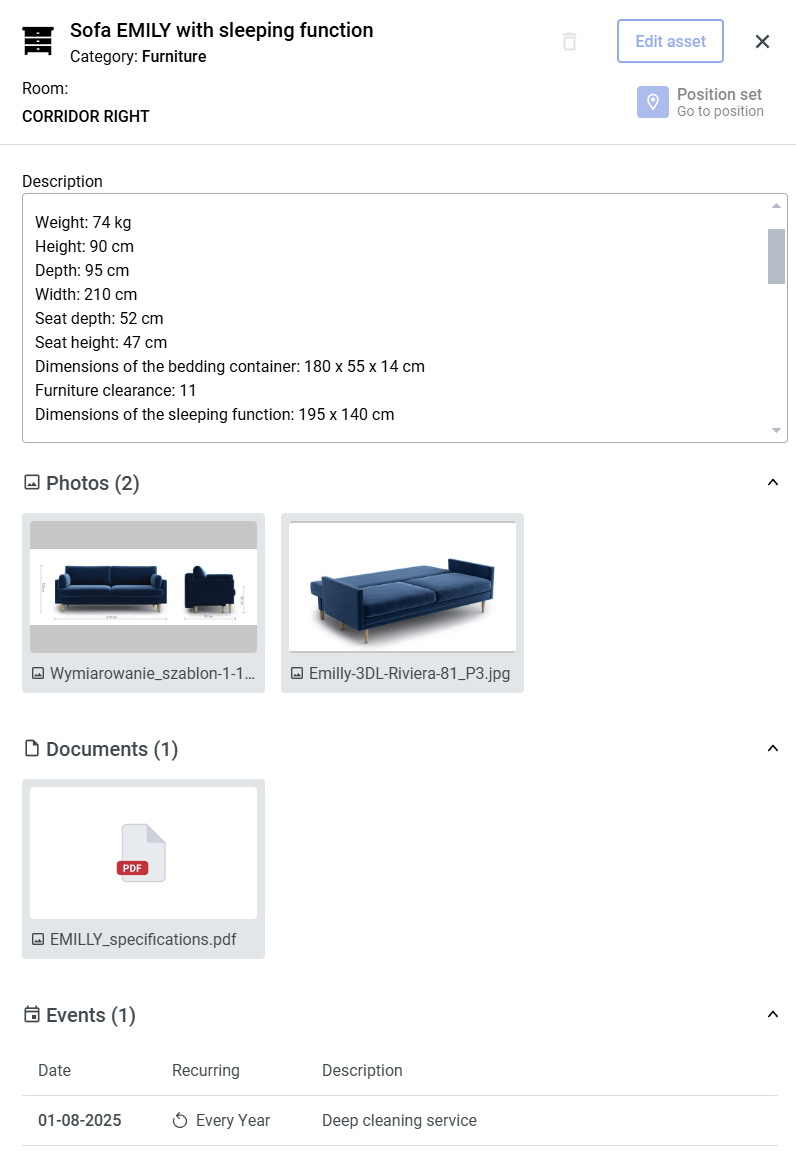
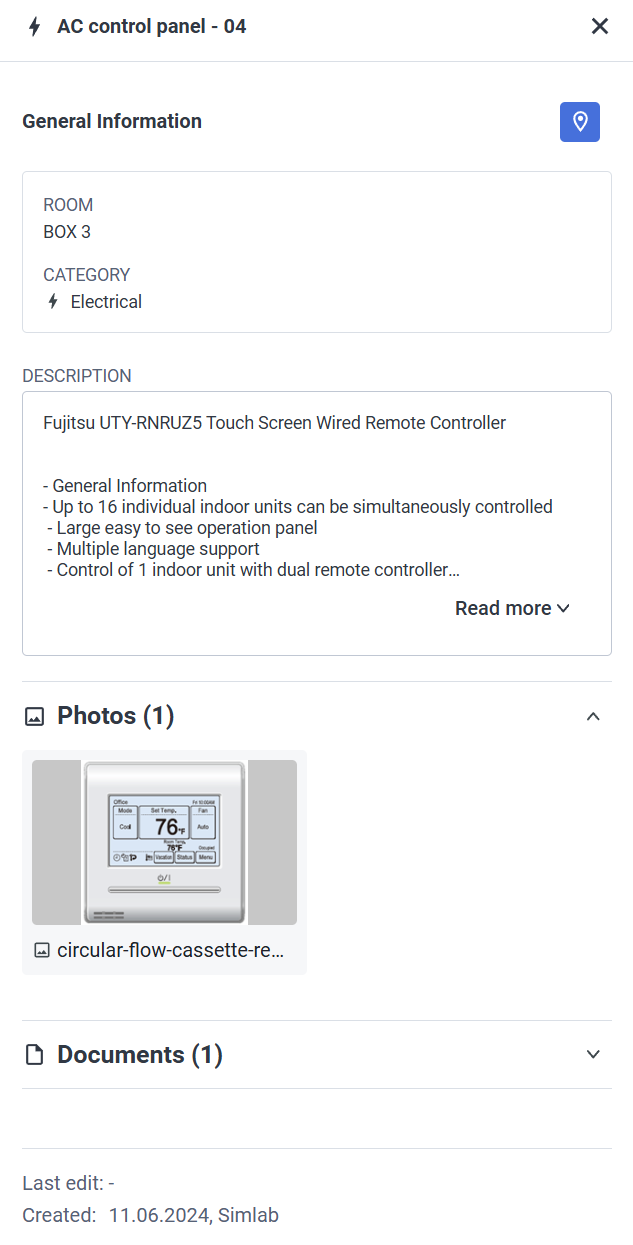
<span id="bkmrk-in-the-assets-tab-yo-3" style="font-size: 11pt; font-family: Arial, sans-serif; background-color: transparent; font-weight: 400; font-style: normal; font-variant: normal; text-decoration: none; vertical-align: baseline; white-space: pre-wrap;">Clicking on an **Assets tab** - you will see the **Asset List** displaying available assets within project. Clicking on **Asset Tile** or **Asset Icon** in the list within 3D space will open with model details will pop up. On the details window you can locate the asset, add media or visit the dashboard.  
</span>

<table border="1" id="bkmrk-asset-list-%C2%A0-asset-d" style="border-collapse: collapse; width: 109.762%; height: 471px; border-width: 0px;"><colgroup><col style="width: 22.5241%;"></col><col style="width: 77.462%;"></col></colgroup><thead><tr><td style="border-width: 0px;">**Asset list**

![asset list.png](https://docs.sim-on.com/uploads/images/gallery/2024-08/scaled-1680-/asset-list.png)

</td><td style="border-width: 0px;">**Asset Panel**

![image.png](https://docs.sim-on.com/uploads/images/gallery/2025-01/scaled-1680-/image.png)

</td></tr></thead></table>

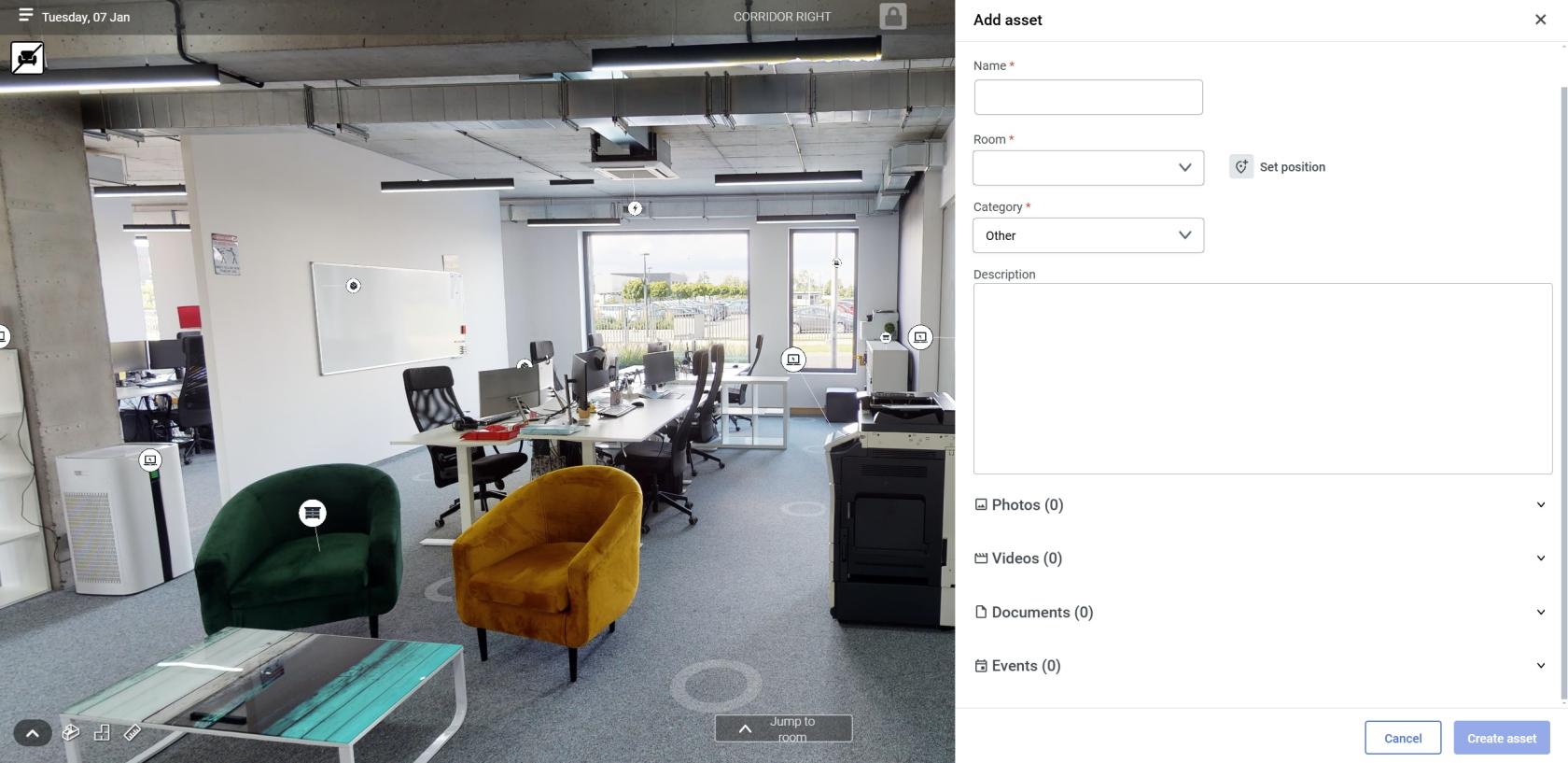
You can also add another asset from here - hover over ![plus.png](https://docs.sim-on.com/uploads/images/gallery/2024-08/scaled-1680-/gDlplus.png) icon, located at the bottom right of the asset list (if there are a lot of assets you'll have to scroll down the asset list to find it) to reveal ![image.png](https://docs.sim-on.com/uploads/images/gallery/2025-03/scaled-1680-/Z1nimage.png) button.


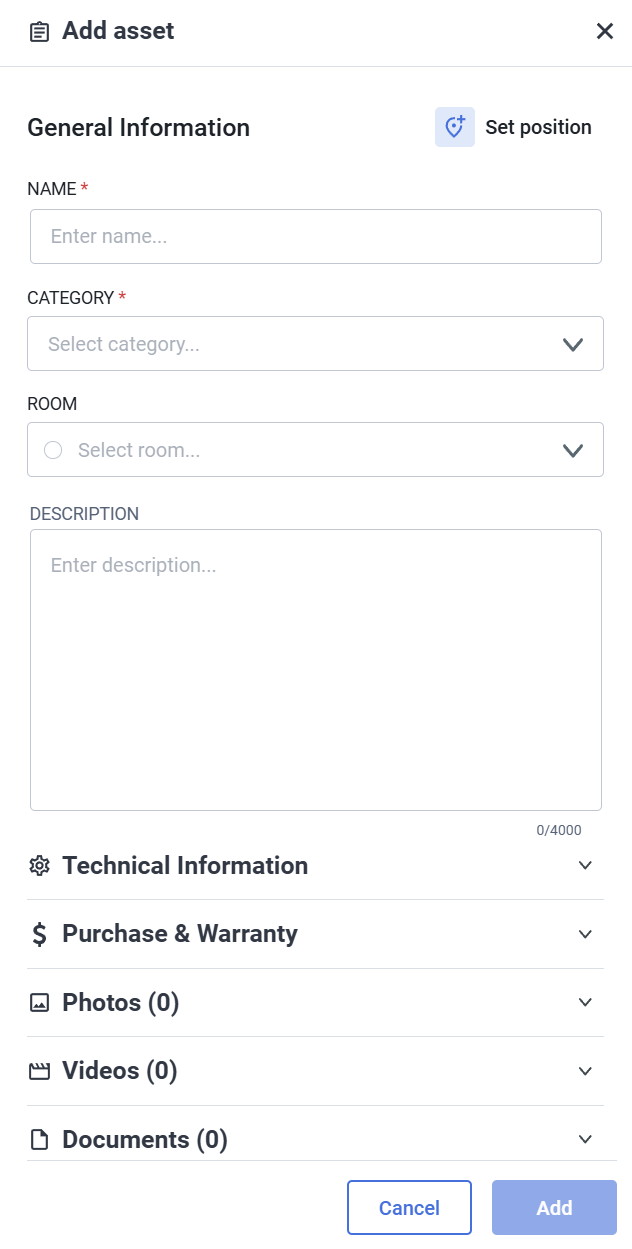
The **Asset Panel** will appear:

![Quickpanel_Assets_edit.jpg](https://docs.sim-on.com/uploads/images/gallery/2025-01/scaled-1680-/quickpanel-assets-edit.jpg)

To **Create an Asset**, all fields marked with a **red asterisk <span style="color: rgb(224, 62, 45);">\*<span style="color: rgb(0, 0, 0);"> </span></span>**<span style="color: rgb(224, 62, 45);"><span style="color: rgb(0, 0, 0);">need to be filled. You can add multiple photos, videos, documents or create events with your asset, as seen in the prior screenshot.</span></span>

When you're done, click the ![image.png](https://docs.sim-on.com/uploads/images/gallery/2025-01/scaled-1680-/7nfimage.png) button to finalize asset creation. From now on your Asset will be visible in the **Asset List** and in 3D view (if you assigned it a position.)

##### **Maximo Links**

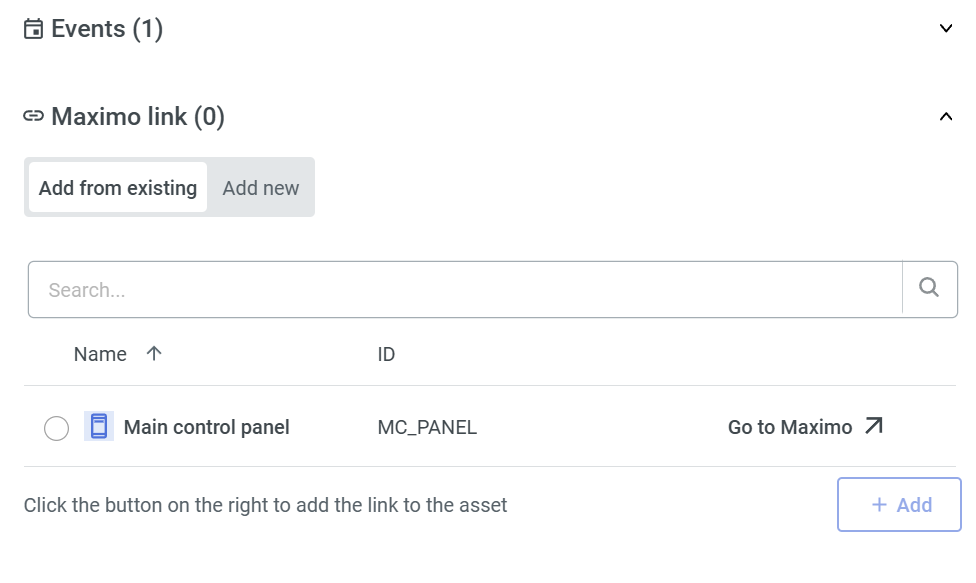
If there is currently added IBM Maximo provider to the scene, **Simon Assets** will have an additional option of linking with **Maximo Assets,** as seen in the image below, an additional option field appears at the bottom of the asset stack, under Events:
![image.png](https://docs.sim-on.com/uploads/images/gallery/2025-01/scaled-1680-/oMUimage.png)

<p class="callout info">To Learn more about IBM Maximo integration, see: [<span style="text-decoration: underline; color: rgb(53, 152, 219);">**adding IBM Maximo to the Scene**</span>](https://docs.sim-on.com/books/2-getting-started/page/ibm-maximo) and [<span style="text-decoration: underline; color: rgb(53, 152, 219);">**additional Resources view**</span>](https://docs.sim-on.com/books/3-app-overview/page/resources).</p>

---

#### Events

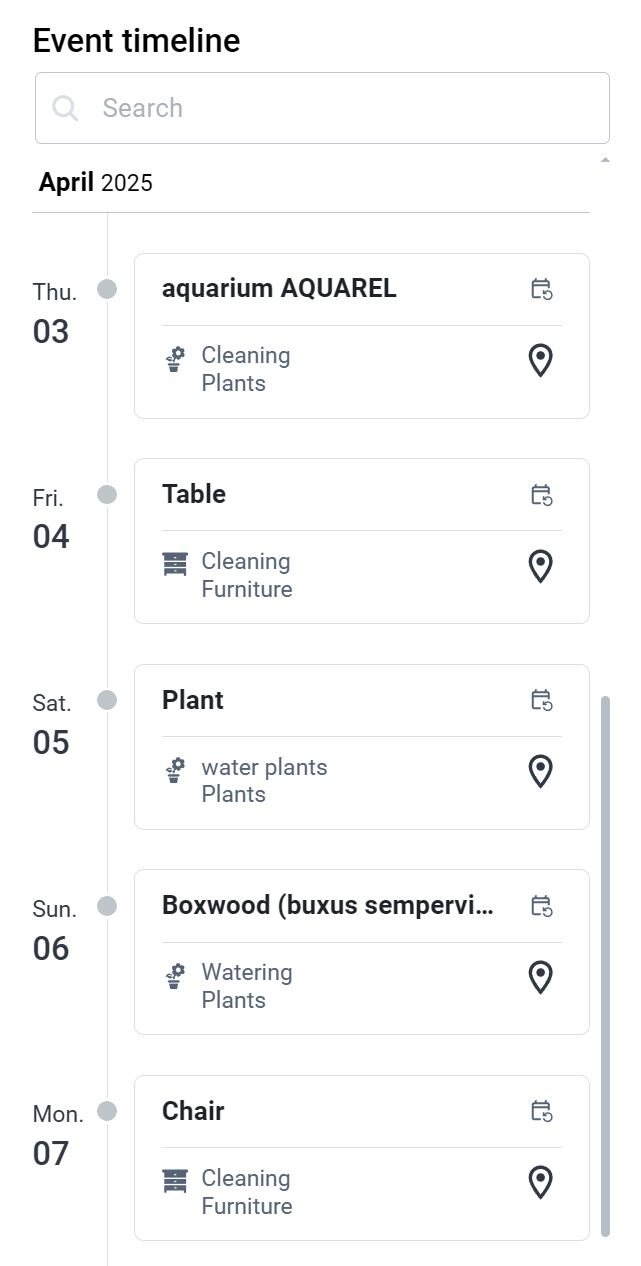
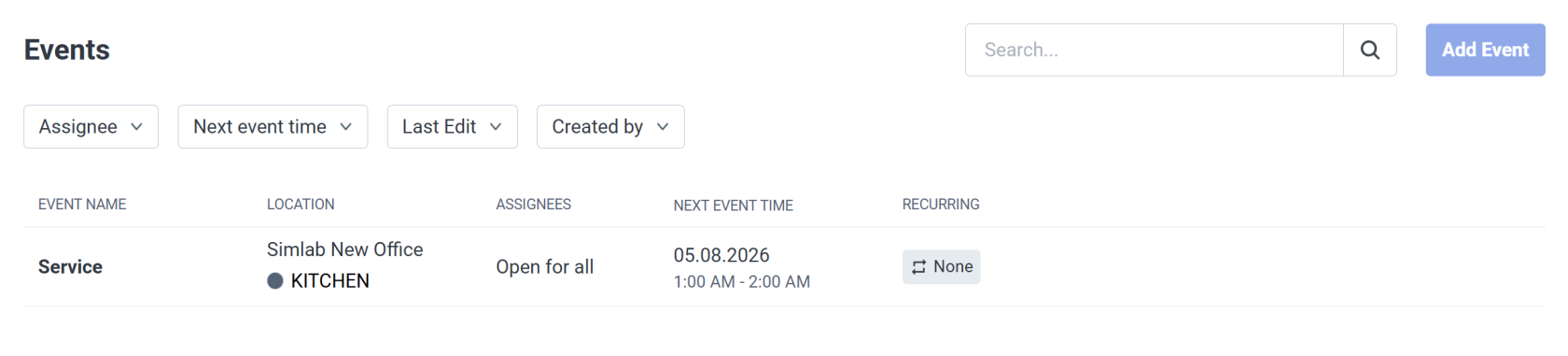
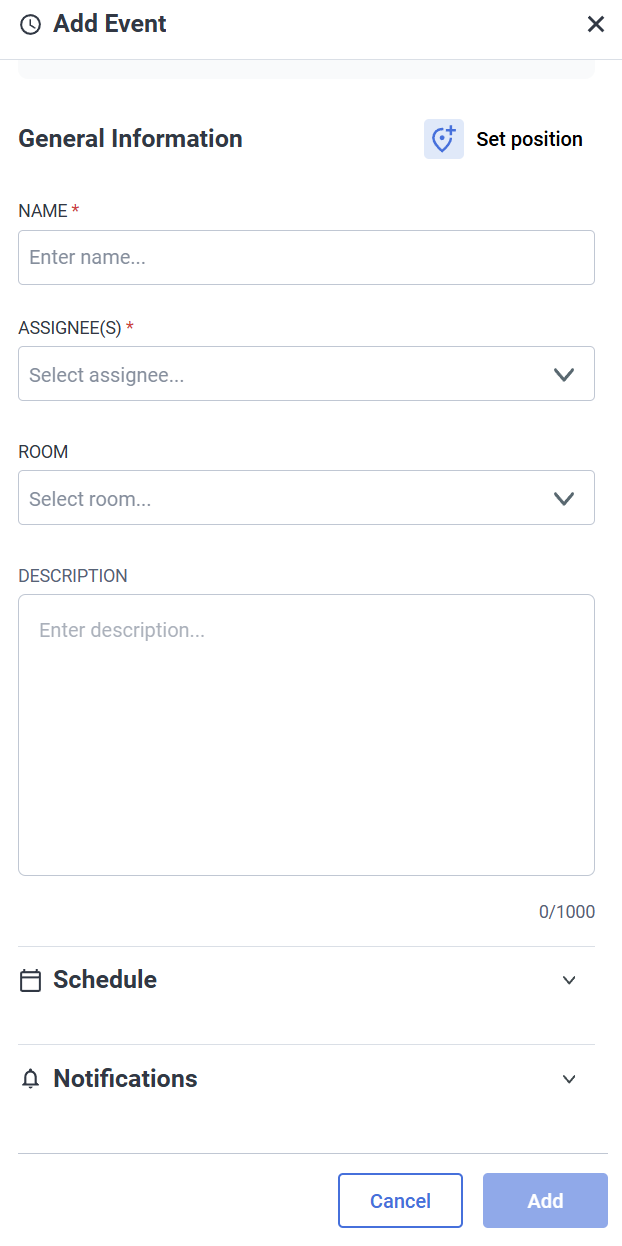
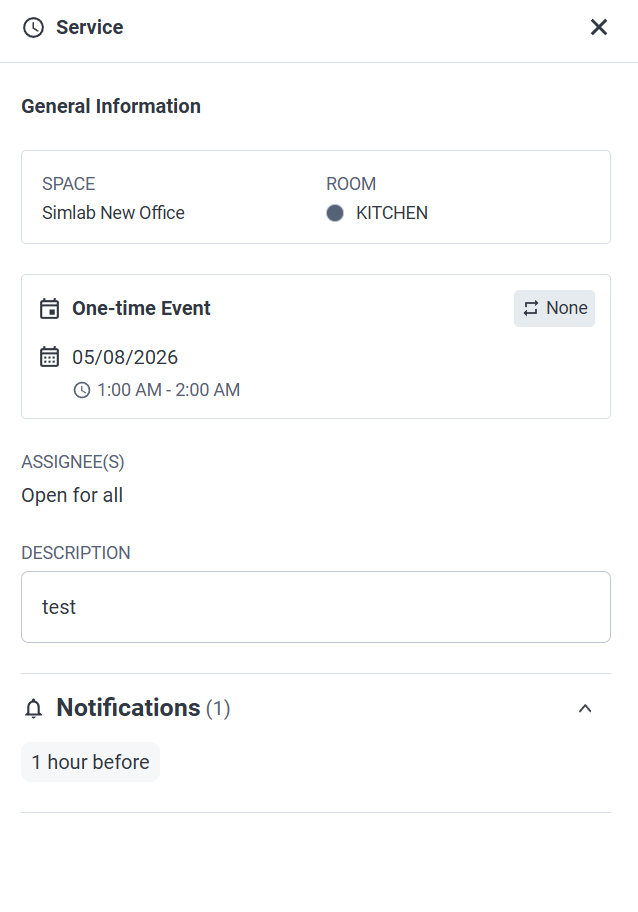
Access to the event timeline showing incoming events.

<table border="1" id="bkmrk-%C2%A0-%C2%A0-events-feature-l" style="border-collapse: collapse; width: 100%; border-width: 1px; border-style: hidden;"><colgroup><col style="width: 50.0397%;"></col><col style="width: 50.0397%;"></col></colgroup><tbody><tr><td>Events feature lets you track and manage different events happening in your home.


##### 1. Event Timeline:

- You can view all the events happening in your home on a timeline, showing when each event takes place.
- The timeline shows you events as they happen, so you’re always up to date.

##### 2. Search:

- You can search for specific device using the **Search panel** at the top of the window.  

    ![image.png](https://docs.sim-on.com/uploads/images/gallery/2025-03/scaled-1680-/JxNimage.png)

- If you want to see the **location** for a specific asset, click on the **pin![image.png](https://docs.sim-on.com/uploads/images/gallery/2025-03/scaled-1680-/Li6image.png) icon** of the asset to find it easily.

##### 3. Edit Events:

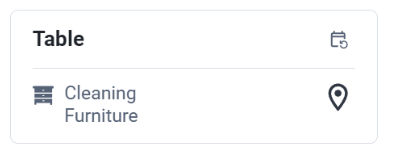
- If you need to change details about an event, just click on the **Event Tile of the Asset**, to quickly open an [<span style="text-decoration: underline; color: rgb(53, 152, 219);">**Asset Panel**</span>](https://docs.sim-on.com/link/148#bkmrk-asset-list-%C2%A0-asset-d) of the device and edit it from there.
![image.png](https://docs.sim-on.com/uploads/images/gallery/2025-03/scaled-1680-/JIFimage.png)

</td><td>#### ![image.png](https://docs.sim-on.com/uploads/images/gallery/2025-03/scaled-1680-/lHYimage.png)

</td></tr></tbody></table>


---

#### Tickets  


<span id="bkmrk-in-the-ticket-tabs-y-1" style="font-size: 11pt; font-family: Arial, sans-serif; background-color: transparent; font-weight: 400; font-style: normal; font-variant: normal; text-decoration: none; vertical-align: baseline; white-space: pre-wrap;">In the Ticket tabs you can find comments added in the project. You can create a new one or edit an existing one.   
</span>

<p class="callout info"><span style="font-size: 11pt; font-family: Arial, sans-serif; background-color: transparent; font-weight: 400; font-style: normal; font-variant: normal; text-decoration: none; vertical-align: baseline; white-space: pre-wrap;"><span id="bkmrk-to-manage-a-detailed-1" style="font-size: 11pt; font-family: Arial, sans-serif; background-color: transparent; font-weight: 400; font-style: normal; font-variant: normal; text-decoration: none; vertical-align: baseline; white-space: pre-wrap;">To manage a detailed list of the tickets, see [<span style="text-decoration: underline; color: rgb(53, 152, 219);">**Tickets page in Dashboard**</span>](https://docs.sim-on.com/books/3-app-overview/page/tickets)</span></span></p>

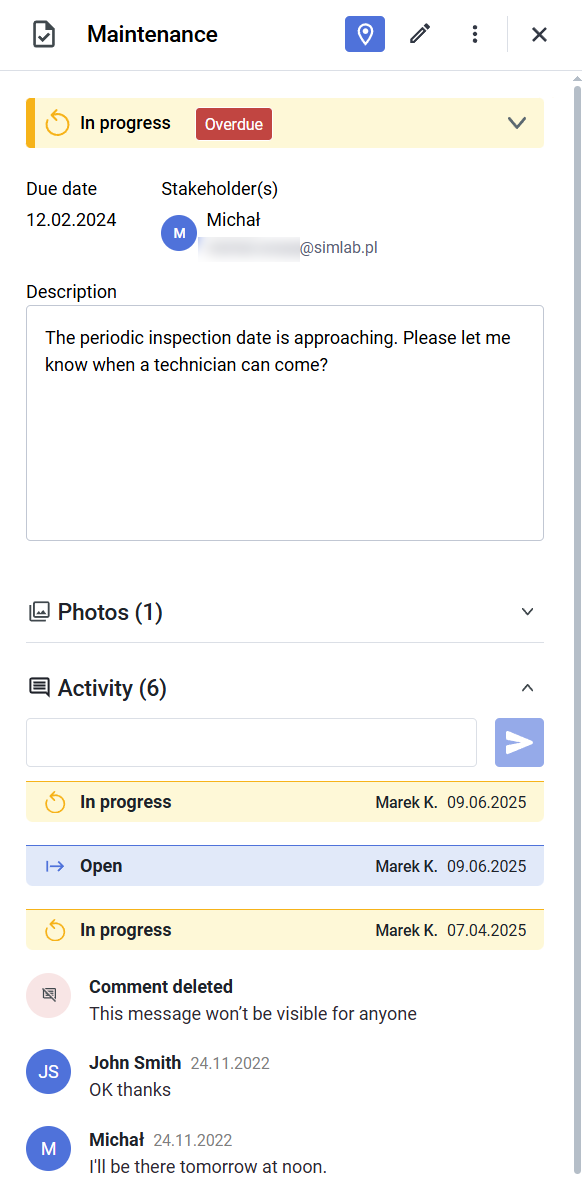
<table border="1" id="bkmrk-tickets-list-%C2%A0-%C2%A0-det" style="border-collapse: collapse; width: 90.119%; height: 547.433px; border-width: 0px;"><colgroup><col style="width: 38.8382%;"></col><col style="width: 5.94463%;"></col><col style="width: 55.219%;"></col></colgroup><tbody><tr style="height: 547.433px;"><td style="height: 547.433px; border-width: 0px; background-color: rgb(236, 240, 241);">**<span style="font-size: 11pt; font-family: Arial, sans-serif; background-color: transparent; font-style: normal; font-variant: normal; text-decoration: none; vertical-align: baseline; white-space: pre-wrap;">Tickets list</span>**

![tickets.PNG](https://docs.sim-on.com/uploads/images/gallery/2024-08/scaled-1680-/tickets.PNG)

</td><td style="border-width: 0px;"></td><td style="height: 547.433px; border-width: 0px; background-color: rgb(236, 240, 241);">**Detailed view**

![image.png](https://docs.sim-on.com/uploads/images/gallery/2025-07/scaled-1680-/Mqyimage.png)

</td></tr></tbody></table>

##### Reporting Problems

- If something isn’t working, like a light or thermostat, you can report it through the system’s app or interface.

##### Maintenance Requests

- You can create tickets for routine tasks, like changing air filters or checking battery levels.
- The system might allow to connect with service providers to create tickets for them for fixing or maintenance.

##### New Ideas

- If you have an idea for a new feature, you can suggest it by creating a ticket.
- **Voting:** Others can vote on your suggestion, helping the team decide what to work on next.

##### Support and Troubleshooting

- If you need support, you can create a ticket and track its progress.
- The ticket can be connected to a specialist, making it easier to get help when you need it.

# Dashboard

Central hub for all the devices, assets and scenes, sorted by rooms.


# Devices

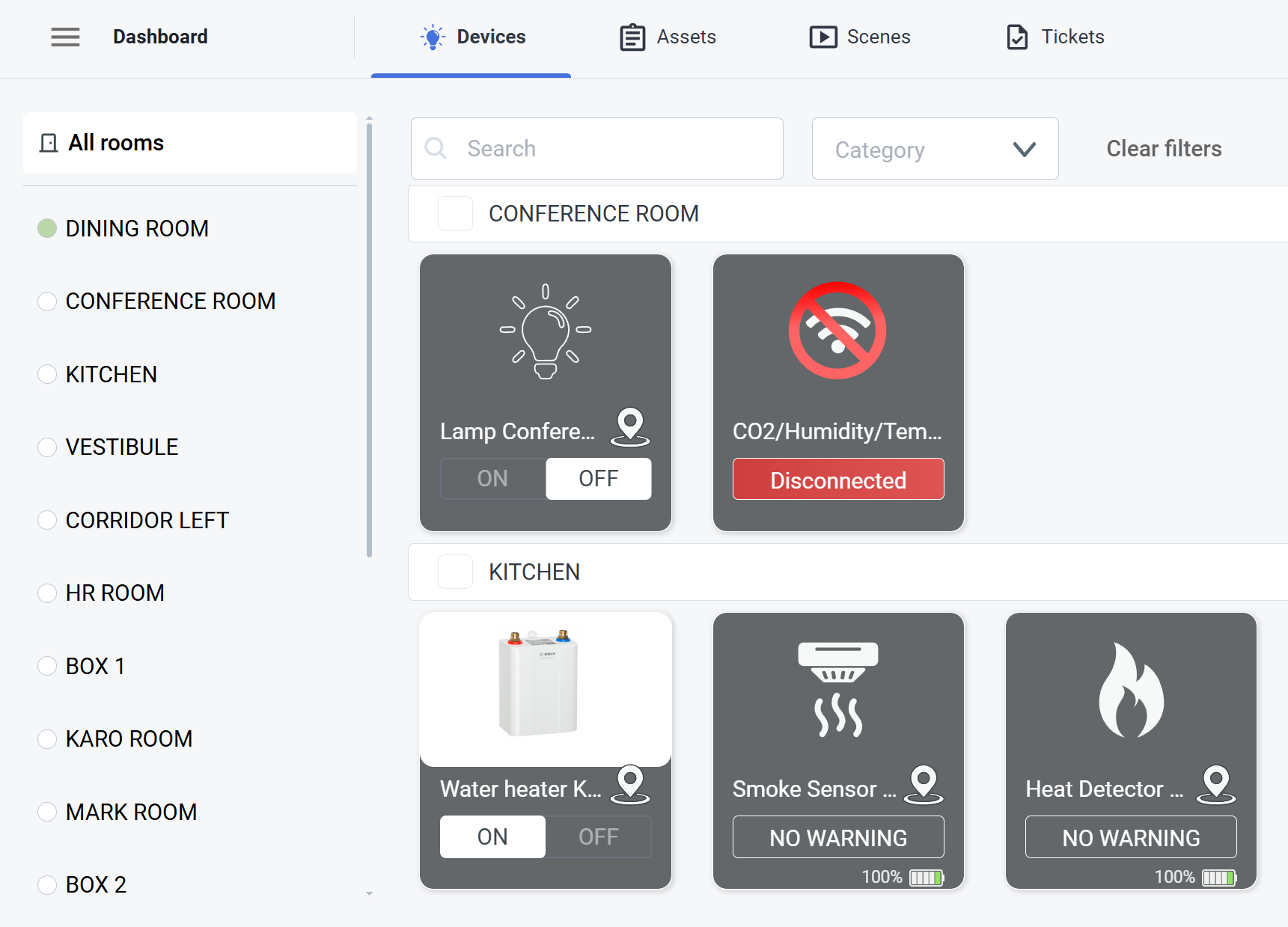
In the **Devices view** you can see all the devices in the selected rooms or all devices in the project if **All Rooms** option is selected.

##### Device List

<table border="1" id="bkmrk-rooms%3A-room-isolatio" style="border-collapse: collapse; width: 100%; height: 344.05px; border-width: 0px; background-color: rgb(236, 240, 241);"><colgroup><col style="width: 41.1905%;"></col><col style="width: 58.8095%;"></col></colgroup><tbody><tr style="height: 344.05px;"><td style="height: 344.05px; border-width: 0px;">- <span style="font-size: 11pt; font-family: Arial, sans-serif; background-color: transparent; font-weight: 400; font-style: normal; font-variant: normal; text-decoration: none; vertical-align: baseline; white-space: pre-wrap;">**Rooms**:</span>
    - <span style="font-size: 11pt; font-family: Arial, sans-serif; background-color: transparent; font-weight: 400; font-style: normal; font-variant: normal; text-decoration: none; vertical-align: baseline; white-space: pre-wrap;">**Room isolation -** </span><span style="font-size: 11pt; font-family: Arial, sans-serif; background-color: transparent; font-weight: 400; font-style: normal; font-variant: normal; text-decoration: none; vertical-align: baseline; white-space: pre-wrap;">Left hand side column is dedicated to sorting the devices by rooms. Here you can either toggle the displayed devices either to a specified room or every available one.</span>
    - <span style="font-size: 11pt; font-family: Arial, sans-serif; background-color: transparent; font-weight: 400; font-style: normal; font-variant: normal; text-decoration: none; vertical-align: baseline; white-space: pre-wrap;">**Display -** The main, central body of the view, where the devices are displayed, sorted by rooms, with applied filters.  
          
        </span>
- **<span style="font-size: 11pt; font-family: Arial, sans-serif; background-color: transparent; font-style: normal; font-variant: normal; text-decoration: none; vertical-align: baseline; white-space: pre-wrap;">Filters</span>**
    - <span style="font-size: 11pt; font-family: Arial, sans-serif; background-color: transparent; font-weight: 400; font-style: normal; font-variant: normal; text-decoration: none; vertical-align: baseline; white-space: pre-wrap;">**Category** - Lets you filter the displayed devices by a category of the device. Remember, you have to set the device category manually, when setting up devices.</span>
    - <span style="font-size: 11pt; font-family: Arial, sans-serif; background-color: transparent; font-weight: 400; font-style: normal; font-variant: normal; text-decoration: none; vertical-align: baseline; white-space: pre-wrap;">**Search** - Use the text field to type a name of the device you are looking for.</span>

</td><td style="height: 344.05px; border-width: 0px;">![image.png](https://docs.sim-on.com/uploads/images/gallery/2025-10/scaled-1680-/s5wimage.png)

<span style="font-size: 11pt; font-family: Arial, sans-serif; background-color: transparent; font-weight: 400; font-style: normal; font-variant: normal; text-decoration: none; vertical-align: baseline; white-space: pre-wrap;"><span id="bkmrk--2" style="font-size: 11pt; font-family: Arial, sans-serif; background-color: transparent; font-weight: 400; font-style: normal; font-variant: normal; text-decoration: none; vertical-align: baseline; white-space: pre-wrap;"></span></span>

</td></tr></tbody></table>


#####  

##### Device Details  


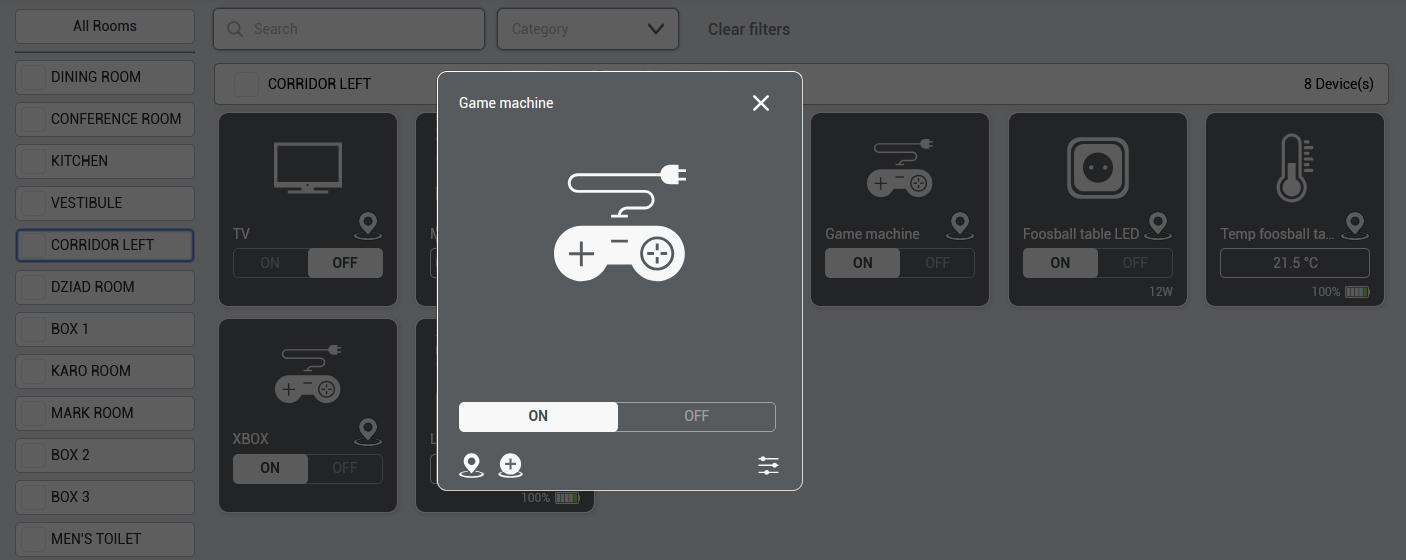
<table border="1" id="bkmrk-after-clicking-on-on" style="border-collapse: collapse; width: 100%; height: 226px; border-width: 0px; background-color: rgb(236, 240, 241);"><colgroup><col style="width: 34.7619%;"></col><col style="width: 65.2381%;"></col></colgroup><tbody><tr><td style="text-align: justify; border-width: 0px;">After clicking on one of the devices, you will see the device details. By clicking the **pin** ![pin-location-2.png](https://docs.sim-on.com/uploads/images/gallery/2024-08/scaled-1680-/pin-location-2.png) icon you can transport to the device's location, If the device wasn't placed yet, you can do it by clicking on the **add** icon.</td><td style="border-width: 0px;">![device detail.jpg](https://docs.sim-on.com/uploads/images/gallery/2024-08/scaled-1680-/Sdfdevice-detail.jpg)

</td></tr></tbody></table>


#####  

##### Device Settings  


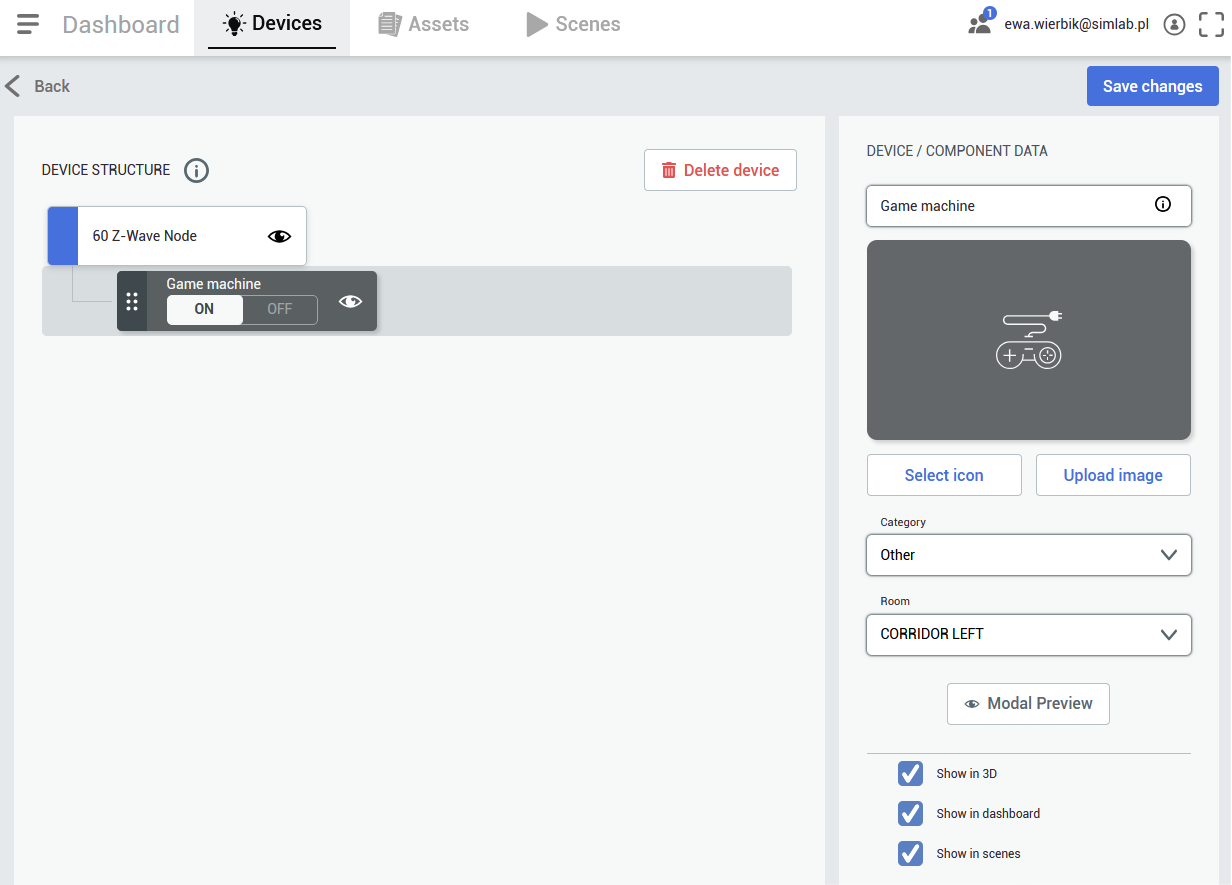
<table border="1" id="bkmrk-by-clicking-settings" style="border-collapse: collapse; width: 100%; border-width: 0px; background-color: rgb(236, 240, 241);"><colgroup><col style="width: 34.6757%;"></col><col style="width: 65.3005%;"></col></colgroup><tbody><tr><td style="border-width: 0px;">By clicking **settings** ![settings_black.png](https://docs.sim-on.com/uploads/images/gallery/2024-08/scaled-1680-/settings-black.png) icon you can change the device's details:

- name,
- icon,
- image,
- category,
- room,

and visibility in the 3D view.

</td><td style="border-width: 0px;">![devices details.png](https://docs.sim-on.com/uploads/images/gallery/2024-08/scaled-1680-/devices-details.png)</td></tr></tbody></table>


#####  

##### Device Structure  


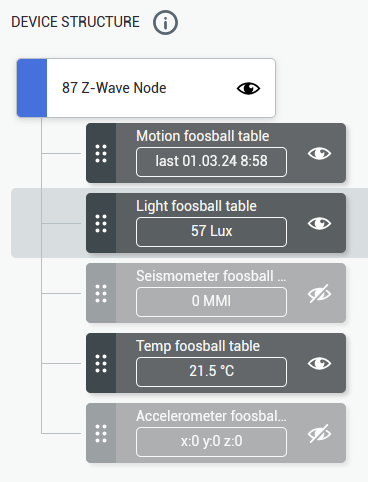
<table border="1" id="bkmrk-%C2%A0-%C2%A0-%C2%A0-%C2%A0-%C2%A0-%C2%A0-you-can-" style="border-collapse: collapse; width: 74.5238%; border-width: 0px; height: 329px; background-color: rgb(236, 240, 241);"><colgroup><col style="width: 46.4856%;"></col><col style="width: 53.5144%;"></col></colgroup><tbody><tr><td style="border-width: 0px;">You can also see a device structure - it varies for different devices - there can be a few devices connected to one master device, or just one. It depends on the provider's hub structure and you can decide which elements should be visible in the 3D view.

</td><td style="border-width: 0px;">![obraz.png](https://docs.sim-on.com/uploads/images/gallery/2024-08/scaled-1680-/Tvhobraz.png)  
</td></tr></tbody></table>

# Assets

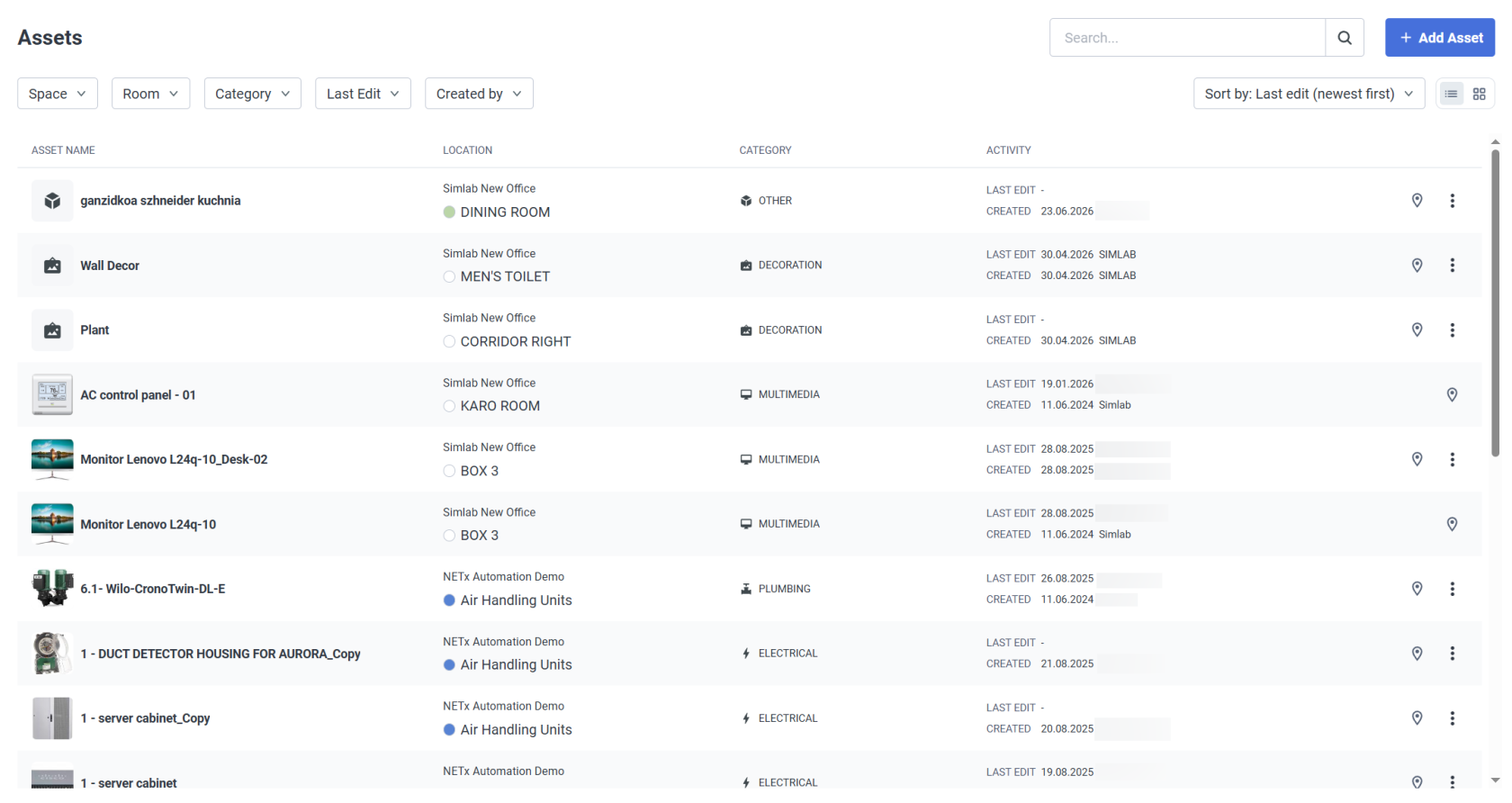
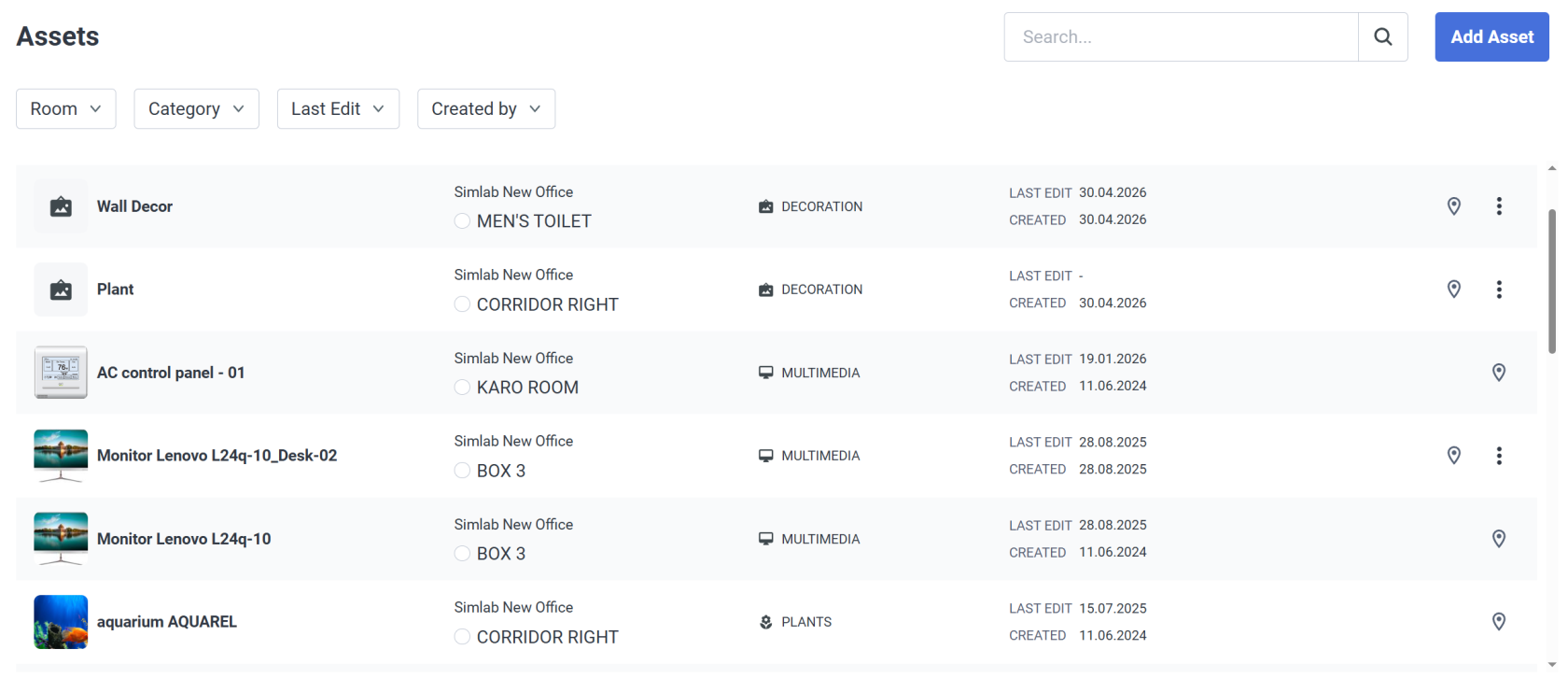
An **asset** is a **physical object** (*that lacks smart connectivity*) you, as a user, wish to keep track of in the **SIM-ON** project space. For example assets, see the screenshot below.

In the **Assets view** you can see all the assets in the selected rooms or all Assets in the project if **All Rooms** option is selected.

![image.png](https://docs.sim-on.com/uploads/images/gallery/2025-10/scaled-1680-/lACimage.png)

<table border="1" id="bkmrk-rooms%3A-room-isolatio-2" style="border-collapse: collapse; width: 115.238%; border-width: 0px; background-color: rgb(236, 240, 241); height: 334px;"><colgroup><col style="width: 43.5714%;"></col><col style="width: 56.4286%;"></col></colgroup><tbody><tr><td style="border-width: 0px;">- <span style="font-size: 11pt; font-family: Arial, sans-serif; background-color: transparent; font-weight: 400; font-style: normal; font-variant: normal; text-decoration: none; vertical-align: baseline; white-space: pre-wrap;">**Rooms**:</span>
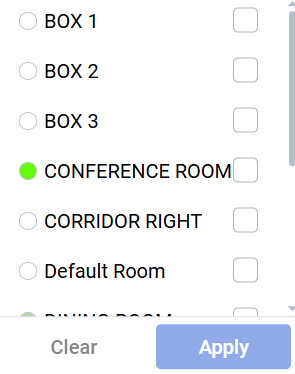
    - <span style="font-size: 11pt; font-family: Arial, sans-serif; background-color: transparent; font-weight: 400; font-style: normal; font-variant: normal; text-decoration: none; vertical-align: baseline; white-space: pre-wrap;">**Room isolation** - </span><span style="font-size: 11pt; font-family: Arial, sans-serif; background-color: transparent; font-weight: 400; font-style: normal; font-variant: normal; text-decoration: none; vertical-align: baseline; white-space: pre-wrap;">Left hand side column is dedicated to filtering the assets by rooms. Here you can limit the assets to a certain room or display all of them.  
          
        </span>
    - <span style="font-size: 11pt; font-family: Arial, sans-serif; background-color: transparent; font-weight: 400; font-style: normal; font-variant: normal; text-decoration: none; vertical-align: baseline; white-space: pre-wrap;">**Asset Display** - The main, central body of the view, where the assets are displayed, sorted and filtered as seen on the screenshot above.</span>

</td><td style="border-width: 0px;">- **<span style="font-size: 11pt; font-family: Arial, sans-serif; background-color: transparent; font-style: normal; font-variant: normal; text-decoration: none; vertical-align: baseline; white-space: pre-wrap;">![image.png](https://docs.sim-on.com/uploads/images/gallery/2025-10/scaled-1680-/AXJimage.png)Filters</span>**
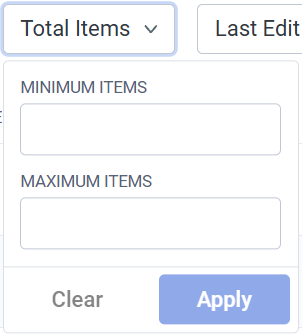
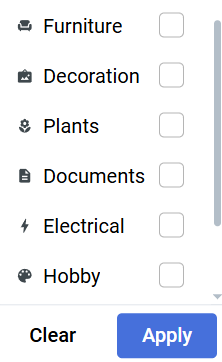
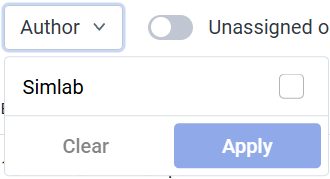
    - <span style="font-size: 11pt; font-family: Arial, sans-serif; background-color: transparent; font-weight: 400; font-style: normal; font-variant: normal; text-decoration: none; vertical-align: baseline; white-space: pre-wrap;">**Category** - Lets you filter the displayed devices </span><span style="font-size: 11pt; font-family: Arial, sans-serif; background-color: transparent; font-weight: 400; font-style: normal; font-variant: normal; text-decoration: none; vertical-align: baseline; white-space: pre-wrap;">by category of the asset:</span>
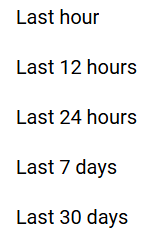
    - **<span style="font-size: 11pt; font-family: Arial, sans-serif; background-color: transparent; font-style: normal; font-variant: normal; text-decoration: none; vertical-align: baseline; white-space: pre-wrap;">Last Edited</span>**<span style="font-size: 11pt; font-family: Arial, sans-serif; background-color: transparent; font-style: normal; font-variant: normal; text-decoration: none; vertical-align: baseline; white-space: pre-wrap;"> </span>
    - **<span style="font-size: 11pt; font-family: Arial, sans-serif; background-color: transparent; font-style: normal; font-variant: normal; text-decoration: none; vertical-align: baseline; white-space: pre-wrap;">Creator </span>**<span style="font-size: 11pt; font-family: Arial, sans-serif; background-color: transparent; font-style: normal; font-variant: normal; text-decoration: none; vertical-align: baseline; white-space: pre-wrap;">- By asset author</span>
    - **<span style="font-size: 11pt; font-family: Arial, sans-serif; background-color: transparent; font-style: normal; font-variant: normal; text-decoration: none; vertical-align: baseline; white-space: pre-wrap;">Room</span>**<span style="font-size: 11pt; font-family: Arial, sans-serif; background-color: transparent; font-style: normal; font-variant: normal; text-decoration: none; vertical-align: baseline; white-space: pre-wrap;"> - (when All rooms is selected)  
        </span>
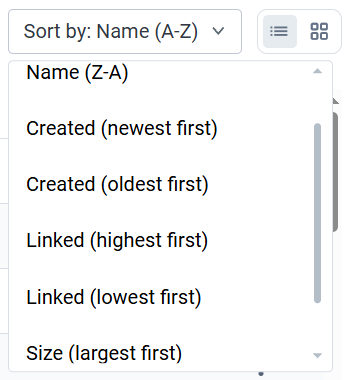
- **<span style="font-size: 11pt; font-family: Arial, sans-serif; background-color: transparent; font-style: normal; font-variant: normal; text-decoration: none; vertical-align: baseline; white-space: pre-wrap;">Sorters</span>**
    - <span style="font-size: 11pt; font-family: Arial, sans-serif; background-color: transparent; font-style: normal; font-variant: normal; text-decoration: none; vertical-align: baseline; white-space: pre-wrap;">Sort the assets by: name, category, edit, creation, room.</span>

</td></tr></tbody></table>

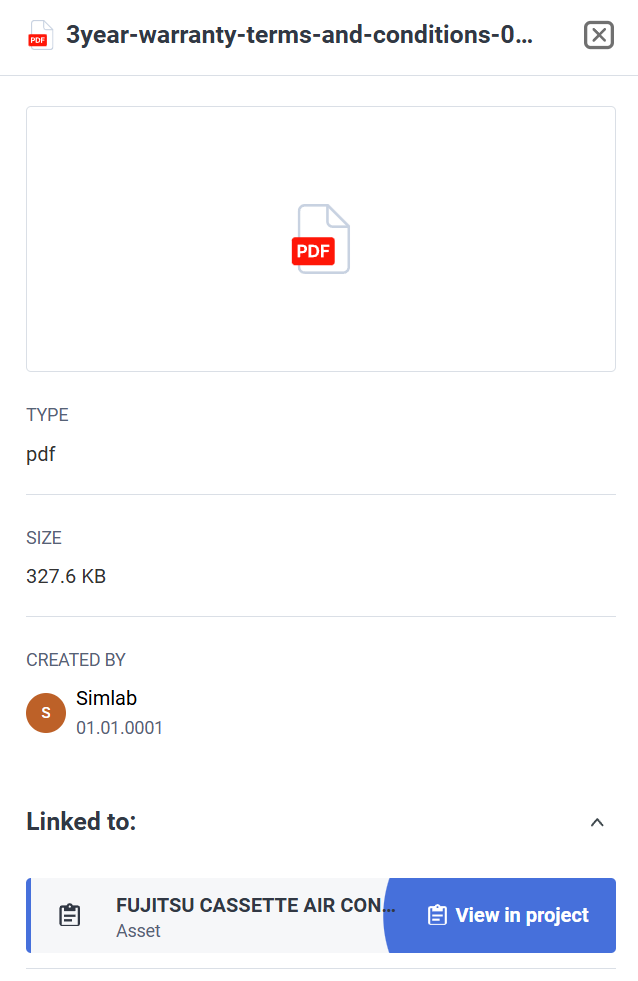
Selecting an asset tile will reveal it's details. Press "**Edit asset**" to manage the asset information and files uploaded to it.

<table border="1" id="bkmrk--2" style="border-collapse: collapse; width: 100%; border-width: 1px; border-style: hidden;"><colgroup><col style="width: 50.2797%;"></col><col style="width: 49.7997%;"></col></colgroup><tbody><tr><td>![image.png](https://docs.sim-on.com/uploads/images/gallery/2024-11/scaled-1680-/ZQXimage.png)</td><td>![image.png](https://docs.sim-on.com/uploads/images/gallery/2024-11/scaled-1680-/P7simage.png)</td></tr></tbody></table>


#### **IBM Maximo**

If you have a connected Maximo provider to your space, you gain an additional feature within Assets to link them with Maximo assets:

![IBM MAXIMO.jpg](https://docs.sim-on.com/uploads/images/gallery/2025-01/ibm-maximo.jpg)

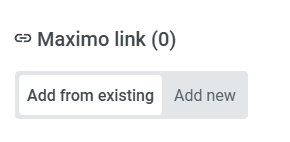
<table border="1" id="bkmrk-when-asset-is-not-li" style="border-collapse: collapse; width: 113.095%; height: 573px; border-width: 0px;"><colgroup><col style="width: 48.4524%;"></col><col style="width: 2.02381%;"></col><col style="width: 49.5238%;"></col></colgroup><tbody><tr><td style="border-width: 0px;">![image.png](https://docs.sim-on.com/uploads/images/gallery/2025-01/scaled-1680-/Q1yimage.png)When asset is not linked with Maximo, you will see the following options:

  
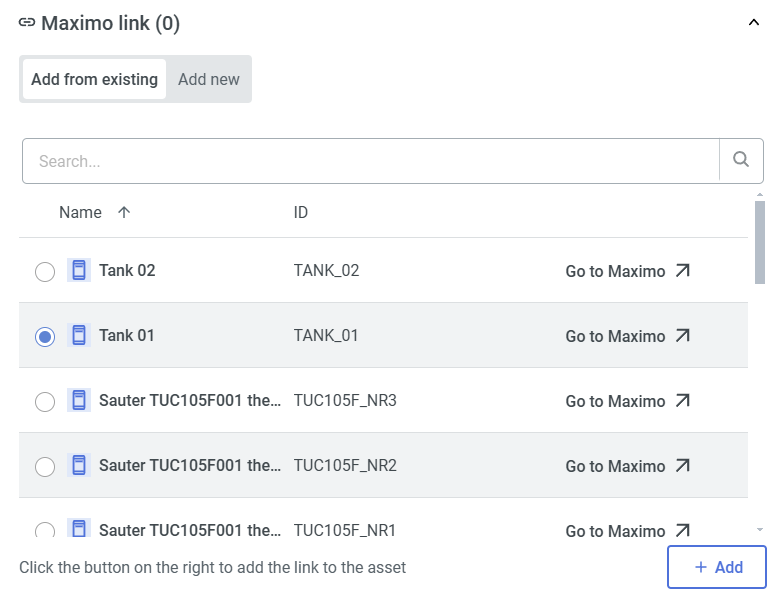
Adding from existing lets you add a link that you might have added before in the [<span style="text-decoration: underline; color: rgb(53, 152, 219);">**Resources**</span>](https://docs.sim-on.com/books/3-app-overview/page/resources) page. This will reveal a similar Maximo Links list for you to choose from:
![image.png](https://docs.sim-on.com/uploads/images/gallery/2025-01/scaled-1680-/twYimage.png)

</td><td style="border-width: 0px;">  
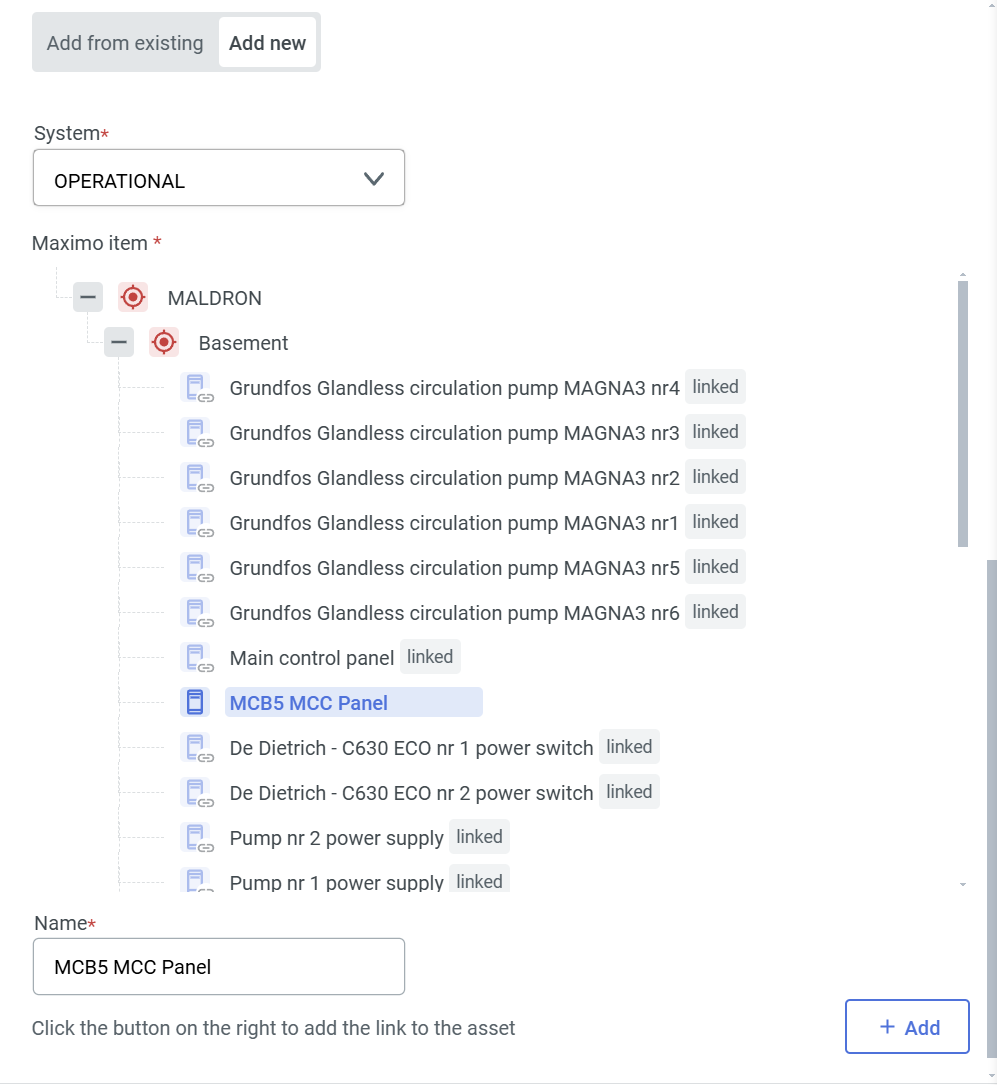
</td><td style="border-width: 0px;">Selecting "Add new" will open the following Maximo List to add new link from.  
  
![image.png](https://docs.sim-on.com/uploads/images/gallery/2025-01/scaled-1680-/FTCimage.png)</td></tr></tbody></table>

# Automatic Asset Recognition

Search and identify objects in 3D environment using Artificial Intelligence.

![image.png](https://docs.sim-on.com/uploads/images/gallery/2025-10/scaled-1680-/SPbimage.png)

---

  
Automatically generate asset entries for all visible objects within a 360° view, enabling seamless cataloging and organization.   
This feature saves time by identifying, classifying, and recording each object’s key information directly from the panoramic scene.

![simon_ai_assets 2_2.gif](https://docs.sim-on.com/uploads/images/gallery/2025-10/simon-ai-assets-2-2.gif)

![image.png](https://docs.sim-on.com/uploads/images/gallery/2025-10/scaled-1680-/2fbimage.png)

To automatically assign assets, navigate to the location of interest within   
the virtual tour space and open the ![image.png](https://docs.sim-on.com/uploads/images/gallery/2025-10/scaled-1680-/PTAimage.png) Assets tab.   
You'll see the ![image.png](https://docs.sim-on.com/uploads/images/gallery/2025-10/scaled-1680-/OA1image.png)**Magic wand** button, next to the ![image.png](https://docs.sim-on.com/uploads/images/gallery/2025-10/scaled-1680-/vihimage.png) **Add Asset** button.   
  
Proceed with ![image.png](https://docs.sim-on.com/uploads/images/gallery/2025-10/scaled-1680-/864image.png) to detect and generate assets.

Once the assets have been automatically detected, you may view them in the side panel, navigate to their locations, or remove them as needed.

  
After reviewing the newly generated assets, select **Confirm** to apply the Auto-detect results and finalize the creation of the new asset.

<p class="callout warning">The tool may generate duplicate assets if it is used multiple times within the same space.  
To ensure optimal results, it is recommended to run the tool only once per area, preferably on a sweep where the greatest number of objects are visible.</p>

# Scenes

Automate the **Devices** behavior with various triggers and states within the project.

##### Scene view
![image.png](https://docs.sim-on.com/uploads/images/gallery/2025-10/scaled-1680-/g1Pimage.png)

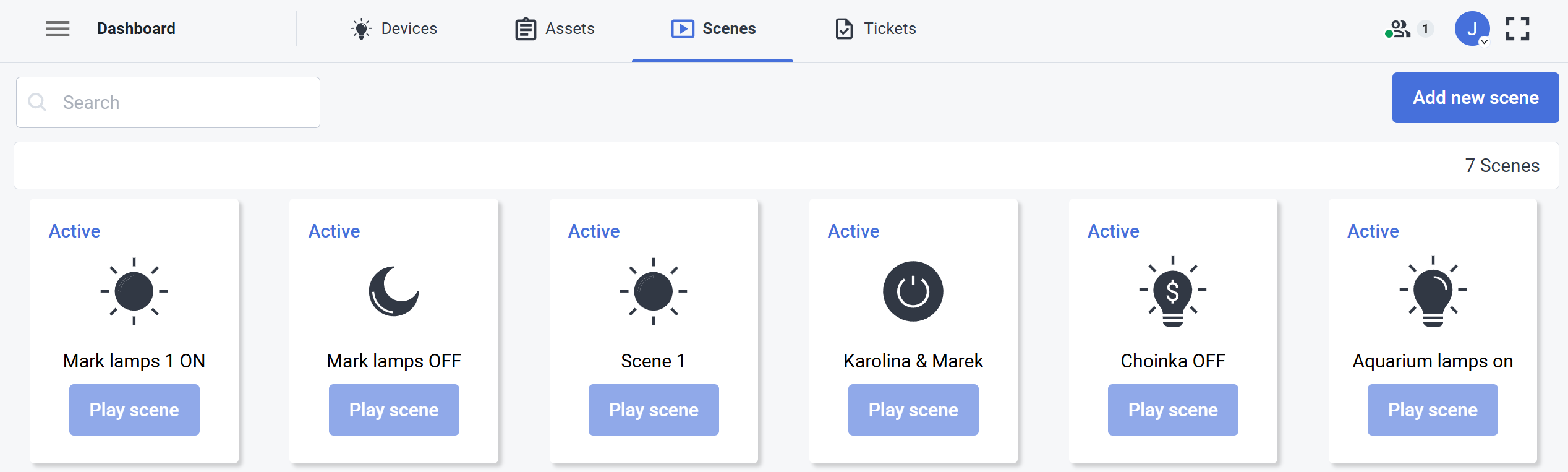
<span style="font-size: 11pt; font-family: Arial, sans-serif; background-color: transparent; font-weight: 400; font-style: normal; font-variant: normal; text-decoration: none; vertical-align: baseline; white-space: pre-wrap;"><span style="font-size: 11pt; font-family: Arial, sans-serif; background-color: transparent; font-weight: 400; font-style: normal; font-variant: normal; text-decoration: none; vertical-align: baseline; white-space: pre-wrap;"><span id="bkmrk-in-the-scene-view-yo-1" style="font-size: 11pt; font-family: Arial, sans-serif; background-color: transparent; font-weight: 400; font-style: normal; font-variant: normal; text-decoration: none; vertical-align: baseline; white-space: pre-wrap;">In the **Scene view** you can see all the scenes available. Scenes can manage different scenarios including turning on the lights on, planning to turn on or off different devices depending on the various triggers. Additionally you can add new scenes from here as well or delete the existing ones.  
  
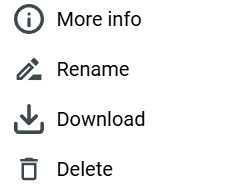
To delete or edit a scene, click the **more options** ![more options.png](https://docs.sim-on.com/uploads/images/gallery/2024-08/scaled-1680-/more-options.png) button on the scene tile.</span></span></span>

<p class="callout warning"><span style="font-size: 11pt; font-family: Arial, sans-serif; background-color: transparent; font-weight: 400; font-style: normal; font-variant: normal; text-decoration: none; vertical-align: baseline; white-space: pre-wrap;"><span style="font-size: 11pt; font-family: Arial, sans-serif; background-color: transparent; font-weight: 400; font-style: normal; font-variant: normal; text-decoration: none; vertical-align: baseline; white-space: pre-wrap;"><span style="font-size: 11pt; font-family: Arial, sans-serif; background-color: transparent; font-weight: 400; font-style: normal; font-variant: normal; text-decoration: none; vertical-align: baseline; white-space: pre-wrap;">You need to have appropriate **permissions** to edit **Scenes.**</span></span></span></p>

#####   
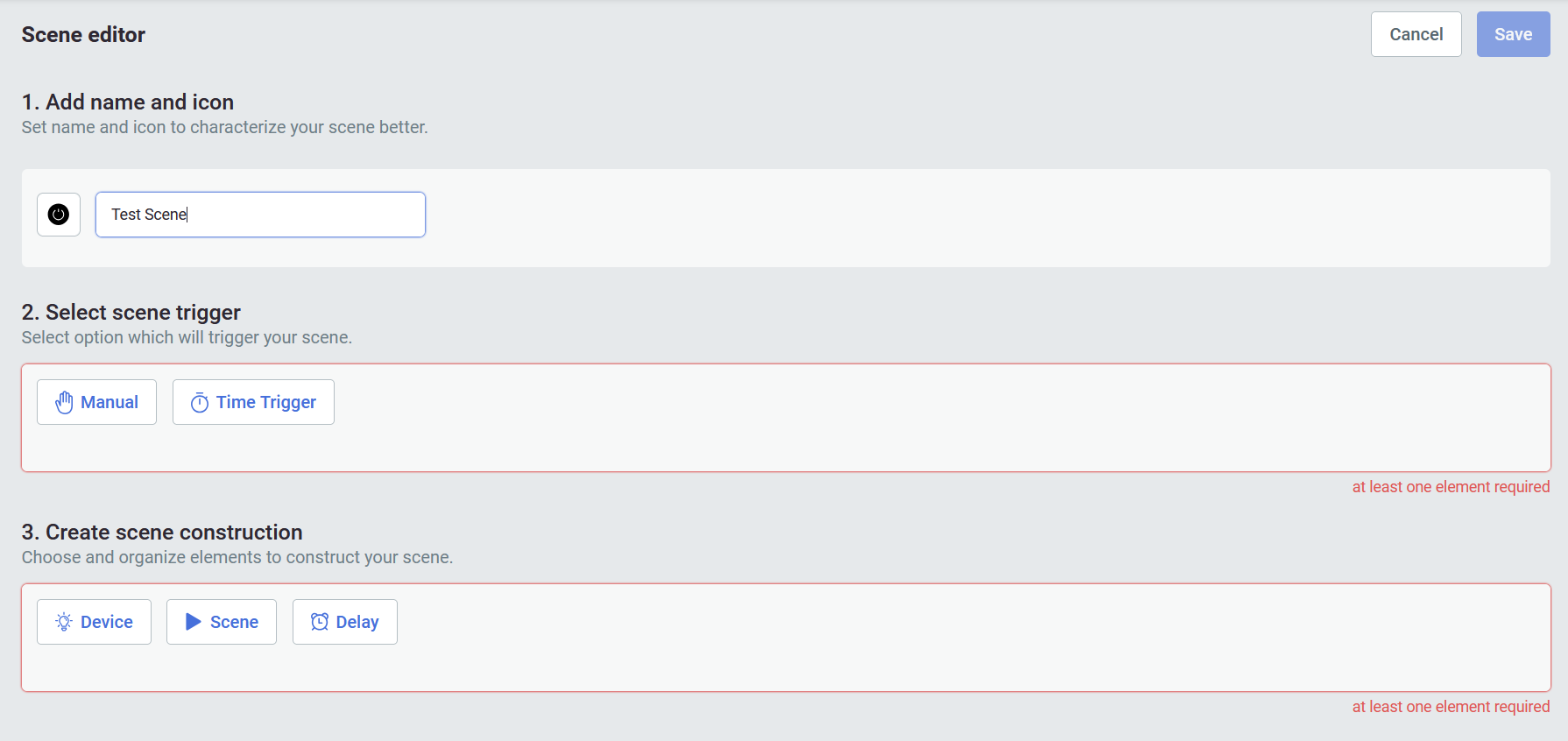
Scene editor

![obraz.png](https://docs.sim-on.com/uploads/images/gallery/2024-08/scaled-1680-/O3Fobraz.png)

<span style="font-size: 11pt; font-family: Arial, sans-serif; background-color: transparent; font-weight: 400; font-style: normal; font-variant: normal; text-decoration: none; vertical-align: baseline; white-space: pre-wrap;"><span style="font-size: 11pt; font-family: Arial, sans-serif; background-color: transparent; font-weight: 400; font-style: normal; font-variant: normal; text-decoration: none; vertical-align: baseline; white-space: pre-wrap;"><span style="font-size: 11pt; font-family: Arial, sans-serif; background-color: transparent; font-weight: 400; font-style: normal; font-variant: normal; text-decoration: none; vertical-align: baseline; white-space: pre-wrap;"><span style="font-size: 11pt; font-family: Arial, sans-serif; background-color: transparent; font-weight: 400; font-style: normal; font-variant: normal; text-decoration: none; vertical-align: baseline; white-space: pre-wrap;"><span id="bkmrk-to-add-a-new-scene%2C--2" style="font-size: 11pt; font-family: Arial, sans-serif; background-color: transparent; font-weight: 400; font-style: normal; font-variant: normal; text-decoration: none; vertical-align: baseline; white-space: pre-wrap;">  
To add a new scene, click the ![AddNewScene.png](https://docs.sim-on.com/uploads/images/gallery/2024-08/scaled-1680-/addnewscene.png) button. This will invoke the Scene editor view. </span></span></span>You need to provide a name, icon, select scene trigger and create scene construction and then save it.</span></span>

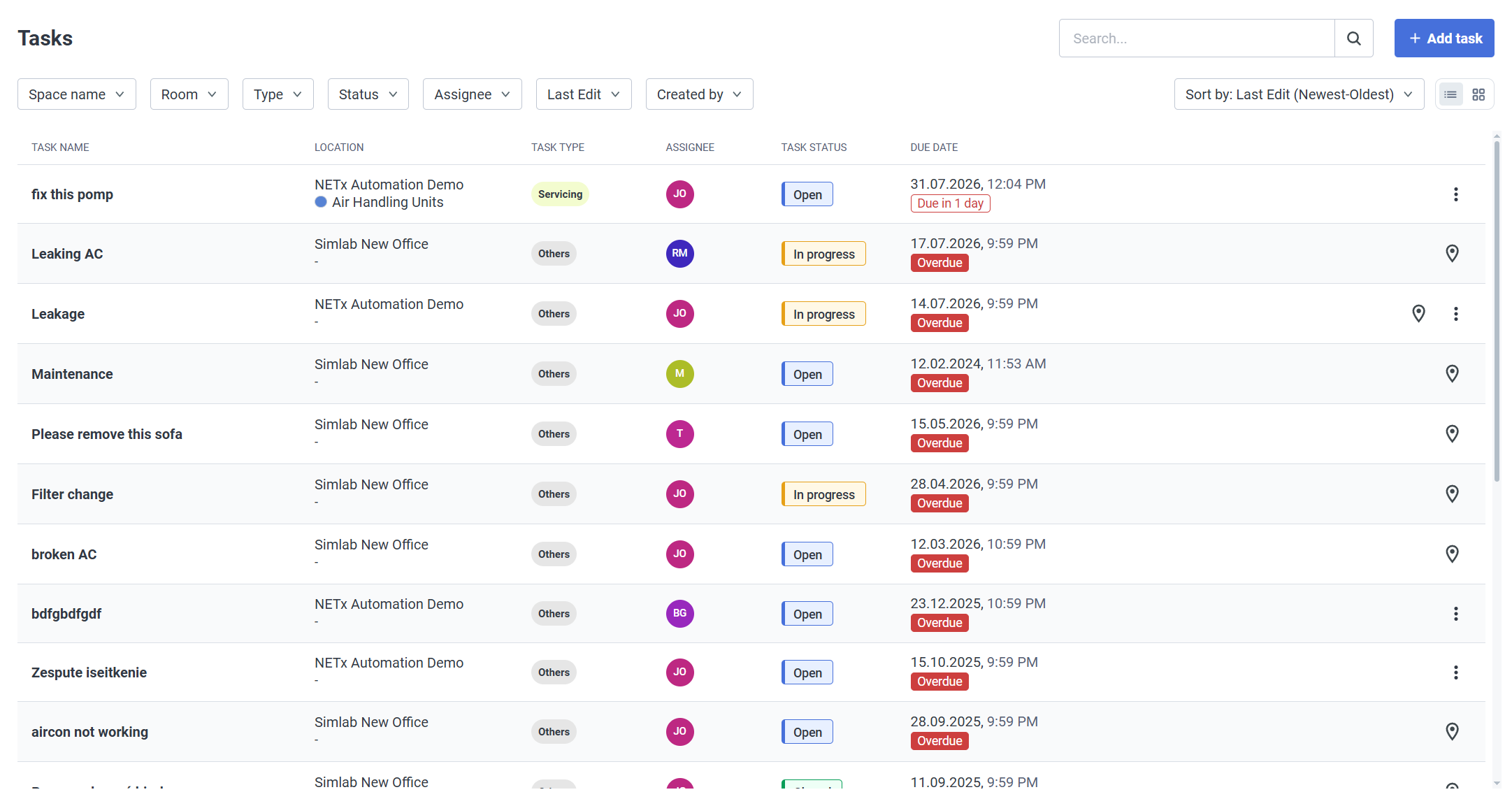
# Tickets

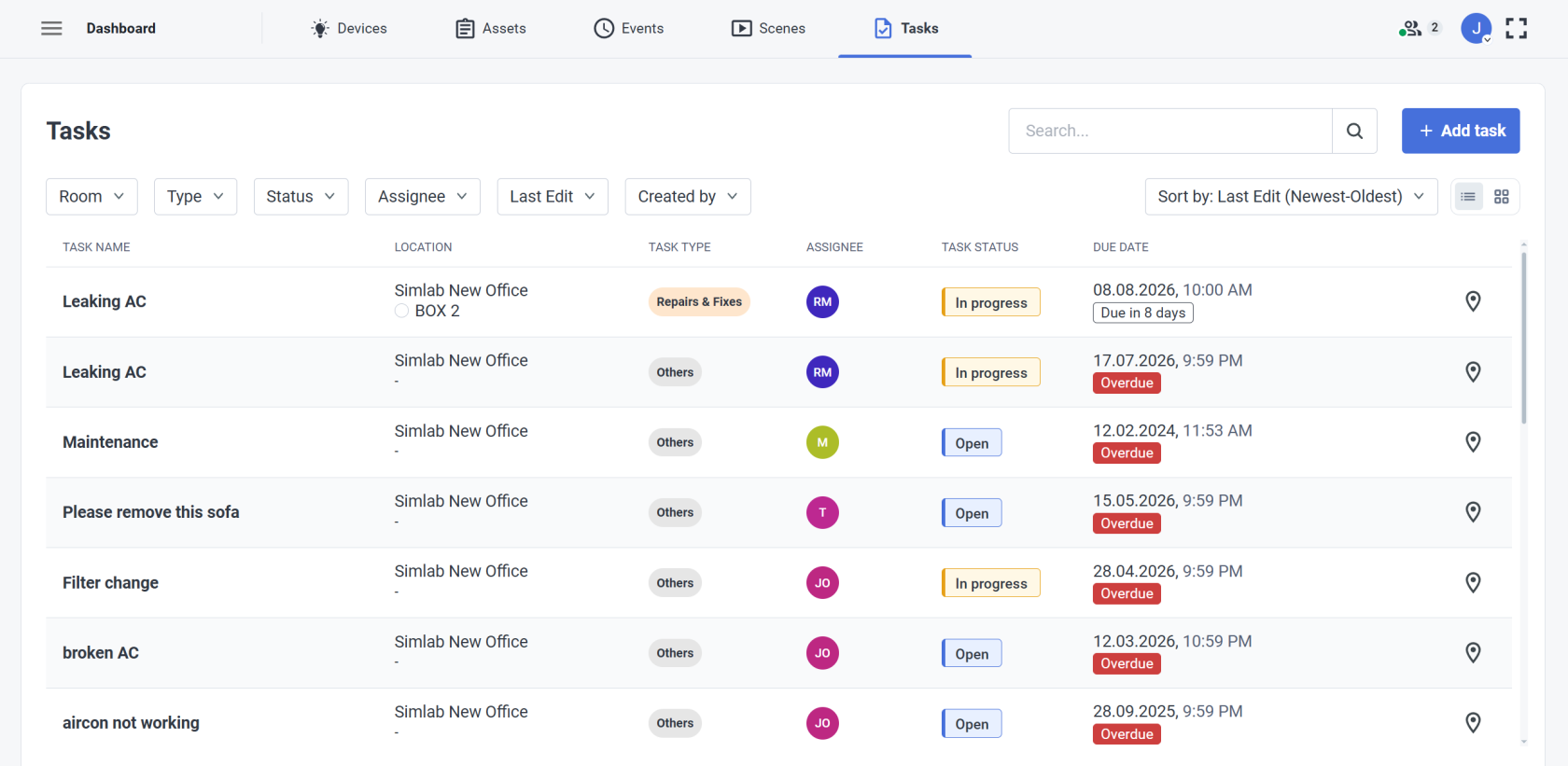
Create, manage and assign tickets for other space users.

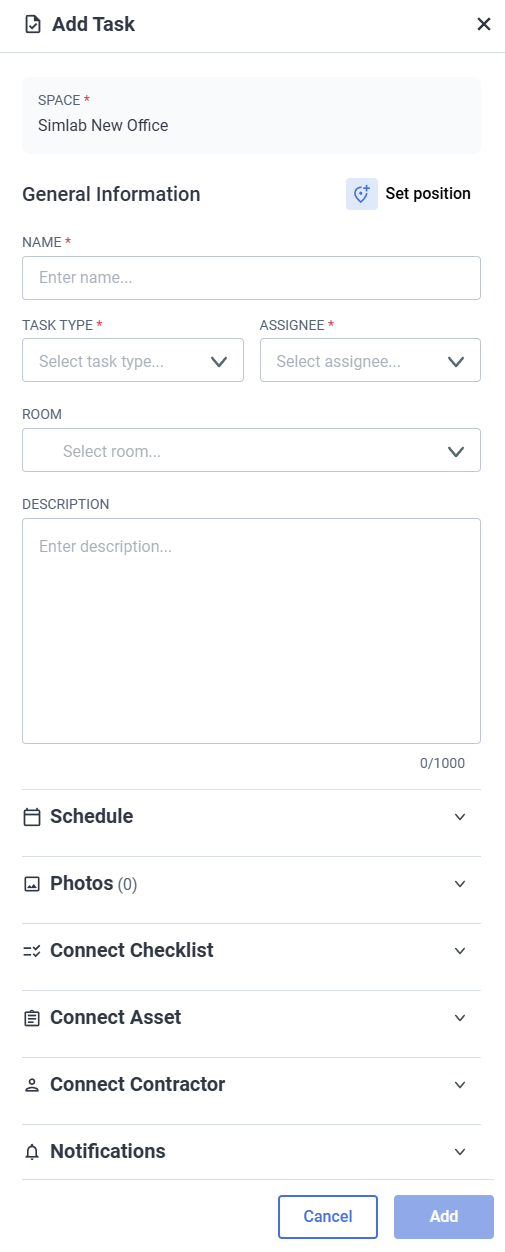
![image.png](https://docs.sim-on.com/uploads/images/gallery/2025-07/scaled-1680-/jbtimage.png)

The Tickets view in the **Dashboard** is a detailed **Ticket management view** for the project, where you can see the **status** of every ticket together with other **necessary information** such as:

- Due date
- Ticket Stakeholder
- Last edit time

From here, you can easily go to the location of the ticket, through **location** ![image.png](https://docs.sim-on.com/uploads/images/gallery/2025-07/scaled-1680-/JTYimage.png) button located at the end of the ticket tile.

---

#### Ticket Creation

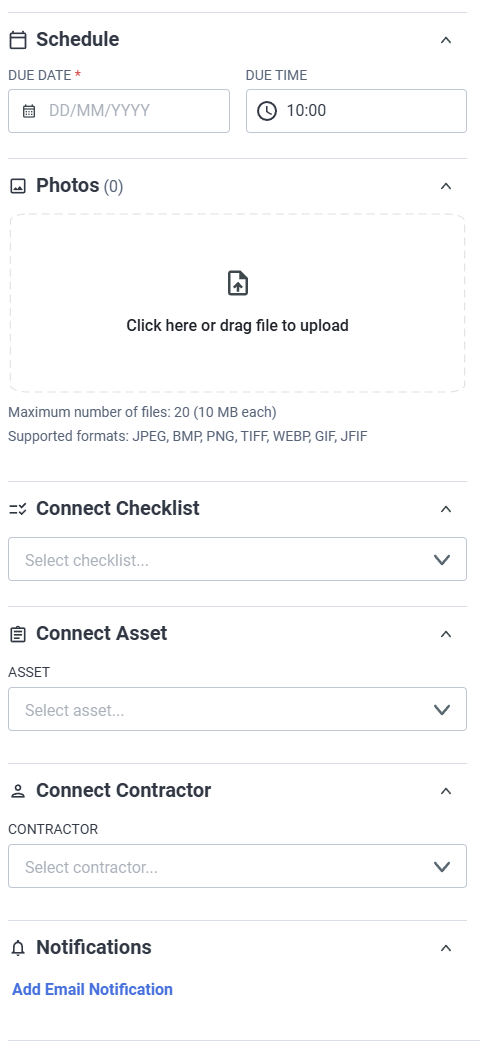
![image.png](https://docs.sim-on.com/uploads/images/gallery/2025-07/scaled-1680-/gADimage.png)

![image.png](https://docs.sim-on.com/uploads/images/gallery/2025-07/scaled-1680-/XUJimage.png)

The ticket creation system can be used in following situations:

**Reporting Problems**

- If something isn’t working, like a light or thermostat, you can report it through the system’s app or interface.

**Maintenance Requests**

- You can create tickets for routine tasks, like changing air filters or checking battery levels.
- The system might allow to connect with service providers to create tickets for them for fixing or maintenance.

**New Ideas**

- If you have an idea for a new feature, you can suggest it by creating a ticket.
- **Voting:** Others can vote on your suggestion, helping the team decide what to work on next.

**Support and Troubleshooting**

- If you need support, you can create a ticket and track its progress.
- The ticket can be connected to a specialist, making it easier to get help when you need it.

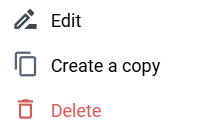
To edit a ticket, click on the **more options** ![image.png](https://docs.sim-on.com/uploads/images/gallery/2025-07/scaled-1680-/Ip0image.png) button located at the end of the Ticket tile.   
This will open a new window with following options:
![image.png](https://docs.sim-on.com/uploads/images/gallery/2025-07/scaled-1680-/U9Zimage.png)


#### Filter, Sort and Search  


![image.png](https://docs.sim-on.com/uploads/images/gallery/2025-07/scaled-1680-/TH2image.png)

![image.png](https://docs.sim-on.com/uploads/images/gallery/2025-07/scaled-1680-/XUJimage.png)

The ticket management functions are fitted with comprehensive filter, sort and search functionality. Handle large amounts of tickets by:

- status
- date
- assignee
- creation time
- name

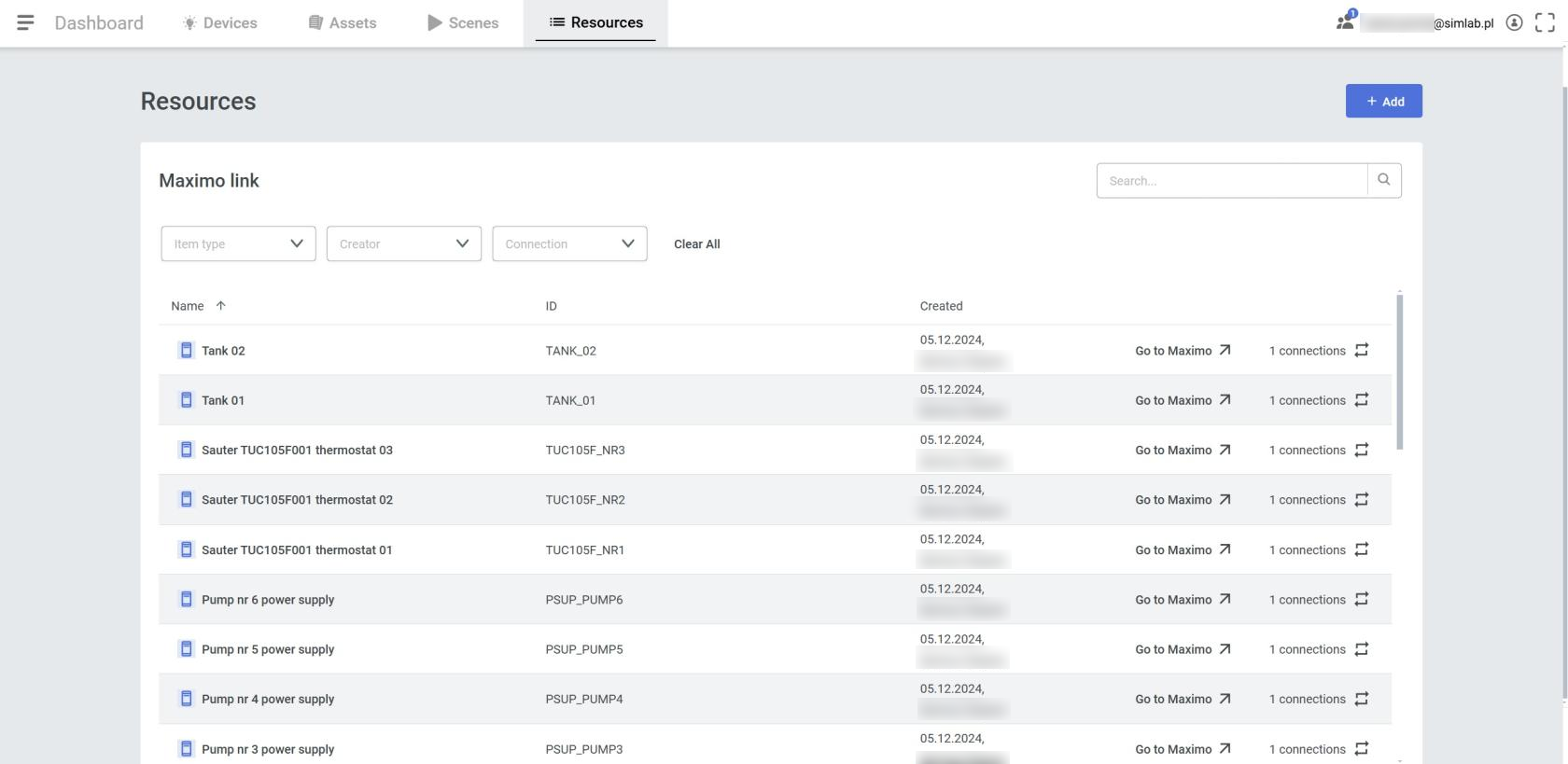
# Resources*

<p class="callout info">This View is specific only to **IBM Maximo** provider. See [<span style="text-decoration: underline; color: rgb(53, 152, 219);">**how to connect an IBM Maximo provider**</span>](https://docs.sim-on.com/books/2-getting-started/page/ibm-maximo)<span style="color: rgb(0, 0, 0);"> </span></p>

[![image.png](https://docs.sim-on.com/uploads/images/gallery/2025-01/scaled-1680-/SNrimage.png)](https://docs.sim-on.com/uploads/images/gallery/2025-01/SNrimage.png)

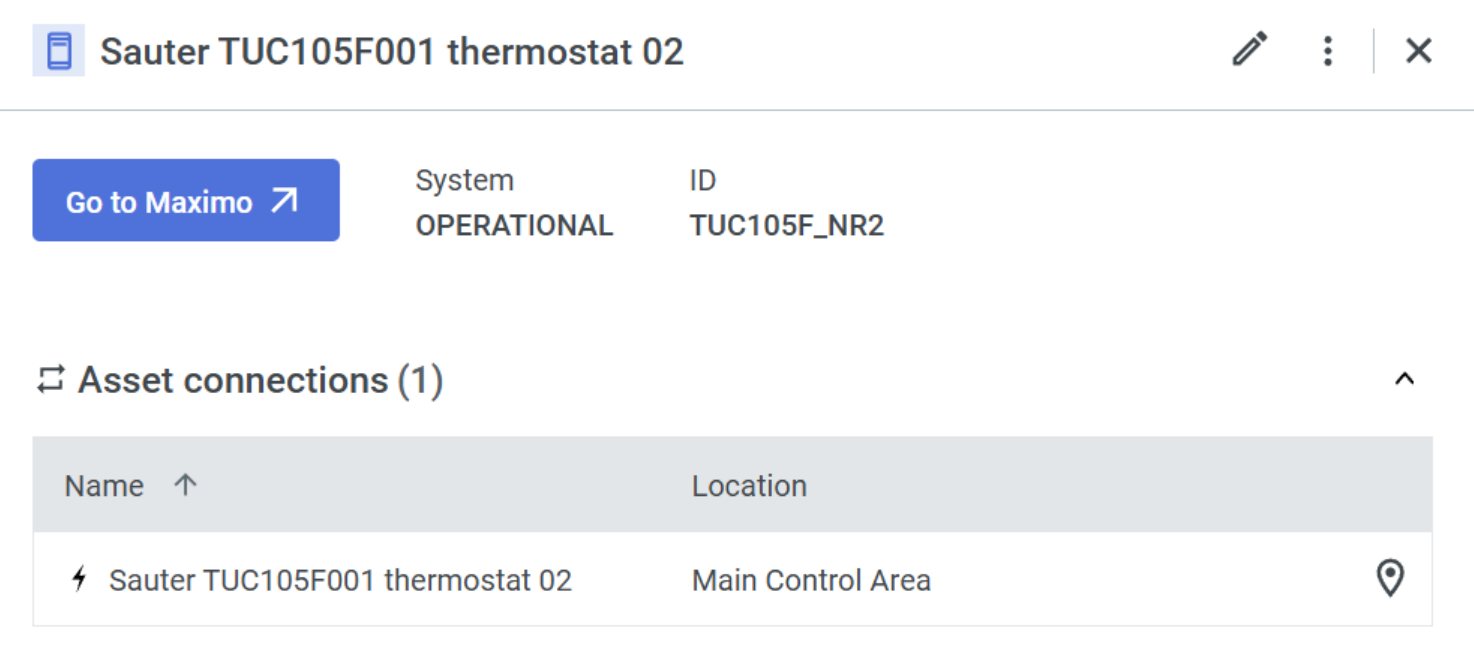
Manage **Maximo links**, and **asset connections**

Inspecting a Maximo item shows currently linked assets, together with a quick access to their location. Additionally, we can go directly to the linked item in the Maximo site.
![image.png](https://docs.sim-on.com/uploads/images/gallery/2025-01/scaled-1680-/c8Cimage.png)

##### Adding Maximo Link

From this panel you can also "pre-add" Maximo items for easier linking/management in the future. Press the " + Add " button

![image.png](https://docs.sim-on.com/uploads/images/gallery/2025-01/scaled-1680-/FTCimage.png)

With the revealed panel, we must choose the Maximo system we want to list items from and select the desired one. The name of an item can be changed for the Simon side, but it's not necessary, as it will inherit the name by default.

# Providers

Providers settings lets you monitor the status of the provider devices and manage them.

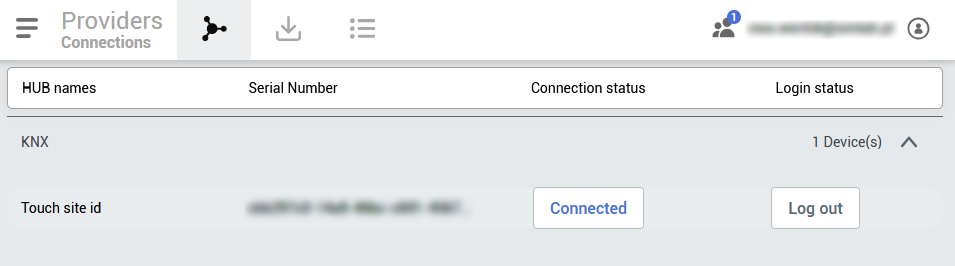
# Connections

<span style="font-size: 11pt; font-family: Arial, sans-serif; background-color: transparent; font-weight: 400; font-style: normal; font-variant: normal; text-decoration: none; vertical-align: baseline; white-space: pre-wrap;">The Connections tab displays all the 3rd party HUBs that are currently connected <span id="bkmrk-in-the-connections-t-1" style="font-size: 11pt; font-family: Arial, sans-serif; background-color: transparent; font-weight: 400; font-style: normal; font-variant: normal; text-decoration: none; vertical-align: baseline; white-space: pre-wrap;">to your space</span>. From this view you can add or remove HUB connections.</span>

<table border="1" id="bkmrk-add%2Fremove-connectio" style="border-collapse: collapse; width: 100%; border-width: 0px; background-color: rgb(236, 240, 241);"><colgroup><col style="width: 32.1429%;"></col><col style="width: 67.8571%;"></col></colgroup><tbody><tr><td style="border-width: 0px;">- **<span style="font-size: 11pt; font-family: Arial, sans-serif; background-color: transparent; font-style: normal; font-variant: normal; text-decoration: none; vertical-align: baseline; white-space: pre-wrap;">Add/remove connections</span>**
    - <span style="font-size: 11pt; font-family: Arial, sans-serif; background-color: transparent; font-weight: 400; font-style: normal; font-variant: normal; text-decoration: none; vertical-align: baseline; white-space: pre-wrap;">Smart Home</span>
    - <span style="font-size: 11pt; font-family: Arial, sans-serif; background-color: transparent; font-weight: 400; font-style: normal; font-variant: normal; text-decoration: none; vertical-align: baseline; white-space: pre-wrap;">Smart Things</span>
    - <span style="font-size: 11pt; font-family: Arial, sans-serif; background-color: transparent; font-weight: 400; font-style: normal; font-variant: normal; text-decoration: none; vertical-align: baseline; white-space: pre-wrap;">KNX</span>
    - <span style="font-size: 11pt; font-family: Arial, sans-serif; background-color: transparent; font-weight: 400; font-style: normal; font-variant: normal; text-decoration: none; vertical-align: baseline; white-space: pre-wrap;">NETx</span>
    - <span style="font-size: 11pt; font-family: Arial, sans-serif; background-color: transparent; font-weight: 400; font-style: normal; font-variant: normal; text-decoration: none; vertical-align: baseline; white-space: pre-wrap;">IBM Maximo</span>

</td><td style="border-width: 0px;"><span id="bkmrk--1" style="font-size: 11pt; font-family: Arial, sans-serif; background-color: transparent; font-weight: 400; font-style: normal; font-variant: normal; text-decoration: none; vertical-align: baseline; white-space: pre-wrap;">[![Providers.PNG](https://docs.sim-on.com/uploads/images/gallery/2024-07/scaled-1680-/providers.PNG)](https://docs.sim-on.com/uploads/images/gallery/2024-07/providers.PNG)</span></td></tr></tbody></table>

<span id="bkmrk--2" style="font-size: 11pt; font-family: Arial, sans-serif; background-color: transparent; font-weight: 400; font-style: normal; font-variant: normal; text-decoration: none; vertical-align: baseline; white-space: pre-wrap;">  
</span><span style="font-size: 11pt; font-family: Arial, sans-serif; background-color: transparent; font-weight: 400; font-style: normal; font-variant: normal; text-decoration: none; vertical-align: baseline; white-space: pre-wrap;"><span id="bkmrk-the-connected-hubs-l-1" style="font-size: 11pt; font-family: Arial, sans-serif; background-color: transparent; font-weight: 400; font-style: normal; font-variant: normal; text-decoration: none; vertical-align: baseline; white-space: pre-wrap;">The connected HUBs listed here will be automatically sorted to corresponding families they belong to. HUB names will be displayed here together with serial numbers of the HUB. Additionally you can check whether the HUB is currently online and toggle its status manually.</span></span>

# Import device

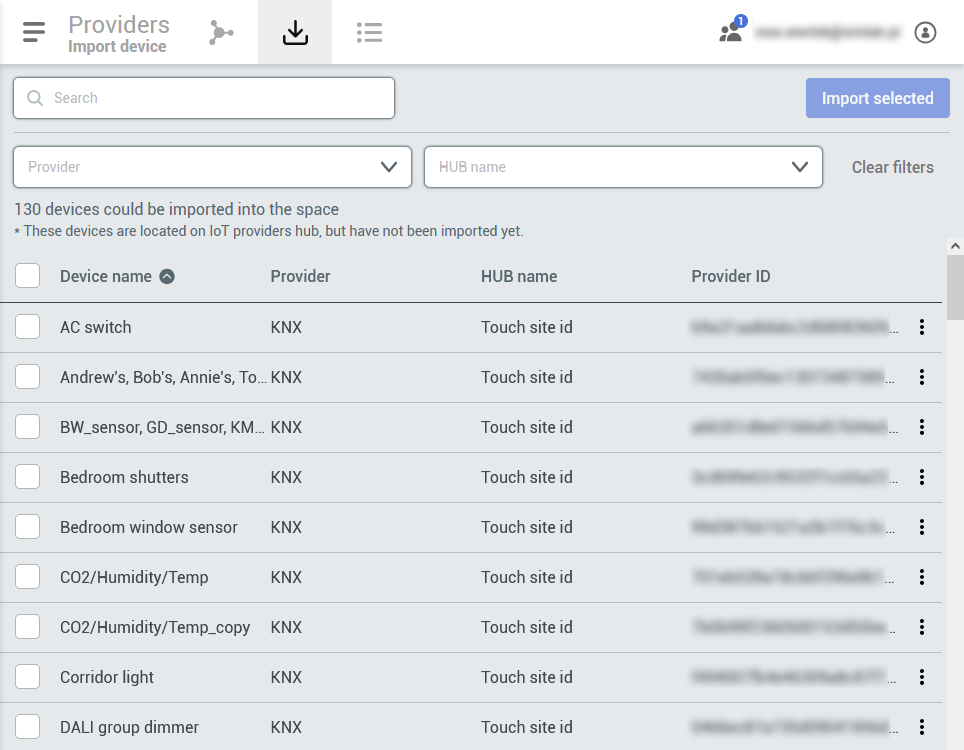
In this tab will be displayed all the devices from the Connected HUBs that are not yet imported to the SIMON device list. Here you will be able to search and filter the devices by provider, hub and name. To further locate the desired device

<table border="1" id="bkmrk-importyou-can-import" style="border-collapse: collapse; width: 100%; border-width: 0px;"><colgroup><col style="width: 30.2381%;"></col><col style="width: 69.7619%;"></col></colgroup><tbody><tr><td style="border-width: 0px;">- <span style="font-size: 11pt; font-family: Arial, sans-serif; background-color: transparent; font-weight: 400; font-style: normal; font-variant: normal; text-decoration: none; vertical-align: baseline; white-space: pre-wrap;">**Import** You can import devices from the connected HUBs.</span>
- <span style="font-size: 11pt; font-family: Arial, sans-serif; background-color: transparent; font-weight: 400; font-style: normal; font-variant: normal; text-decoration: none; vertical-align: baseline; white-space: pre-wrap;">**Filter** You can filter devices.</span>

</td><td style="border-width: 0px;"><span id="bkmrk--4" style="font-size: 11pt; font-family: Arial, sans-serif; background-color: transparent; font-weight: 400; font-style: normal; font-variant: normal; text-decoration: none; vertical-align: baseline; white-space: pre-wrap;">[![Providers import.png](https://docs.sim-on.com/uploads/images/gallery/2024-07/scaled-1680-/providers-import.png)](https://docs.sim-on.com/uploads/images/gallery/2024-07/providers-import.png)</span></td></tr></tbody></table>

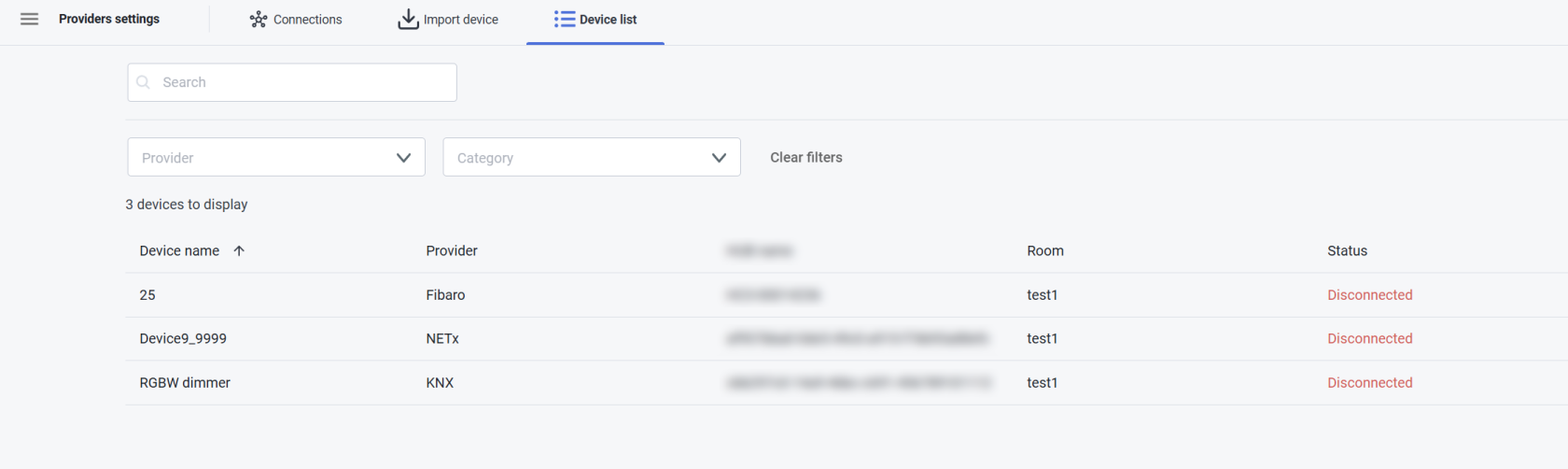
# Device list

![image.png](https://docs.sim-on.com/uploads/images/gallery/2025-07/scaled-1680-/otHimage.png)

<span style="font-size: 11pt; font-family: Arial, sans-serif; background-color: transparent; font-weight: 400; font-style: normal; font-variant: normal; text-decoration: none; vertical-align: baseline; white-space: pre-wrap;"><span id="bkmrk-all-the-linked-devic-3" style="font-size: 11pt; font-family: Arial, sans-serif; background-color: transparent; font-weight: 400; font-style: normal; font-variant: normal; text-decoration: none; vertical-align: baseline; white-space: pre-wrap;">All the linked devices will be available here. From this tab you’ll be able to check the status of the device, which HUB it belongs to, the Provider family and assigned room of the device.</span></span>

# Space Settings

Space Settings allow you to manage your spaces.

# General info

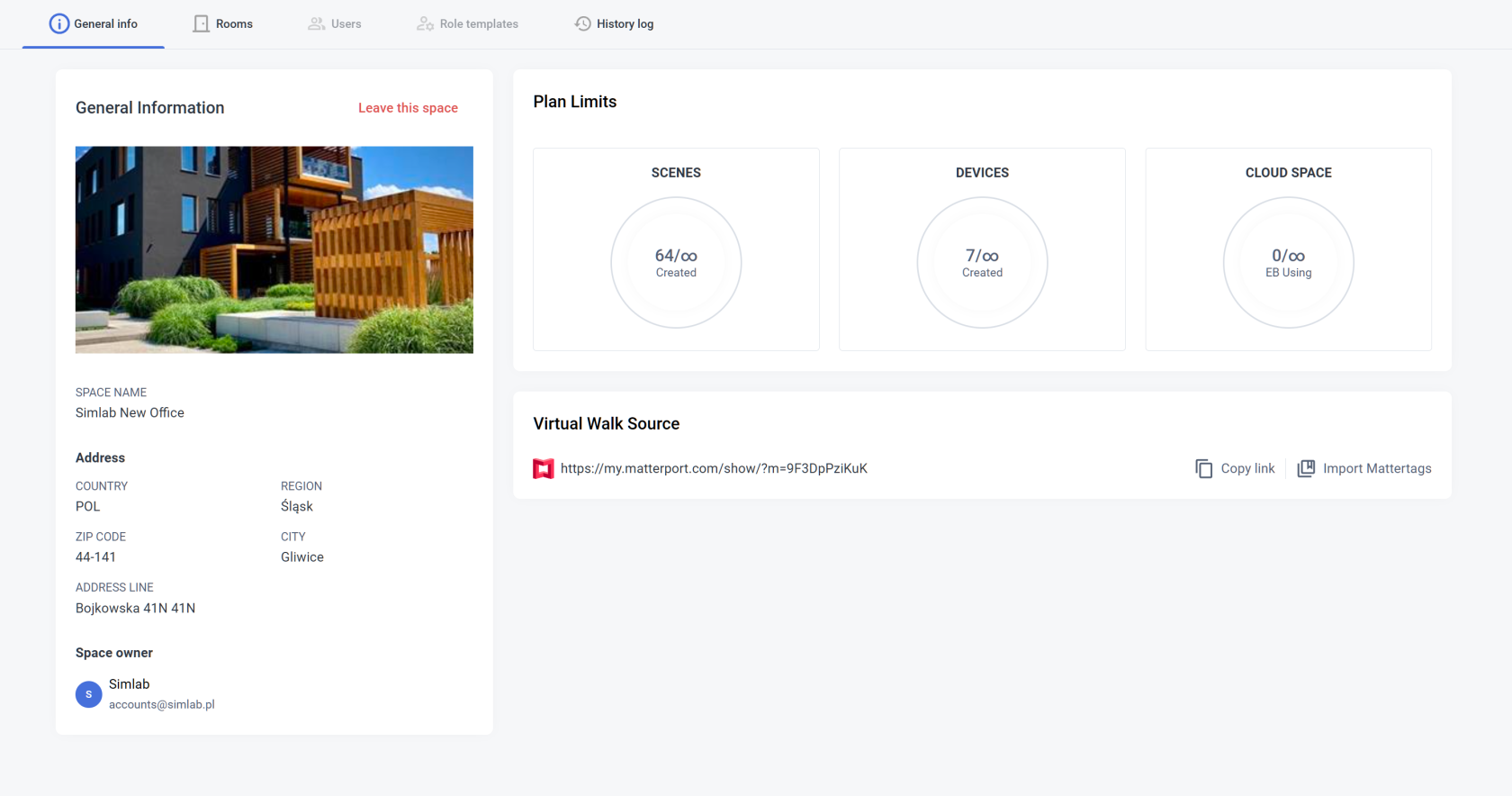
In the General info tab you can see the most basic information about your space, such as address, cloud space limit usage, space components and space owner.

[![image.png](https://docs.sim-on.com/uploads/images/gallery/2025-03/scaled-1680-/9KRimage.png)](https://docs.sim-on.com/uploads/images/gallery/2025-03/9KRimage.png)

- **<span style="font-size: 11pt; font-family: Arial, sans-serif; background-color: transparent; font-style: normal; font-variant: normal; text-decoration: none; vertical-align: baseline; white-space: pre-wrap;">General Information</span>**<span style="font-size: 11pt; font-family: Arial, sans-serif; background-color: transparent; font-weight: 400; font-style: normal; font-variant: normal; text-decoration: none; vertical-align: baseline; white-space: pre-wrap;">  
    </span><span style="font-size: 11pt; font-family: Arial, sans-serif; background-color: transparent; font-weight: 400; font-style: normal; font-variant: normal; text-decoration: none; vertical-align: baseline; white-space: pre-wrap;">Check your space basic information: name, street, house number, apartment number, town, region, zip code and country, space owner. You can also **Leave the space** from here.  
    </span>

<p class="callout info"><span style="font-size: 11pt; font-family: Arial, sans-serif; background-color: transparent; font-weight: 400; font-style: normal; font-variant: normal; text-decoration: none; vertical-align: baseline; white-space: pre-wrap;"><span style="font-size: 11pt; font-family: Arial, sans-serif; background-color: transparent; font-weight: 400; font-style: normal; font-variant: normal; text-decoration: none; vertical-align: baseline; white-space: pre-wrap;">With appropriate permissions you can **Edit General info** from here as well as delete the space itself</span></span></p>

- **<span style="font-size: 11pt; font-family: Arial, sans-serif; background-color: transparent; font-style: normal; font-variant: normal; text-decoration: none; vertical-align: baseline; white-space: pre-wrap;">Plan Limits</span>**<span style="font-size: 11pt; font-family: Arial, sans-serif; background-color: transparent; font-weight: 400; font-style: normal; font-variant: normal; text-decoration: none; vertical-align: baseline; white-space: pre-wrap;">  
    </span><span style="font-size: 11pt; font-family: Arial, sans-serif; background-color: transparent; font-weight: 400; font-style: normal; font-variant: normal; text-decoration: none; vertical-align: baseline; white-space: pre-wrap;">Check your scene limits usage: you can see how many devices and scenes you used in your project as well as how much cloud space is being used.  
    </span>

<p class="callout warning"><span style="font-size: 11pt; font-family: Arial, sans-serif; background-color: transparent; font-weight: 400; font-style: normal; font-variant: normal; text-decoration: none; vertical-align: baseline; white-space: pre-wrap;"><span style="font-size: 11pt; font-family: Arial, sans-serif; background-color: transparent; font-weight: 400; font-style: normal; font-variant: normal; text-decoration: none; vertical-align: baseline; white-space: pre-wrap;">Remember that the cloud space limit usage depends on the subscription plan and might vary from the information above</span></span></p>

- **<span style="font-size: 11pt; font-family: Arial, sans-serif; background-color: transparent; font-style: normal; font-variant: normal; text-decoration: none; vertical-align: baseline; white-space: pre-wrap;">Virtual Walk Source</span>**<span style="font-size: 11pt; font-family: Arial, sans-serif; background-color: transparent; font-weight: 400; font-style: normal; font-variant: normal; text-decoration: none; vertical-align: baseline; white-space: pre-wrap;">  
    </span><span style="font-size: 11pt; font-family: Arial, sans-serif; background-color: transparent; font-weight: 400; font-style: normal; font-variant: normal; text-decoration: none; vertical-align: baseline; white-space: pre-wrap;">In here you can change the link to your **Matterport Virtual Tour Scan**. </span>

# Rooms

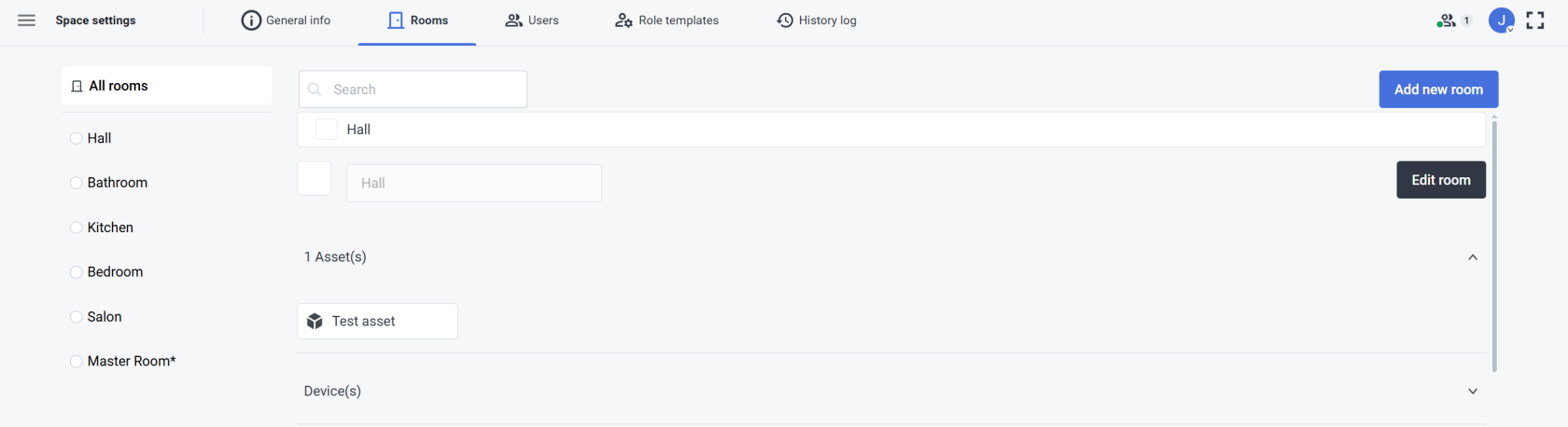
By clicking on one of the existing rooms on the list on the left you can isolate it to see details about this one selected room only

<table border="1" id="bkmrk-searchhere-you-can-s" style="border-collapse: collapse; width: 100%; border-width: 0px; height: 423.7px; background-color: rgb(236, 240, 241);"><colgroup><col style="width: 37.4203%;"></col><col style="width: 62.5658%;"></col></colgroup><tbody><tr style="height: 270.65px;"><td style="border-width: 0px; height: 270.65px;">- **Search**  
    Here you can search for the room by its name
- **Add Room**  
    Here you can add a new room. After clicking “Add new room” you need to enter the room name. After creating it you can assign the sweeps in the 3D walk view to your new room.
- **Room list**  
    The room list shows you all the rooms that’ve been created.

</td><td style="border-width: 0px; height: 270.65px;"><span style="font-size: 11pt; font-family: Arial, sans-serif; background-color: transparent; font-weight: 400; font-style: normal; font-variant: normal; text-decoration: none; vertical-align: baseline; white-space: pre-wrap;">[![Space settings 2.PNG](https://docs.sim-on.com/uploads/images/gallery/2024-07/scaled-1680-/space-settings-2.PNG)](https://docs.sim-on.com/uploads/images/gallery/2024-07/space-settings-2.PNG)</span></td></tr><tr style="height: 153.05px;"><td colspan="2" style="border-width: 0px; height: 153.05px;">- **Edit Room**  
    After selecting the room from the list on the left or choosing one of them while All Rooms are selected and clicking Edit room, you’re able to change the name of the room and set the color. Both the name and room color will be visible in the 3D walk view. To save the changes, click Save changes.
- **Asset list**  
    Below the room name you can see a list of assets that were added to the room. You can click on the asset to see its details.

</td></tr></tbody></table>

# Users

####   


In the User tab you can manage the users in your space, edit their roles, remove them from the project or add new users.

<table border="1" id="bkmrk-user-listunder-the-u" style="border-collapse: collapse; width: 100%; border-width: 0px; background-color: rgb(236, 240, 241);"><colgroup><col style="width: 33.2143%;"></col><col style="width: 66.7857%;"></col></colgroup><tbody><tr><td style="border-width: 0px;">- <span style="font-size: 11pt; font-family: Arial, sans-serif; background-color: transparent; font-weight: 400; font-style: normal; font-variant: normal; text-decoration: none; vertical-align: baseline; white-space: pre-wrap;">**User list**  
    Under the User name you can see the list of all users.  
      
      
    </span>
- <span style="font-size: 11pt; font-family: Arial, sans-serif; background-color: transparent; font-weight: 400; font-style: normal; font-variant: normal; text-decoration: none; vertical-align: baseline; white-space: pre-wrap;">**Add users**  
    If you’re the project owner you can click on Add new user to create a new user. You need to provide a username, email address and role(s).</span>

</td><td style="border-width: 0px;"><span style="font-size: 11pt; font-family: Arial, sans-serif; background-color: transparent; font-weight: 400; font-style: normal; font-variant: normal; text-decoration: none; vertical-align: baseline; white-space: pre-wrap;">![Settings - users.png](https://docs.sim-on.com/uploads/images/gallery/2024-07/scaled-1680-/settings-users.png)</span></td></tr></tbody></table>

<p class="callout warning"><span style="font-size: 11pt; font-family: Arial, sans-serif; background-color: transparent; font-weight: 400; font-style: normal; font-variant: normal; text-decoration: none; vertical-align: baseline; white-space: pre-wrap;"><span style="font-size: 11pt; font-family: Arial, sans-serif; background-color: transparent; font-weight: 400; font-style: normal; font-variant: normal; text-decoration: none; vertical-align: baseline; white-space: pre-wrap;">Keep in mind, that the access to the **Users tab** requires appropriate permissions</span></span></p>

# Role Templates

####   


In the Role templates tab you can add or change role permissions.

<table border="1" id="bkmrk-role-list---list-wit" style="border-collapse: collapse; width: 100%; border-width: 0px; height: 193.833px;"><colgroup><col style="width: 41.3095%;"></col><col style="width: 58.6905%;"></col></colgroup><tbody><tr style="height: 106.2px;"><td colspan="2" style="border-width: 0px; height: 106.2px;">- <span style="font-size: 11pt; font-family: Arial, sans-serif; background-color: transparent; font-weight: 400; font-style: normal; font-variant: normal; text-decoration: none; vertical-align: baseline; white-space: pre-wrap;">**Role list** - </span>List with all of the roles that were created for the project.

<span style="font-size: 11pt; font-family: Arial, sans-serif; background-color: transparent; font-weight: 400; font-style: normal; font-variant: normal; text-decoration: none; vertical-align: baseline; white-space: pre-wrap;">  
![Settings - role templates.png](https://docs.sim-on.com/uploads/images/gallery/2024-08/scaled-1680-/settings-role-templates.png)</span>

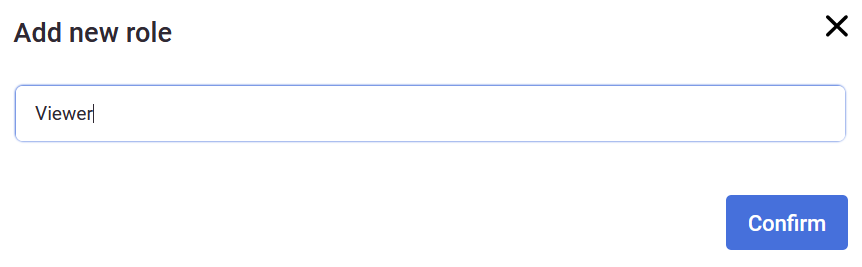
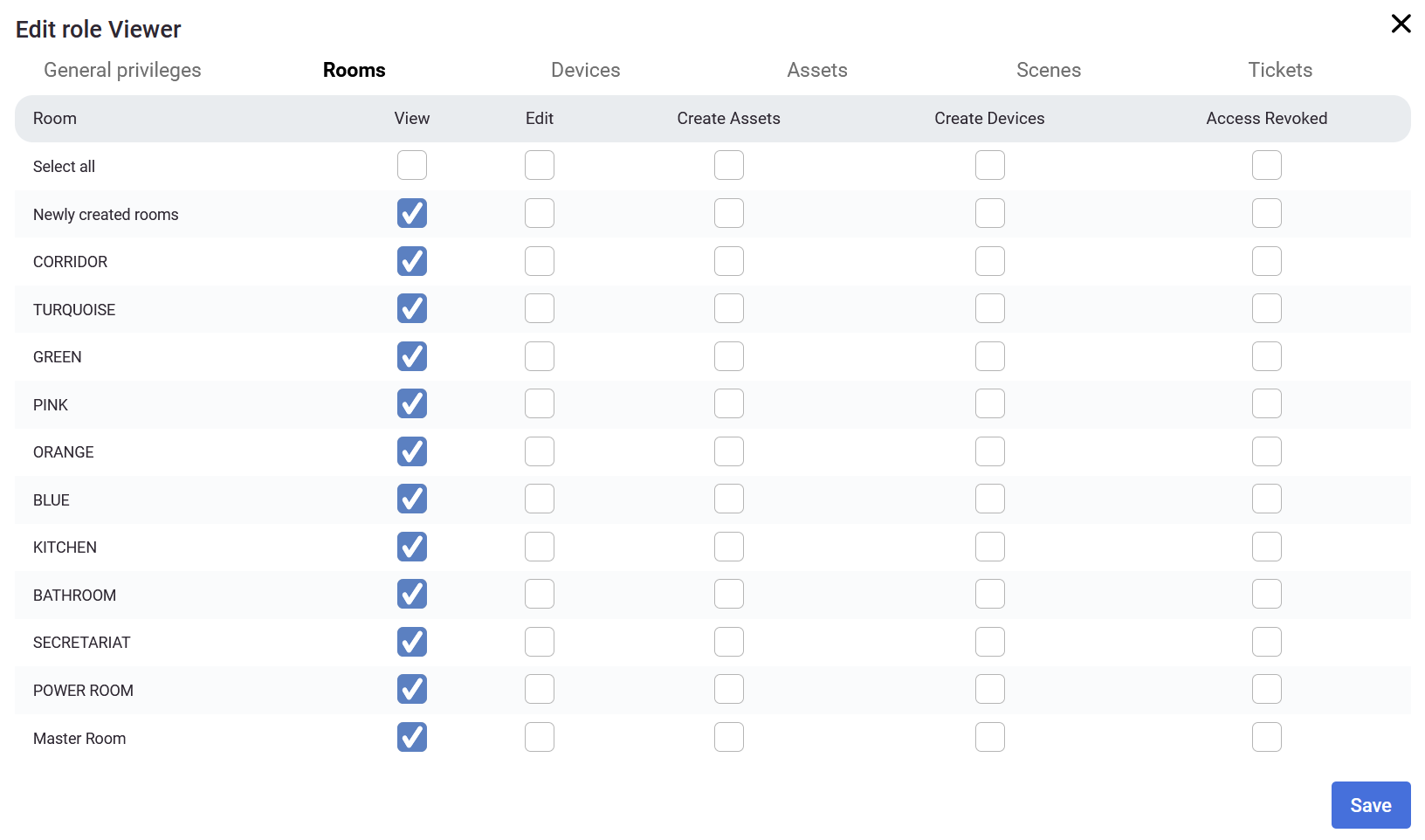
</td></tr><tr style="height: 87.633px;"><td colspan="2" style="border-width: 0px; height: 87.633px;">- <span style="font-size: 11pt; font-family: Arial, sans-serif; background-color: transparent; font-weight: 400; font-style: normal; font-variant: normal; text-decoration: none; vertical-align: baseline; white-space: pre-wrap;">**Add new role** - </span>By clicking ![Add new role button.png](https://docs.sim-on.com/uploads/images/gallery/2024-08/scaled-1680-/add-new-role-button.png) button you can create a new set of privileges. First you need to enter a role name and after clicking Confirm you can use checkboxes to make some privileges allowed.

<span style="font-size: 11pt; font-family: Arial, sans-serif; background-color: transparent; font-weight: 400; font-style: normal; font-variant: normal; text-decoration: none; vertical-align: baseline; white-space: pre-wrap;">![QpNobraz.png](https://docs.sim-on.com/uploads/images/gallery/2024-08/scaled-1680-/qpnobraz.png)</span>

There are a few tabs that you can change privileges in: General privileges, Rooms, Devices, Assets, Scenes, Tickets.

</td></tr></tbody></table>

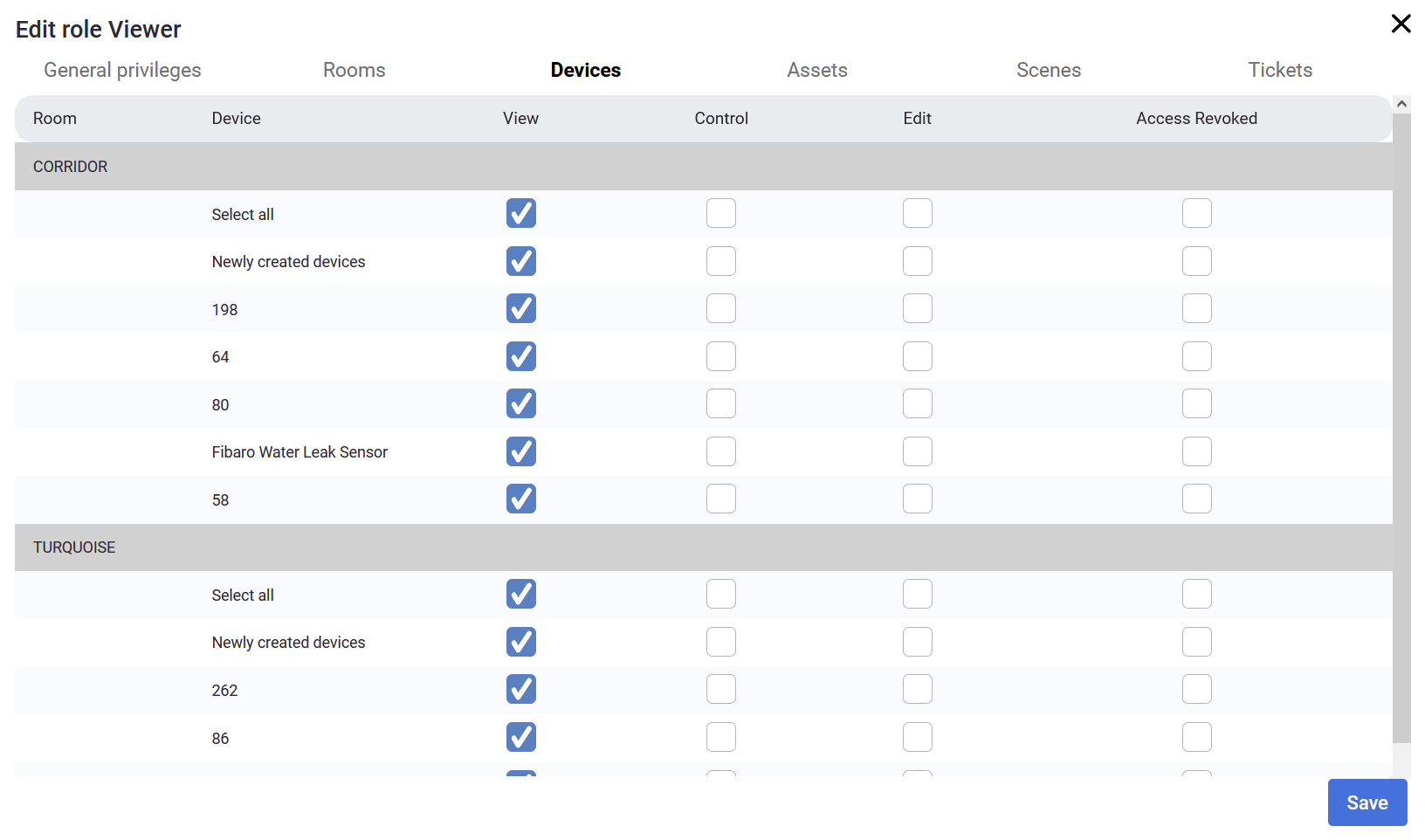
<table border="1" id="bkmrk--33" style="border-collapse: collapse; width: 100%; border-width: 0px;"><tbody><tr><td style="border-width: 0px;">![Privileges_viewer_1.png](https://docs.sim-on.com/uploads/images/gallery/2024-08/scaled-1680-/privileges-viewer-1.png)</td><td style="border-width: 0px;">![Privileges_viewer_2.png](https://docs.sim-on.com/uploads/images/gallery/2024-08/scaled-1680-/privileges-viewer-2.png)</td></tr></tbody></table>

You can create multiple roles with different privileges depending on who you share the project with. If you want to share it with subcontractors, you may want to give them roles to edit assets or devices. If you want, you may want to give separate roles to plumbers, electricians, people controlling the project, your closest associates, etc.

If you set some general privileges (*eg. to create rooms*), the privileges on the other categories will change too.

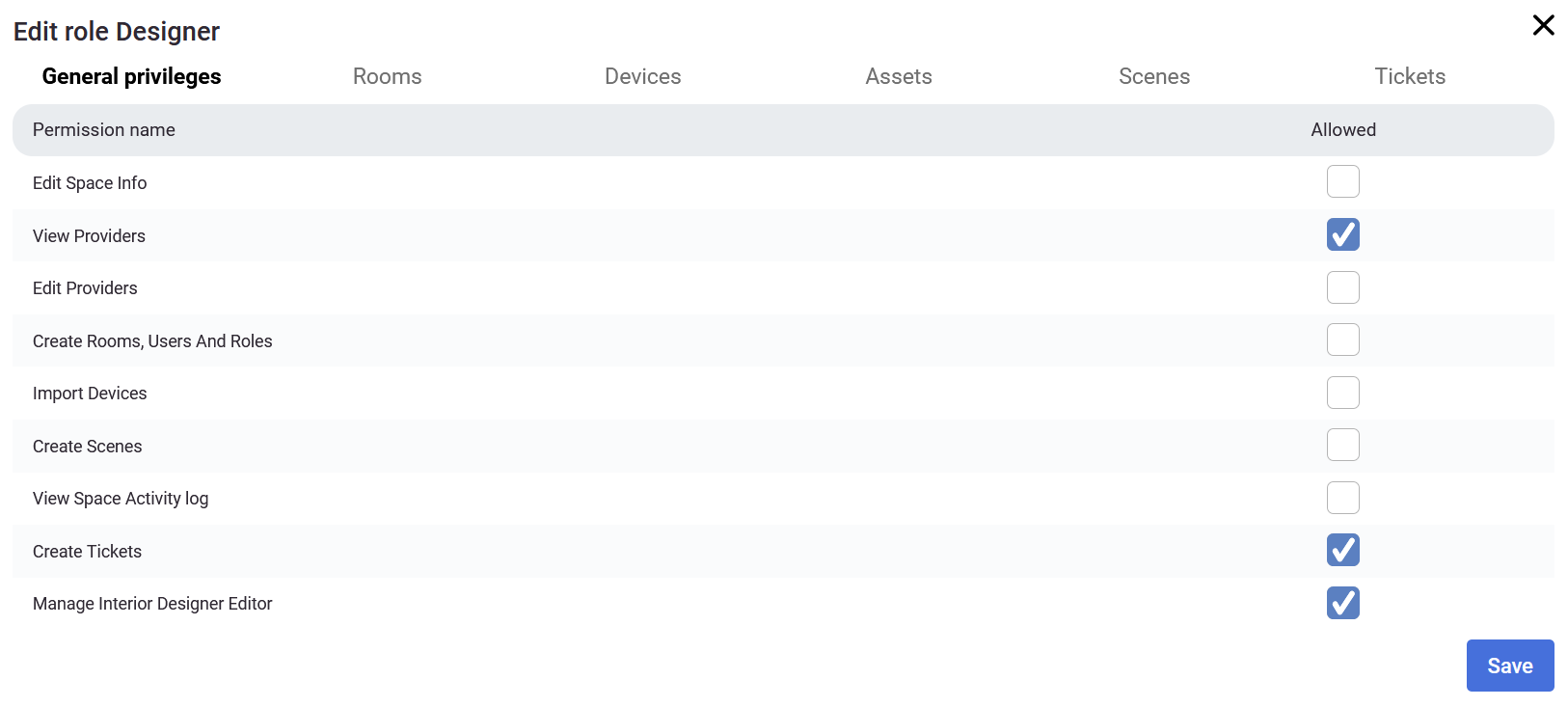
![Privileges_viewer_4.png](https://docs.sim-on.com/uploads/images/gallery/2024-08/scaled-1680-/privileges-viewer-4.png)

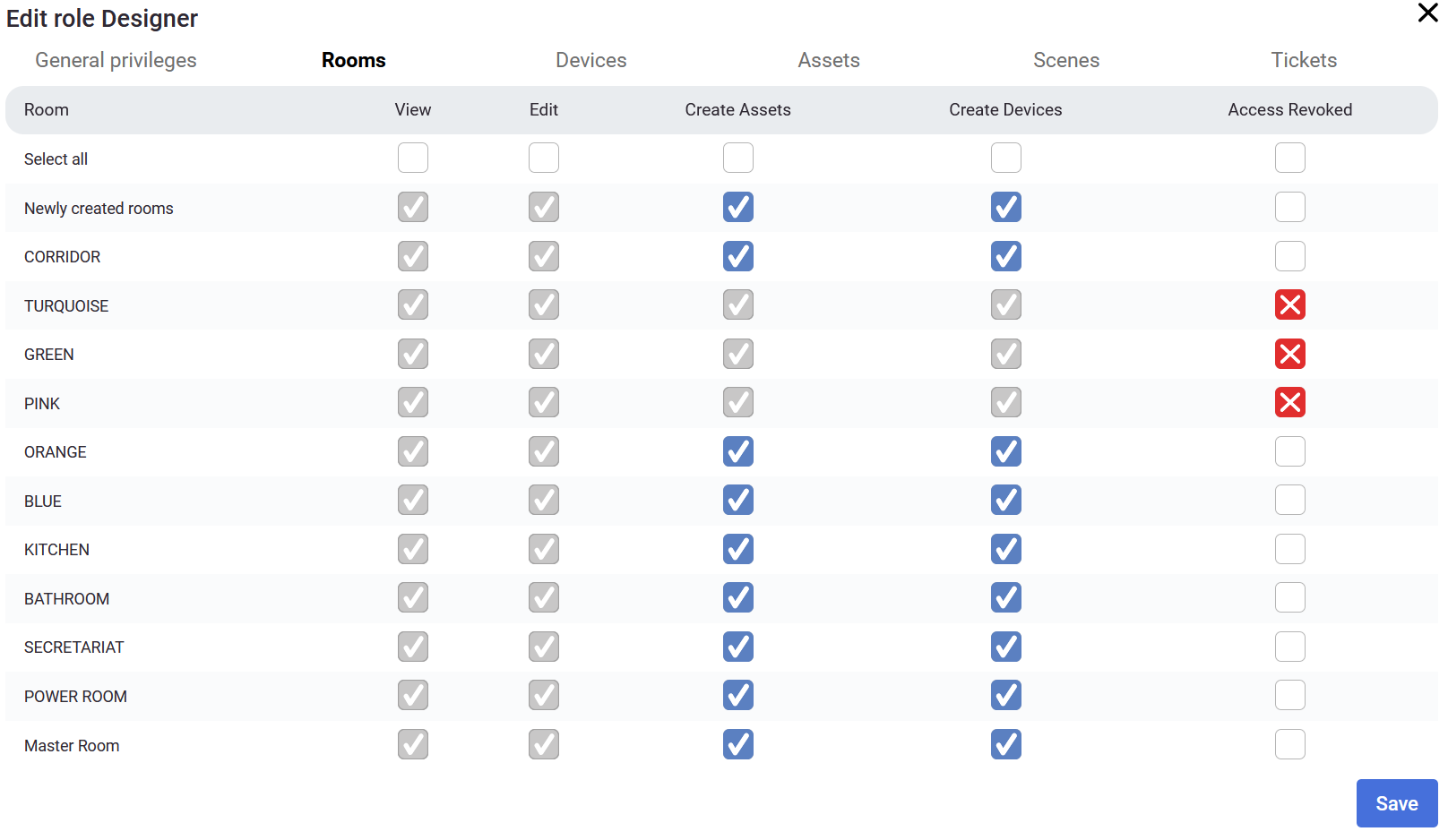
In the example above, the Designer has some privileges to manage Interior Designer, Create tickets and view providers. Automatically some of the privileges was created as you can see in the image below, but you can revoke the access to specific rooms, devices or other options (*in this example the Designer role allows to manage the Interior editor, create tickets and view providers excluding TURQUOISE, GREEN and PINK rooms*).

![Privileges_viewer_5.png](https://docs.sim-on.com/uploads/images/gallery/2024-08/scaled-1680-/privileges-viewer-5.png)

<p class="callout warning">Keep in mind, that the access to the **Role templates** tab requires appropriate **permissions**</p>

# Activity log

####   


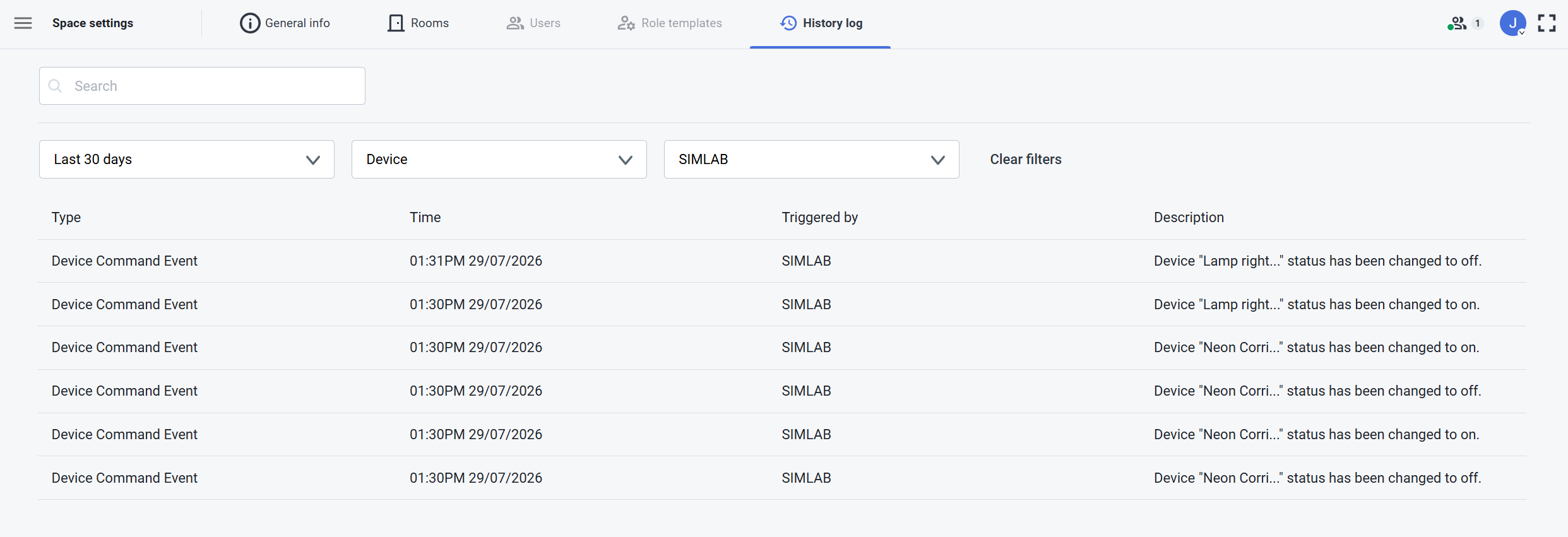
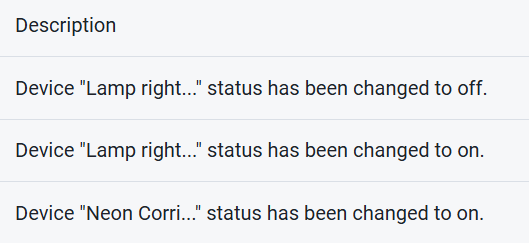
In the Activity log tab you will find the latest activity in the project and its type, time and the user it was triggered by.<span style="font-size: 11pt; font-family: Arial, sans-serif; background-color: transparent; font-weight: 400; font-style: normal; font-variant: normal; text-decoration: none; vertical-align: baseline; white-space: pre-wrap;"><span style="font-size: 11pt; font-family: Arial, sans-serif; background-color: transparent; font-weight: 400; font-style: normal; font-variant: normal; text-decoration: none; vertical-align: baseline; white-space: pre-wrap;"><span style="font-size: 11pt; font-family: Arial, sans-serif; background-color: transparent; font-weight: 400; font-style: normal; font-variant: normal; text-decoration: none; vertical-align: baseline; white-space: pre-wrap;">  
</span></span></span>

<table border="1" id="bkmrk-search---you-can-loo" style="border-collapse: collapse; width: 100%; border-width: 0px; background-color: rgb(236, 240, 241);"><colgroup><col style="width: 34.2857%;"></col><col style="width: 65.7143%;"></col></colgroup><tbody><tr><td style="border-width: 0px;">- <span style="font-size: 11pt; font-family: Arial, sans-serif; background-color: transparent; font-weight: 400; font-style: normal; font-variant: normal; text-decoration: none; vertical-align: baseline; white-space: pre-wrap;"><span style="font-size: 11pt; font-family: Arial, sans-serif; background-color: transparent; font-weight: 400; font-style: normal; font-variant: normal; text-decoration: none; vertical-align: baseline; white-space: pre-wrap;"><span style="font-size: 11pt; font-family: Arial, sans-serif; background-color: transparent; font-weight: 400; font-style: normal; font-variant: normal; text-decoration: none; vertical-align: baseline; white-space: pre-wrap;">**Search** - You can look for activities in the project by providing the event type.  
      
    </span></span></span>
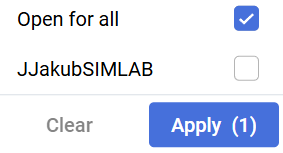
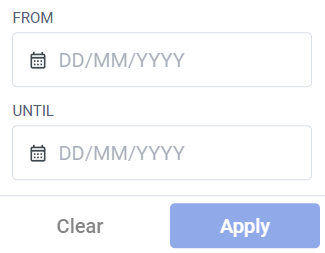
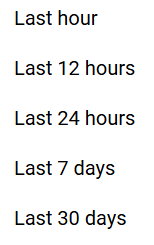
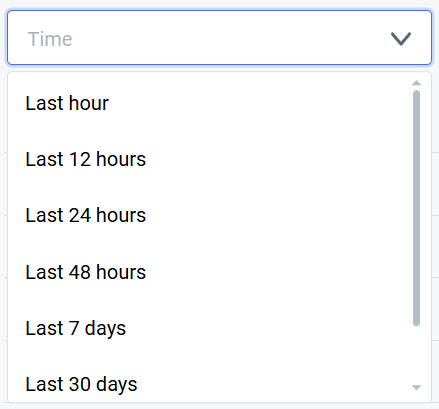
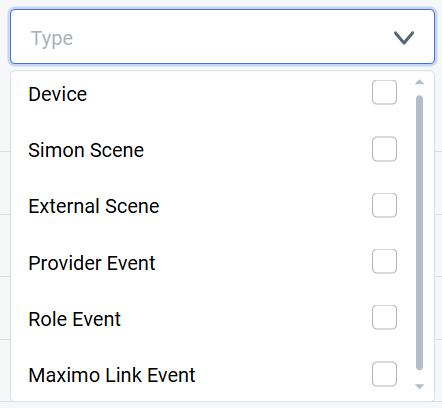
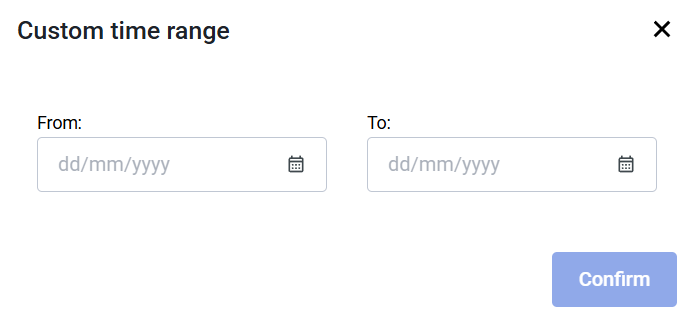
- <span style="font-size: 11pt; font-family: Arial, sans-serif; background-color: transparent; font-weight: 400; font-style: normal; font-variant: normal; text-decoration: none; vertical-align: baseline; white-space: pre-wrap;"><span style="font-size: 11pt; font-family: Arial, sans-serif; background-color: transparent; font-weight: 400; font-style: normal; font-variant: normal; text-decoration: none; vertical-align: baseline; white-space: pre-wrap;"><span style="font-size: 11pt; font-family: Arial, sans-serif; background-color: transparent; font-weight: 400; font-style: normal; font-variant: normal; text-decoration: none; vertical-align: baseline; white-space: pre-wrap;">**Filter** - You can filter out activity by the type of the activity, timeframe or the user.  
      
    </span></span></span>
- <span style="font-size: 11pt; font-family: Arial, sans-serif; background-color: transparent; font-weight: 400; font-style: normal; font-variant: normal; text-decoration: none; vertical-align: baseline; white-space: pre-wrap;"><span style="font-size: 11pt; font-family: Arial, sans-serif; background-color: transparent; font-weight: 400; font-style: normal; font-variant: normal; text-decoration: none; vertical-align: baseline; white-space: pre-wrap;"><span style="font-size: 11pt; font-family: Arial, sans-serif; background-color: transparent; font-weight: 400; font-style: normal; font-variant: normal; text-decoration: none; vertical-align: baseline; white-space: pre-wrap;">**Display** - The list of activities is displayed here, sorted by the time, from earliest to oldest. It is further filtered by the filter and search options. Each activity has a type, time, user and short description.</span></span></span>

</td><td style="border-width: 0px;"><span style="font-size: 11pt; font-family: Arial, sans-serif; background-color: transparent; font-weight: 400; font-style: normal; font-variant: normal; text-decoration: none; vertical-align: baseline; white-space: pre-wrap;"><span style="font-size: 11pt; font-family: Arial, sans-serif; background-color: transparent; font-weight: 400; font-style: normal; font-variant: normal; text-decoration: none; vertical-align: baseline; white-space: pre-wrap;"><span style="font-size: 11pt; font-family: Arial, sans-serif; background-color: transparent; font-weight: 400; font-style: normal; font-variant: normal; text-decoration: none; vertical-align: baseline; white-space: pre-wrap;">![Settings - activity log.png](https://docs.sim-on.com/uploads/images/gallery/2024-07/scaled-1680-/settings-activity-log.png)</span></span></span></td></tr></tbody></table>

# Interior Editor

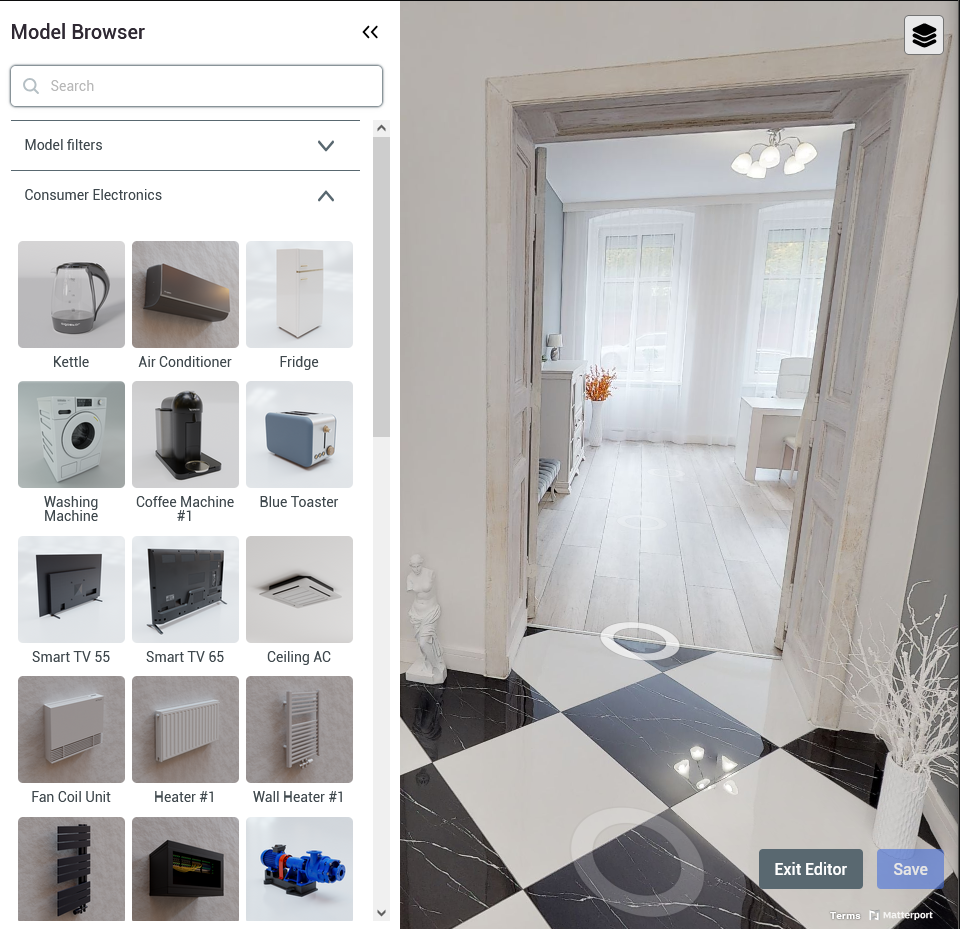
In the Interior Editor model browser you can find 3D models, grouped by a few categories. It's a great tool for organizing and planning purchases, renovations, and interior design projects.

You can find it from the main side menu by selecting ![image.png](https://docs.sim-on.com/uploads/images/gallery/2025-07/scaled-1680-/lK5image.png) option.

<table border="1" id="bkmrk-after-entering-the-i" style="border-collapse: collapse; width: 100%; border-width: 0px;"><colgroup><col style="width: 45.9524%;"></col><col style="width: 4.04762%;"></col><col style="width: 50%;"></col></colgroup><tbody><tr><td style="border-width: 0px;">After entering the Interior editor, the Model browser will be automatically opened. You can close it at any time, simply click the **arrow** ![arrows.png](https://docs.sim-on.com/uploads/images/gallery/2024-08/scaled-1680-/arrows.png) icon.

If you decide to reveal it later on, you can do this by clicking the **armchair** ![scene editor on.png](https://docs.sim-on.com/uploads/images/gallery/2024-07/scaled-1680-/scene-editor-on.png) icon located at the top left corner.

</td><td style="border-width: 0px;"></td><td style="border-width: 0px;">![assets view 2.PNG](https://docs.sim-on.com/uploads/images/gallery/2024-07/scaled-1680-/assets-view-2.PNG)</td></tr></tbody></table>


##### Model Browser

<table border="1" id="bkmrk-searchyou-can-find-a" style="border-collapse: collapse; width: 100%; border-width: 0px;"><colgroup><col style="width: 50.0516%;"></col><col style="width: 50.0516%;"></col></colgroup><tbody><tr><td style="border-width: 0px;"><span style="font-size: 11pt; font-family: Arial, sans-serif; background-color: transparent; font-weight: 400; font-style: normal; font-variant: normal; text-decoration: none; vertical-align: baseline; white-space: pre-wrap;">  
</span>

- <span style="font-size: 11pt; font-family: Arial, sans-serif; background-color: transparent; font-weight: 400; font-style: normal; font-variant: normal; text-decoration: none; vertical-align: baseline; white-space: pre-wrap;">**Search**  
    </span>You can find a model you’re looking for by typing the name in the search bar.<span style="font-size: 11pt; font-family: Arial, sans-serif; background-color: transparent; font-weight: 400; font-style: normal; font-variant: normal; text-decoration: none; vertical-align: baseline; white-space: pre-wrap;">  
      
    </span>
- <span style="font-size: 11pt; font-family: Arial, sans-serif; background-color: transparent; font-weight: 400; font-style: normal; font-variant: normal; text-decoration: none; vertical-align: baseline; white-space: pre-wrap;">**Model Filters**  
    </span>You can look for the specific model using filters.<span style="font-size: 11pt; font-family: Arial, sans-serif; background-color: transparent; font-weight: 400; font-style: normal; font-variant: normal; text-decoration: none; vertical-align: baseline; white-space: pre-wrap;">  
      
    </span>
- <span style="font-size: 11pt; font-family: Arial, sans-serif; background-color: transparent; font-weight: 400; font-style: normal; font-variant: normal; text-decoration: none; vertical-align: baseline; white-space: pre-wrap;">**Model Types**  
    </span>There are 6 model groups: consumer electronics, decorations, furniture, lights, premade sets and walls.
- **Custom Models** Space owner can add personal 3D objects through "My Models" section of the Model Browser.  

      
    ![image.png](https://docs.sim-on.com/uploads/images/gallery/2025-07/scaled-1680-/vCyimage.png)

</td><td style="border-width: 0px;"><span style="font-size: 11pt; font-family: Arial, sans-serif; background-color: transparent; font-weight: 400; font-style: normal; font-variant: normal; text-decoration: none; vertical-align: baseline; white-space: pre-wrap;">![Interior editor 1.png](https://docs.sim-on.com/uploads/images/gallery/2024-07/scaled-1680-/interior-editor-1.png)</span></td></tr></tbody></table>

<table border="1" id="bkmrk-%C2%A0-%C2%A0-adding-your-own-" style="border-collapse: collapse; width: 100%; border-width: 0px; height: 520.931px;"><colgroup><col style="width: 50%;"></col><col style="width: 50%;"></col></colgroup><tbody><tr style="height: 520.931px;"><td style="border-width: 0px; height: 520.931px;">##### Uploading custom models

Adding your own models to the **Interior Designer** is now possible. To do so, proceed with the "**+ Add New Model**" then follow the instructions from the new window:

Supported 3D formats are:

- GLB
- GLTF  
      
    (20MB file size limit)

Supported 2D (thumbnail) images are:

- JPG
- PNG  
      
    (10MB file size limit)

The newly added models will appear under "**My Models**" section in the **Model Browser**.

<p class="callout warning">**Before uploading your first model, we advise you to read our [<span style="text-decoration: underline; color: rgb(53, 152, 219);">Best Practices in 3D Graphics</span>](https://docs.sim-on.com/books/4guides/page/best-practices-in-3d-graphics) page**</p>

</td><td style="border-width: 0px; height: 520.931px;">![image.png](https://docs.sim-on.com/uploads/images/gallery/2025-07/scaled-1680-/5Fiimage.png)</td></tr></tbody></table>

---

#### Layout

<table border="1" id="bkmrk-in-the-layout-manage" style="border-collapse: collapse; width: 100%; border-width: 0px;"><colgroup><col style="width: 50%;"></col><col style="width: 50%;"></col></colgroup><tbody><tr><td style="border-width: 0px;">In the Layout manager window you can see the list with all the 3D models added to the project and manage different model sets, called layouts, to set up multiple variations of spaces to preview.

Access the Layout Manager by clicking **layered** ![layer group.png](https://docs.sim-on.com/uploads/images/gallery/2024-08/scaled-1680-/Xxmlayer-group.png) icon located in the top right corner.

To close the layout manager window, click **arrow** ![arrows mirrored.png](https://docs.sim-on.com/uploads/images/gallery/2024-08/scaled-1680-/arrows-mirrored.png)icon.

</td><td style="border-width: 0px;">![image.png](https://docs.sim-on.com/uploads/images/gallery/2024-08/scaled-1680-/image.png)

</td></tr></tbody></table>

<table border="1" id="bkmrk-the-uppermost-tab-of" style="border-collapse: collapse; width: 100.357%; border-width: 0px; height: 325px;"><colgroup><col></col><col></col></colgroup><tbody><tr><td style="border-width: 0px;">The uppermost tab of the layout manager is for grouping the models into “layouts”.   
  
By expanding the tab with![arrow down.png](https://lh7-rt.googleusercontent.com/docsz/AD_4nXdLZuxV5Upy1FkTiOhrLfYZNAMqNSHkCx1s9MqtTQxhLq_vu3rpOk4astWeSe3wTjSmasCOBRw2GPWqDW9zdj34NuyRYZkEZaSQz6tONiDNs_2cBfCPYwnrD1mOGCAr6t2FMjY29GbpzYxXkFFGLs7iDRkI?key=xU31LDwwK_ucTq0QU1FGPQ)you’ll see a list of existing layouts and an option to add ![plus.png](https://docs.sim-on.com/uploads/images/gallery/2024-08/gDlplus.png) a new layout.<span style="font-size: 11pt; font-family: Arial, sans-serif; background-color: transparent; font-weight: 400; font-style: normal; font-variant: normal; text-decoration: none; vertical-align: baseline; white-space: pre-wrap;">  

</span>

![image.png](https://docs.sim-on.com/uploads/images/gallery/2024-08/scaled-1680-/QWNimage.png)

</td><td style="border-width: 0px;">![image.png](https://docs.sim-on.com/uploads/images/gallery/2024-08/scaled-1680-/BVYimage.png)

</td></tr></tbody></table>


- <span style="font-size: 11pt; font-family: Arial, sans-serif; background-color: transparent; font-weight: bold; font-style: normal; font-variant: normal; text-decoration: none; vertical-align: baseline; white-space: pre-wrap;">Search</span><span style="font-size: 11pt; font-family: Arial, sans-serif; background-color: transparent; font-weight: bold; font-style: normal; font-variant: normal; text-decoration: none; vertical-align: baseline; white-space: pre-wrap;">  
    </span>After adding 3D models to the scene, you can search for the desired model in the current layout by typing its name in this text field.<span style="font-size: 11pt; font-family: Arial, sans-serif; background-color: transparent; font-weight: 400; font-style: normal; font-variant: normal; text-decoration: none; vertical-align: baseline; white-space: pre-wrap;">  
      
    </span>
- <span style="font-size: 11pt; font-family: Arial, sans-serif; background-color: transparent; font-weight: bold; font-style: normal; font-variant: normal; text-decoration: none; vertical-align: baseline; white-space: pre-wrap;">Model List</span><span style="font-size: 11pt; font-family: Arial, sans-serif; background-color: transparent; font-weight: bold; font-style: normal; font-variant: normal; text-decoration: none; vertical-align: baseline; white-space: pre-wrap;">  
    </span>A list with all the models added to the currently selected layout.<span style="font-size: 11pt; font-family: Arial, sans-serif; background-color: transparent; font-weight: 400; font-style: normal; font-variant: normal; text-decoration: none; vertical-align: baseline; white-space: pre-wrap;">  
      
    </span>
- <span style="font-size: 11pt; font-family: Arial, sans-serif; background-color: transparent; font-weight: bold; font-style: normal; font-variant: normal; text-decoration: none; vertical-align: baseline; white-space: pre-wrap;">Model Actions</span><span style="font-size: 11pt; font-family: Arial, sans-serif; background-color: transparent; font-weight: bold; font-style: normal; font-variant: normal; text-decoration: none; vertical-align: baseline; white-space: pre-wrap;">  
    </span>You can click on the **pin** ![pin-location-2.png](https://lh7-rt.googleusercontent.com/docsz/AD_4nXdntrahdvGOrQwbQwy-1twAnXxz-gGlH34qKdlJ-IGFpyzqEnXllQM8DXU-OVdojJOHKE6KUCZxh7Wh9eep-zSw2z9tRPf6qhxre9Rf8WcloG8RAJEgQ64l_ogE3LtgOKtZXU4PJrO0qiZ9Mtddj4rFR0uV?key=xU31LDwwK_ucTq0QU1FGPQ) icon to see where the object is placed, change visibility of the model by clicking the **view** ![eye.png](https://lh7-rt.googleusercontent.com/docsz/AD_4nXfJnVbj07sX1SB9fQnUKKkyMry6pg3JQ_hoXqCVTJ0kyNkptCmG1P1ApQYmv2f0aa1Rpv5YddwtRP0VR-MaUDPNGhCTiUND-gMYT_6MZfBLG7003IauSpjgbBppx72s8eJgIyve_3n5kuvFP6b9iLaJ7oo?key=xU31LDwwK_ucTq0QU1FGPQ) icon or delete the model by clicking the **bin** ![trash.png](https://lh7-rt.googleusercontent.com/docsz/AD_4nXcp1u8VB4vzTg9iTGmKC-iROPPU4eXfbzcd0rL0xZxzMDMn9dyTdOAoEv62GulQEO8Q4moqO_uRNcx7dEeZv3I1oklxNK4JhSVA4ZcDVEhvTLts98AoYQgEdwG3wVWDg7ycJv0Z5qSi8YSv5kuBigwdnoF4?key=xU31LDwwK_ucTq0QU1FGPQ) icon.<span style="font-size: 11pt; font-family: Arial, sans-serif; background-color: transparent; font-weight: 400; font-style: normal; font-variant: normal; text-decoration: none; vertical-align: baseline; white-space: pre-wrap;">  
      
    </span>
- <span style="font-size: 11pt; font-family: Arial, sans-serif; background-color: transparent; font-weight: bold; font-style: normal; font-variant: normal; text-decoration: none; vertical-align: baseline; white-space: pre-wrap;">Layout Actions</span><span style="font-size: 11pt; font-family: Arial, sans-serif; background-color: transparent; font-weight: bold; font-style: normal; font-variant: normal; text-decoration: none; vertical-align: baseline; white-space: pre-wrap;">  
    </span>Further layout actions can be accessed by revealing the **options** ![more options.png](https://lh7-rt.googleusercontent.com/docsz/AD_4nXe8pIut3kO4A7p6xWsC59mGFBpgwEoBmDKFhAmsSFIemY1J2NntpJ-Nir-DSQnCWcakDFv8z84dAAGTfwkCzqS43j8n0j-zpSMWXlONOyOovKvJ8c2En7a3m-nfQOyGPHiLIHUbqq6MWEY8vQ2zvjhdXyIo?key=xU31LDwwK_ucTq0QU1FGPQ) tab. There you are able to clone the currently selected layout, rename it or delete it.<span style="font-size: 11pt; font-family: Arial, sans-serif; background-color: transparent; font-weight: 400; font-style: normal; font-variant: normal; text-decoration: none; vertical-align: baseline; white-space: pre-wrap;">  
    </span><span style="font-size: 11pt; font-family: Arial, sans-serif; background-color: transparent; font-weight: 400; font-style: normal; font-variant: normal; text-decoration: none; vertical-align: baseline; white-space: pre-wrap;">  
    </span>
- <span style="font-size: 11pt; font-family: Arial, sans-serif; background-color: transparent; font-weight: bold; font-style: normal; font-variant: normal; text-decoration: none; vertical-align: baseline; white-space: pre-wrap;">Layout toggles</span><span style="font-size: 11pt; font-family: Arial, sans-serif; background-color: transparent; font-weight: bold; font-style: normal; font-variant: normal; text-decoration: none; vertical-align: baseline; white-space: pre-wrap;">  
    </span>To access the toggles, simply click the **settings** ![dHecogwheel.png](https://docs.sim-on.com/uploads/images/gallery/2024-08/dhecogwheel.png) icon. You can toggle the visibility of layout model sets and choose the default one to be displayed.

# Account

A roll-out panel where you can access other account-specific options

# Subscription Plans

Central panel for License management, displaying all of the necessary information and plan details together with the history of payments, all in one, easily accessible space.
![obraz.png](https://docs.sim-on.com/uploads/images/gallery/2024-08/scaled-1680-/7OHobraz.png)

- <span style="font-size: 11pt; font-family: Arial, sans-serif; background-color: transparent; font-weight: 400; font-style: normal; font-variant: normal; text-decoration: none; vertical-align: baseline; white-space: pre-wrap;"><span style="font-size: 11pt; font-family: Arial, sans-serif; background-color: transparent; font-weight: bold; font-style: normal; font-variant: normal; text-decoration: none; vertical-align: baseline; white-space: pre-wrap;">Current plan  
    </span><span style="font-size: 11pt; font-family: Arial, sans-serif; background-color: transparent; font-style: normal; font-variant: normal; text-decoration: none; vertical-align: baseline; white-space: pre-wrap;">I</span><span style="font-size: 11pt; font-family: Arial, sans-serif; background-color: transparent; font-weight: 400; font-style: normal; font-variant: normal; text-decoration: none; vertical-align: baseline; white-space: pre-wrap;">n this section you’ll see your current plan and it's features.  
    </span></span><span style="font-size: 11pt; font-family: Arial, sans-serif; background-color: transparent; font-weight: 400; font-style: normal; font-variant: normal; text-decoration: none; vertical-align: baseline; white-space: pre-wrap;"><span style="font-size: 11pt; font-family: Arial, sans-serif; background-color: transparent; font-weight: 400; font-style: normal; font-variant: normal; text-decoration: none; vertical-align: baseline; white-space: pre-wrap;">  
    </span></span>
- <span style="font-size: 11pt; font-family: Arial, sans-serif; background-color: transparent; font-weight: bold; font-style: normal; font-variant: normal; text-decoration: none; vertical-align: baseline; white-space: pre-wrap;">Invoice address  
    </span><span style="font-size: 11pt; font-family: Arial, sans-serif; background-color: transparent; font-weight: 400; font-style: normal; font-variant: normal; text-decoration: none; vertical-align: baseline; white-space: pre-wrap;">The specified information for payments will be displayed here. Select the **edit <span style="font-size: 11pt; font-family: Arial, sans-serif; background-color: transparent; font-weight: 400; font-style: normal; font-variant: normal; text-decoration: none; vertical-align: baseline; white-space: pre-wrap;"><span style="font-size: 11pt; font-family: Arial, sans-serif; background-color: transparent; font-weight: 400; font-style: normal; font-variant: normal; text-decoration: none; vertical-align: baseline; white-space: pre-wrap;">[![edit.png](https://docs.sim-on.com/uploads/images/gallery/2024-08/scaled-1680-/edit.png)](https://docs.sim-on.com/uploads/images/gallery/2024-08/edit.png)</span></span>** icon</span><span style="font-size: 11pt; font-family: Arial, sans-serif; background-color: transparent; font-weight: 400; font-style: normal; font-variant: normal; text-decoration: none; vertical-align: baseline; white-space: pre-wrap;"> to open a text window where you will be able to edit the information.  
      
    </span>
- <span style="font-size: 11pt; font-family: Arial, sans-serif; background-color: transparent; font-weight: bold; font-style: normal; font-variant: normal; text-decoration: none; vertical-align: baseline; white-space: pre-wrap;">Settlements and payments</span><span style="font-size: 11pt; font-family: Arial, sans-serif; background-color: transparent; font-weight: 400; font-style: normal; font-variant: normal; text-decoration: none; vertical-align: baseline; white-space: pre-wrap;">   
    The upcoming transactions <span style="font-size: 11pt; font-family: Arial, sans-serif; background-color: transparent; font-weight: 400; font-style: normal; font-variant: normal; text-decoration: none; vertical-align: baseline; white-space: pre-wrap;">will be displayed here</span>.  
      
    </span>
- <span style="font-size: 11pt; font-family: Arial, sans-serif; background-color: transparent; font-weight: bold; font-style: normal; font-variant: normal; text-decoration: none; vertical-align: baseline; white-space: pre-wrap;">Plan details</span><span style="font-size: 11pt; font-family: Arial, sans-serif; background-color: transparent; font-weight: 400; font-style: normal; font-variant: normal; text-decoration: none; vertical-align: baseline; white-space: pre-wrap;">   
    Section displaying your current plans limits and their usage by space.  
      
    </span>
- <span style="font-size: 11pt; font-family: Arial, sans-serif; background-color: transparent; font-weight: bold; font-style: normal; font-variant: normal; text-decoration: none; vertical-align: baseline; white-space: pre-wrap;">Promo codes</span><span style="font-size: 11pt; font-family: Arial, sans-serif; background-color: transparent; font-weight: 400; font-style: normal; font-variant: normal; text-decoration: none; vertical-align: baseline; white-space: pre-wrap;">   
    If you have a promo code, here’s where you can apply it.  
      
    </span>
- <span style="font-size: 11pt; font-family: Arial, sans-serif; background-color: transparent; font-weight: bold; font-style: normal; font-variant: normal; text-decoration: none; vertical-align: baseline; white-space: pre-wrap;">Invoice history  
    </span><span style="font-size: 11pt; font-family: Arial, sans-serif; background-color: transparent; font-weight: 400; font-style: normal; font-variant: normal; text-decoration: none; vertical-align: baseline; white-space: pre-wrap;">The history of your account payments together with Invoice numbers, dates, plan names and costs.  
      
    </span>
- <span style="font-size: 11pt; font-family: Arial, sans-serif; background-color: transparent; font-weight: bold; font-style: normal; font-variant: normal; text-decoration: none; vertical-align: baseline; white-space: pre-wrap;">Check plans</span><span style="font-size: 11pt; font-family: Arial, sans-serif; background-color: transparent; font-weight: 400; font-style: normal; font-variant: normal; text-decoration: none; vertical-align: baseline; white-space: pre-wrap;">   
    <span style="color: rgb(53, 152, 219);">**[You can check all the plans here](https://sim-on.com/#pricing)**</span> or by clicking on the image below.  
    </span>

<span style="font-size: 11pt; font-family: Arial, sans-serif; background-color: transparent; font-weight: 400; font-style: normal; font-variant: normal; text-decoration: none; vertical-align: baseline; white-space: pre-wrap;">  
[![obraz.png](https://docs.sim-on.com/uploads/images/gallery/2024-08/scaled-1680-/bwNobraz.png)](https://sim-on.com/#pricing)  
  
</span>

<p class="callout warning"><span style="font-size: 11pt; font-family: Arial, sans-serif; background-color: transparent; font-weight: 400; font-style: normal; font-variant: normal; text-decoration: none; vertical-align: baseline; white-space: pre-wrap;"><span style="font-size: 11pt; font-family: Arial, sans-serif; background-color: transparent; font-weight: 400; font-style: normal; font-variant: normal; text-decoration: none; vertical-align: baseline; white-space: pre-wrap;">The price of the product may vary depending on the user's location and the time of purchase. Please check the final price before completing your purchase</span></span></p>

# Preferences

<span style="font-size: 11pt; font-family: Arial, sans-serif; background-color: transparent; font-weight: 400; font-style: normal; font-variant: normal; text-decoration: none; vertical-align: baseline; white-space: pre-wrap;">A place to adjust language, units, electricity and other miscellaneous options.  
</span>

![obraz.png](https://docs.sim-on.com/uploads/images/gallery/2024-08/scaled-1680-/38Oobraz.png)

- <span style="font-size: 11pt; font-family: Arial, sans-serif; background-color: transparent; font-weight: 400; font-style: normal; font-variant: normal; text-decoration: none; vertical-align: baseline; white-space: pre-wrap;">**Error handling**  
    Few toggleable options for the power user  
      
    </span>
- <span style="font-size: 11pt; font-family: Arial, sans-serif; background-color: transparent; font-weight: 400; font-style: normal; font-variant: normal; text-decoration: none; vertical-align: baseline; white-space: pre-wrap;">**Language**  
    </span><span style="font-size: 11pt; font-family: Arial, sans-serif; background-color: transparent; font-weight: 400; font-style: normal; font-variant: normal; text-decoration: none; vertical-align: baseline; white-space: pre-wrap;">Available localisations: English, Spanish, Japanese, Polish, German</span><span style="font-size: 11pt; font-family: Arial, sans-serif; background-color: transparent; font-weight: 400; font-style: normal; font-variant: normal; text-decoration: none; vertical-align: baseline; white-space: pre-wrap;">  
      
    </span>
- <span style="font-size: 11pt; font-family: Arial, sans-serif; background-color: transparent; font-weight: 400; font-style: normal; font-variant: normal; text-decoration: none; vertical-align: baseline; white-space: pre-wrap;">**Temperature**  
    Celsius, Fahrenheit, Kelvin  
      
    </span>
- <span style="font-size: 11pt; font-family: Arial, sans-serif; background-color: transparent; font-weight: 400; font-style: normal; font-variant: normal; text-decoration: none; vertical-align: baseline; white-space: pre-wrap;">**Power**  
    kWh, Joule  
      
    </span>
- <span style="font-size: 11pt; font-family: Arial, sans-serif; background-color: transparent; font-weight: 400; font-style: normal; font-variant: normal; text-decoration: none; vertical-align: baseline; white-space: pre-wrap;">**Electricity price conversion**  
    Toggleable option for automatic power price conversion</span>

<span id="bkmrk-a-place-to-adjust-la-1" style="font-size: 11pt; font-family: Arial, sans-serif; background-color: transparent; font-weight: 400; font-style: normal; font-variant: normal; text-decoration: none; vertical-align: baseline; white-space: pre-wrap;">  
</span>

# SIMLAB Cloud

<span style="font-size: 11pt; font-family: Arial, sans-serif; background-color: transparent; font-weight: 400; font-style: normal; font-variant: normal; text-decoration: none; vertical-align: baseline; white-space: pre-wrap;"><span style="font-size: 11pt; font-family: Arial, sans-serif; background-color: transparent; font-weight: 400; font-style: normal; font-variant: normal; text-decoration: none; vertical-align: baseline; white-space: pre-wrap;">Your main profile view where you can change your password/name and access the SIMLAB apps from.</span></span>

<span id="bkmrk-here-you-can-edit-yo-1" style="font-size: 11pt; font-family: Arial, sans-serif; background-color: transparent; font-weight: 400; font-style: normal; font-variant: normal; text-decoration: none; vertical-align: baseline; white-space: pre-wrap;"><span id="bkmrk-here-you-can-edit-yo-2" style="font-size: 11pt; font-family: Arial, sans-serif; background-color: transparent; font-weight: 400; font-style: normal; font-variant: normal; text-decoration: none; vertical-align: baseline; white-space: pre-wrap;">**SIMLAB Cloud** is a comprehensive digital platform </span></span><span id="bkmrk-designed-to-support-" style="font-size: 11pt; font-family: Arial, sans-serif; background-color: transparent; font-weight: 400; font-style: normal; font-variant: normal; text-decoration: none; vertical-align: baseline; white-space: pre-wrap;"><span id="bkmrk-designed-to-support--1" style="font-size: 11pt; font-family: Arial, sans-serif; background-color: transparent; font-weight: 400; font-style: normal; font-variant: normal; text-decoration: none; vertical-align: baseline; white-space: pre-wrap;">designed to support the entire lifecycle of building management through its Digital Twin solutions. It integrates advanced technologies such as Internet of Things (IoT), and 3D visualization to create a digital replica of physical assets, like houses, hospitals, factories. This digital ecosystem allows users to manage every aspect of a property from design and construction to maintenance or renovation.</span></span>

<span style="font-size: 11pt; font-family: Arial, sans-serif; background-color: transparent; font-weight: 400; font-style: normal; font-variant: normal; text-decoration: none; vertical-align: baseline; white-space: pre-wrap;"><span id="bkmrk--1" style="font-size: 11pt; font-family: Arial, sans-serif; background-color: transparent; font-weight: 400; font-style: normal; font-variant: normal; text-decoration: none; vertical-align: baseline; white-space: pre-wrap;">![simlab cloud.png](https://docs.sim-on.com/uploads/images/gallery/2024-07/scaled-1680-/simlab-cloud.png)</span>  
</span>

<span style="font-size: 11pt; font-family: Arial, sans-serif; background-color: transparent; font-weight: 400; font-style: normal; font-variant: normal; text-decoration: none; vertical-align: baseline; white-space: pre-wrap;">You can select one of two solutions:</span>

- **SIM-ON**: A versatile platform that leverages the Matterport scans to create a dynamic 3D visual interface. It integrates seamlessly with IoT and building automation systems like Fibaro, NETX, Samsung SmartThings and KNX, allowing for effective asset management and facility maintenance.
- **STAGES**: Another solution under SIMLAB Cloud, STAGES focuses on monitoring the construction process and facilitates communication among teams and stakeholders. It offers tools for comparing different phases of a project using Matterport scans, 3d models, which helps in managing changes and maintaining a historical record of the building's state using the timeline.

<span id="bkmrk--3" style="font-size: 11pt; font-family: Arial, sans-serif; background-color: transparent; font-weight: 400; font-style: normal; font-variant: normal; text-decoration: none; vertical-align: baseline; white-space: pre-wrap;"></span>