# Documents

Manage every external file - images, videos, text files, sound files, uploaded into the space.   
Create folders for easier file management within the project space, upload files first, assign them later.

![image.png](https://docs.sim-on.com/uploads/images/gallery/2026-08/scaled-1680-/S9Eimage.png)

---

#### Upload

Using the upload button located in the top right corner of the view lets you import multiple individual files or entire folders.

![image.png](https://docs.sim-on.com/uploads/images/gallery/2026-08/scaled-1680-/yI1image.png)

If you want to create an empty folder - to sort existing files, choose the ![image.png](https://docs.sim-on.com/uploads/images/gallery/2026-08/scaled-1680-/K93image.png) button.

---

#### Filters

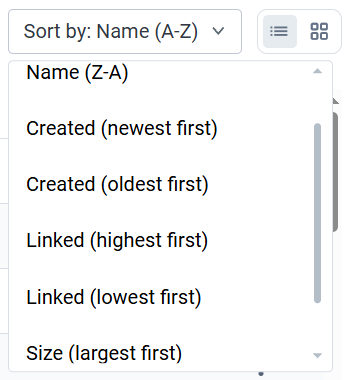
Use various ways to sort and filter through the files you are searching for.

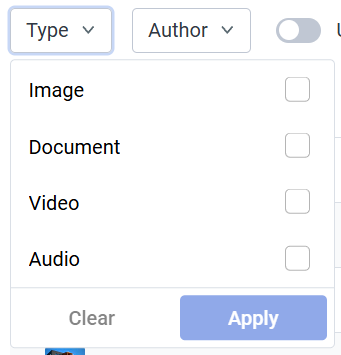
<table border="1" id="bkmrk-type-%C2%A0filter-by-file" style="border-collapse: collapse; width: 100%; border-width: 1px; border-style: hidden; height: 391.062px;"><colgroup><col style="width: 33.3333%;"></col><col style="width: 33.3333%;"></col><col style="width: 33.3333%;"></col></colgroup><tbody><tr style="height: 391.062px;"><td style="height: 391.062px;">##### Type

 Filter by file type

![image.png](https://docs.sim-on.com/uploads/images/gallery/2026-08/scaled-1680-/kWbimage.png)

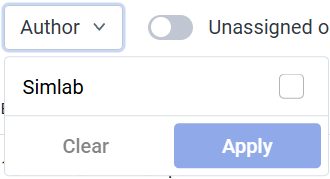
</td><td style="height: 391.062px;">##### Author

 Filter by file uploader

![image.png](https://docs.sim-on.com/uploads/images/gallery/2026-08/scaled-1680-/z9Rimage.png)

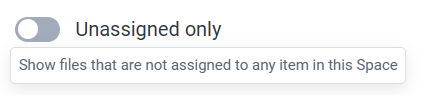
</td><td style="height: 391.062px;">##### Unassigned

Filter toggle for unassigned files
![image.png](https://docs.sim-on.com/uploads/images/gallery/2026-08/scaled-1680-/Pr2image.png)

</td></tr></tbody></table>

<table border="1" id="bkmrk-search-%C2%A0find-specifi" style="border-collapse: collapse; width: 66.6667%; height: 29.6px; border-width: 1px; border-style: hidden;"><colgroup><col style="width: 49.9828%;"></col><col style="width: 49.9828%;"></col></colgroup><tbody><tr style="height: 29.6px;"><td style="height: 29.6px;">##### Search

 Find specific files by filename

![image.png](https://docs.sim-on.com/uploads/images/gallery/2026-08/scaled-1680-/Bu9image.png)

</td><td style="height: 29.6px;">##### Sort

![image.png](https://docs.sim-on.com/uploads/images/gallery/2026-08/scaled-1680-/RaWimage.png)

</td></tr></tbody></table>

---

#### File options

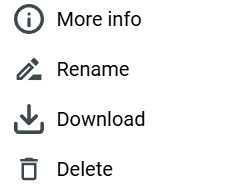
<table border="1" id="bkmrk-by-clicking-more-opt" style="border-collapse: collapse; width: 100%; border-width: 1px; border-style: hidden;"><colgroup><col style="width: 50%;"></col><col style="width: 50%;"></col></colgroup><tbody><tr><td>By clicking more options ![image.png](https://docs.sim-on.com/uploads/images/gallery/2026-08/scaled-1680-/w1Simage.png) icon - we can access file actions:

![image.png](https://docs.sim-on.com/uploads/images/gallery/2026-08/scaled-1680-/Fdqimage.png)

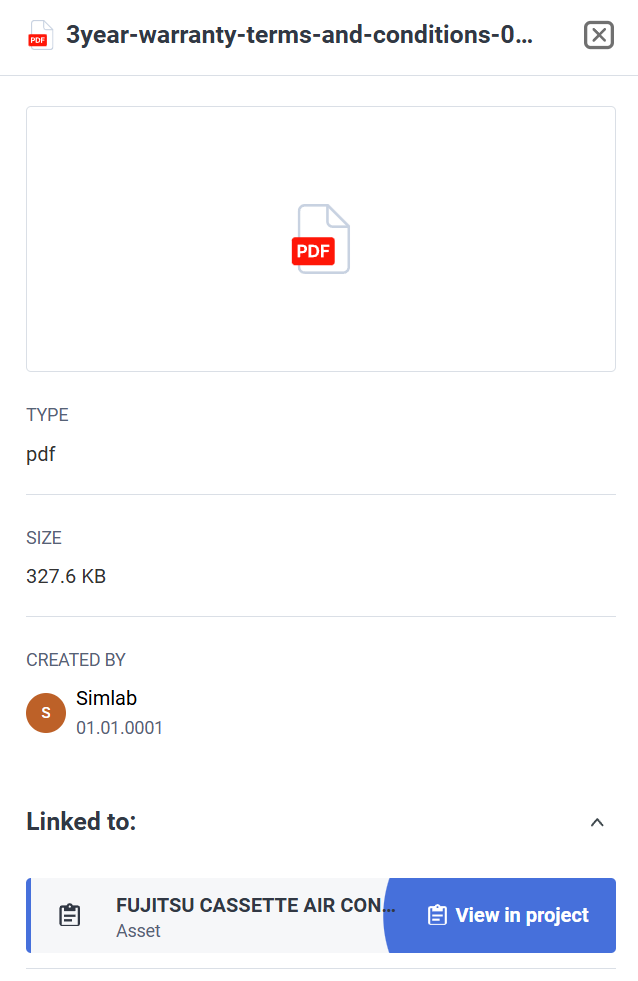
Selecting **More info** - reveals a side panel with more detailed file information, together with a shortcut to the linked asset within the project -&gt;

</td><td>![image.png](https://docs.sim-on.com/uploads/images/gallery/2026-08/scaled-1680-/PIHimage.png)</td></tr></tbody></table>

---

#### Display toggle

Change between **List view** and **Tiles view** ![image.png](https://docs.sim-on.com/uploads/images/gallery/2026-08/scaled-1680-/o77image.png) depending on your preferences

List view:

![image.png](https://docs.sim-on.com/uploads/images/gallery/2026-08/scaled-1680-/JNuimage.png)

Tiles view:

![image.png](https://docs.sim-on.com/uploads/images/gallery/2026-08/scaled-1680-/YqVimage.png)