# My Spaces

<span id="bkmrk-when-you-launch-sim--1" style="font-size: 11pt; font-family: Arial, sans-serif; background-color: transparent; font-weight: 400; font-style: normal; font-variant: normal; text-decoration: none; vertical-align: baseline; white-space: pre-wrap;">When you launch **SIM-ON**, you start in the **Spaces** view, it includes <span style="font-size: 11pt; font-family: Arial, sans-serif; background-color: transparent; font-weight: 400; font-style: normal; font-variant: normal; text-decoration: none; vertical-align: baseline; white-space: pre-wrap;">all the spaces you have access to.</span></span>

![image.png](https://docs.sim-on.com/uploads/images/gallery/2026-07/scaled-1680-/image.png)

<p class="callout info"><span id="bkmrk-to-access-the-home-s-1" style="font-size: 11pt; font-family: Arial, sans-serif; font-weight: 400; font-style: normal; font-variant: normal; text-decoration: none; vertical-align: baseline; white-space: pre-wrap;">To access the **Spaces** screen at any point while working on a **SIM-ON** space, select the </span><span style="color: rgb(53, 152, 219);">[**<span style="font-size: 11pt; font-family: Arial, sans-serif; font-style: normal; font-variant: normal; text-decoration: underline; text-decoration-skip-ink: none; vertical-align: baseline; white-space: pre-wrap;">My Spaces</span>**](https://docs.sim-on.com/link/147#bkmrk-browse-spaces)</span><span style="font-size: 11pt; font-family: Arial, sans-serif; font-weight: 400; font-style: normal; font-variant: normal; text-decoration: none; vertical-align: baseline; white-space: pre-wrap;"> option  
located in the </span><span style="font-size: 11pt; font-family: Arial, sans-serif; font-weight: bold; font-style: normal; font-variant: normal; text-decoration: underline; text-decoration-skip-ink: none; vertical-align: baseline; white-space: pre-wrap; color: rgb(53, 152, 219);">[Side Panel](https://docs.sim-on.com/link/147#bkmrk-side-panel "Side Bar")</span><span style="font-size: 11pt; font-family: Arial, sans-serif; font-weight: 400; font-style: normal; font-variant: normal; text-decoration: none; vertical-align: baseline; white-space: pre-wrap;"> menu</span></p>

---

From this screen you can access various other X from the side menu:

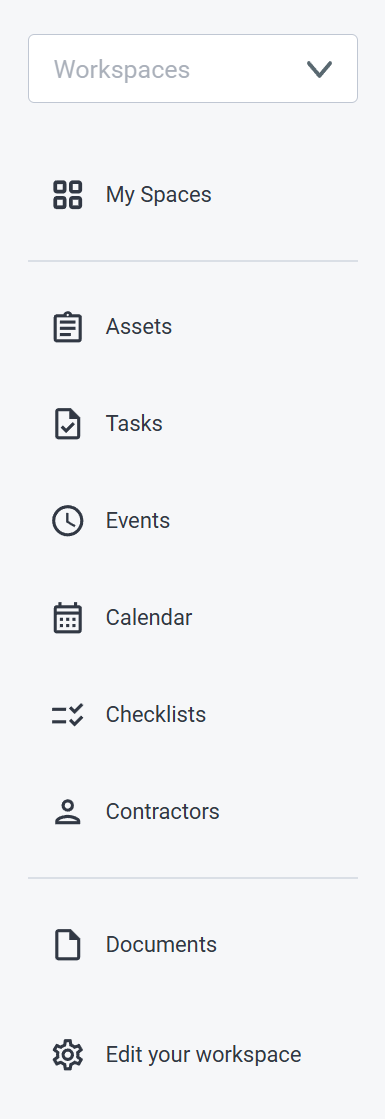
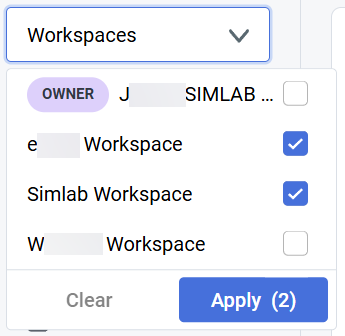
<table border="1" id="bkmrk-filter-available-res" style="border-collapse: collapse; width: 100%; border-width: 0px;"><colgroup><col style="width: 28.5986%;"></col><col style="width: 40.1574%;"></col><col style="width: 31.3394%;"></col></colgroup><tbody><tr><td style="border-width: 0px;">![image.png](https://docs.sim-on.com/uploads/images/gallery/2026-07/scaled-1680-/YyTimage.png)</td><td style="border-width: 0px;">- Filter available resources (spaces, tasks, assets etc.) by chosen **Workspaces**
- View and access available **Spaces**

---

- Add and manage **Assets** in the **Spaces**
- Manage every **Task** from a single view
- List of all of the **Events** in the **Spaces**
- View **Tasks** and **Events** in the calendar view
- Create and manage **Checklists**   
    for **Workspaces**
- Add and manage **Contractors** and their  
    information, within **Workspaces**

---

- List of every file (text files, images, videos, audio) within a **Space**
- Manage user **Permissions** within your **Workspace** or change it's name

</td><td style="border-width: 0px;">![image.png](https://docs.sim-on.com/uploads/images/gallery/2026-07/scaled-1680-/ov4image.png)</td></tr></tbody></table>

---

ghj