# Scenes

Automate the **Devices** behavior with various triggers and states within the project.

##### Scene view
![image.png](https://docs.sim-on.com/uploads/images/gallery/2025-10/scaled-1680-/g1Pimage.png)

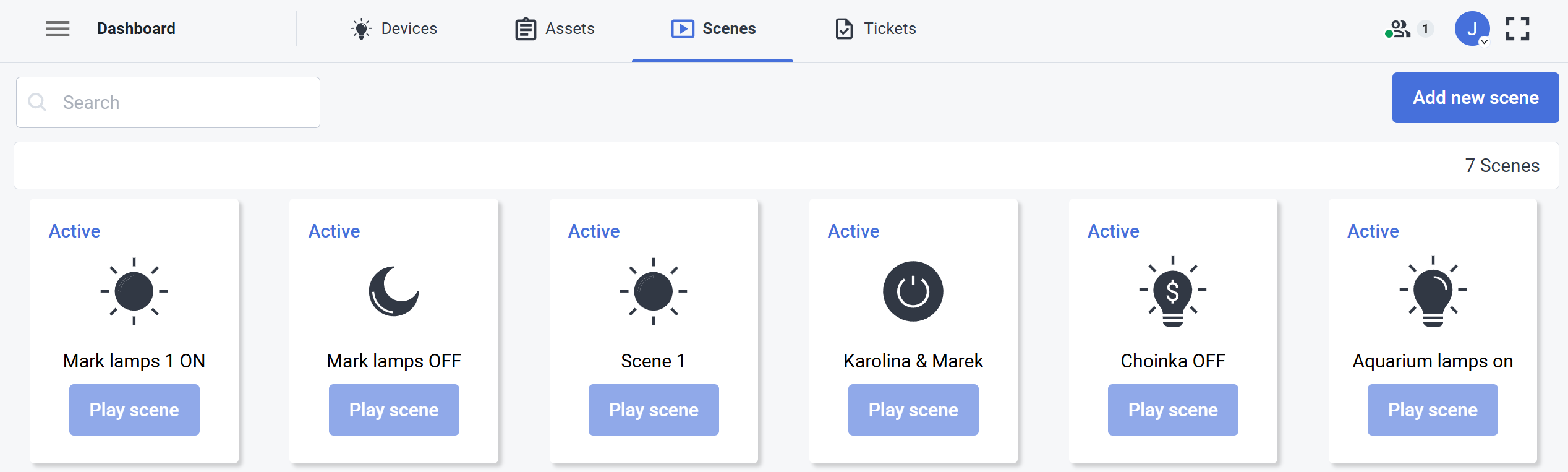
<span style="font-size: 11pt; font-family: Arial, sans-serif; background-color: transparent; font-weight: 400; font-style: normal; font-variant: normal; text-decoration: none; vertical-align: baseline; white-space: pre-wrap;"><span style="font-size: 11pt; font-family: Arial, sans-serif; background-color: transparent; font-weight: 400; font-style: normal; font-variant: normal; text-decoration: none; vertical-align: baseline; white-space: pre-wrap;"><span id="bkmrk-in-the-scene-view-yo-1" style="font-size: 11pt; font-family: Arial, sans-serif; background-color: transparent; font-weight: 400; font-style: normal; font-variant: normal; text-decoration: none; vertical-align: baseline; white-space: pre-wrap;">In the **Scene view** you can see all the scenes available. Scenes can manage different scenarios including turning on the lights on, planning to turn on or off different devices depending on the various triggers. Additionally you can add new scenes from here as well or delete the existing ones.  
  
To delete or edit a scene, click the **more options** ![more options.png](https://docs.sim-on.com/uploads/images/gallery/2024-08/scaled-1680-/more-options.png) button on the scene tile.</span></span></span>

<p class="callout warning"><span style="font-size: 11pt; font-family: Arial, sans-serif; background-color: transparent; font-weight: 400; font-style: normal; font-variant: normal; text-decoration: none; vertical-align: baseline; white-space: pre-wrap;"><span style="font-size: 11pt; font-family: Arial, sans-serif; background-color: transparent; font-weight: 400; font-style: normal; font-variant: normal; text-decoration: none; vertical-align: baseline; white-space: pre-wrap;"><span style="font-size: 11pt; font-family: Arial, sans-serif; background-color: transparent; font-weight: 400; font-style: normal; font-variant: normal; text-decoration: none; vertical-align: baseline; white-space: pre-wrap;">You need to have appropriate **permissions** to edit **Scenes.**</span></span></span></p>

#####   
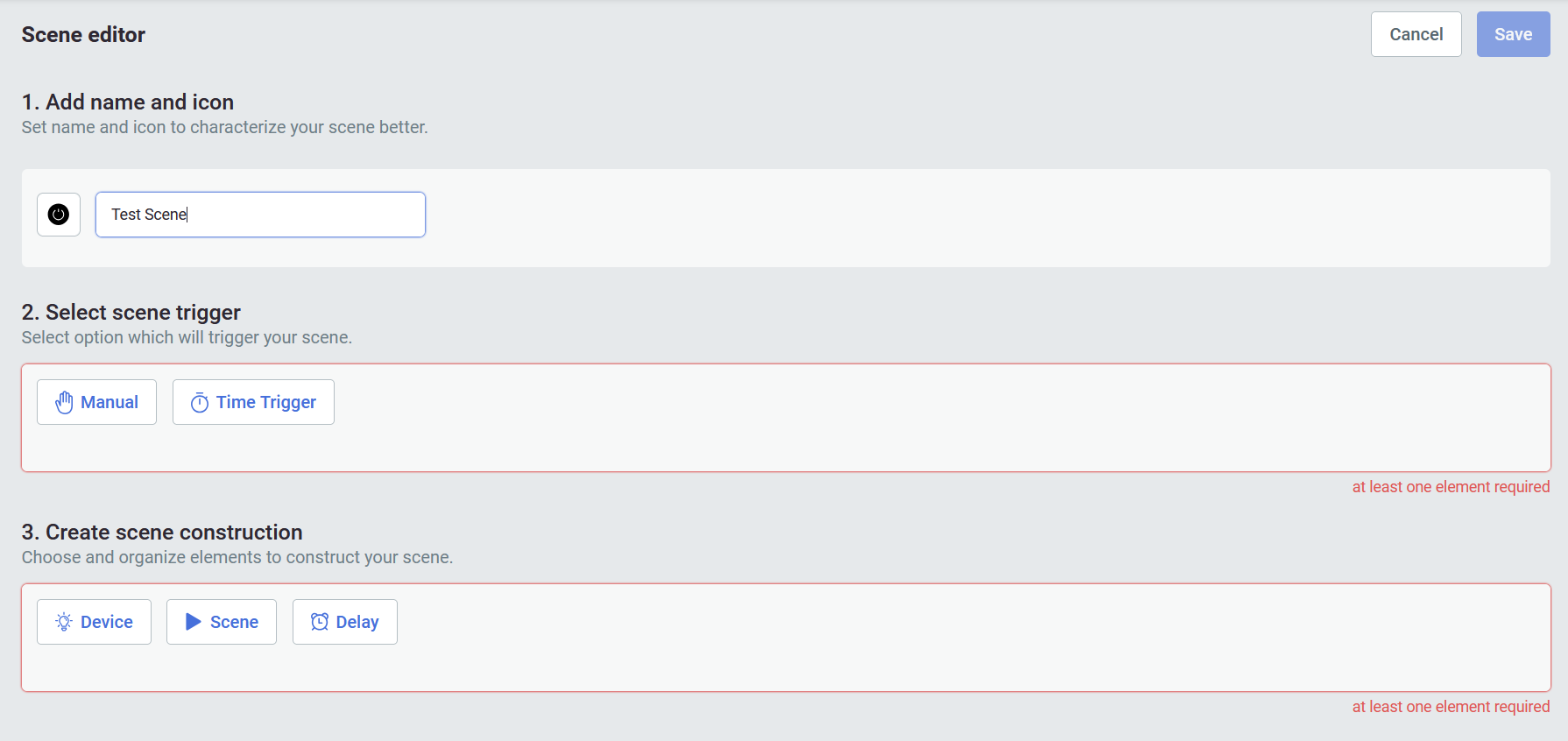
Scene editor

![obraz.png](https://docs.sim-on.com/uploads/images/gallery/2024-08/scaled-1680-/O3Fobraz.png)

<span style="font-size: 11pt; font-family: Arial, sans-serif; background-color: transparent; font-weight: 400; font-style: normal; font-variant: normal; text-decoration: none; vertical-align: baseline; white-space: pre-wrap;"><span style="font-size: 11pt; font-family: Arial, sans-serif; background-color: transparent; font-weight: 400; font-style: normal; font-variant: normal; text-decoration: none; vertical-align: baseline; white-space: pre-wrap;"><span style="font-size: 11pt; font-family: Arial, sans-serif; background-color: transparent; font-weight: 400; font-style: normal; font-variant: normal; text-decoration: none; vertical-align: baseline; white-space: pre-wrap;"><span style="font-size: 11pt; font-family: Arial, sans-serif; background-color: transparent; font-weight: 400; font-style: normal; font-variant: normal; text-decoration: none; vertical-align: baseline; white-space: pre-wrap;"><span id="bkmrk-to-add-a-new-scene%2C--2" style="font-size: 11pt; font-family: Arial, sans-serif; background-color: transparent; font-weight: 400; font-style: normal; font-variant: normal; text-decoration: none; vertical-align: baseline; white-space: pre-wrap;">  
To add a new scene, click the ![AddNewScene.png](https://docs.sim-on.com/uploads/images/gallery/2024-08/scaled-1680-/addnewscene.png) button. This will invoke the Scene editor view. </span></span></span>You need to provide a name, icon, select scene trigger and create scene construction and then save it.</span></span>