Space Overview
Quick overview of the Project Viewport.
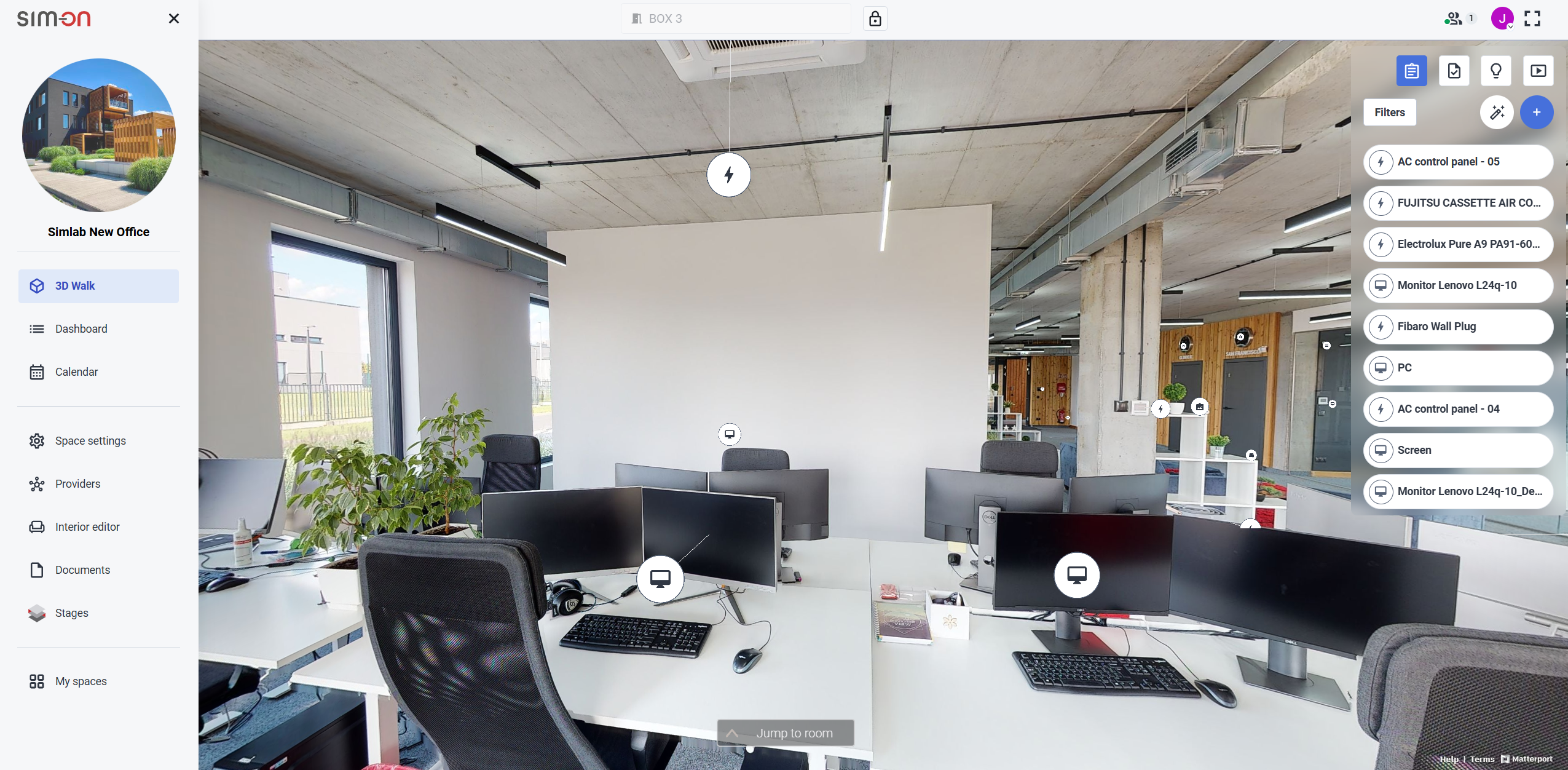
- Left Side Menu panel
- Viewport
- Active Space (Current Room)
- Currently Active users / User Account / fullscreen toggle
- Right side Quick panel
- Room quick access
- At the top left corner is located the menu button
 that rolls out the Side Panel.
- At the bottom left corner, is located the interior editor
 toggle.
If you've added any 3D assets to your scene, you will be able toggle their visibility. This will change the icon.
- In the top central part you can see the the current active space, next to it is the
 lock icon. To edit the space you need to first unlock the space editing. You can do it by "unlocking" the
 lock icon by clicking it.
- Since the 3D View of the app uses the Matterport Virtual Tour, all the regular Matterport 3D space features are available from the bottom left corner of the viewport.
Side panel
The left side panel is the main menu of the app, from which all other views and features are accessible from. These are as follows:
|
|
3D Walk
And many more.
To learn about all the features of the app, go through the following pages
|


Calendar
View the Events and Tasks of the Space in a calendar view.

Space Settings

General project management view, mainly used by project managers to handle: users, user roles and the activities within the project.
Additionally: basic project information and Room manager can be accessed from here.
See Space Settings chapter for detailed feature and functionality description
Providers

Manage your Smarthome providers. Add/remove the Hubs to the project, manage connected devices and their status.
See Providers chapter for detailed feature and functionality description
Interior Editor

Place 3D models within the virtual space of the project to explore the possible arrangements for your space, using our model library.
See Interior Editor page for detailed feature and functionality description
Documents
Manage the files uploaded to the Space.

Stages
After connecting Stages Project to the SIM-ON Space, you can view the Stages of the space from here.

My spaces

Return to the Home screen of the app. See the available Spaces
Quick Access Panel

Used in tandem while in 3D Walk to access the features of the app for smooth user experience in managing:
|
|
|


See Quick Access Panel page for detailed feature and functionality description