# Space Overview

Quick overview of the **Project Viewport**.

[![SIMON_GENERALVIEW_UPDATE.jpg](https://docs.sim-on.com/uploads/images/gallery/2025-03/scaled-1680-/simon-generalview-update.jpg)](https://docs.sim-on.com/uploads/images/gallery/2025-03/simon-generalview-update.jpg)

1. Left Side Menu panel
2. Viewport
3. Active Space (Current Room)
4. Currently Active users / User Account / fullscreen toggle
5. Right side Quick panel
6. Room quick access

- At the top left corner there is the burger menu ![hamburger_icon.png](https://docs.sim-on.com/uploads/images/gallery/2024-08/scaled-1680-/hamburger-icon.png)that rolls out the **Side Panel**.
- Just under it, is located the [<span style="text-decoration: underline; color: rgb(53, 152, 219);">**interior editor**</span>](https://docs.sim-on.com/books/3-app-overview/page/interior-editor) ![scene editor off.png](https://docs.sim-on.com/uploads/images/gallery/2024-07/scaled-1680-/scene-editor-off.png) toggle.   
    If you've added any 3D assets to your scene, you will be able toggle their visibility. This will change ![scene editor on.png](https://docs.sim-on.com/uploads/images/gallery/2024-07/scaled-1680-/scene-editor-on.png) the icon.
- In the top central part you can see the the **current active space**, next to it is the ![padlock_closed.png](https://docs.sim-on.com/uploads/images/gallery/2024-08/scaled-1680-/padlock-closed.png) lock icon. To edit the space you need to first unlock the space editing. You can do it by "unlocking" the ![padlock-unlock.png](https://docs.sim-on.com/uploads/images/gallery/2024-08/scaled-1680-/padlock-unlock.png) **lock icon** by clicking it.
- Since the 3D View of the app uses the **Matterport Virtual Tour**, all the regular **Matterport 3D space** features are available from the bottom left corner of the viewport.


---

#### **Side panel**

The left side panel is the **main menu** of the app, from which all other views and features are accessible from. These are as follows:


##### 3D Walk

##### ![image.png](https://docs.sim-on.com/uploads/images/gallery/2025-09/scaled-1680-/image.png)

![3dwalk_2.gif](https://docs.sim-on.com/uploads/images/gallery/2025-09/3dwalk-2.gif)

  
The Matterport-supported virtual tour view of the app. It is the central, main view of   
the app, used to manage and showcase the space. From here you can:

- Move around in the virtual space
- Setup rooms for swipes
- Use <span style="color: rgb(53, 152, 219);">[<span style="text-decoration: underline;">**Quick Access Panel**</span>](https://docs.sim-on.com/books/3-app-overview/page/quick-access-panel)</span> for various in-app operations
- Place devices within the 3D space

And many more.

<p class="callout info">To learn about all the features of the app, go through the following pages</p>


#####   
Dashboard

![image.png](https://docs.sim-on.com/uploads/images/gallery/2025-09/scaled-1680-/Qnvimage.png)

Setup, edit and manage all of the <span style="color: rgb(53, 152, 219);">[<span style="text-decoration: underline;">**Devices**</span>](https://docs.sim-on.com/books/3-app-overview/page/devices)</span>, <span style="color: rgb(53, 152, 219);">[<span style="text-decoration: underline;">**Assets**</span>](https://docs.sim-on.com/books/3-app-overview/page/assets)</span> and <span style="color: rgb(53, 152, 219);">[<span style="text-decoration: underline;">**Scenes**</span>](https://docs.sim-on.com/books/3-app-overview/page/scenes)</span> within the project.

<p class="callout info">See <span style="color: rgb(53, 152, 219);">[<span style="text-decoration: underline;">**Dashboard**</span>](https://docs.sim-on.com/books/3-app-overview/chapter/dashboard)</span> chapter for detailed feature and functionality description</p>


#####   
Providers

![image.png](https://docs.sim-on.com/uploads/images/gallery/2025-09/scaled-1680-/pb9image.png)

Manage your **Smarthome providers**. Add/remove the Hubs to the project, manage connected devices and their status.

<p class="callout info">See <span style="color: rgb(53, 152, 219);">[<span style="text-decoration: underline;">**Providers**</span>](https://docs.sim-on.com/books/3-app-overview/chapter/providers)</span> chapter for detailed feature and functionality description</p>


#####   
Interior Editor  


![Interior Editor.jpg](https://docs.sim-on.com/uploads/images/gallery/2024-11/scaled-1680-/interior-editor.jpg)

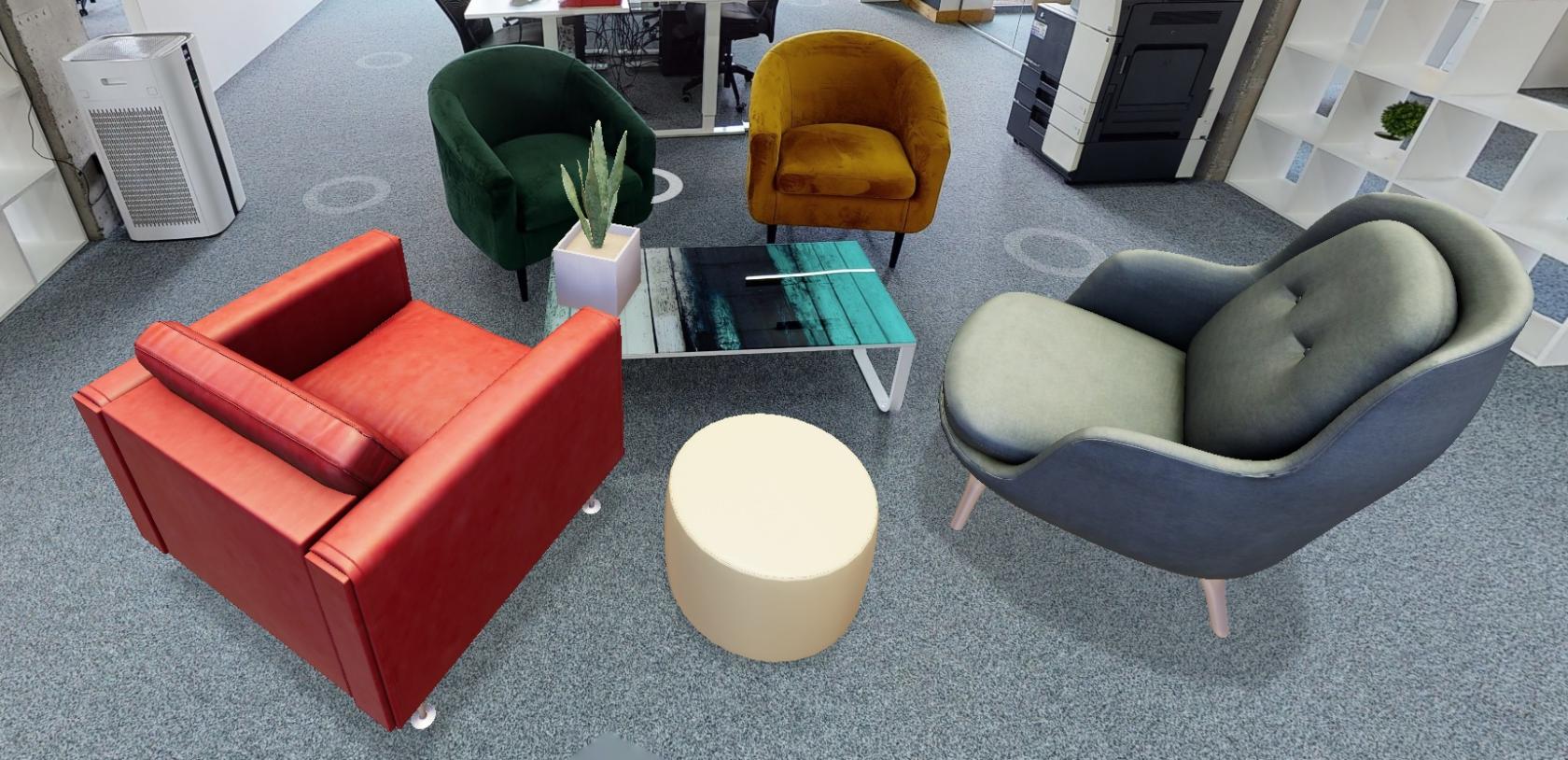
Place **3D models** within the virtual space of the project to explore the possible arrangements for your space, using our **model** **library.**

<p class="callout info">See <span style="color: rgb(53, 152, 219);">[**<u>Interior Editor</u>**](https://docs.sim-on.com/books/3-app-overview/page/interior-editor)</span> page for detailed feature and functionality description</p>

##### Space Settings  


![image.png](https://docs.sim-on.com/uploads/images/gallery/2024-11/scaled-1680-/WtRimage.png)

General project management view, mainly used by project managers to handle: users, user roles and the activities within the project.

Additionally: basic **project information** and **Room manager** can be accessed from here.

<p class="callout info">See <span style="color: rgb(53, 152, 219);">[<span style="text-decoration: underline;">**Space Settings**</span>](https://docs.sim-on.com/books/3-app-overview/chapter/space-settings)</span> chapter for detailed feature and functionality description</p>

#####   
My spaces

Return to the <span style="color: rgb(53, 152, 219);">[<span style="text-decoration: underline;">**Home screen**</span>](https://docs.sim-on.com/books/3-app-overview/page/home-screen)</span> of the app. See the available **Spaces** and **News**.

---

#### **Quick Access Panel**

![image.png](https://docs.sim-on.com/uploads/images/gallery/2024-10/scaled-1680-/WHYimage.png)

Used in tandem while in **3D Walk** to access the features of the app for smooth user experience in managing:

- Devices
- Scenes
- Assets
- Events
- Tickets


<p class="callout info">See <span style="color: rgb(53, 152, 219);">[<span style="text-decoration: underline;">**Quick Access Panel**</span>](https://docs.sim-on.com/books/3-app-overview/page/quick-access-panel)</span> page for detailed feature and functionality description</p>