# 4.Guides

# Manual Project Setup

Concise, step-by-step, simple project setup walkthrough. For comprehensive project setup information see Project Setup chapter in Getting Started book.

# Preparing Project Space

This tutorial will show you a step-by-step, basic project creation workflow. To learn more about every step and different features, see the following books: [<span style="text-decoration: underline; color: rgb(53, 152, 219);">**Getting Started**</span>](https://docs.sim-on.com/books/2-getting-started) for project creation related information and <span style="color: rgb(53, 152, 219);">[<span style="text-decoration: underline;">**App overview**</span>](https://docs.sim-on.com/books/3-app-overview)</span> for comprehensive descriptions of SIMON features.

To use **SIM-ON** you will need two things:

- A Matterport scan
- Optionally: (*supported*) Smarthome provider

<p class="callout info">For this tutorial you will be **provided with a Matterport scan** of an office, but **we recommend you to use your own scan**, together with a **Smarthome provider** if possible</p>

Provided tutorial material:

- **<span style="color: rgb(53, 152, 219);">[Matterport Scan](https://my.matterport.com/show/?m=KnmwKwMaj4s)</span>**

<p class="callout info">At any time, in this tutorial, you can access the provided link from the **Attachments** section.  
(*located in the top left corner of the screen*)</p>

---

#### **New Space Creation**

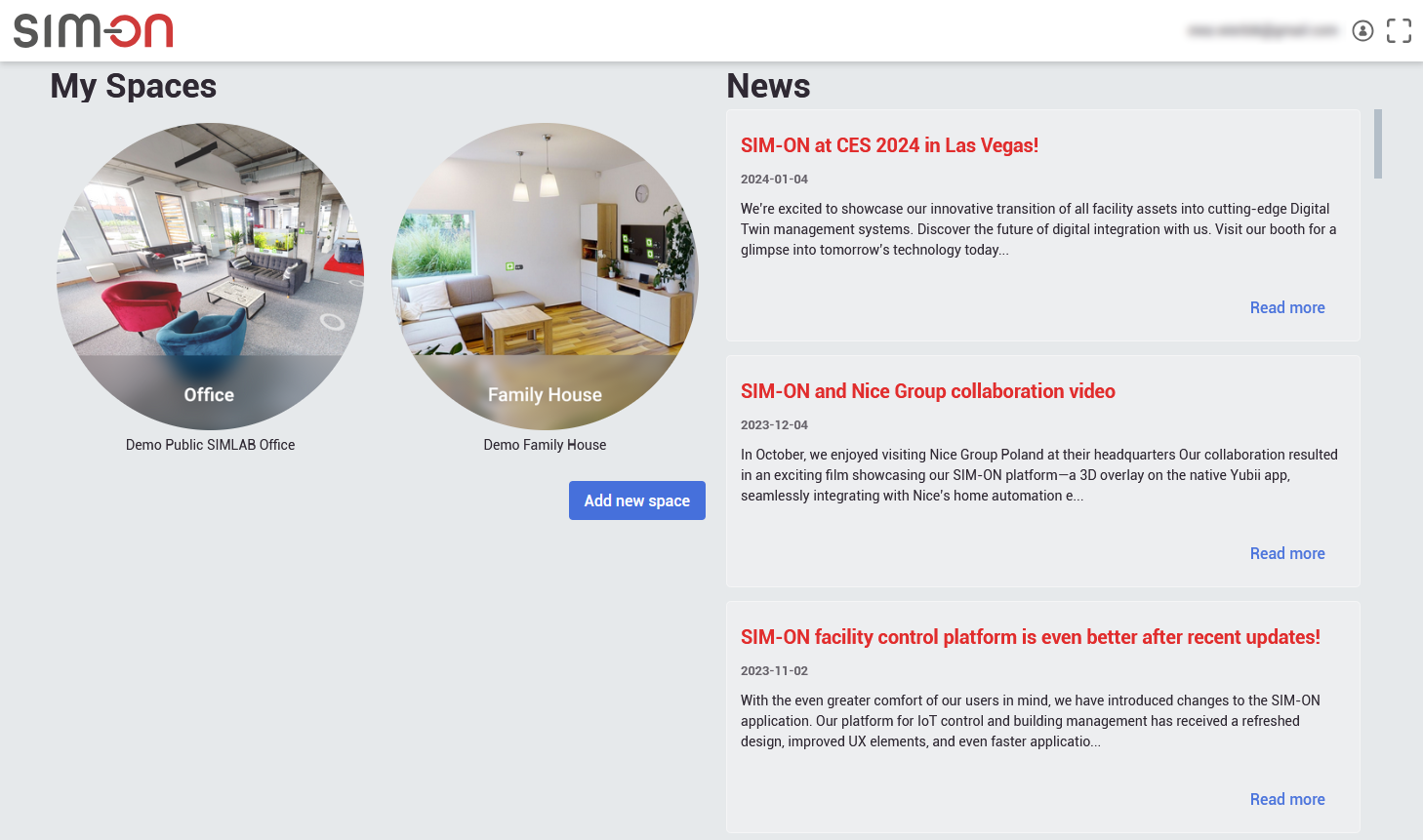
After [<span style="text-decoration: underline; color: rgb(53, 152, 219);">**Logging into SIM-ON**</span>](https://identity.simlab.pl/Account/Login), you will first see the <span style="text-decoration: underline; color: rgb(53, 152, 219);">**browser view.**</span> Here you will find **news** and your **available spaces.**
![image.png](https://docs.sim-on.com/uploads/images/gallery/2025-01/scaled-1680-/4Sdimage.png)

- Press ![image.png](https://docs.sim-on.com/uploads/images/gallery/2025-01/scaled-1680-/mhPimage.png) button to begin the **space creation** process.
![obraz.png](https://docs.sim-on.com/uploads/images/gallery/2024-08/scaled-1680-/kgoobraz.png)

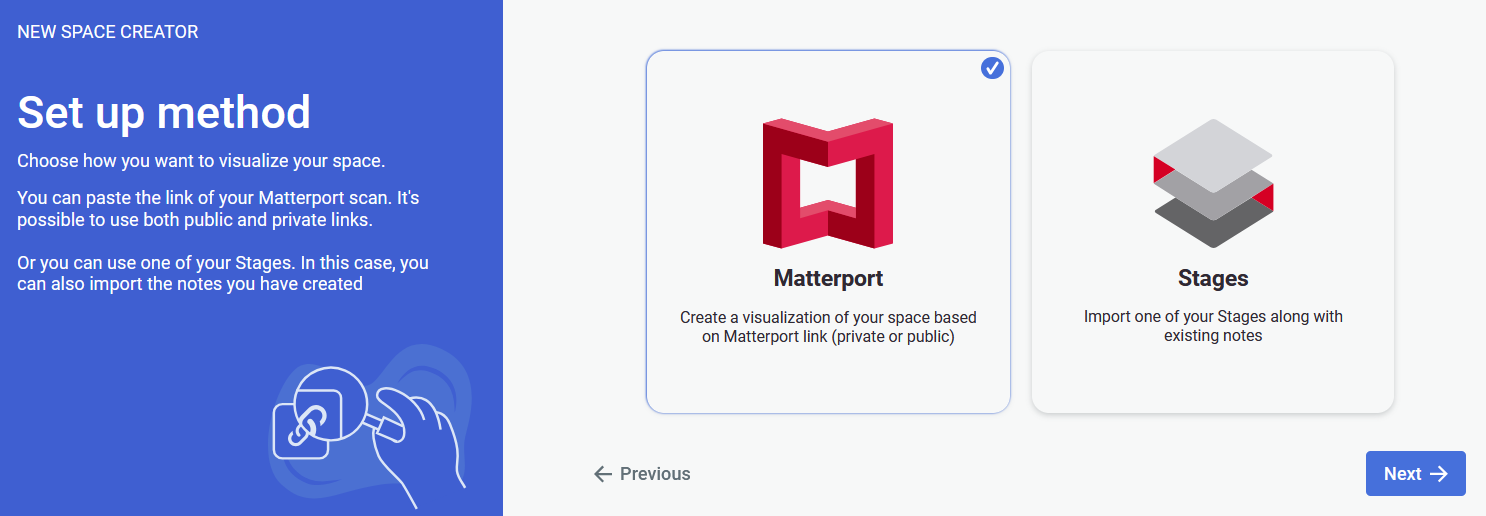
- Select **Matterport** set up method as we will be using the provided **Matterport link** in this tutorial.
- Press ![image.png](https://docs.sim-on.com/uploads/images/gallery/2025-01/scaled-1680-/TeLimage.png) to proceed.

#### Room creator

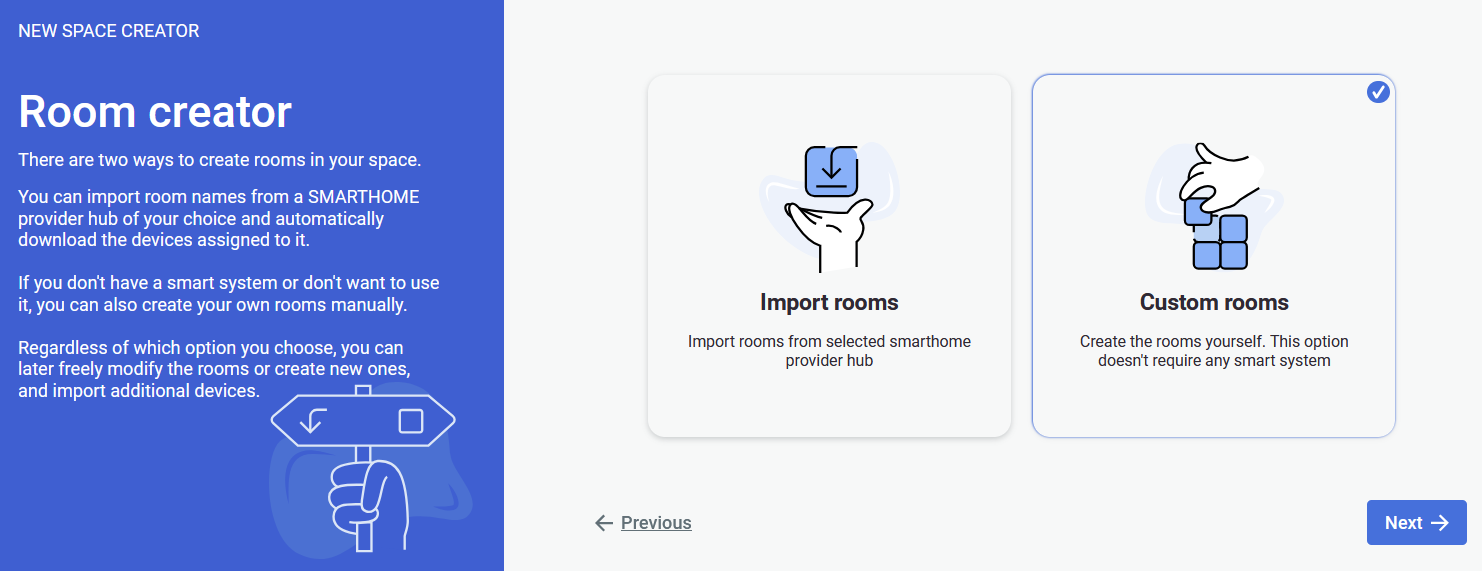
![obraz.png](https://docs.sim-on.com/uploads/images/gallery/2024-08/scaled-1680-/3x1obraz.png)

Next, we will create starter rooms.

- Select **Custom rooms** option, as it allows to proceed **without linking** a smarthome provider.
- Press ![image.png](https://docs.sim-on.com/uploads/images/gallery/2025-01/scaled-1680-/TeLimage.png) to proceed.

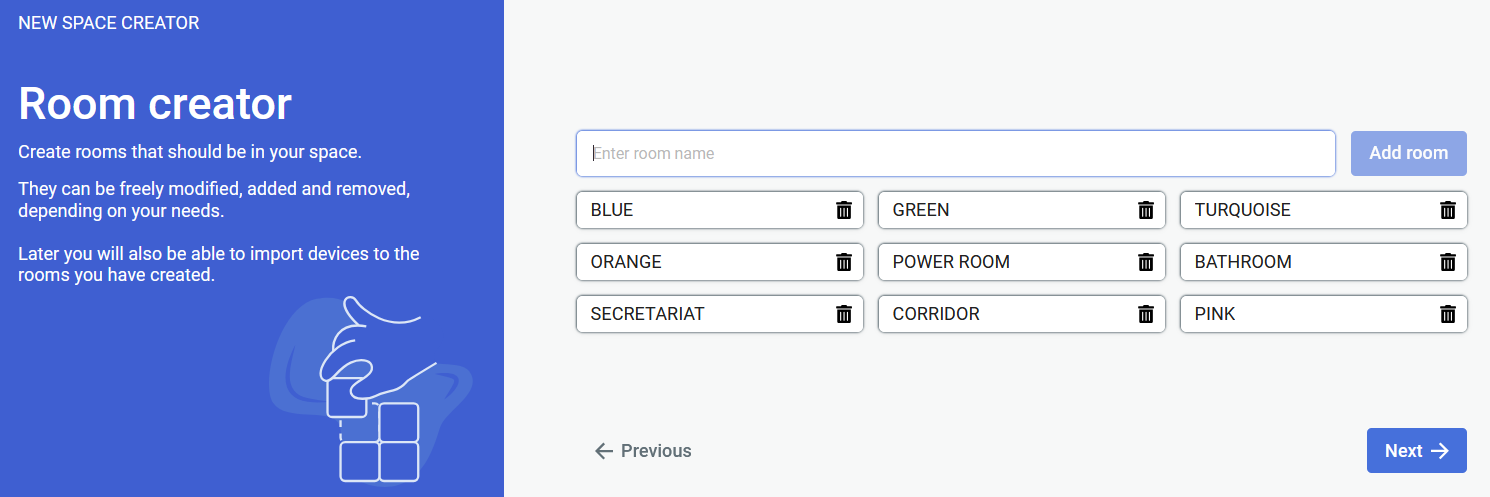
![obraz.png](https://docs.sim-on.com/uploads/images/gallery/2024-08/scaled-1680-/hgXobraz.png)

We need **at least one** **room** to proceed with project creation. Here we will only create a **placeholder room** to create the project. Proper room creation will be handled at a later stage, within the project. This way you will be creating rooms at the fly, while assigning them to the sweeps in the project.

<p class="callout info">If you are following this tutorial with **your own Matterport Scan**, and know the rooms beforehand - feel free to include them in this step. Otherwise keep following this tutorial</p>

- Create a single, placeholder room (We will change its name later.)
- Press ![image.png](https://docs.sim-on.com/uploads/images/gallery/2025-01/scaled-1680-/TeLimage.png) to proceed.

#### Linking Matterport scan
![obraz.png](https://docs.sim-on.com/uploads/images/gallery/2024-08/scaled-1680-/GBcobraz.png)

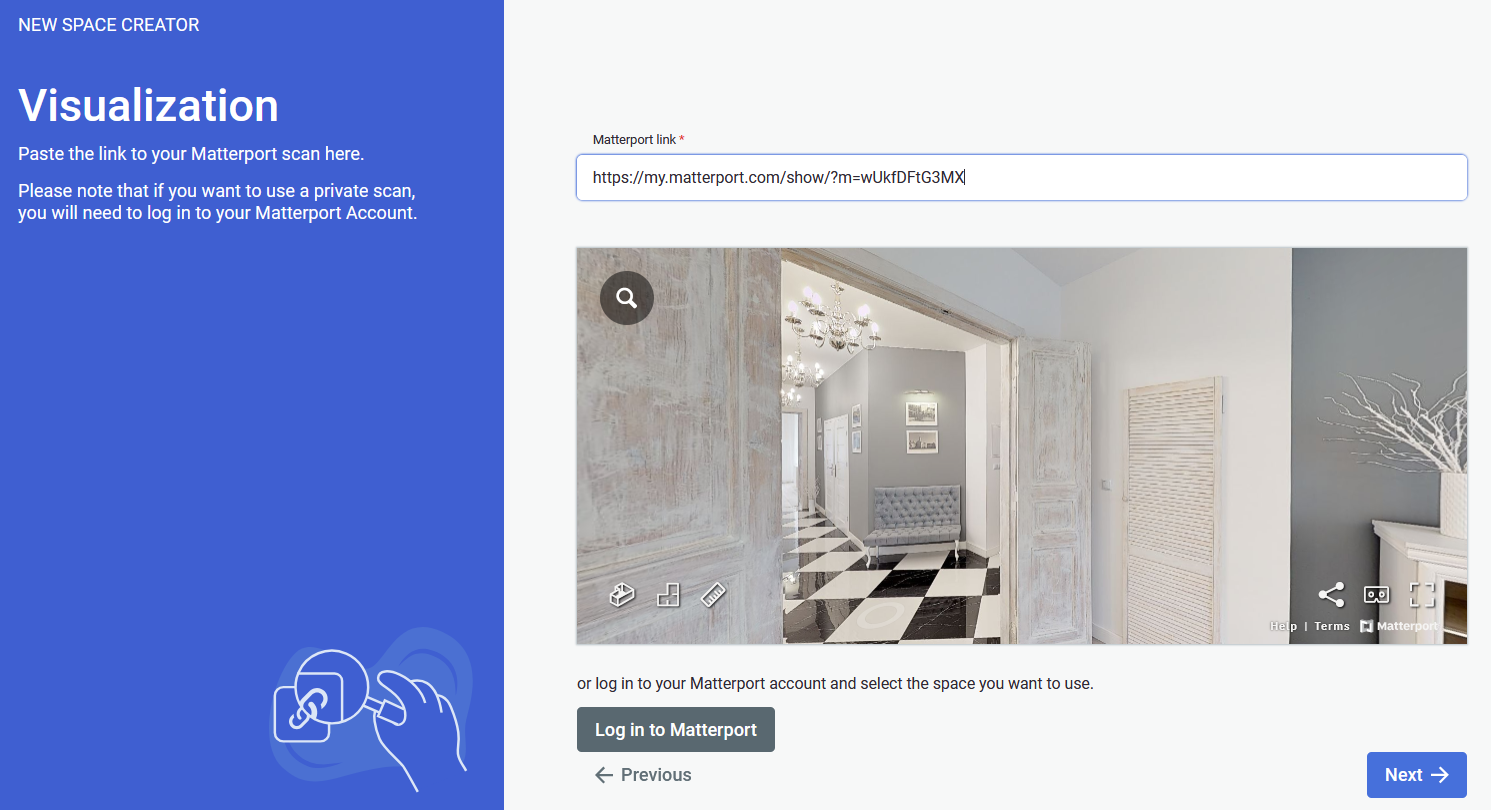
Now we to provide a **Matterport link** to be used as a 3D space for the project.

- Paste the <span style="text-decoration: underline; color: rgb(53, 152, 219);">**Provided Matterport Link**</span> into the required field.
- Press ![image.png](https://docs.sim-on.com/uploads/images/gallery/2025-01/scaled-1680-/TeLimage.png) to finalize the space creation.

You've successfully created a new SIM-ON space! Proceed to next page of the tutorial where you'll learn how to further set up the scene.

# Setting up Rooms

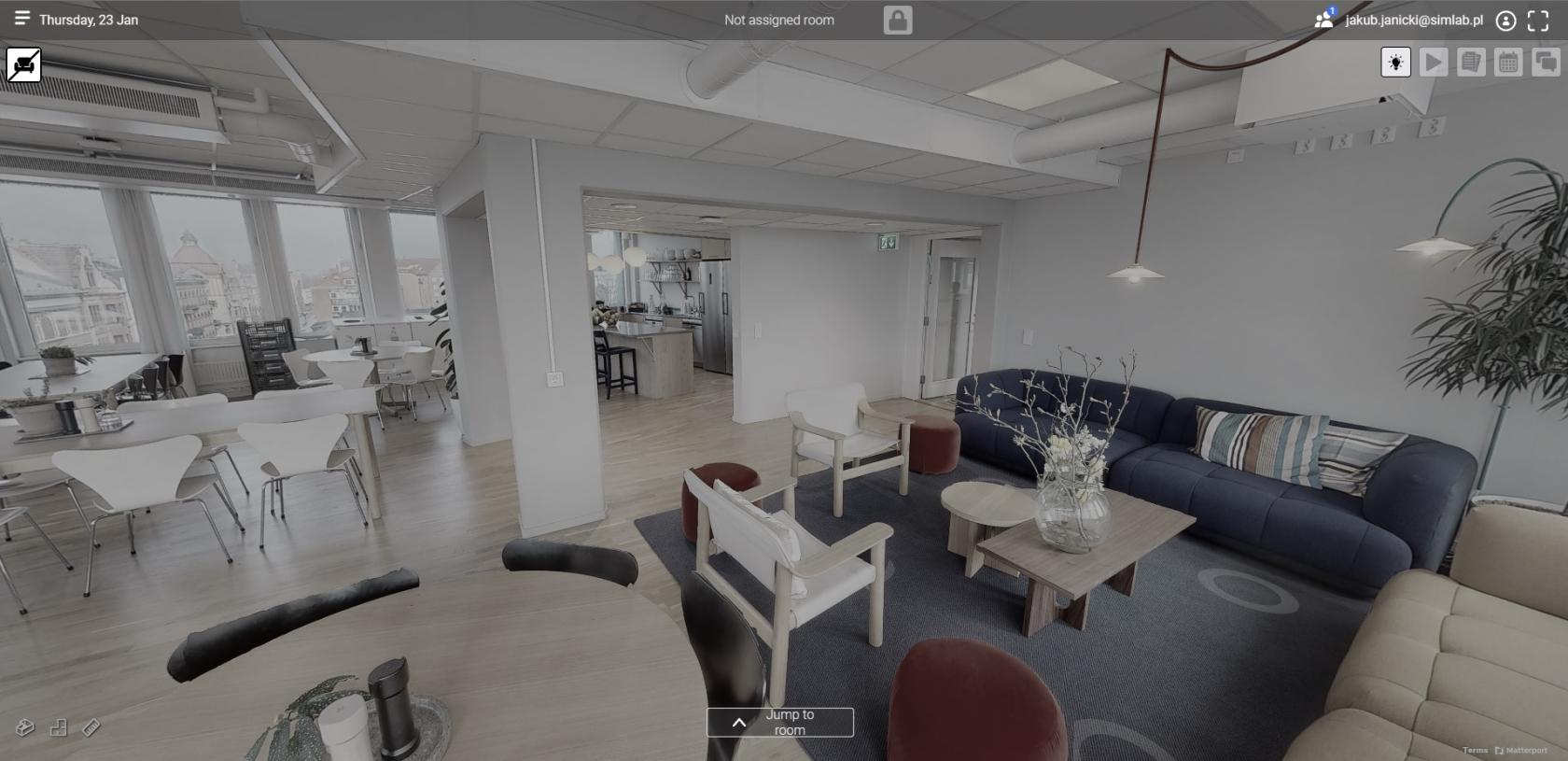
After entering the space for the first time, by default you will appear in the 3D Walk view. You may notice that the environment is desaturated. This is an indication that the current position (sweep) we are on is unassigned. It is understandable, since the project has just been created and needs to be set up.
![settingUpRoomsTut.jpg](https://docs.sim-on.com/uploads/images/gallery/2025-01/scaled-1680-/settinguproomstut.jpg)


#### **Room creation**

First step before setting up sweeps is to prepare rooms to choose from later. You might have noticed that we skipped this step in the project scene creation. It's because we will use the **Matterport** **Dollhouse** feature to get the general view of the space that will help us decide what rooms to create.

- To enter the **dollhouse view** (or any other type of view): select it from the bottom left corner of the screen:   
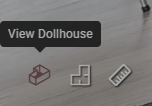
    ![image.png](https://docs.sim-on.com/uploads/images/gallery/2025-01/scaled-1680-/g9qimage.png)

With the **Dollhouse view** enabled a 3D scan model of the entire scanned place will appear:
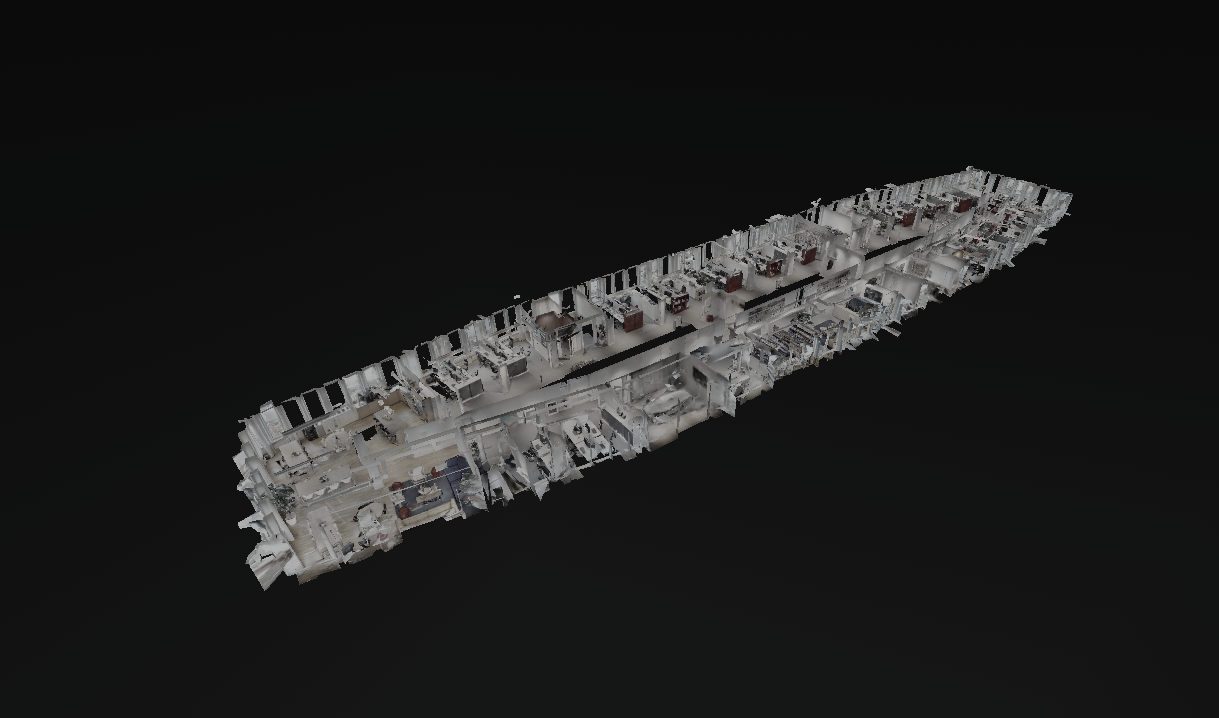
![image.png](https://docs.sim-on.com/uploads/images/gallery/2025-01/scaled-1680-/eNUimage.png)

This lets us navigate the environment unobstructed and explore the given space to decide the amount and names of the rooms.

- Explore the office and think about what rooms need to be created

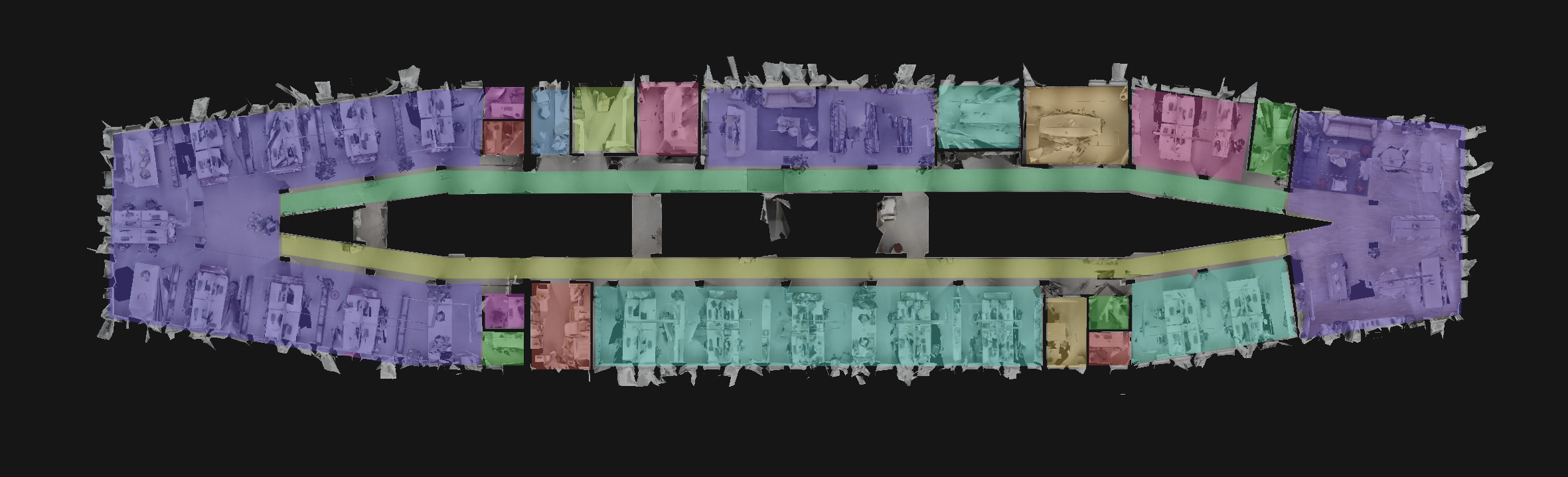
Here is an example, using the ![image.png](https://docs.sim-on.com/uploads/images/gallery/2025-01/scaled-1680-/ZJLimage.png) **floorplan view** of how the provided space <span style="text-decoration: underline;">could be</span> divided into rooms:

![tutorial_room allocation.jpg](https://docs.sim-on.com/uploads/images/gallery/2025-01/tutorial-room-allocation.jpg)

<p class="callout warning">The screenshot was colored in an image editing software for easier visualization of the concept  
</p>

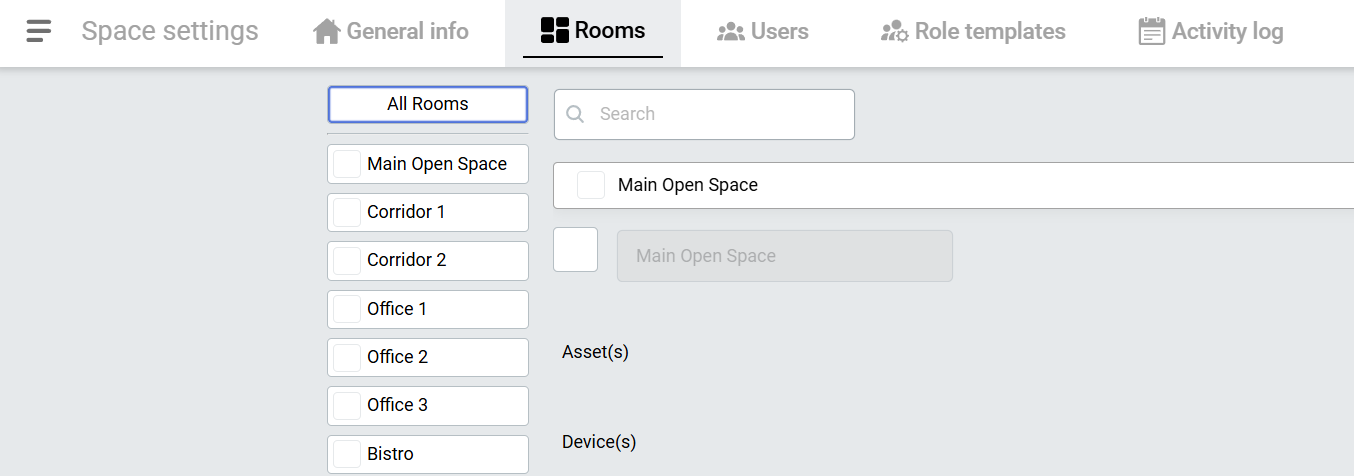
With the general idea for the room layout, head to **Space settings** &gt; **Rooms** accessed from the burger ![hamburger_icon.png](https://docs.sim-on.com/uploads/images/gallery/2024-08/scaled-1680-/hamburger-icon.png)menu located in the top left corner of the screen. And create room(s) you will use to start assigning sweeps with.

- Go to the **Rooms** view in **Space settings**
- Create rooms for the space
![image.png](https://docs.sim-on.com/uploads/images/gallery/2025-01/scaled-1680-/K2Cimage.png)

<p class="callout info">Use neutral/general naming scheme for the first time (*as seen in the screenshot above*) to setup all the spaces without worrying too much about "proper" room names, especially since the rooms can be edited later on.</p>


#### **Sweep assignment**

With (some *starting*) rooms created, now we need to assign them within the space to "**sweeps**".

<table border="1" id="bkmrk-to-place-the-devices-1" style="border-collapse: collapse; width: 103.095%; border-width: 0px; height: 144.406px;"><colgroup><col style="width: 85.119%;"></col><col style="width: 14.881%;"></col></colgroup><tbody><tr style="height: 144.406px;"><td style="border-width: 0px; text-align: justify; height: 144.406px;">> To place **devices** within the 3D space of **Virtual Tour**, first we need to **define** **the rooms** within the 3D space by assigning them to "**sweeps**".
> 
> <p class="callout info">‘**Sweep**’ as in a full Matterport camera rotation - **A spot** in the **Matterport Space** where a user can **stand** and **look around** (*This includes 3D scan locations and 360º Views*)</p>
> 
>   
> ~[**<span style="text-decoration: underline; color: rgb(53, 152, 219);">*Sweeps*</span>**](https://docs.sim-on.com/~Sweeps)

</td><td style="border-width: 0px; height: 144.406px;"> </td></tr></tbody></table>

To assign sweeps, we need to be in the **3D Walk** view. Access it through the burger![hamburger_icon.png](https://docs.sim-on.com/uploads/images/gallery/2024-08/scaled-1680-/hamburger-icon.png)menu located in the top left corner of the screen.

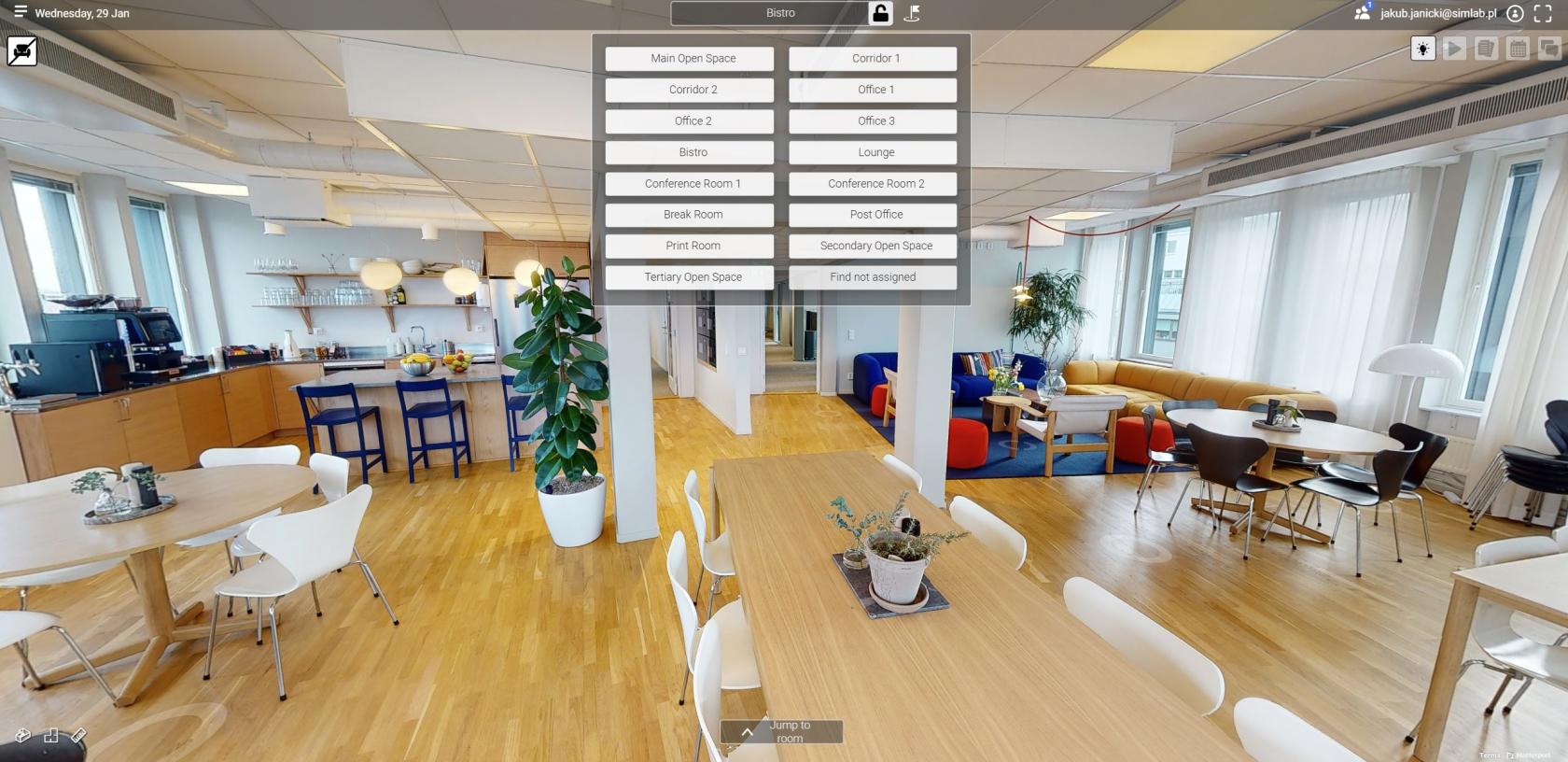
In the top section of the viewport, you can notice a text: "**Not assigned room**" and a **closed lock** ![padlock_closed.png](https://docs.sim-on.com/uploads/images/gallery/2024-08/scaled-1680-/padlock-closed.png) icon to the right of it. To assign a room to the sweep, click on the **lock** ![padlock_closed.png](https://docs.sim-on.com/uploads/images/gallery/2024-08/scaled-1680-/padlock-closed.png) **icon,** it will reveal a window with the available rooms.

- Enter **3D Walk** view
- Toggle the **lock** ![padlock-unlock.png](https://docs.sim-on.com/uploads/images/gallery/2024-08/scaled-1680-/padlock-unlock.png) **icon** to reveal the rooms window

![sweep assignment.jpg](https://docs.sim-on.com/uploads/images/gallery/2025-01/scaled-1680-/sweep-assignment.jpg)

Select the proper room for the sweep you are standing on. The view will become saturated, indicating the sweep you are currently on is <span style="text-decoration: underline;">set</span> and the room name will appear, replacing the "**Not assigned room**" prompt. Go to next sweep and repeat.

You can assign all the sweeps in the project the same way. To finish you need to lock editing by toggling the **lock** ![padlock-unlock.png](https://docs.sim-on.com/uploads/images/gallery/2024-08/scaled-1680-/padlock-unlock.png) **icon** again.

- Assign a room to the sweep
- Navigate to a next sweep
- Repeat until all the sweeps have assigned rooms

<p class="callout info align-left">While assigning sweeps, If there is a room you are missing/haven't prepared before: don't worry, you can always go to the **Rooms** in **Space Settings** to add new room and return back to the **3D View.** The last place you left the view from will be remembered and you will start where you left.</p>

![bistro.jpg](https://docs.sim-on.com/uploads/images/gallery/2025-01/scaled-1680-/bistro.jpg)After going through the swpies, check if the option ![image.png](https://docs.sim-on.com/uploads/images/gallery/2025-01/scaled-1680-/LkPimage.png) is still available. If so, that means some of the sweeps are still unassigned.

- Use "Find not assigned" to be automatically transported to one of the unassigned sweeps and assign it.
- Repeat until the option is no longer available, indicating that all of the sweeps are now assigned.

With the rooms set up, the project space is now ready for all of the SIM-ON features to be used.

---

**This concludes the core setup of the SIM-ON project space setup tutorial. In the following, last page, you will learn how to create an asset and an event within the created space.**

# Asset creation

With the rooms assigned, assets can now be included within the space.

> Defined as an "**asset**" is any object or an item you wish to keep track of in your SIM-ON space. The main difference between an "**asset**" and a "**device**" is the lack of smart connectivity of the former one.
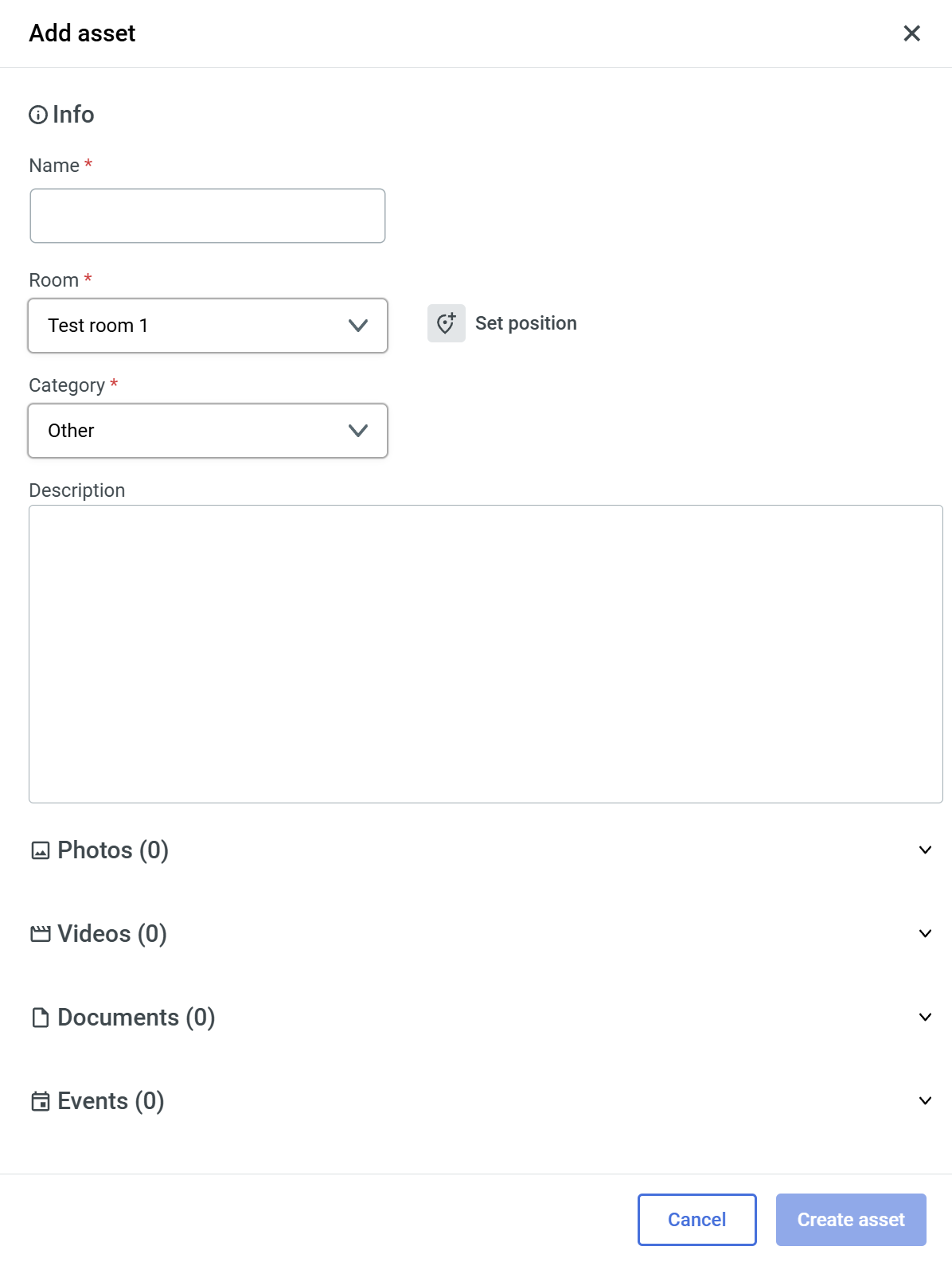
![image.png](https://docs.sim-on.com/uploads/images/gallery/2024-11/scaled-1680-/P7simage.png)To add an asset, navigate to **<span style="color: rgb(53, 152, 219);">[Quick Access Menu](https://docs.sim-on.com/link/148#bkmrk-assets "Top Menu")</span>** located on the right side of the viewport, select **Assets** ![image.png](https://docs.sim-on.com/uploads/images/gallery/2024-11/scaled-1680-/Kb5image.png) icon and hover over ![image.png](https://docs.sim-on.com/uploads/images/gallery/2024-11/scaled-1680-/RpLimage.png) icon, to reveal "**Add Asset**" button and then press it.

The following window will appear on the right side of your screen&gt;

To create an asset, you need to fill out the necessary fields, marked with " <span style="color: rgb(224, 62, 45);">**\*** <span style="color: rgb(0, 0, 0);">", then the </span></span>![image.png](https://docs.sim-on.com/uploads/images/gallery/2024-11/scaled-1680-/cJuimage.png) button will become available to finalize the asset creation.

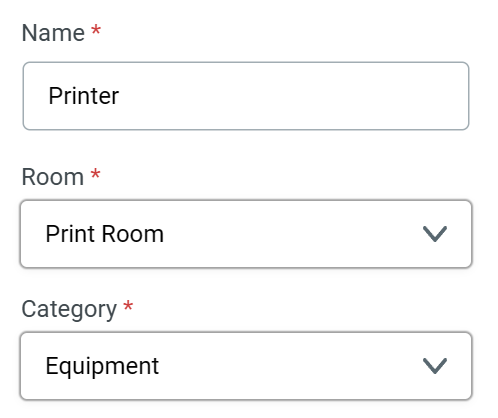
As an example, we will create an asset for a **Printer** located in the **Printing room** in the **project space**.

- Fill the necessary fields as seen here:
![image.png](https://docs.sim-on.com/uploads/images/gallery/2025-01/scaled-1680-/RvMimage.png)

With basic Asset info, now we will set position for the asset.

- Click the ![image.png](https://docs.sim-on.com/uploads/images/gallery/2025-01/scaled-1680-/s5gimage.png) **Set position** button

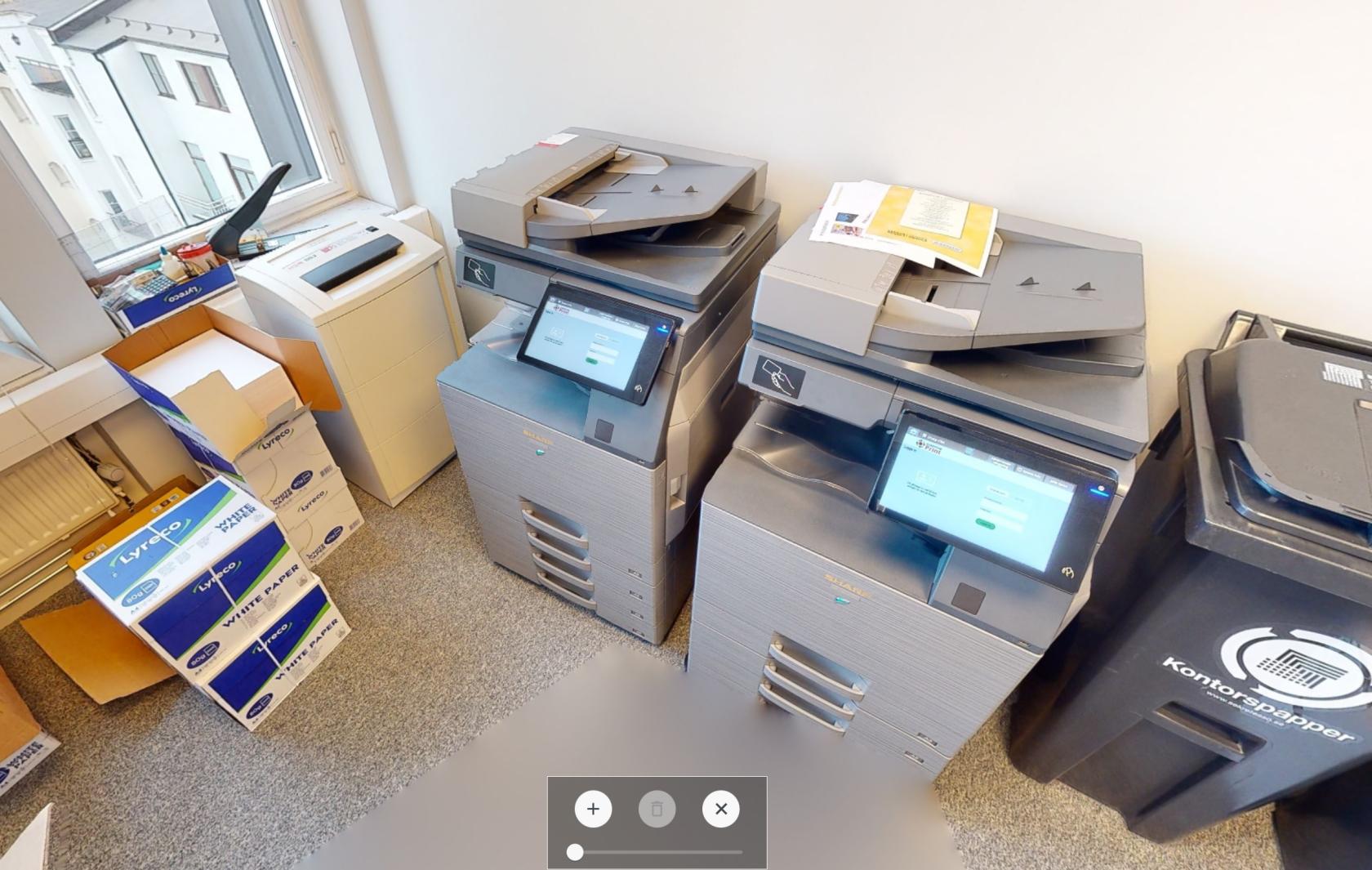
![asset location.jpg](https://docs.sim-on.com/uploads/images/gallery/2025-01/scaled-1680-/asset-location.jpg)

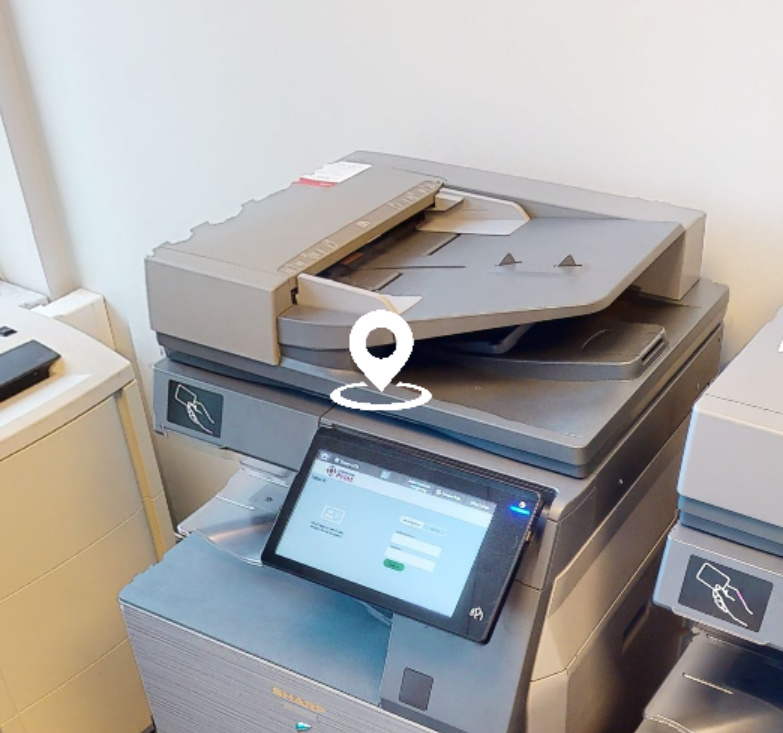
We will be putting the position marker on the left printer. Press the " **+** " button from the new window that appeared on the bottom of the view.

- Place the Pin on the printer
![image.png](https://docs.sim-on.com/uploads/images/gallery/2025-01/scaled-1680-/QEeimage.png)

- Exit Position placement by pressing " **x** " button

<p class="callout info">You can edit/delete Asset location at any time from the **Asset Panel**</p>

With the basic **Info** and **location** set, asset can be created.

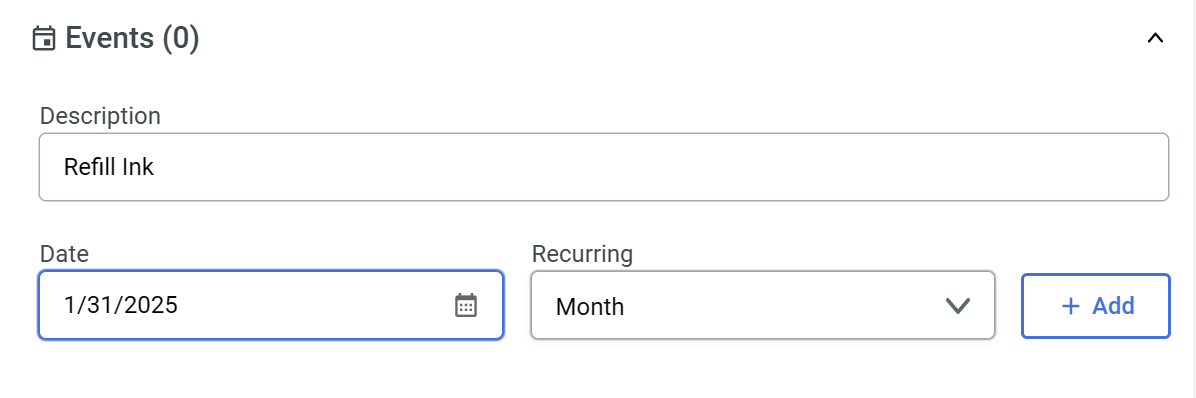
There are more options that can be used to store information within an asset such as: **Description,** **Photos**, **Videos** and **Documents.** You can use these to further complete asset information.   
  
Here is an Event section filled as an example:
![image.png](https://docs.sim-on.com/uploads/images/gallery/2025-01/scaled-1680-/DKFimage.png)  
  
After creating an asset, it will appear on the right side of the viewport, under the **<span style="color: rgb(53, 152, 219);">[Quick Access Menu](https://docs.sim-on.com/link/148#bkmrk-assets "Top Menu")</span>**, as well as in the <span style="color: rgb(53, 152, 219);">[**assets list**](https://docs.sim-on.com/books/3-app-overview/page/assets)</span> in the <span style="color: rgb(53, 152, 219);">[<span style="text-decoration: underline;">**Dashboard**</span>](https://docs.sim-on.com/books/3-app-overview/chapter/dashboard)</span>.

**![image.png](https://docs.sim-on.com/uploads/images/gallery/2024-11/scaled-1680-/Ul5image.png)**

---

To learn more about other Aspects of the Software, check the rest of our [<span style="text-decoration: underline; color: rgb(53, 152, 219);">**SIM-ON Documentation.**</span>](https://docs.sim-on.com/shelves/sim-on)

# Interior Editor Guide

Here you will learn how to use the Interior Editor in your projects. To see a complete overview of the tool UI and features see [<span style="text-decoration: underline; color: rgb(53, 152, 219);">**Interior Editor**</span>](https://docs.sim-on.com/books/3-app-overview/page/interior-editor) page in <span style="text-decoration: underline; color: rgb(53, 152, 219);">**App Overview**</span>.

<p class="callout info">During this tutorial a project space created during <span style="text-decoration: underline; color: rgb(53, 152, 219);">**Manual Project Creation Tutorial**</span> will be used. To **follow this tutorial** you can either use the **tutorial project** or **your own project** (*if available.*)</p>

---

![interior editor tutorial.jpg](https://docs.sim-on.com/uploads/images/gallery/2025-01/scaled-1680-/interior-editor-tutorial.jpg)

To start using the **Interior Editor** and place **Virtual Models** within your space you need to enter the **Interior Editor View** as well as create a **Layout** for the models (*even though it is not technically required because of a default layout, it is a good habit to follow since creating layouts not only enables you to prepare multiple "visualizations", but group the models and manage their visibility.*)

##### **Layout manager**

<table border="1" id="bkmrk-after-entering-the-i" style="border-collapse: collapse; width: 100%; border-width: 0px;"><colgroup><col style="width: 54.1667%;"></col><col style="width: 2.85714%;"></col><col style="width: 42.9762%;"></col></colgroup><tbody><tr><td style="border-width: 0px;">- Enter the Interior Editor through the **Burger ![hamburger_icon.png](https://docs.sim-on.com/uploads/images/gallery/2024-08/scaled-1680-/hamburger-icon.png) Menu.**

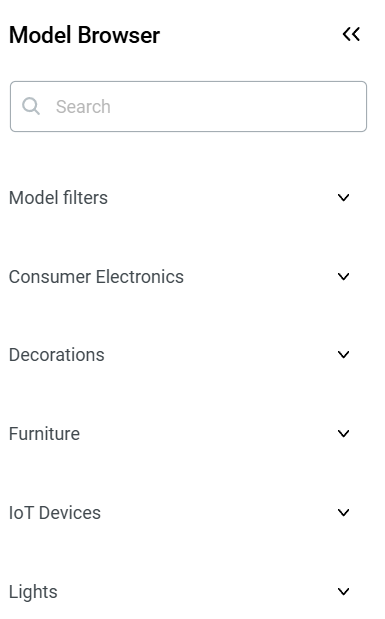
A **Model Browser** will open automatically, here you will find all the available models, grouped into categories.

Before Adding Virtual Models into the space, first we will create a new **layout** (*to group and categorize the models.*)

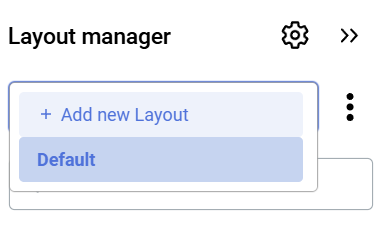
- Press the **Layout ![image.png](https://docs.sim-on.com/uploads/images/gallery/2025-01/scaled-1680-/3f6image.png) Button** *(located in the top right corner)* to reveal the **Layout manager** side window.
- Open the **Layout list** and **Add new Layout**.  
      
    ![image.png](https://docs.sim-on.com/uploads/images/gallery/2025-01/scaled-1680-/WNmimage.png)
- Name the layout "**Bistro Preview**"  
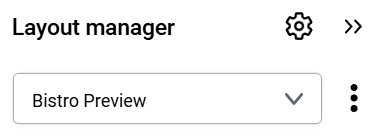
      
    ![image.png](https://docs.sim-on.com/uploads/images/gallery/2025-01/scaled-1680-/Eohimage.png)

</td><td style="border-width: 0px;"></td><td style="border-width: 0px;">![image.png](https://docs.sim-on.com/uploads/images/gallery/2025-01/scaled-1680-/Q4Mimage.png)

</td></tr></tbody></table>

##### **Model placement**

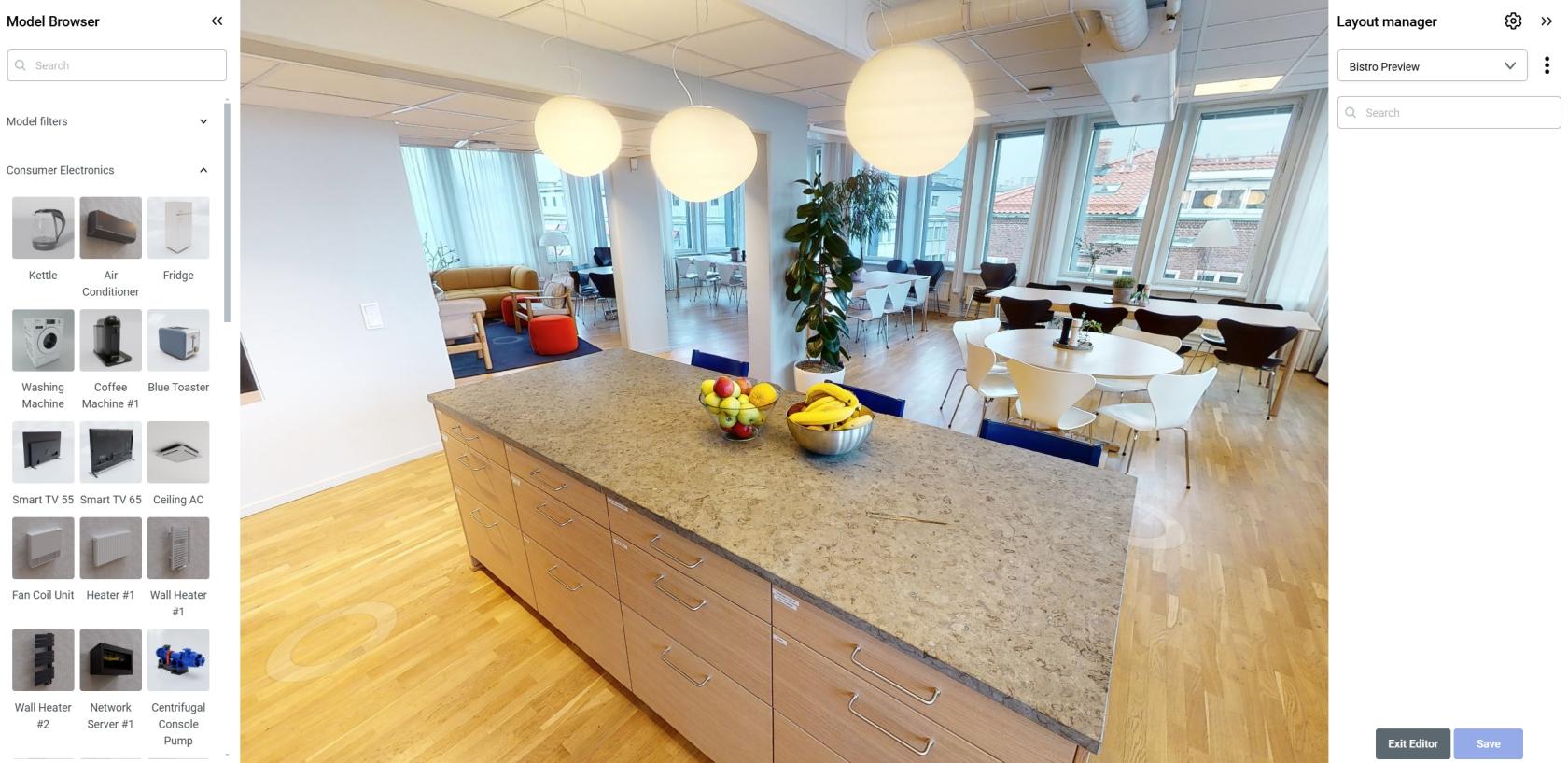
With new Layout created, it is automatically selected. You can hide the Layout manager to free up space from the viewport.

![image.png](https://docs.sim-on.com/uploads/images/gallery/2025-01/scaled-1680-/10Wimage.png)Now we will place a few models in the **Bistro room** in the tutorial project space. Let's start with the "**Blue Toaster**" in the "Consumer Electronics" section (*which should be opened by default*)

- **Hover over** the **Thumbnail** of the model and **click it.**

You will notice two things:

1. **The model** is now **following your cursor** and tries to **align itself** to the space.
2. A new "**options window**" appeared in the bottom section of the viewport.

![simon_3dtut_placement.gif](https://docs.sim-on.com/uploads/images/gallery/2025-09/simon-3dtut-placement.gif)

First, let's place the model on some steady surface. Right to the fruit bowls, on the kitchen counter seems ideal. **Left Click** to place the model. With the model placed, **colored Arrows and Squares** will appear (*as seen below.*) What you see is a standard 3D Software "**Transformation gizmo**" (<span style="color: rgb(126, 140, 141);">*color coded transformation manipulator,*</span>) in our case the "**Move**" version.  
  
![image.png](https://docs.sim-on.com/uploads/images/gallery/2025-01/scaled-1680-/uU9image.png)

> The Transformation gizmo allows mouse controlled translation, rotation and scaling in the 3D View. There are separate gizmos for each operation. <span style="color: rgb(126, 140, 141);">*~Blender documentation*</span>

  
It is one of the **two** transformations available to you in the **Interior Designer**, second one being **Rotation**. Now is the perfect time to use it. Select the **Rotation transformation** (*middle button*) through the "**options window.**"

![rotation.jpg](https://docs.sim-on.com/uploads/images/gallery/2025-01/scaled-1680-/rotation.jpg)

We would like to turn the toaster to face our camera view and be aligned with the counter edge. This requires us to turn it horizontally. Knowing this, we will use the **Y axis handle** which is color coded to **green.**

- **Hover over** the **Y axis handle** (*green arch)* so it turns **yellow.**
- **Left Click** and **hold** to turn the model.
- **Move** your cursor to the **Left** until the model is in the desired place.
- **Release** the **Left Click.**

![simon_3dtut_rotation.gif](https://docs.sim-on.com/uploads/images/gallery/2025-09/dA7simon-3dtut-rotation.gif)

Apply the changes (*adding model to the space*) by clicking the "**Save**" button in the **bottom right corner** of the screen.

---

Let's add a second model to the scene.

- In the **Model Browser**, collapse the **Consumer Electronics** section and open **Furniture**.
- Scroll down the list until you find "**Egg shaped chair**"
- Place the model in the open space, on the floor, between two columns

![chair added.jpg](https://docs.sim-on.com/uploads/images/gallery/2025-01/scaled-1680-/chair-added.jpg)

Repeat the process as you see fit. You may also create another Layout and populate it with different models in different places. This way you could switch between them and compare the different visions.

With space populated with models, we can now return to the **3D View** and toggle on the **Interior Designer** models visibility (*Armchair icon located in the top left corner.)* We can then choose different layouts to display inside our space.  
  
![space_with_models.jpg](https://docs.sim-on.com/uploads/images/gallery/2025-01/scaled-1680-/space-with-models.jpg)

*~Space populated with Virtual Models*

<p class="callout info">A great way to use **Interior Designer** is coupling it with **Matterport Defurnish** feature. Giving your space a twist by visualizing it with custom, virtual furniture. To learn more about this option, see the official [<span style="text-decoration: underline; color: rgb(53, 152, 219);">**Matterport Defurnish Documentation**</span>](https://support.matterport.com/s/article/Defurnish-your-Space?language=en_US)</p>

<p class="callout success">You can upload your own models as well, it's explained in <span style="color: rgb(53, 152, 219);">[<span style="text-decoration: underline;">**Interior Designer**</span>](https://docs.sim-on.com/books/3-app-overview/page/interior-editor)</span> page, <span style="text-decoration: underline; color: rgb(53, 152, 219);">**[Custom Models](https://docs.sim-on.com/link/146#bkmrk-uploading-custom-mod)**</span> part  
We recommend checking our **Guide** to <span style="color: rgb(53, 152, 219);">[<span style="text-decoration: underline;">**Best Practices in 3D Graphics**</span>](https://docs.sim-on.com/books/4guides/page/best-practices-in-3d-graphics)</span> before uploading your first models</p>

---

This concludes the Interior Designer tutorial. To learn more about it, see [<span style="text-decoration: underline; color: rgb(53, 152, 219);">**Interior Designer**</span>](https://docs.sim-on.com/books/3-app-overview/page/interior-editor) page.

# Best Practices in 3D Graphics

General practices for successful and problem free model handling within 3D software

---

### Quick Checklist

This is a simplified checklist for submitting 3D models to Simlab software

##### Scene/File Setup

● **System and Display Units** should be set to **Centimeters**; model is **real-world scale**  
● All Geometry is under one group (*No object linking*), and one Layer is named after the scene  
● **No Cameras, Lights**, or anything other than the model’s geometry and materials, should be in the scene  
● All nodes for objects, groups, layers, and materials are **uniquely named** (*no duplicate naming*)  
● All textures should be placed in their own folder titled ‘Textures’ (*or saved into the model file itself **GLB/GLTF***)  
● All textures should have **Relative Paths**

##### Geometry

● No Isolated Vertices, Overlapping Vertices, or Overlapping Faces  
● Xforms, Transform, and Scale are reset, and the model’s overall xform should have its center pivot   
 centered on the origin of the XY Plane and touch the lowest Z point  
● No visible faceting, texture stretching, visible seams, or flipped normals; all objects must contain at least one smoothing group  
● All modifiers besides must be collapsed  
● **UVs** should be **Non-overlapping** and logically **unwrapped** to Maximize Texel Density

##### Textures

● Textures are **8-Bit**, **RGB**, and in **JPG** or **PNG** format  
● Textures are square resolution and same resolution is used within a given texture set  
● All Base maps are included for DCC and RT (*if applicable*)  
● Textures follow naming conventions and are plugged into correct slots  
● Texture map contribution is set to 100%  
● Texture Gamma for all maps is set correctly (*Automatic or Override 1.0*)

##### Materials

● All Geometry has a material applied of the correct type  
● Materials do not contain any maps or procedural nodes that are not listed in this document  
● Normal Bump node must be used for all Normal Maps  
● If Refraction is used, all settings should be correctly configured

<p class="callout info">Preparing 3D models is a complicated task, if you do not have prior experience doing so, we recommend using premade models from 3D shops and/or the services of a professional 3D artist</p>

---

---

### Advanced instructions

We recommend following the [**<span style="text-decoration: underline; color: rgb(53, 152, 219);">stem cell modeling requirements article from the 3D website Turbosquid.</span>**](https://resources.turbosquid.com/stemcell/stemcell-3d-modeling-specification/)


##### File format


It is best to share with us models in file formats requested by **specific software.**

**SIM-ON**: GLB, GLTF

**STAGES**: OBJ, FBX

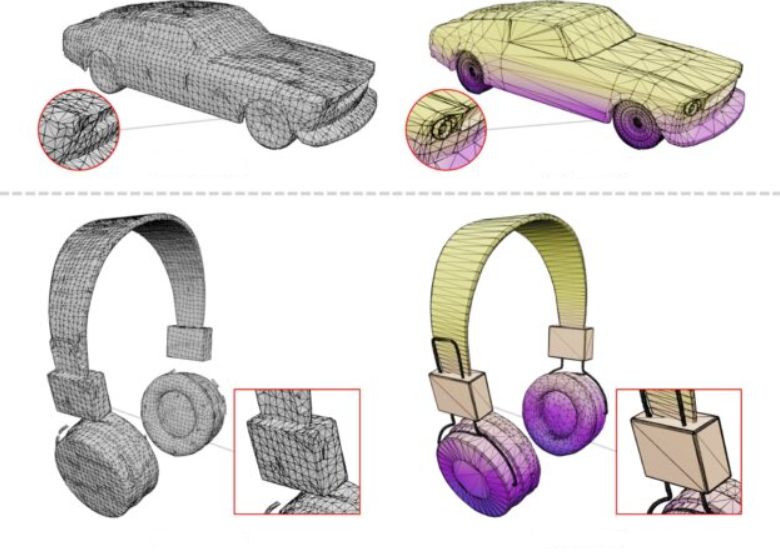
##### Avoid Bad Geometry

● No isolated vertices - inefficient, can cause issues  
● No coincident vertices - cannot run smoothing operations, may pull apart  
● No coincident/coplanar faces - leads to z-fighting in real-time  
● No coincident edges (unwelded seams)  
● No inverted face normals

![image.png](https://docs.sim-on.com/uploads/images/gallery/2025-07/scaled-1680-/lYzimage.png)


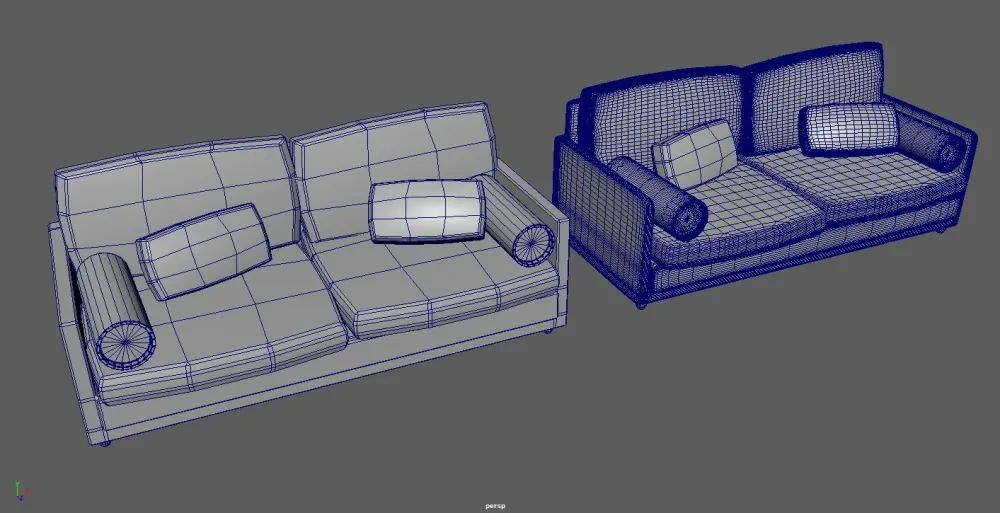
##### Sensible Polygon Detail

We would prefer the models to have as few polygons as possible without sacrificing  
important details as well as ensuring clean/non-faceted silhouettes. This is a hard judgment call.

![image.png](https://docs.sim-on.com/uploads/images/gallery/2025-07/scaled-1680-/SpKimage.png)

##### Maximum Size

The maximum size of the geometry for real-time purposes should be less than 100K vertices.   
Smaller is better, but one has to be realistic.

---

### Transforms
![image.png](https://docs.sim-on.com/uploads/images/gallery/2025-07/scaled-1680-/xiSimage.png)


##### Scale

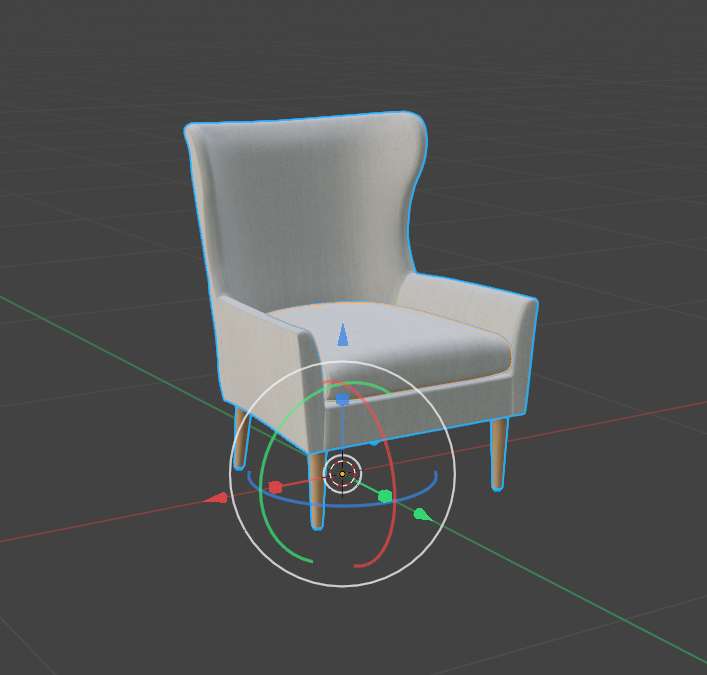
All objects should be created such that they are in real-world scale. This allows for multiple objects to be imported into the same context without scaling issues. It also improves the ease of accurate lighting because it enables lighting based on physical quantities.

##### Position

Objects should be placed such that its natural base is located at 0,0,0.

##### Orientation

The object should be oriented so that its natural front is on the **Y axis**, facing to the positive side of the axis.

---

### Scene


##### Hierarchy

We allow for an internal object hierarchy. It is best if it is logically grouped.  
Nodes should be in English and have meaningful names. Calling things Box001, Box002,  
Plane003 is not the best way.

##### Node Limits

One should aim to only have a sufficient number of nodes but not an excessive  
amount. 5 to 40 nodes per model.

#### UVs

All objects should have UV sets that are natural. We recommend one or two UV sets.

##### Primary

The first UV set is used by the albedo map, normal map, bump map, roughness map,  
metalness map, anisotropy map, and emissive map. If you want to have different map  
repeats you can set the individual texture map tiling and offset values.

##### Unwrapped / Baked

The second UV set, if it exists, is generally unwrapped. It is used by the quantities  
that are baked onto the mesh, such as the light map and the ambient occlusion map.

##### Normals

Each object should have normals specified as either a normal set or smoothing  
groups. Creases can be specified via smoothing groups, very disconnected normal sets, or  
via edge crease values.

---

### Textures

##### Power of 2

Use texture in power of 2, such as 4096x1024, 1024x1024, 1024x512 or 128x512.  
To avoid loss of quality by rescaling of textures, it is best to create your textures in a power of 2 size.

##### Formats

We recommend JPG and PNG texture formats. PNG should only be used for  
textures that require an alpha channel as it does not compress as well as JPG.

##### Maximum Sizes

Real-time applications require texture sizes to be less than 2MB in total per model  
unless the model is uniquely complex.

##### No Procedurals

Procedural textures cannot be correctly transferred between tools, thus we would  
prefer these to not be used.

##### Naming Conventions

Texture maps must be named with the same name as the material they are applied to  
followed by the correct suffix. All texture file names must be suffixed correctly as listed  
below. There must be no text after the suffixes.  
Example: GlossyPlastic\_Diffuse.PNG.

  
Some additional maps may be required when additional effects are present (Self  
Illumination, Opacity, etc.). Follow suffix naming conventions listed below.

<table border="1" id="bkmrk-diffuse-%E2%80%93-srgb%C2%A0metal" style="border-collapse: collapse; width: 70.2381%; height: 127px; border-width: 0px;"><colgroup><col style="width: 33.2579%;"></col><col style="width: 10.6853%;"></col><col style="width: 56.0003%;"></col></colgroup><tbody><tr><td style="border-width: 0px;">Diffuse – sRGB   
Metallness – Linear   
Roughness – Linear  
Ambient Occlusion – Linear   
Normal – sRGB   
Self Illumination – sRGB   
Opacity – Linear </td><td style="border-width: 0px;">  
</td><td style="border-width: 0px;">\_Diffuse

\_Metalic

\_Roughness

\_AO

\_Normal

\_Emissive

\_Opacity

</td></tr></tbody></table>


---

### Materials

![image.png](https://docs.sim-on.com/uploads/images/gallery/2025-07/scaled-1680-/TwZimage.png)

##### Unpacked Logically Separate

Materials should be one actual physical material per material definition. Thus if there  
is plastic and also a metal mesh in your scene these should be represented by two separate  
material definitions rather than a single material definition with packed textures. We can  
pack textures ourselves if we so choose.

##### Color or 100% Maps Per Property

It is best to either use a color or a 100% map per material property rather than using  
a combination. The reason that combinations are problematic is that many tools do not  
interpret the combinations of color and map in the same fashion. Texture map contribution is set to 100%

#### Parameters

Like many modern tools, we support the standard physically based model.   
In particular we recommend using the following parameters:

**Albedo** Also called base. Uses the primary UV set. The surface color. sRGB space.

**Roughness** Uses the primary UV set. Surface roughness, controls both diffuse and specular  
response. Linear space.

**Metalness** Also called Metallic. Uses the primary UV set. The metallic-ness (0 = dielectric, 1 =  
metallic). This is a linear blend between two different models. The metallic model has no  
diffuse component and also has a tinted incident specular, equal to the base color. Linear Space.

**Normal** Uses the primary UV set. Perturbs the surface normal. Uses the standard normal  
map tangent space. Linear space.

**Bump**  
Uses the primary UV set. Perturbs the surface normals in a low quality fashion. Linear space.

**Emissive**  
Uses the primary UV set. Light emitted from the object surface. Specified in Lux. sRGB space.

**Opacity**  
Uses the primary UV set. The opacity of the object, how much can one see what is  
behind the object. This means that it affects all aspects of the object’s interaction with light. sRGB space.

**Displacement**  
Uses the primary UV set. This is a vector quantity that displaces in 3D the surface  
vertices. Linear space.

**Unwrapped**  
These are the unwrapped quantities that are also usually baked.

**Light**  
Uses the unwrapped baked UV set. A baked light that is used as indirect diffuse on  
the surface. Thus it has the effect of lighting the albedo diffuse layer. sRGB space.

**Ambient Occlusion**  
Uses the unwrapped baked UV set. A measure of the accessibility of a point on a  
surface to the environment surrounding an object. So it modulates the contribution of for  
example a light probe or sky dome. It doesn't model shadowing though, so it shouldn't be  
applied versus lights that are not completely surrounding the object. Linear space.