Dashboard
Central hub for managing all the devices, assets, scenes, tasks and events within the space.
Devices
In the Devices view you can see all the devices in the selected rooms or all devices in the project if All Rooms option is selected.
Device List
|
|

Device Details
After clicking on one of the devices, you will see the device details. By clicking the pin  icon you can transport to the device's location, If the device wasn't placed yet, you can do it by clicking on the add icon. icon you can transport to the device's location, If the device wasn't placed yet, you can do it by clicking on the add icon. |
|

Device Settings
|
By clicking settings
and visibility in the 3D view. |
 |
 icon you can change the device's details:
Device Structure
|
You can also see a device structure - it varies for different devices - there can be a few devices connected to one master device, or just one. It depends on the provider's hub structure and you can decide which elements should be visible in the 3D view. |
 |
Assets
An asset is a physical object (that lacks smart connectivity) you, as a user, wish to keep track of in the SIM-ON project space. For example assets, see the screenshot below.
In the Assets view you can see all the assets in the selected rooms or all Assets in the project.

Filters
|
 |
|
|


Selecting an asset tile will reveal it's details. Press "Edit asset" to manage the asset information and files uploaded to it.
|
Example Asset:
|
Asset Creation Side Panel:
|


* IBM Maximo
If you have connected a Maximo provider to your space, you gain an additional feature within Assets to link them with Maximo assets:

|
Adding from existing lets you add
|
Selecting "Add new" will open the following Maximo List to add new link from.  |
 When asset is not linked with Maximo, you will see the following options:
Events
Track maintenance schedules, equipment updates, past actions, ongoing tasks and upcoming activities.
Manage Events within Space. Create, sort and filter existing events through the Events view.
Filters
|
|
|
|


Event creation
|
Event creation panel
|
Example of an Event
|


Scenes
Automate the Devices behavior with various triggers and states within the project.
Scene view

In the Scene view you can see all the scenes available. Scenes can manage different scenarios including turning on the lights on, planning to turn on or off different devices depending on the various triggers. Additionally you can add new scenes from here as well or delete the existing ones.
To delete or edit a scene, click the more options  button on the scene tile.
You need to have appropriate permissions to edit Scenes.
Scene editor

To add a new scene, click the  button. This will invoke the Scene editor view. You need to provide a name, icon, select scene trigger and create scene construction and then save it.
Tasks
Create, manage and assign tasks for other space users.
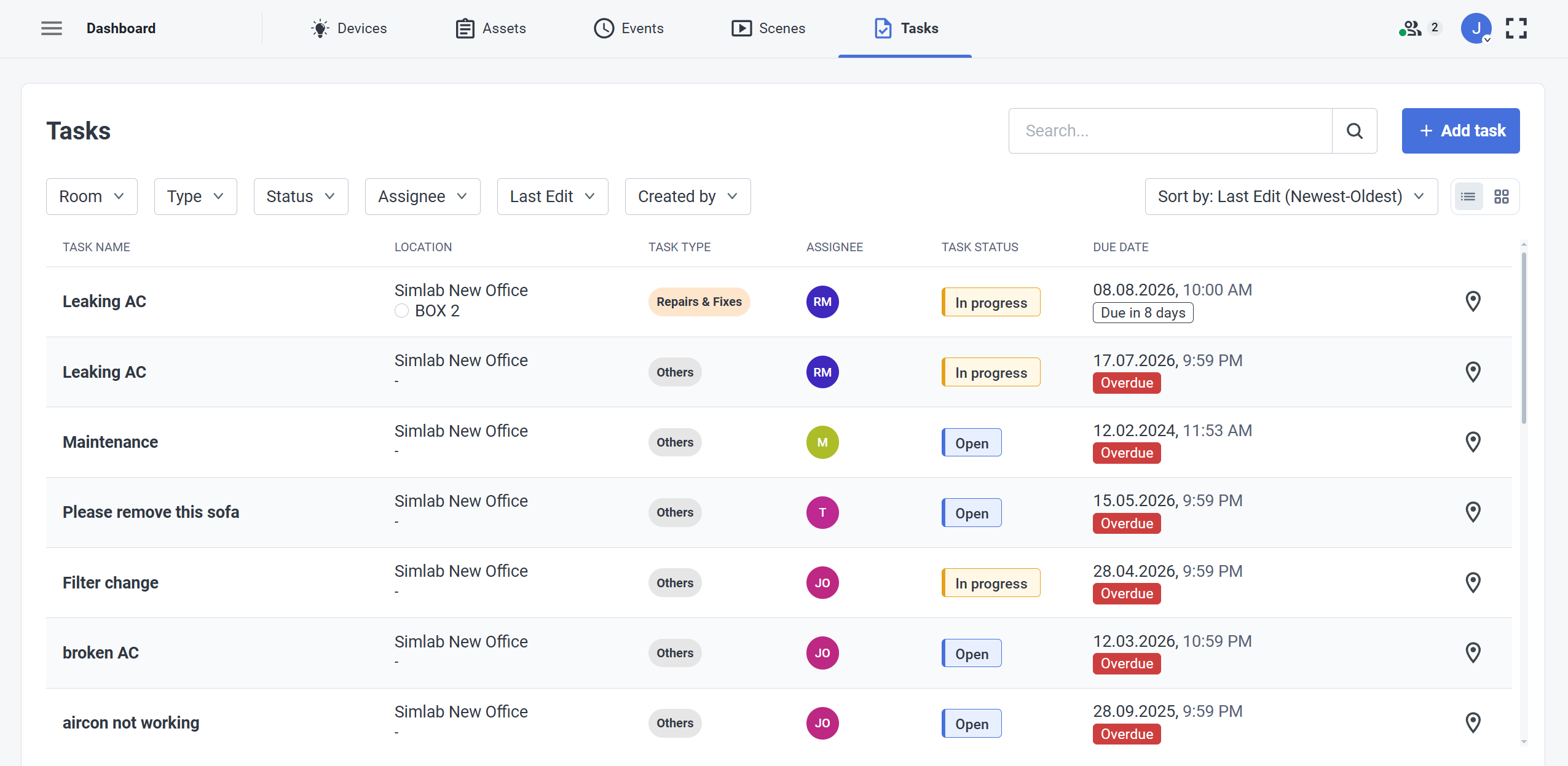
The Tasks view in the Dashboard is a detailed Task management view for the project, where you can see the status of every task together with other necessary information such as:
- Due date
- Assignee
- Task Status and Type
From here, you can easily go to the location of the task, using location pin  button at the right end of the task tile.
Task Creation
|
|
Extended Task options view:
|


To edit a task, click on the more options  button located at the end of the Task tile.
This will open a new window with following options:

Filter, Sort and Search

 The ticket management functions are fitted with comprehensive filter, sort and search functionality. Handle large amounts of tickets by:
- Room
- Ticket Type
- Ticket Status
- People Assigned
- Date Range
- Original Creator
Resources*
This View is specific only to IBM Maximo provider. See how to connect an IBM Maximo provider
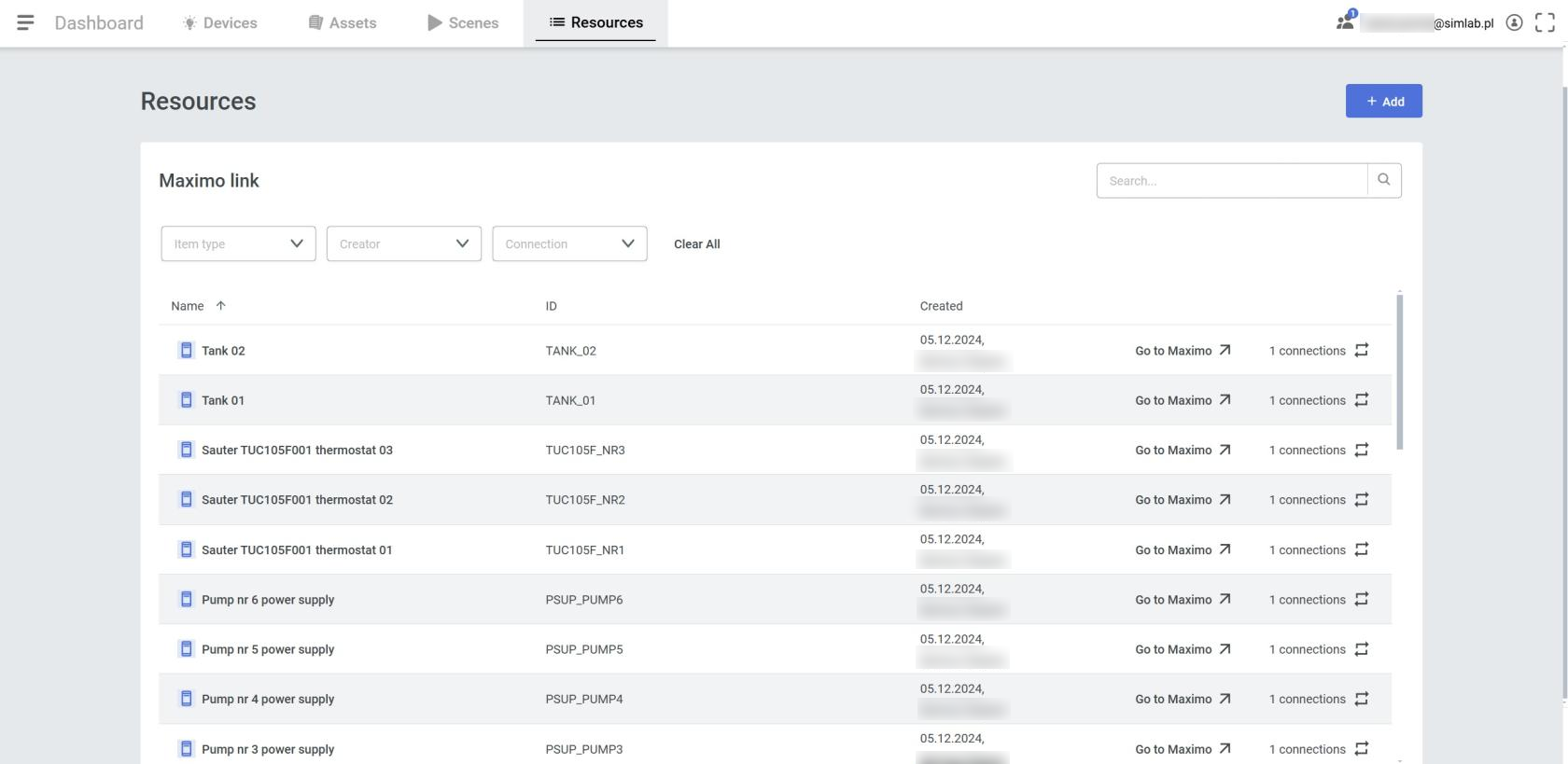
Manage Maximo links, and asset connections
Inspecting a Maximo item shows currently linked assets, together with a quick access to their location. Additionally, we can go directly to the linked item in the Maximo site.

Adding Maximo Link
From this panel you can also "pre-add" Maximo items for easier linking/management in the future. Press the " + Add " button
With the revealed panel, we must choose the Maximo system we want to list items from and select the desired one. The name of an item can be changed for the Simon side, but it's not necessary, as it will inherit the name by default.