
Virtual Walk
After creating new project, the next step is to select the 3D Space Provider.
There are three methods of setting up the new 3D space. You can create a visualization of your space based on a Matterport link, NavVis scan, or import one of your Stages from the Stages application.
Matterport
|
By selecting Matterport, you’ll be asked if you want to import rooms for your space from a selected smart home provider or create rooms yourself, then follow up with Matterport scan Linking. |

NavVis
|
By selecting the NavVis, you’ll be asked if you want to import rooms for your space from a selected smart home provider or create rooms yourself, then follow up with NavVis scan Linking. |

Stages
|
|

Adding Virtual Walk
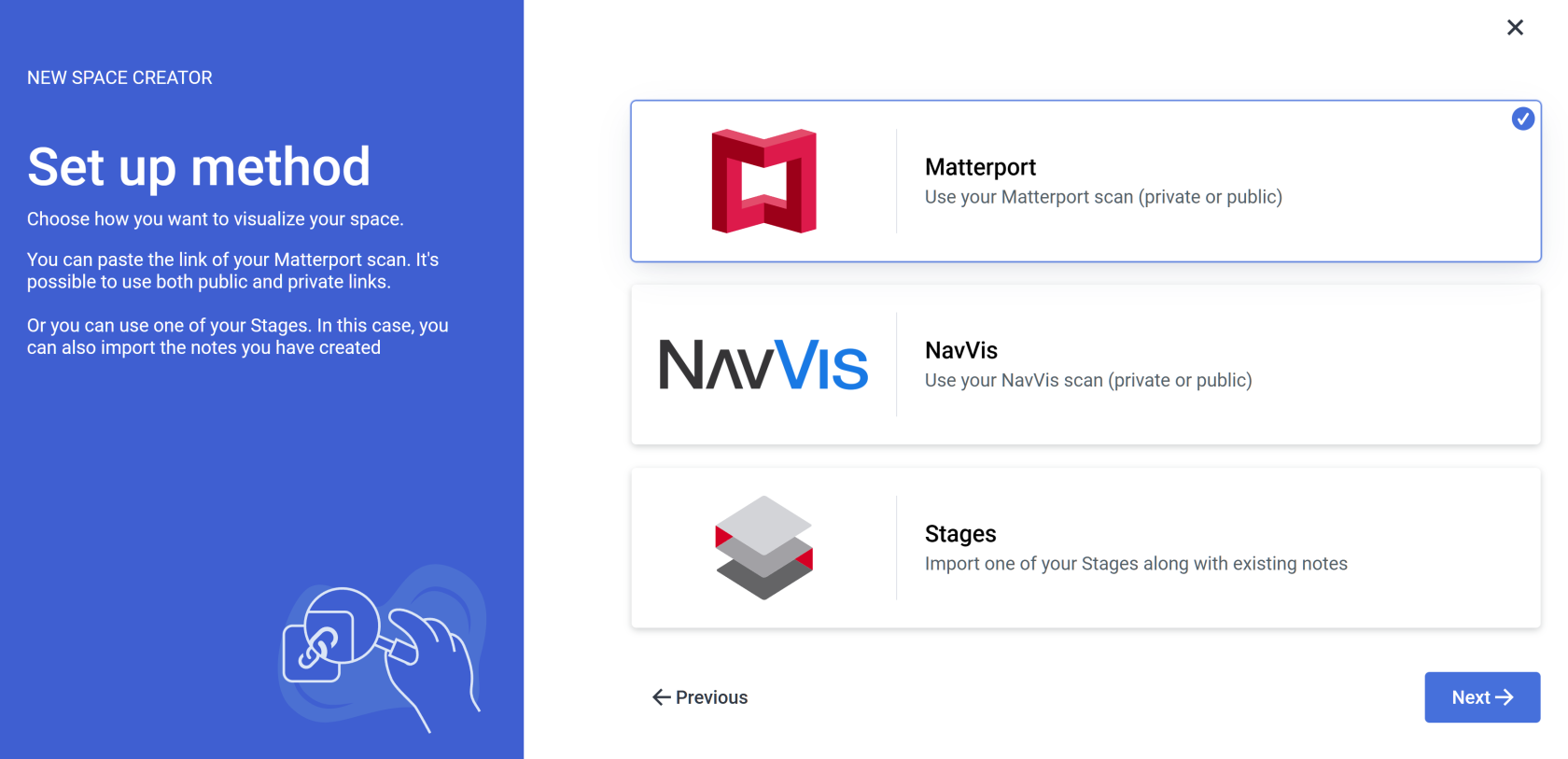
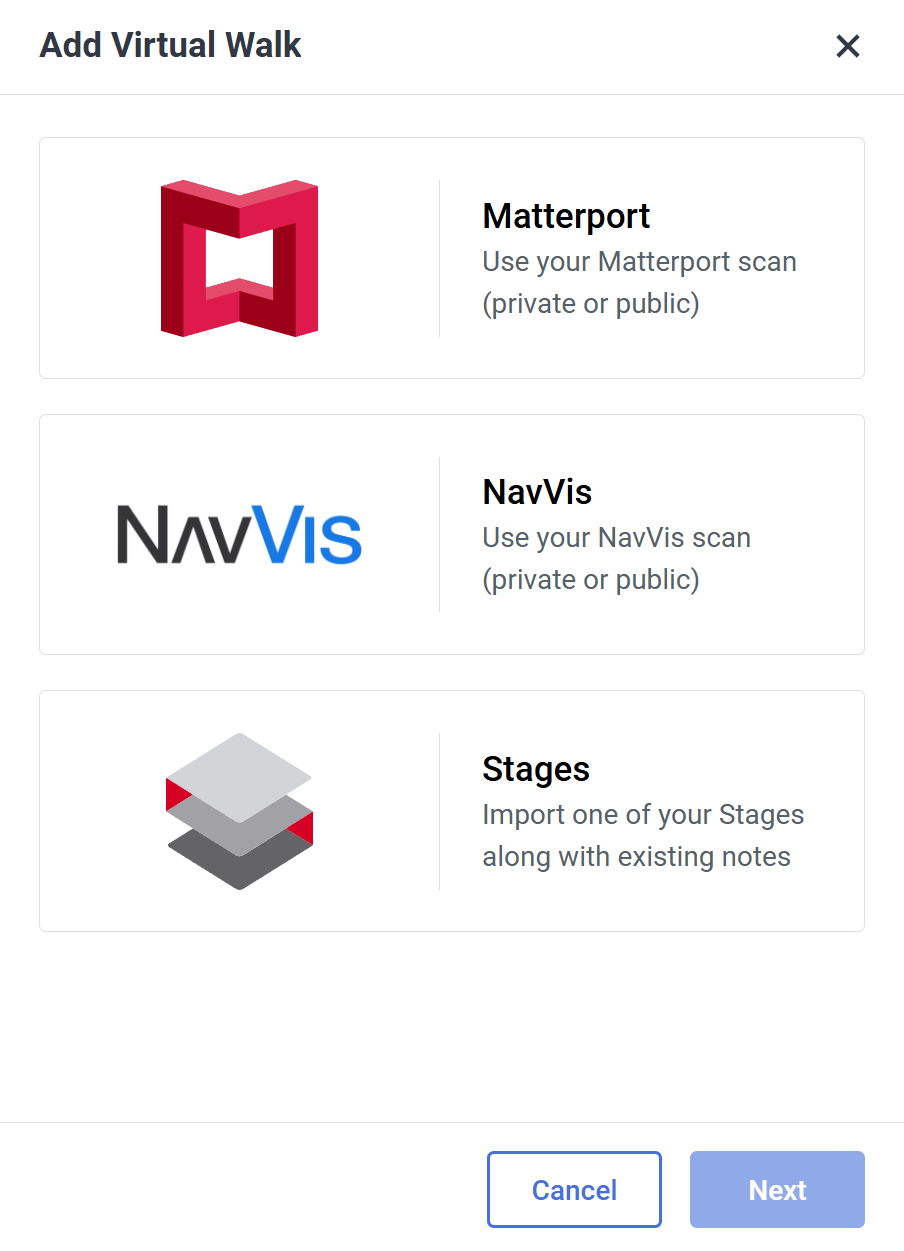
By selecting Matterport you will begin space creation based on the Matterport scan.
If you already have a Stages project set up, it is recommended to use the STAGES METHOD
The process is the same for all Providers SIM-ON works with. For the presentation purposes, we will be using Fibaro (NICE) and present the whole process of adding a new space with importing devices, setting sweeps to rooms and adding and renaming the devices for the space